


Introduction
A bad calendar embed can quietly cost you trust, bookings, and credibility. And for many WordPress sites, Google Calendar is exactly where things go wrong.
How to embed Google Calendar in WordPress without ending up with a lame, not-so-user-friendly calendar is a problem many business owners face sooner or later.
Google Calendar has been designed to run your daily tasks, but the very moment you add it to your website, you see that it looks outdated, without any flexibility, and fails to reflect a professional brand.
At this point, you become determined that you should either use the free Google Calendar iframe, without any option, or go for a professional way of transforming your calendar into an interactive event system.
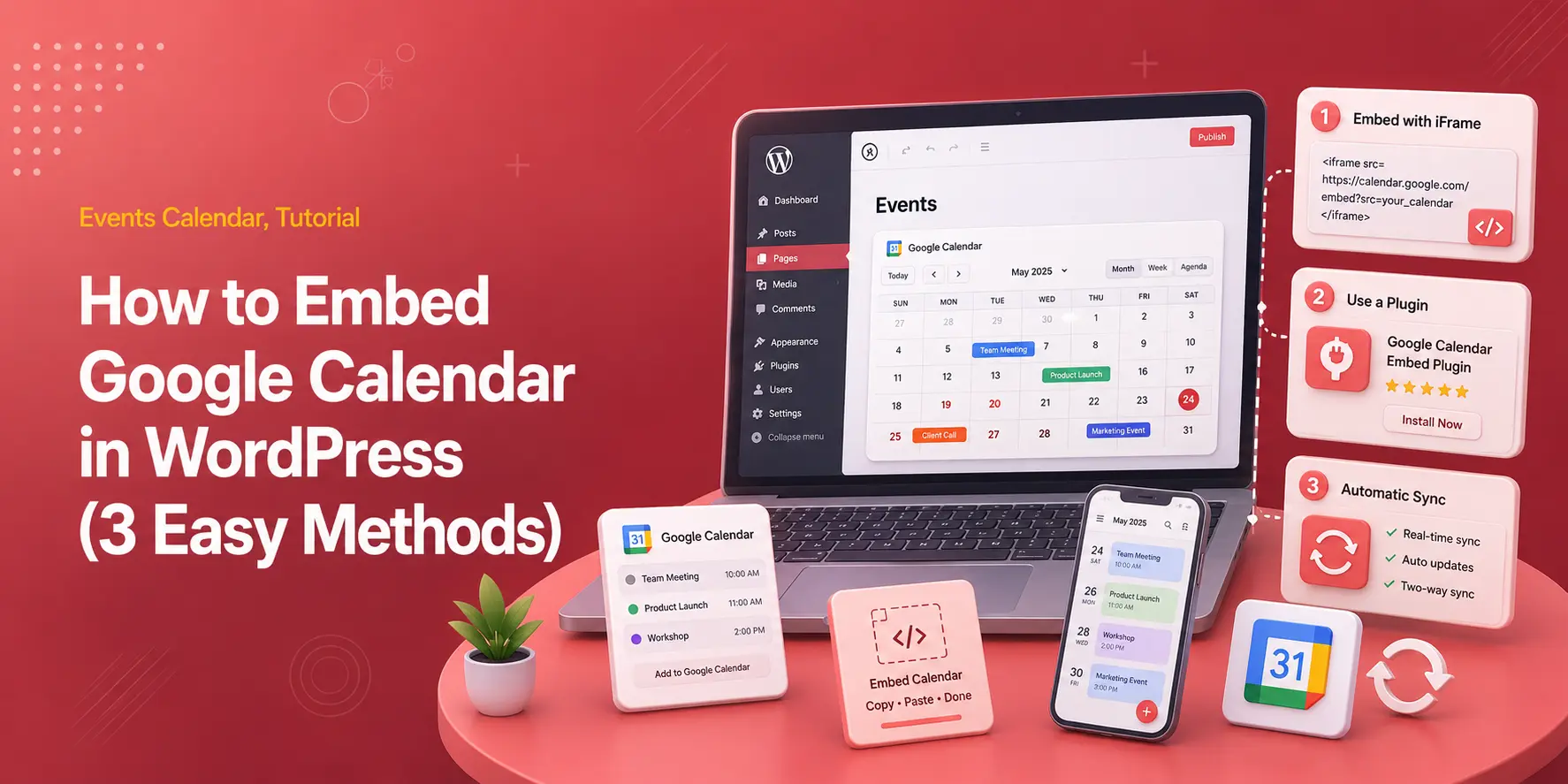
In this guide, we have tried to break down both approaches and show you how to import and sync Google Calendar with WordPress.
You are about to learn why the default iframe falls short, how WordPress Google Calendar plugins solve these limitations, and how to create a calendar that looks professional, adapts to mobile devices, and supports real business needs.
Method 1: The “Manual” Way Using the Standard Google Calendar Embed
Most users who search for embed Google Calendar expect to find a simple, free solution. It is the fastest way to display events on a WordPress site and requires no plugins or advanced configuration. For basic visibility, it works. But for a professional presentation, it quickly shows its limits.
How to embed Google Calendar in WordPress using the manual iframe method
The manual method works with Google’s built-in feature and WordPress’s HTML block. The process is straightforward and can be completed in just a few minutes.
Steps to embed Google Calendar manually:
- Go to Google Calendar and open Settings
- Select the calendar you want to display
- Locate the “Integrate calendar” section
- Copy the provided Embed Code (iframe)
- Open your WordPress page or post
- Paste the iframe into a Custom HTML block
The reason that many beginners start here is that using this approach, you can import Google Calendar to WordPress without any need to install additional tools.
“The iframe works, but it was never designed to be a front-facing booking or event system.”
What the embedded Google Calendar looks like
After publishing your embedded calendar, you usually face a different reality—especially on mobile devices. You’ll see that the layout often appears cramped, text becomes hard to read, and users must scroll within scrollable frames.
This is exactly the point that many site owners realize that displaying a calendar is not the same as using one effectively.
The limitations that make the standard embed unsuitable for business use
While the manual embed satisfies the basic requirement of showing events, it introduces several critical drawbacks that cannot be resolved with styling or minor adjustments.
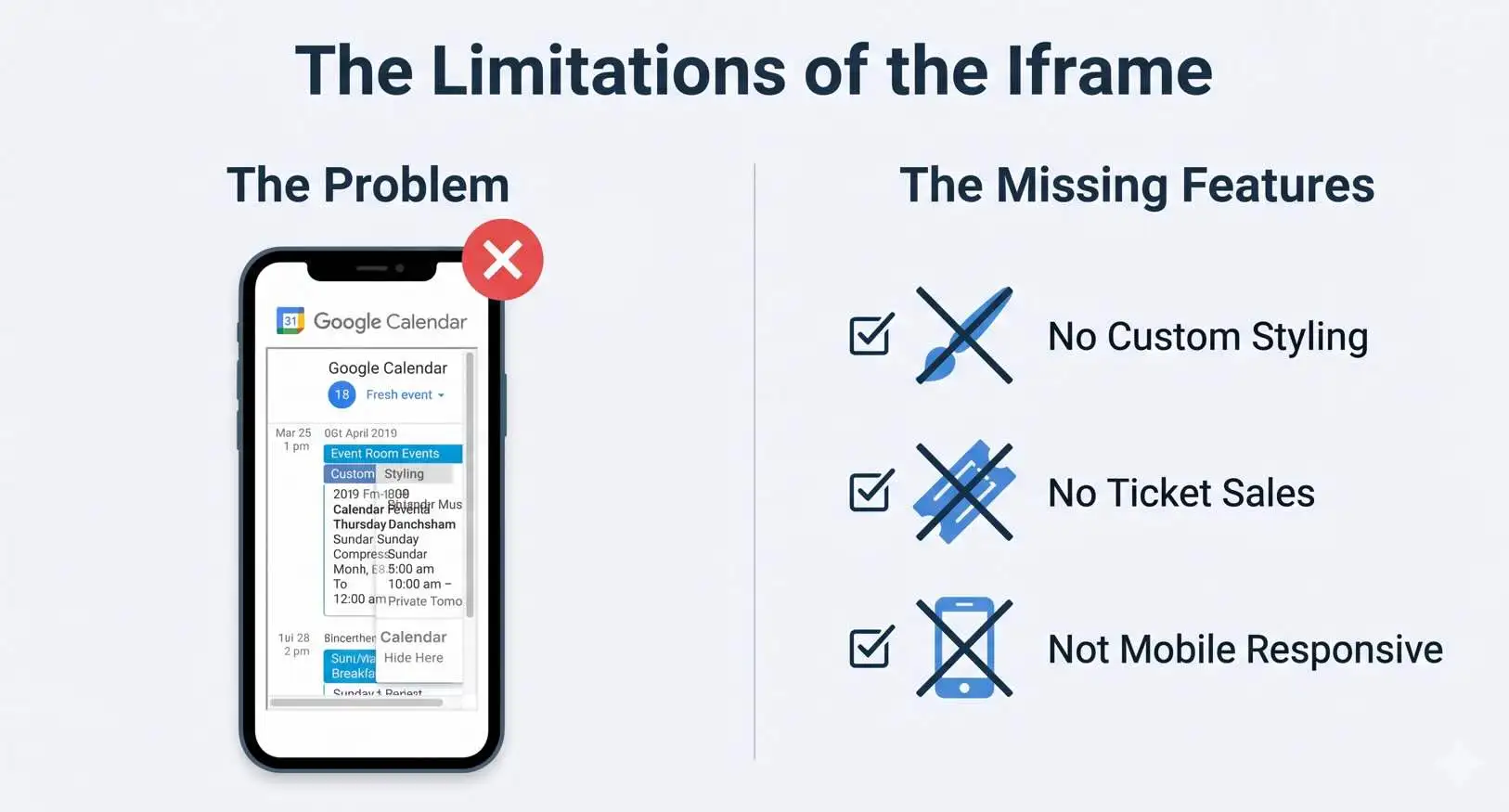
Key limitations of the standard Google Calendar iframe:
- Colors and design cannot be customized to match your brand
- The layout is not truly mobile-responsive
- Users cannot book events or purchase tickets
- No control over how events are presented
- It functions as a static view rather than an interactive calendar
| Feature | Standard Google Embed |
| Mobile responsiveness | Limited |
| Custom styling | Not available |
| Ticket sales | Not supported |
| Booking functionality | Not supported |
| Brand consistency | Poor |
Method 2: The “Professional” Way Using Modern Events Calendar (MEC)
This method turns Google Calendar events into a system that looks like part of your brand
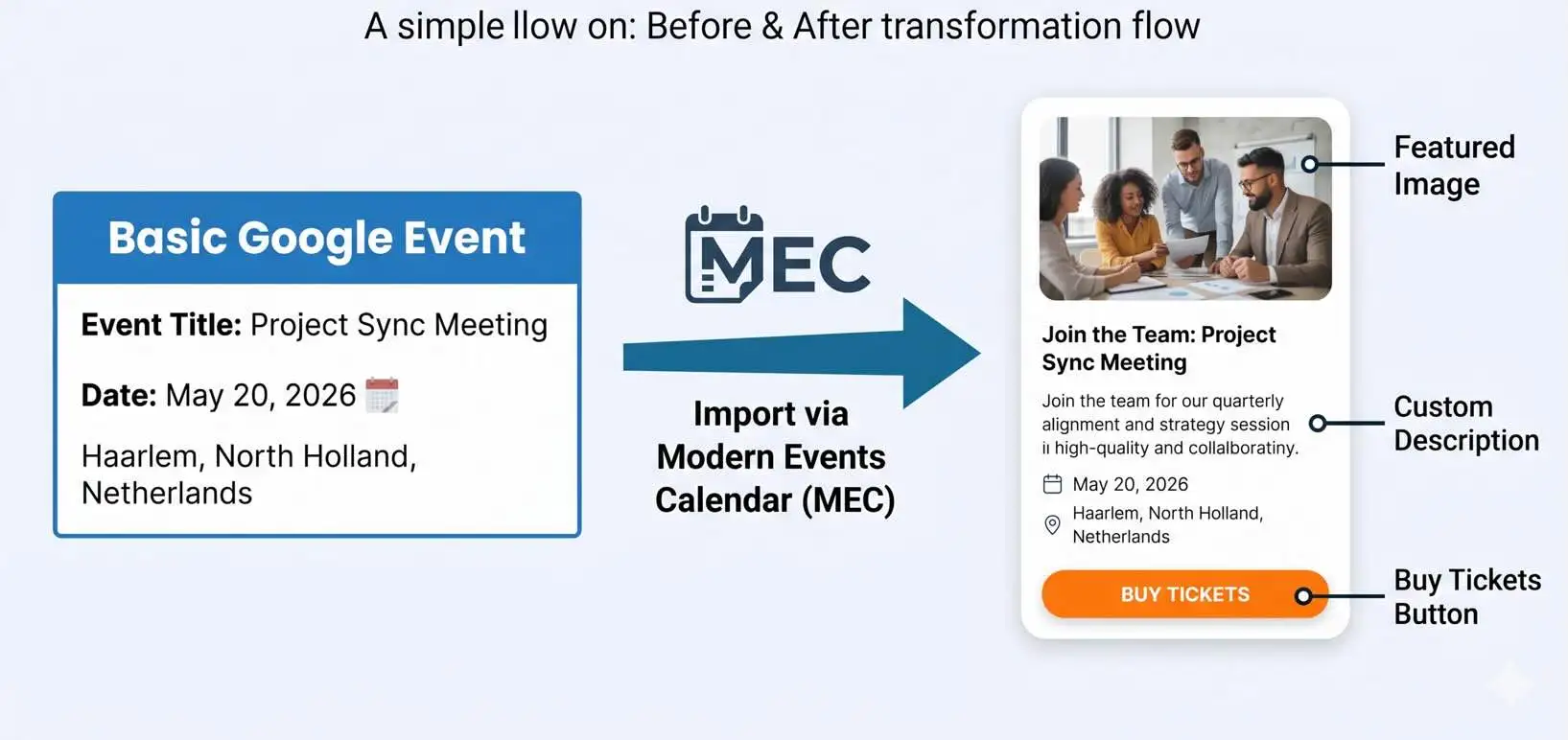
If your goal is not just to display events but to present them professionally, the professional approach begins by importing your Google Calendar into a system designed for WordPress. Instead of embedding a static calendar, this method allows you to sync Google Calendar with WordPress and display events using layouts that match your brand, adapt to mobile screens, and support real engagement.
The promise is simple: your Google events stop looking like an external widget and start functioning as a native part of your website.
How importing Google Calendar events into WordPress with MEC works
Modern Events Calendar (MEC) provides a structured way to import Google Calendar events into WordPress while preserving full design and functional control. Even the free version supports basic Google Calendar imports, making it accessible for beginners and small businesses.
How the process works:
- Install the Modern Events Calendar (MEC) plugin
- Connect your Google Calendar using MEC’s import settings
- Import your events into WordPress
- Display them using professional layouts such as Grid View or Masonry View
Once imported, events can be displayed using visually appealing templates instead of a fixed iframe layout.
“At this stage, the calendar stops being embedded content and becomes part of your website.”
Why imported Google Calendar events become more powerful inside WordPress
The most important shift happens after the import. An event imported into MEC is no longer just a Google Calendar entry—it becomes a WordPress post. This single change unlocks capabilities that the standard Google Calendar embed cannot offer.
What this transformation enables:
- Add a featured image to each event for visual impact
- Include a Buy Ticket or Book Now button
- Assign speakers, organizers, or locations
- Control event descriptions with the WordPress editor
- Apply consistent branding across all events
| Capability | Google Calendar Embed | MEC Imported Event |
| Featured images | Not supported | Supported |
| Ticket sales | Not available | Available |
| Speakers & organizers | Not available | Supported |
| Design layouts | Fixed | Multiple views |
| WordPress integration | None | Native |
This approach solves the core frustration most site owners experience: the inability to control how events appear and function on their website.
Why this method works better for growing businesses
By using a WordPress Google Calendar plugin like MEC, you retain Google Calendar as your backend scheduling tool while presenting events through a system built for websites. Visitors see a polished, mobile-friendly event layout, while you gain flexibility, scalability, and monetization options.
This is the point where a calendar stops being informational and starts supporting business goals.
Method 3: Eliminating Manual Updates with MEC Advanced Importer
Manual Google Calendar imports create a maintenance problem over time
The professional method works well—until your calendar changes. Standard Google Calendar imports are typically manual, which means every new event, time change, or cancellation requires you to re-import data into WordPress. For businesses that update schedules frequently, this quickly becomes inefficient and error-prone.
If an event is added to Google Calendar tomorrow, your website will not reflect that change unless you intervene. Over time, this gap leads to outdated listings, missed bookings, and confusion for visitors.
“A calendar that requires constant manual updates is no longer saving time—it is creating more work.”
How MEC Advanced Importer Addon solves the syncing problem
The MEC Advanced Importer Addon addresses this limitation by turning Google Calendar into a live data source rather than a one-time import. Instead of repeatedly importing events, you establish a continuous connection between Google Calendar and WordPress.
Once configured, your website stays synchronized automatically.
What the Advanced Importer changes:
- Events are updated without manual re-imports
- Schedule changes appear on your site automatically
- Google Calendar remains your single source of truth
This is the point where syncing Google Calendar with WordPress becomes practical at scale.
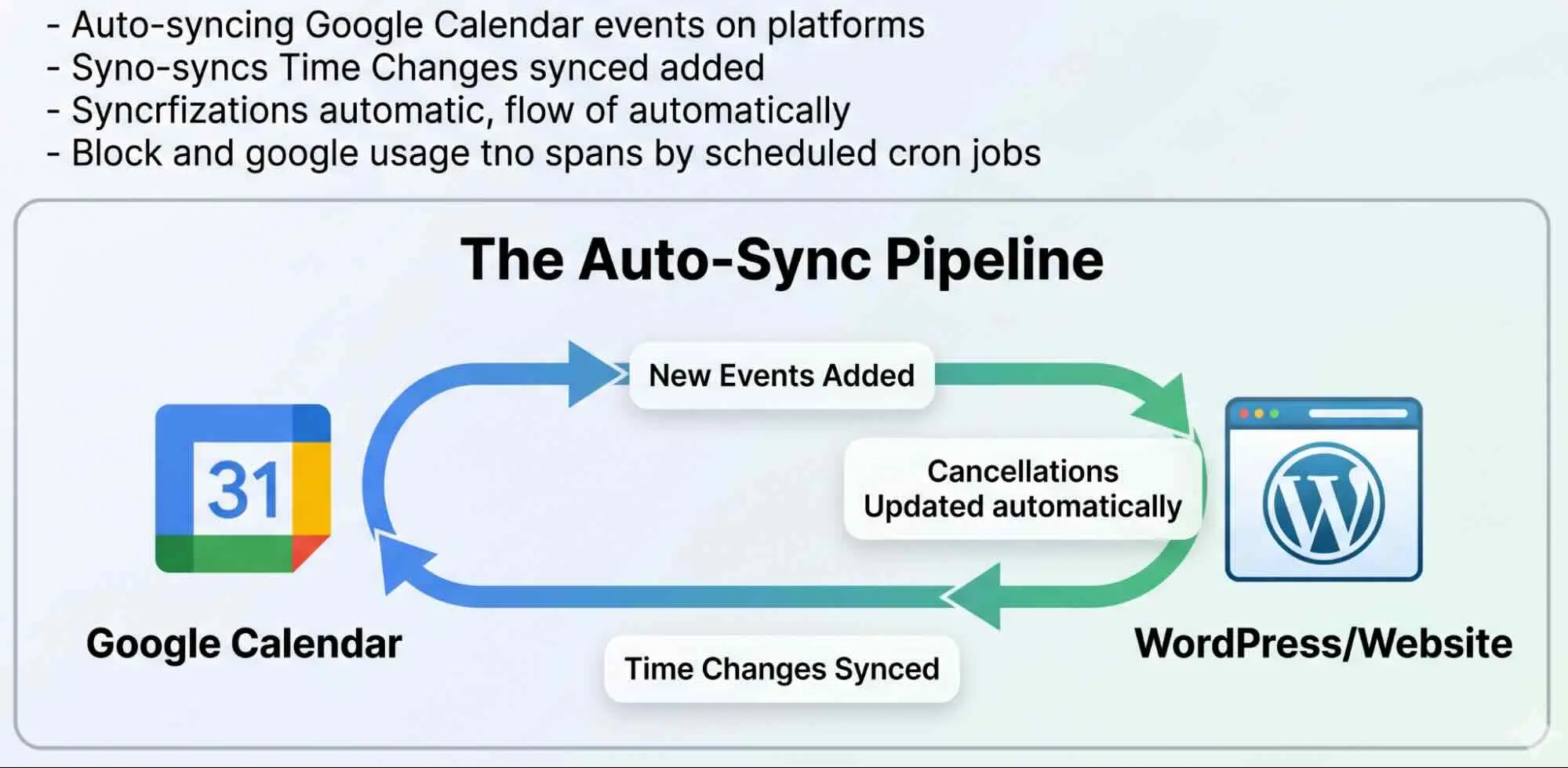
Auto-syncing Google Calendar events using scheduled cron jobs
One of the most valuable features of the Advanced Importer is automated syncing through cron jobs. This allows your website to check Google Calendar at set intervals and update events accordingly.
Auto-sync capabilities include:
- Hourly, daily, or custom sync intervals
- Automatic updates for new, edited, or removed events
- No need to log in and re-import data manually
You update Google Calendar once, and your website reflects those changes automatically.
Managing multiple Google Calendars from a single WordPress site
Many businesses rely on more than one calendar. For example, public classes may be stored in one calendar, while private sessions or internal events exist in another. The Advanced Importer allows you to connect and manage multiple Google Calendars simultaneously.
Examples of supported use cases:
- A Yoga Classes calendar for group sessions
- A Private Sessions calendar for one-on-one bookings
- A Workshops or Events calendar for special dates
All calendars can be imported, displayed, and synced within the same WordPress installation.
Importing only the events you actually want to display
Not every Google Calendar event belongs on a public website. The Advanced Importer includes filtering options that allow you to control which events are imported based on defined criteria.
Filtering options include:
- Import only events containing specific keywords (e.g., “Public”)
- Exclude private or internal events automatically
- Maintain clean, visitor-focused event listings
| Feature | Standard Import | Advanced Importer |
| Automatic syncing | Not available | Available |
| Multiple calendars | Limited | Fully supported |
| Event filtering | Not available | Supported |
| Maintenance effort | High | Minimal |
This feature transforms Google Calendar from a static source into a fully automated event pipeline—reducing maintenance while improving accuracy and reliability.
Comparison Table: Google Embed vs. MEC
| Feature | Standard Google Embed (Iframe) | Modern Events Calendar (MEC) |
| Visuals | Basic, old-fashioned text list. | Modern Grids, Carousels, Sliders. |
| Mobile View | Often cuts off or requires scrolling. | Fully Responsive. |
| Ticketing | ❌ None. | ✅ Sell tickets & accept payments. |
| Customization | ❌ None (Blue text). | ✅ Full color/brand control. |
| Syncing | Real-time (but ugly). | Auto-Sync (with Advanced Importer). |
Conclusion
There are two clear ways to embed Google Calendar in WordPress, and each serves a different purpose.
The standard iframe is acceptable for sharing a basic schedule with internal teams, but it offers no design control, limited mobile usability, and no way to support bookings or ticket sales.
For customer-facing websites, this approach quickly becomes a limitation.
Using Modern Events Calendar changes that dynamic.
By importing Google Calendar events into WordPress, you gain full control over presentation, branding, and functionality.
Events become editable WordPress content, and with the Advanced Importer Addon, your calendar stays automatically synced—eliminating manual updates while ensuring accuracy across your site.
If you want your calendar to attract customers and support business growth, explore the MEC Advanced Importer Addon and see how it can automate your workflow.
If you have questions or use cases to share, leave a comment below. For more practical guides on WordPress event management and optimization, subscribe to our newsletter and follow us on social media for updates.
1. How to embed Google Calendar in WordPress without using code?
The easiest way to learn how to embed Google Calendar in WordPress without coding is by using a WordPress Google Calendar plugin. Plugins allow you to visually add calendars, customize their design, and display events using shortcodes or blocks—no iframe or HTML editing required.
2. What is the best WordPress Google Calendar plugin to use?
The best WordPress Google Calendar plugin depends on your needs, but most modern plugins allow you to import Google Calendar to WordPress, customize layouts, and ensure mobile responsiveness. Premium plugins often add features like event filtering, booking options, and better styling than the default Google iframe.
3. Can I import Google Calendar to WordPress and keep it updated automatically?
Yes, you can import Google Calendar to WordPress and keep it updated by using a plugin that supports live syncing. These tools ensure that any changes made in Google Calendar—such as new events or updates—are automatically reflected on your WordPress site.
4. How do I sync Google Calendar with WordPress in real time?
To sync Google Calendar with WordPress, you need to connect your calendar via a plugin that uses Google’s calendar feed or API. Once synced, your events stay consistent across platforms, eliminating the need to manually update your website calendar.
5. Is embedding Google Calendar with an iframe a good solution?
While using an iframe technically shows how to embed Google Calendar in WordPress, it has major limitations. Iframes are difficult to style, often look outdated, and are not mobile-friendly. Using a WordPress Google Calendar plugin provides far more flexibility, better user experience, and professional design options.
6. Why should I use a plugin instead of manually embedding Google Calendar in WordPress?
A plugin-based approach makes it easier to import Google Calendar to WordPress, customize the appearance, and sync Google Calendar with WordPress automatically. Unlike manual embeds, plugins are built for modern websites and support responsive design, better performance, and advanced features like event categories or booking.