
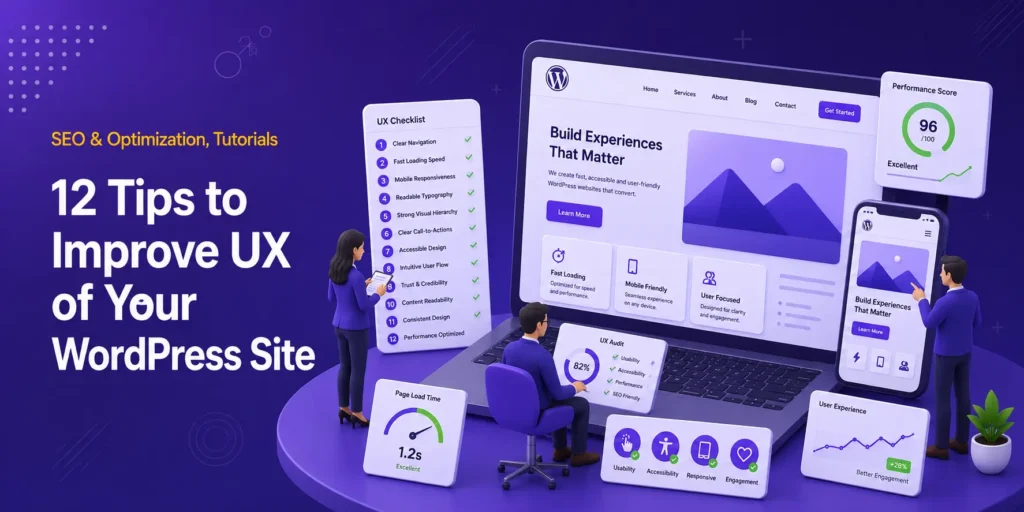
User Experience (UX) refers to how visitors feel when interacting with your website. It encompasses everything from how quickly pages load to how intuitively users can find information and take action.
In 2026, users are more impatient than ever. Studies show that 53% of mobile visitors abandon a site if it takes longer than 3 seconds to load, and bounce rates can jump significantly with even small delays. Poor UX leads to lost visitors, lower conversions, and frustrated users who won’t return. This is why improving the user experience of your WordPress site is essential.
What are the Benefits of Good UX?
- Higher engagement and time on site
- Better conversion rates (sales, sign-ups, leads)
- Improved SEO (Google favors fast, mobile-friendly, accessible sites)
- Increased trust and brand loyalty
- Lower bounce rates and support queries
Quick Overview: Key UX Elements for WordPress
| Priority | Why It Matters | Quick Win for WordPress |
| Loading Speed | Users leave after ~3 seconds | Lightweight theme + caching plugin |
| Mobile Responsiveness | Most traffic is mobile | Test with Google’s Mobile-Friendly Tool |
| Clear Navigation | Reduces confusion | Simple menu + search bar |
| Readable Content | Improves scannability | Proper headings + whitespace |
| Strong CTAs | Guides user actions | Distinct buttons with action words |
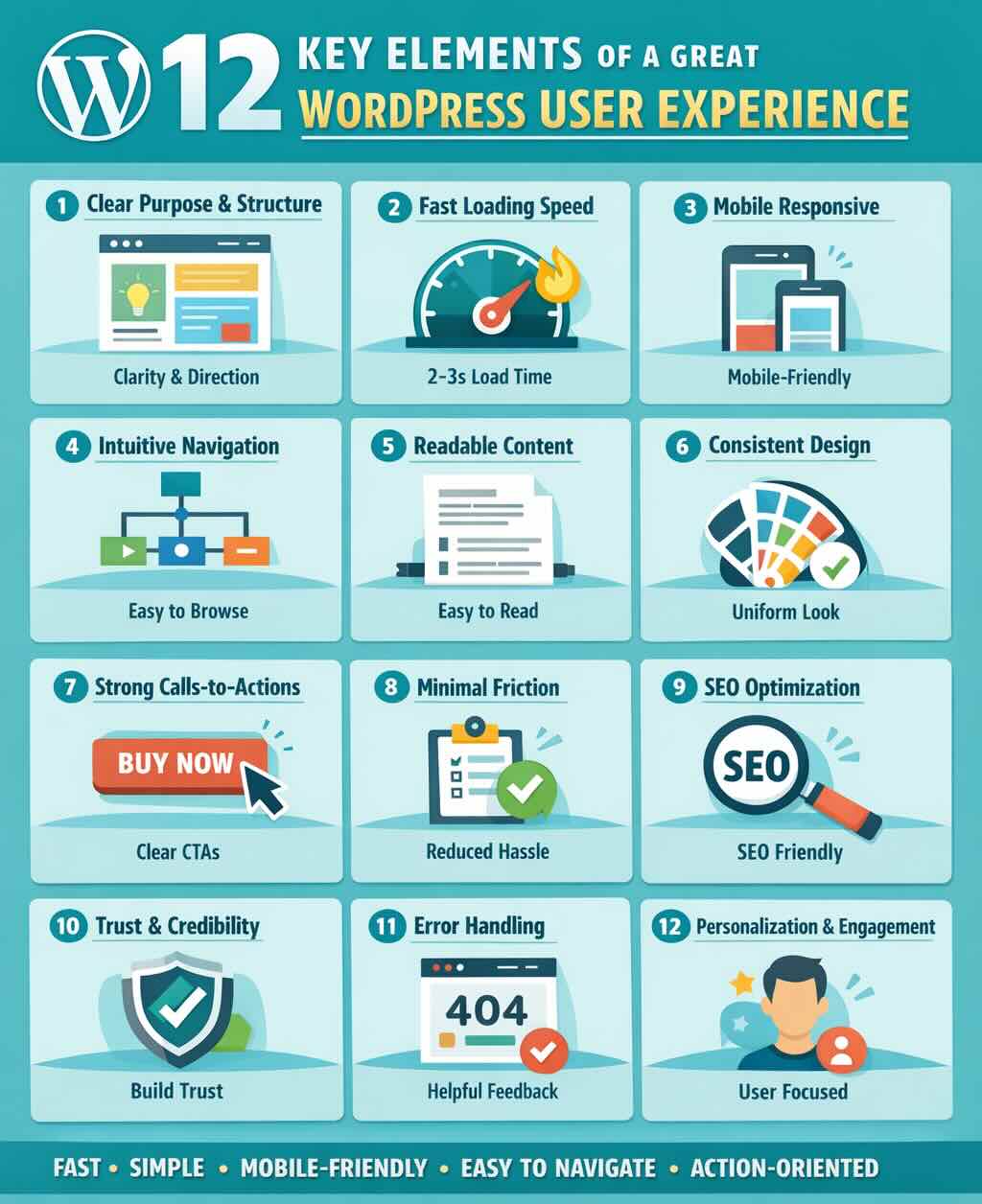
12 Things You Need to Take Care of For a Better User Experience
1. Clear Purpose & Structure
Users should instantly understand what your site is about, what they can do there, and where to go next.
Best practices:
- Strong homepage headline + clear value proposition (above the fold)
- Logical page hierarchy with Full Site Editing (FSE) in Gutenberg
- Simple, predictable navigation menu (5–7 items max)
2. Fast Loading Speed
Speed is critical; 47% of users expect a site to load in 2 seconds or less, and delays directly affect bounce rates.
Key factors:
- Optimized images (compress, use WebP/AVIF, lazy loading)
- Lightweight themes like Astra, Kata, Neve, or Kadence
- Caching plugins: WP Rocket (premium favorite), LiteSpeed Cache (excellent free option on compatible hosting), or FlyingPress
- Minimize plugin bloat and enable Core Web Vitals optimizations
3. Mobile Responsiveness
Mobile accounts for the majority of web traffic in 2026. A good UX means your site feels native on phones.
Essentials:
- Fully responsive layout that adapts to all screen sizes
- Large, easy-to-tap buttons and readable text (no zooming required)
- Mobile-first design approach using block themes
4. Intuitive Navigation
Users shouldn’t have to think hard to move around your site.
Guidelines:
- Keep main menus simple with descriptive labels
- Add breadcrumbs on deeper pages
- Include a prominent search bar for content-heavy sites
- Use clear, predictable link styles
5. Readable & Accessible Content
Content must be easy to scan and inclusive for all users.
Tips:
- Short paragraphs, subheadings (proper H1–H3 structure), bullet points, and ample whitespace
- Good color contrast and accessible fonts (minimum 16px body text)
- Follow WCAG guidelines for accessibility — increasingly important for SEO and legal compliance
6. Consistent Design
Consistency builds trust and makes your site feel professional.
Focus on:
- Uniform colors, typography, and button styles
- Repeating layout patterns across pages
- Cohesive visual language (consider micro-interactions for polish without slowing the site)
7. Clear Calls-to-Action (CTAs)
Always tell users exactly what to do next.
Examples: “Buy Now”, “Get Your Free Quote”, “Subscribe Today”
Best practices:
- Make CTAs stand out visually (color contrast, size)
- Place them strategically (above the fold, end of sections, sticky if appropriate)
8. Minimal Friction
Remove anything that slows users down or creates annoyance.
Avoid:
- Excessive popups, long mandatory forms, or forced logins
Instead:
- Use autofill, short forms, guest options (especially for e-commerce)
- Progressive disclosure for complex processes
9. SEO-Friendly Structure
Good UX and SEO go hand-in-hand.
Includes:
- Clean, readable URLs
- Proper heading structure and internal linking
- Fast performance + schema markup
- Plugins like Rank Math or Yoast SEO for guidance
10. Trust & Credibility Signals
Visitors need to feel safe and confident on your site.
Add:
- HTTPS (SSL certificate — non-negotiable)
- Customer testimonials, reviews, and trust badges
- Clear contact info, About page, and privacy policy
11. Error Handling & Feedback
Handle mistakes gracefully to keep users happy.
Examples:
- Friendly 404 pages with search and popular links
- Clear, helpful form validation messages
- Loading spinners or progress indicators
12. Personalization & Engagement (Advanced)
Take UX to the next level with smart features.
Options:
- Related posts/products recommendations
- Dynamic content based on user behavior
- AI-assisted personalization (emerging trend in 2026)
- Flexible design with modern builders like Elementor or native Gutenberg blocks
[Prompt for Infographic]
Create a clean, modern infographic titled “12 Essential Elements for Better WordPress UX in 2026”. Use a numbered vertical or grid layout with icons for each of the 12 points above. Include short titles, one-sentence descriptions, and WordPress-specific tips where relevant. Use a professional color scheme (blues and greens for trust and growth), clean sans-serif fonts, and subtle illustrations. Make it visually scannable and suitable for blog sharing or Pinterest.
Conclusion
Why UX is Important for Users
Great UX respects your visitors’ time and needs. It turns casual browsers into loyal customers by making interactions effortless, enjoyable, and frustration-free.
Quick Checklist to Evaluate Your Website’s UX
A good WordPress site should be:
- ✅ Fast (under 3 seconds load time, strong Core Web Vitals)
- ✅ Simple (clear purpose, minimal clutter)
- ✅ Mobile-friendly (perfect on every device)
- ✅ Easy to navigate (intuitive menus and search)
- ✅ Visually consistent (professional and trustworthy)
- ✅ Action-oriented (clear CTAs and low friction)
Run your site through tools like Google PageSpeed Insights, GTmetrix, and WAVE (for accessibility). Small, consistent improvements can deliver big results in traffic, conversions, and user satisfaction.
Start with speed and mobile optimization; they often give the quickest wins on WordPress.
1. How much does improving UX on a WordPress site usually cost?
Improving UX can be completely free if you focus on optimization (image compression, lightweight themes, proper caching, and cleaning up unnecessary plugins). For faster results, many users invest in premium tools like WP Rocket ($59/year), a good block theme, or professional help for custom design. Small, consistent changes often deliver the biggest improvements without spending money.
2. Which is more important for WordPress UX: speed or design?
Speed is more important. A beautifully designed site with slow loading times will lose visitors before they even see your design. Aim for excellent speed and Core Web Vitals first, then layer on clean, consistent design. The best UX combines both — fast performance with an intuitive and attractive interface.
3. Do I need a page builder like Elementor to improve my WordPress UX?
No, you don’t need a page builder. Many of the best UX improvements come from using lightweight block themes (such as Astra, GeneratePress, or Kadence) with the native Gutenberg editor. Page builders can help create more complex layouts, but they can also add bloat and slow down your site. Use them only if you need advanced design flexibility.
4. How can I test and measure the UX of my WordPress website?
Use these free tools:
Google PageSpeed Insights and GTmetrix → for speed and Core Web Vitals
Google Mobile-Friendly Test → for responsiveness
WAVE or axe DevTools → for accessibility
Hotjar or Microsoft Clarity → to see how real users interact with your site (heatmaps, recordings)
Regular testing helps you identify issues and track improvements over time.