

WooCommerce Cart Page
In this tutorial, you will learn How to create a WooCommerce Cart Page with Elementor.
Enabling the WooCommerce Cart Page
Section titled “Enabling the WooCommerce Cart Page”Please head over to ShopPress, enter the Components menu, click the Config button, and then the Edit button on the Cart option.
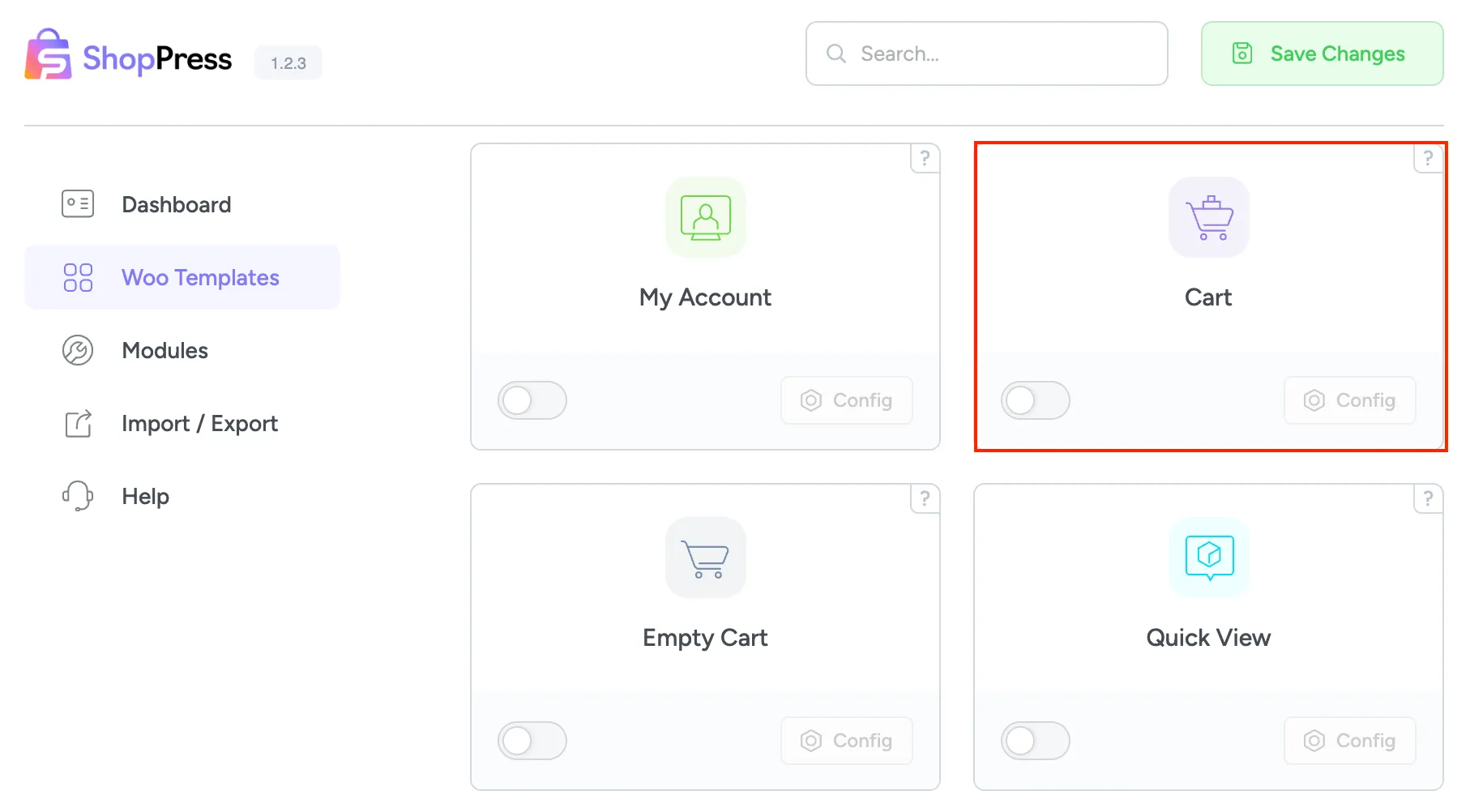
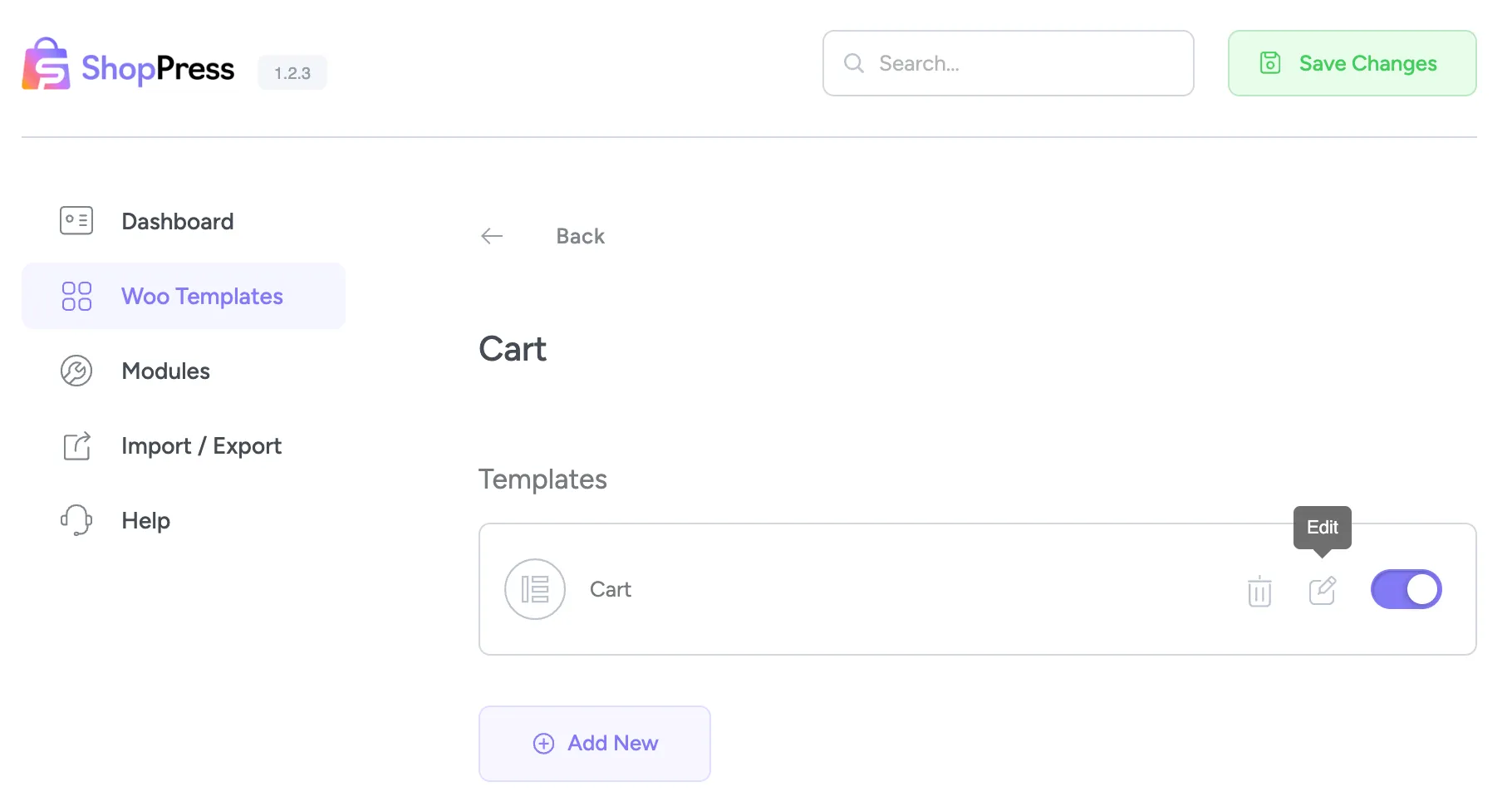
On this Elementor page, you can see we have prepared three widgets to edit the Cart page, so stay with us to review them individually.
Cart Totals
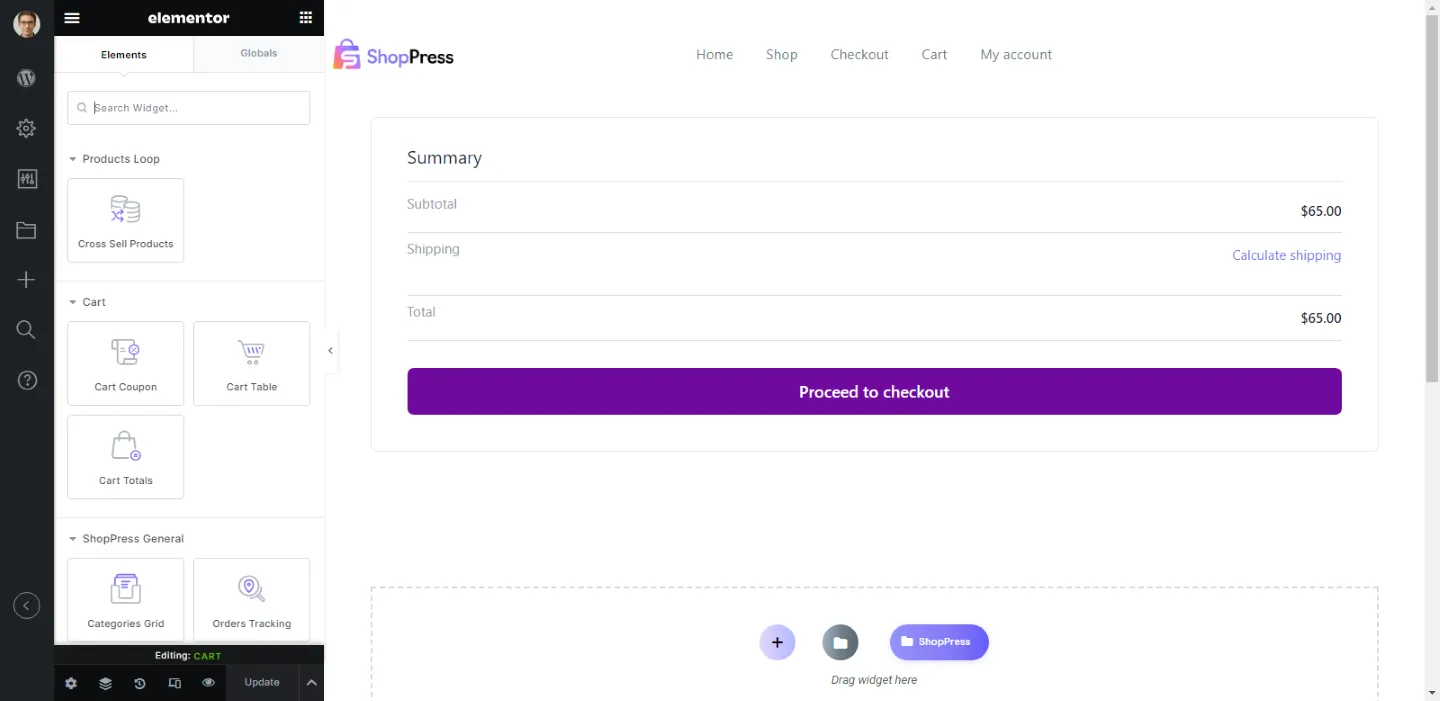
Section titled “Cart Totals”With this widget, you can edit the ‘cart totals’ element. All you need to do is drag the Cart Totals widget to the Elementor area; then, you can customize the widget using the Style tab.
Cart Table
Section titled “Cart Table”Cart Table shows the list of the products in your cart and allows you to change your widget style.
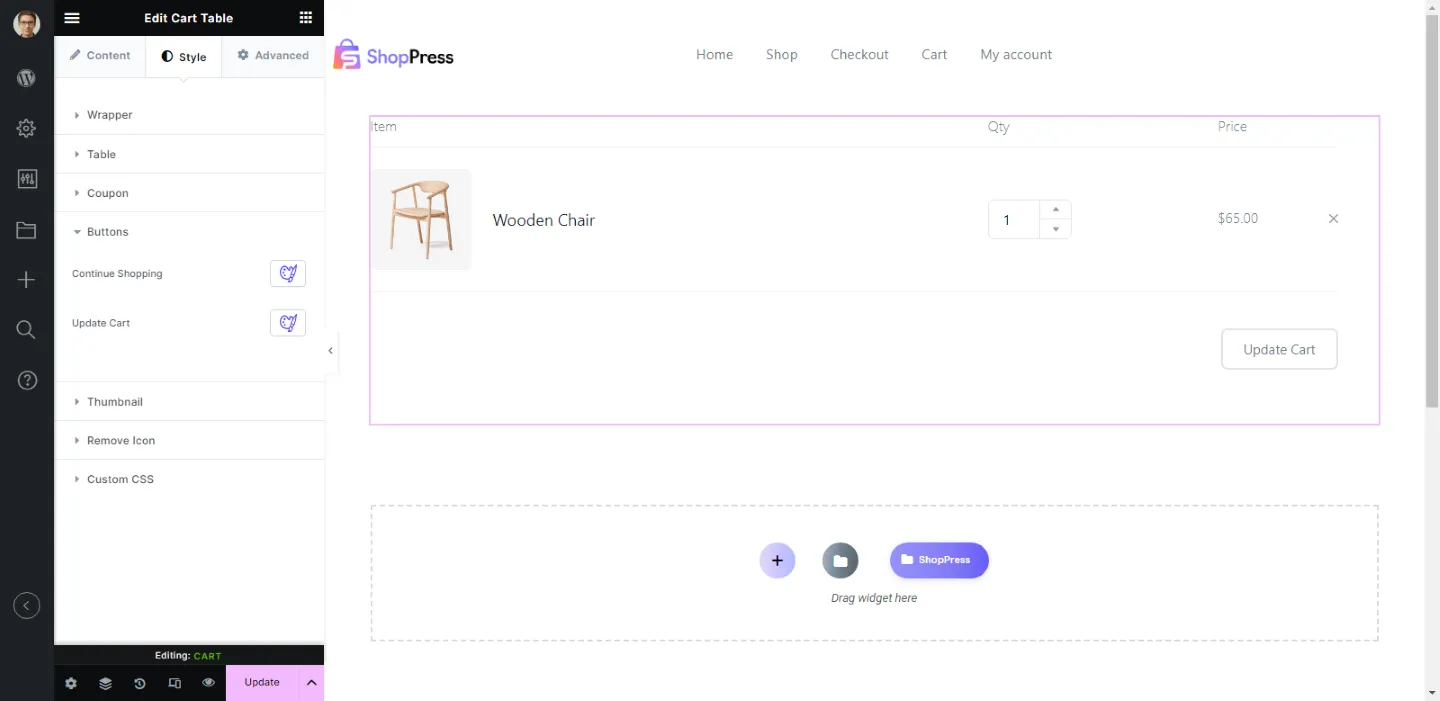
1- Show or hide the Table Header.
2- Show or hide the Coupons Form.
Cart Coupon
Section titled “Cart Coupon”Cart Coupon widgets allow you to edit all the elements in the Style tab and quickly build a beautiful and unique coupon field for your website.