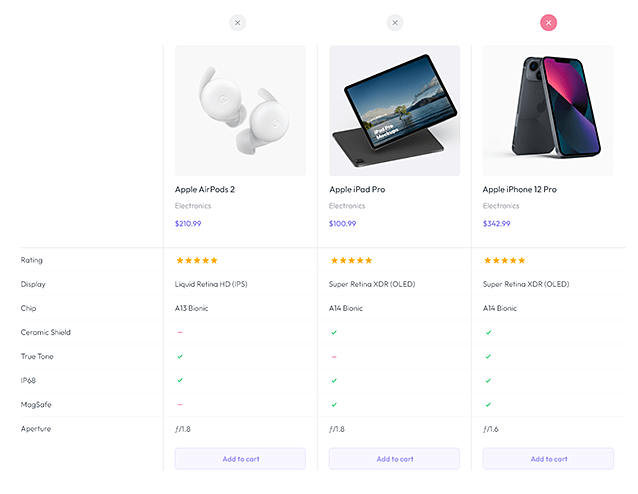


In this tutorial, you will learn How to create a WooCommerce Product Compare page with Elementor.
WooCommerce Products Compare allows customers to compare products within their store. Using this tool, your customers can make better decisions on the products they need.
Create a WooCommerce Product Compare page with Elementor
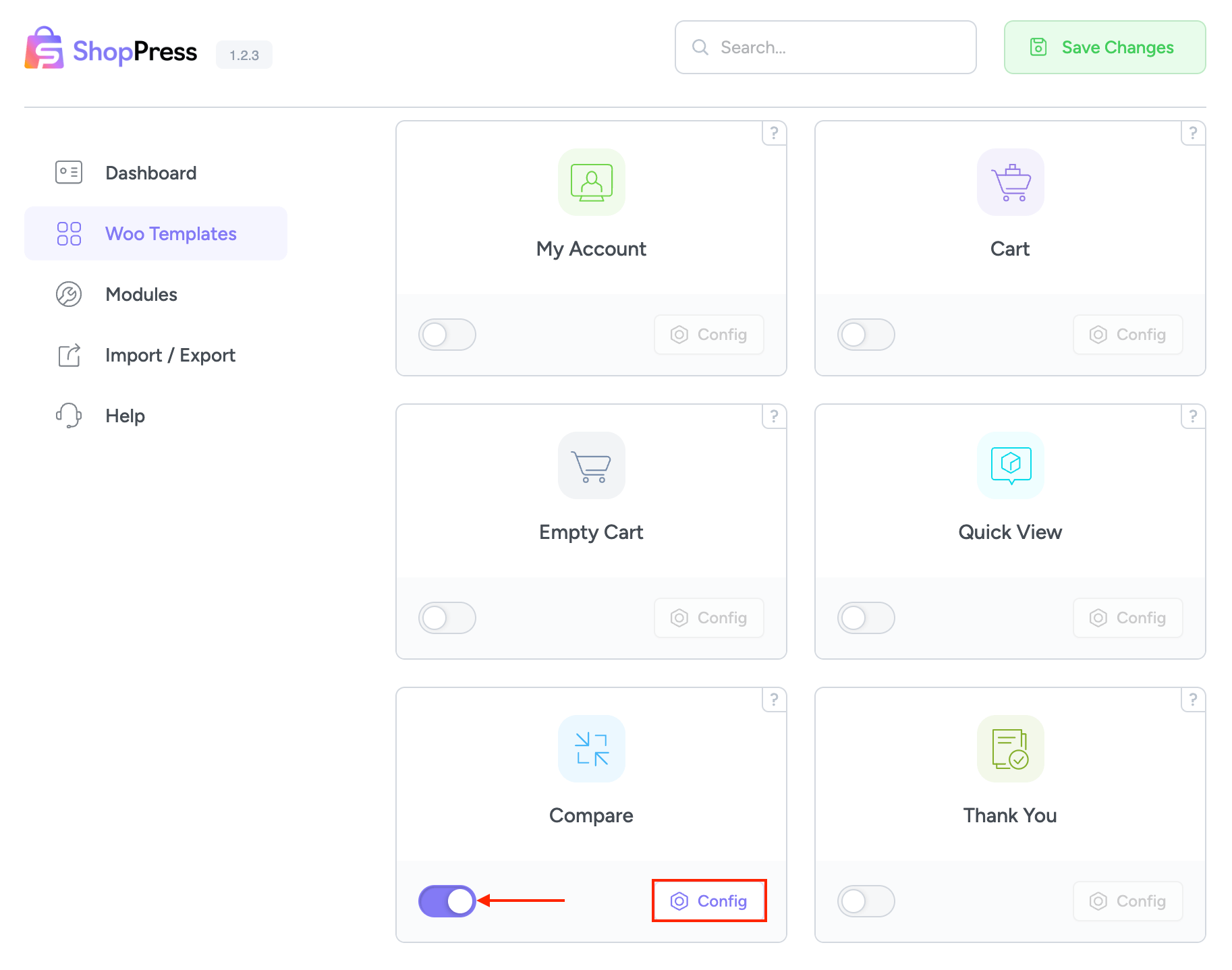
To create a comparison page, please head over to ShopPress > Components > Compare.
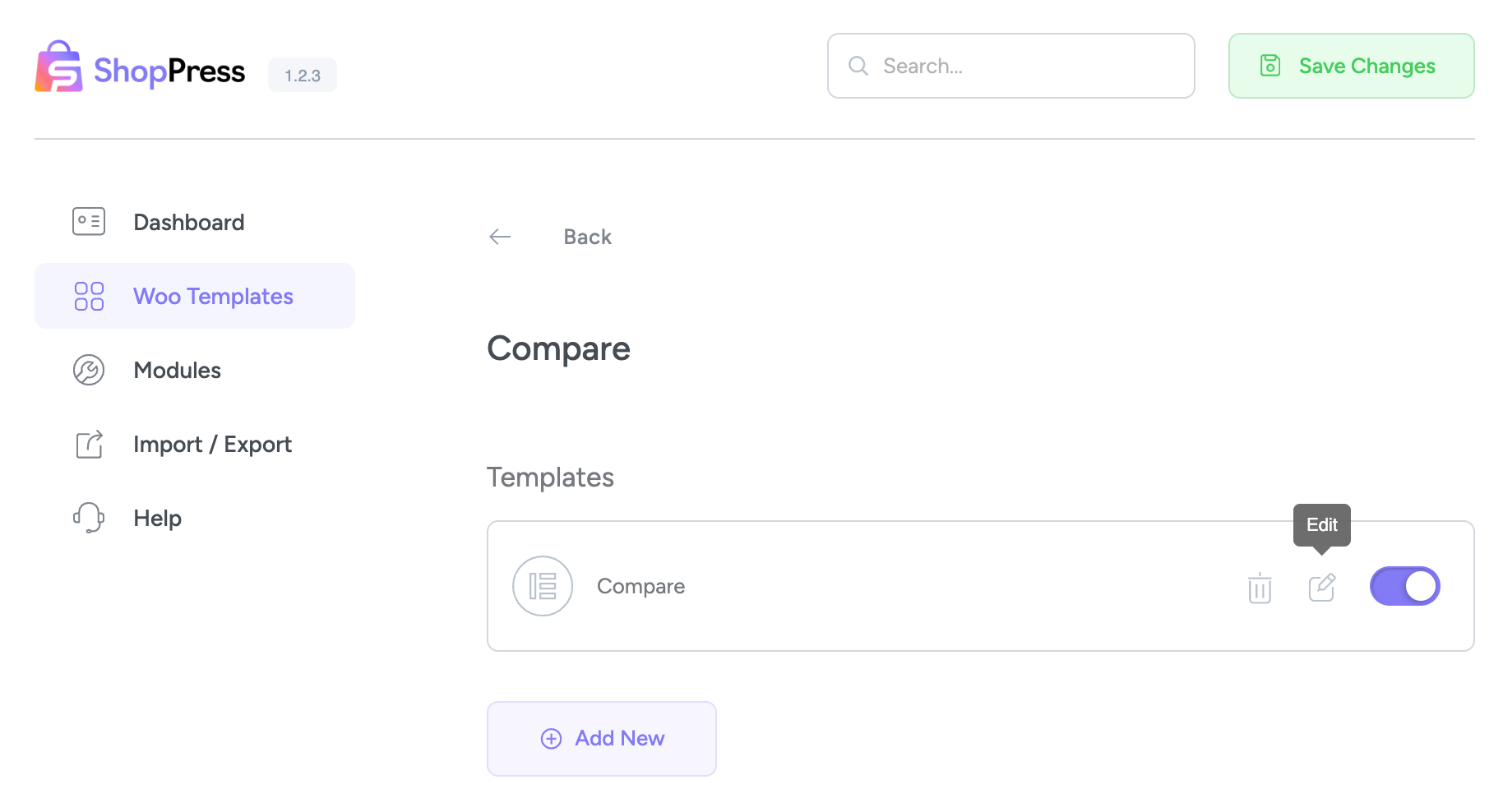
To create a Compare page, click Add New and name the template. Click the Edit Icon in the added template to start customizing the compare page.
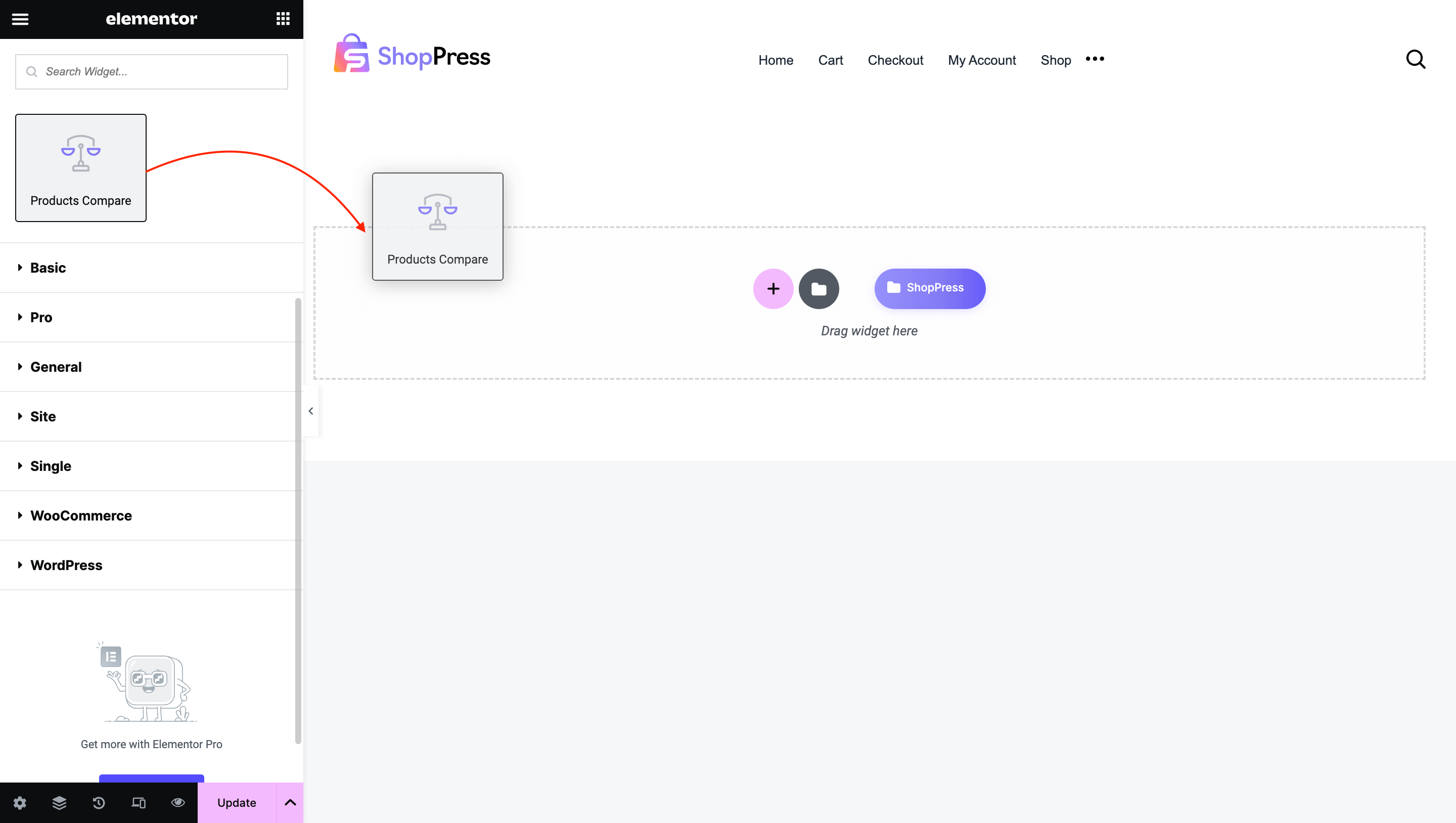
Now, you will be redirected to an Elementor page, and there you can edit all the elements of your Compare page individually.
Simply drag and drop the Products Compare widget in the Elementor content area to start customizing the Compare Page.
After saving the designed template, the Compare page will be displayed as per the design created in Elementor.