


In this article, you will learn how to Create a WooCommerce Shop Page with Elementor.
A shop page, as defined by WooCommerce, is a “placeholder for a post-type archive for products.” The presentation of your products on this page holds significant importance in determining the success of your business, and its impact on potential customers cannot be overstated.
How to Create WooCommerce Shop Page with Elementor
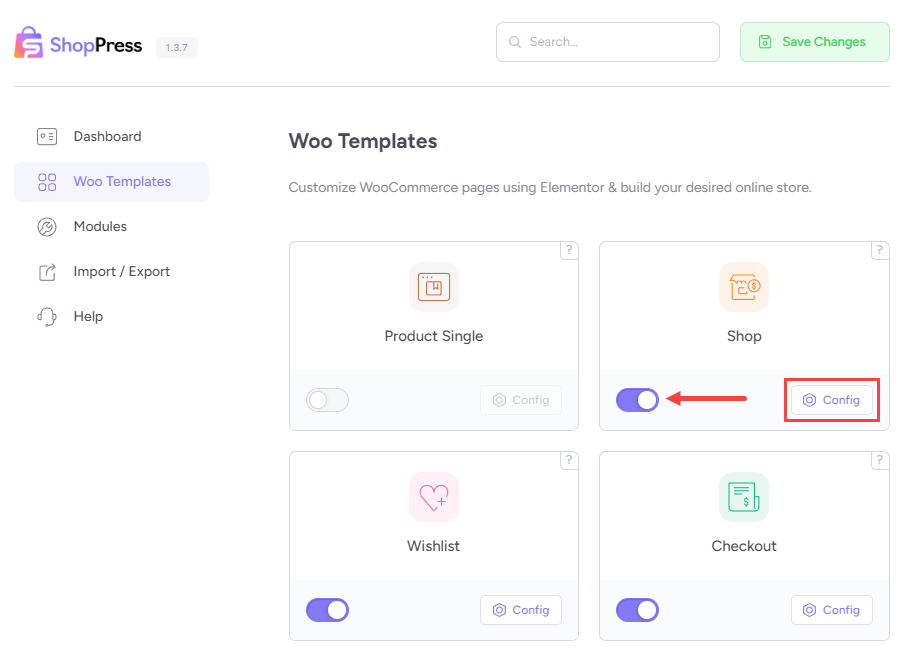
To enable the Shop Page edit page, you need to follow these steps: first, go to the WordPress dashboard menu and select ShopPress > Woo Templates. Then, enable the Shop component. Once you do that, you’ll see the Config button, which you can click on to enter the Shop template settings. With these settings, you’ll be able to customize your shop page according to your preferences.
Creating Templates for the Shop Page
In this section, you can create numerous templates to assign to your product, generally or specifically. To create a new template for your shop page, click on the “Add New” button. Once done, you can proceed to the Elementor shop page edit page by clicking on the edit icon. This will allow you to customize the page with a wide range of widgets that we have thoughtfully prepared for this specific purpose.

Shop Template Widgets
Now, let’s explain the tools available to customize the Shop page. You can easily create your Shop page with just a few clicks.
Shop Products
Using the Shop Products widget, you can display your products on this page.

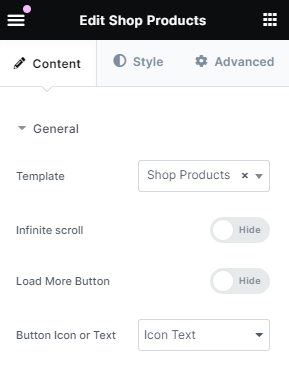
Template: You can select the template you created using the Loop Builder feature in the Template section. Otherwise, the products will be displayed in the default WooCommerce style.
Infinite Scroll and Load More: You can choose between displaying products with an Infinite Scroll or a Load More Button.
Button Icon or Text: This feature enables customization of the load more button’s style, such as icon, text, or icon text.
Product Filters
This element consists of two widgets: Display and Filters.
Display: Display as Drawer allows the filter to display as a dropdown after clicking on the filter icon. Also, You have some choices such as Open drawer button style, Button label, Button icon, Drawer position, and Drawer title options. These options allow you to personalize the drawer to match your style and make it function exactly the way you want.

Filters: This particular widget provides an elegant filtering solution for your shop page. To implement it, simply drag and drop the Product Filters widget into the desired section of your page, and subsequently add the filtering option as illustrated in the screenshot below. This method is both simple and effective in enhancing the overall functionality of your page.

Shop page styling
After all, by navigating to the Style tab of each widget, you will have the superpower of the Styler tool to customize your shop page based on your theme Schema.