How to Improve WordPress Event Website Speed
Quick answer: To improve WordPress event website speed, test the event journey as four separate stages: the calendar, a single event, registration, and checkout.
Use field data to see what real visitors experience, then use PageSpeed Insights, Chrome DevTools, server monitoring, and WordPress diagnostic tools to find the cause.
A slow calendar may need smaller queries or fewer modules. A heavy event page may need better images and delayed embeds. A slow booking form usually points to uncached PHP work, database writes, or an external service.
Cache public pages, keep personalized requests dynamic, and test ticket-launch capacity before sales open. After every change, repeat the same measurement and confirm that filters, bookings, payments, and notifications still work.
An event website is a chain of different workloads. The homepage may load quickly while the calendar struggles with hundreds of events. A single-event page may wait on a hero image, venue map, speaker gallery, or video.
Registration adds AJAX requests and database writes. Checkout adds a user session and payment gateway.
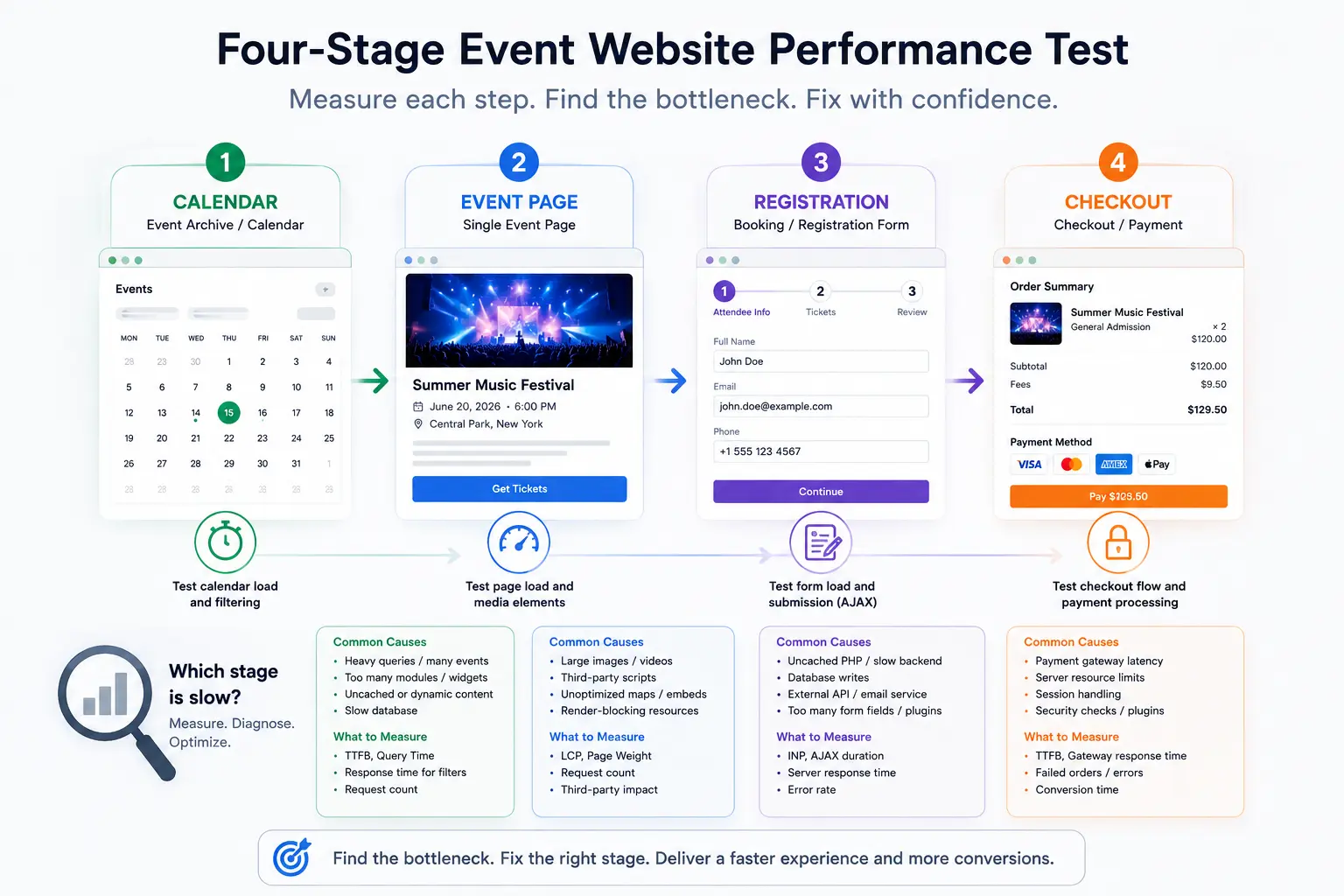
That is why one homepage score can send you toward the wrong fix. Reliable event website performance starts with the actual visitor journey:
Calendar -> Event -> Registration -> Checkout
Find the slowest stage first. Then trace the delay to the browser, WordPress, the database, the server, or an external service.
This guide covers the technical work. If you are still building the site, start with the full guide to creating an event website with WordPress. For layout and design ideas, browse these event website examples.
Why do event websites need a different speed test?
Event websites combine public content, query-heavy calendars, personalized forms, and transaction pages. Each part can fail for a different reason.
A standard company website mostly serves posts and pages. An event site may also have to:
- Query upcoming and recurring events across a date range.
- Rebuild a month, list, map, or filtered view after a visitor interacts with it.
- Load venue maps, speaker photos, session videos, countdowns, and social widgets.
- Check ticket availability while several visitors are booking.
- Write attendee data to the database and send it to an email or CRM service.
- Maintain a WooCommerce session and wait for a payment gateway.
- Import events and run scheduled jobs in the background.
- Handle a sudden rush when tickets become available.
These jobs stress different parts of the stack. Page caching can make a public calendar faster, but it cannot complete a database write or shorten a slow payment-gateway response.
A CDN can serve speaker images closer to visitors, but it cannot add PHP workers when booking requests queue at the server.
The four-stage path keeps the investigation grounded in what a visitor is trying to do. It also gives you a clearer picture of WordPress event website performance than a homepage-only test.
How should you measure WordPress event website speed?
Measure one URL from each stage of the event journey, repeat each test under the same conditions, and keep the median result. This creates a baseline you can compare with later.
Start with four representative URLs:
| Stage | Page or action to test | Record | Typical clue |
|---|---|---|---|
| Calendar | Main event archive or busiest calendar shortcode | Time to First Byte (TTFB), query time, next-month response, request count | Initial view or filtering is slow |
| Event | A media-heavy single-event page | Largest Contentful Paint (LCP), page weight, third-party requests | Hero, map, video, or gallery delays the page |
| Registration | The booking form and its submission request | Interaction to Next Paint (INP), AJAX duration, errors | Page loads quickly but submit is slow |
| Checkout | Cart and payment flow, when used | TTFB, gateway requests, failed orders | Public pages are fast but payment stalls |
Google distinguishes field data from lab data. Field data reports what real visitors experienced over time. Lab data loads the page under controlled conditions and helps you reproduce a problem. Google’s Core Web Vitals tool guide recommends using both for different jobs.
Build the baseline
- Open PageSpeed Insights and test all four URLs on mobile and desktop.
- Save the field-data result when the URL or origin has enough traffic. Do not treat missing field data as a pass.
- Run the lab test at least three times for each URL. Keep the median rather than the best score.
- Repeat the calendar test after changing the month or applying a common filter.
- Open Chrome DevTools, select the Network panel, and record a registration submission. Filter by
Fetch/XHRto isolate the request. - Record whether you were logged in, whether the page cache was warm, which device profile you used, and the test location.
Google’s current good Core Web Vitals thresholds are LCP at 2.5 seconds or less, INP at 200 milliseconds or less, and Cumulative Layout Shift (CLS) at 0.1 or less. These are assessed at the 75th percentile of visits, according to the Web Vitals documentation.
TTFB is especially useful when diagnosing WordPress, although it is not a Core Web Vital. If every page waits before the first byte arrives, investigate the server and application before spending hours compressing icons.
What should you check when the entire website is slow?
When the calendar, event page, registration page, and ordinary WordPress pages all have a slow initial response, start with hosting resources, PHP work, the active theme, and plugin conflicts.
Diagnose the delay
Test a simple page and the event archive while logged out. If both show a long TTFB, open the hosting dashboard and compare the test time with CPU, memory, PHP-worker usage, slow logs, and database activity. Ask the host for the same data if the dashboard does not expose it.
Then isolate the WordPress stack. The official Health Check troubleshooting lesson explains how Troubleshooting Mode can disable plugins and switch themes for the administrator’s session without changing what ordinary visitors see. Use it during a quiet period or on staging:
- Go to
Plugins > Add Newand install Health Check & Troubleshooting. - Open
Tools > Site Health > Troubleshootingand enable Troubleshooting Mode. - Test with a default WordPress theme and only the event plugin active.
- Re-enable the theme and other plugins one at a time, repeating the same URL test after each change.
Fix the measured cause
If one plugin restores the delay, inspect its settings, logs, external calls, and database work before replacing it. A high plugin count alone proves little. One plugin can be expensive while twenty small plugins remain quiet.
If the stripped-down site is still slow and the server is saturated, take the baseline and monitoring timestamps to the host. Ask specifically about PHP workers, CPU throttling, memory limits, database contention, and whether full-page or object caching is available on the plan.
Verify the change
Restore the real theme and required plugins, clear caches, then repeat the same three tests. A server change passes when the median TTFB improves on the affected URLs and the event workflow still works.
How do you fix a slow WordPress event calendar?
A slow calendar usually requests too much event data, repeats expensive database work, or renders modules the current view does not need. Measure event calendar performance before changing its appearance.
Diagnose the calendar
Compare the event archive with a simple page and a single event. Then answer these questions:
- Is only the first calendar load slow, or are month changes and filters slow too?
- Does the problem grow when the view includes more events?
- Are recurring events open-ended when the series has a known end date?
- Does a map view load every marker at once?
- Are expired events still included in public queries?
- Do AJAX responses take most of the time, or is the browser busy rendering cards and scripts afterward?
Install Query Monitor on staging or during a controlled diagnostic session. Open the slow calendar while logged in, choose Queries from the admin-toolbar menu, and sort by time.
Query Monitor groups database calls by component, which helps distinguish event-plugin queries from theme or unrelated plugin work. Remember that the tool adds a small amount of overhead, so compare patterns rather than treating its timing as a public benchmark.
Reduce the calendar workload
Start with configuration changes that reduce the amount of work per request:
- Show fewer events in the initial list or grid and add pagination.
- Use a narrower date range when the page does not need to search the full archive.
- Give recurring series a real end date when one exists.
- Avoid loading a large map view as the default calendar when a list can answer the first question faster.
- Remove modules that the page does not use, such as weather, a countdown, a gallery, or a map.
- Decide how long past events must remain public. Archive or delete them only after confirming the retention requirement and creating a backup.
Sites using Modern Events Calendar have several relevant controls. Go to MEC Settings > General > Advanced to review Maintenance and Assets (CSS and JavaScript files).
Maintenance can move old events to the trash or permanently delete them after a selected age. Use the trash option first unless the retention policy explicitly permits deletion.
The Assets Per Page option solves a different problem. It stops MEC files from loading on unrelated pages, which reduces unnecessary frontend requests across the site.
MEC automatically includes its files on its own single-event and archive pages. If you place an MEC shortcode on another page, edit that page and enable Include MEC Assets. The current MEC General Settings documentation shows the Classic Editor and Gutenberg locations.
MEC also lets you turn individual event modules on or off. Review the event modules documentation before disabling a module that an event template uses.
Disclosure: Webnus develops Modern Events Calendar. The settings above are linked to the product documentation so you can verify their behavior and menu paths.
Verify the calendar fix
Clear the page and object caches. Repeat the archive test, move to another month, apply the busiest filter, and open a result. Compare the median TTFB and interaction time with the baseline.
Also check that shortcode pages still have their CSS and JavaScript after enabling Assets Per Page.
How do you fix heavy single-event pages?
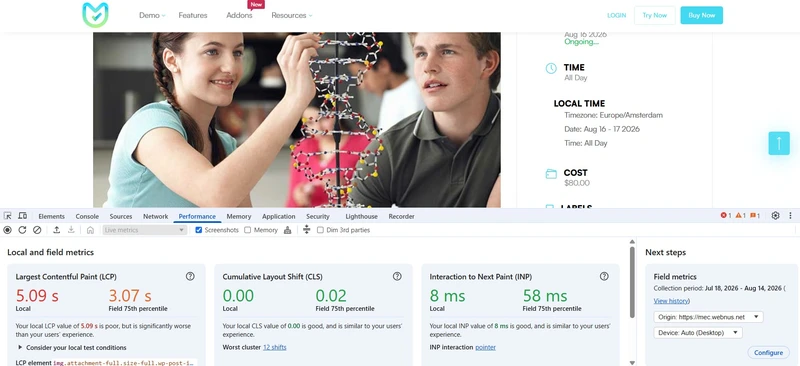
Single-event pages are often slowed by their largest visible image and by third-party resources such as maps, videos, fonts, chat, analytics, and social feeds. The browser can show which one is holding the page back.
Find the LCP element and expensive assets
Open the event page in Chrome, open DevTools, and select Performance. The Live Metrics view identifies the local LCP element; hover over it to highlight the element on the page.
Record a load trace if you need to see when the browser discovered and rendered it. Chrome’s Performance panel reference explains the markers and element details.
Then use the Network panel:
- Disable the browser cache while DevTools is open.
- Reload the page.
- Sort by Size to find large images and video poster files.
- Sort by Duration to find slow fonts, maps, embeds, and APIs.
- Filter by a third-party domain to see how many requests one widget creates.
To inspect plugin and theme files, open DevTools’ Coverage panel, reload the page, and interact with the calendar or booking controls. Coverage reports the used and unused bytes in each CSS and JavaScript resource.
It is evidence for further investigation, not permission to delete a file. Removing plugin code without understanding its dependencies can break filters or forms. See Chrome’s Coverage guide for the recording steps.
Fix images first when they dominate the page
To speed up event pages, resize the hero, venue, and speaker images near the dimensions at which the theme displays them. WordPress can generate responsive image sizes, but uploading a huge original still consumes storage and may create oversized derivatives.
Use WebP or AVIF when your WordPress setup can create and serve the format reliably. Plugins such as Imagify and ShortPixel Image Optimizer can resize, compress, and generate newer formats for uploaded images. Pick one image workflow, back up the originals, and compare visual quality before running a bulk job.
Add accurate width and height attributes so the browser can reserve space. Lazy-load images and iframes below the first screen. Do not lazy-load the LCP image. Google’s LCP guide recommends making that resource discoverable in the initial HTML and loading it early.
Delay or remove third-party work
Maps, YouTube or Vimeo embeds, social feeds, chat widgets, advertising tags, analytics, and CRM scripts can compete with the event content. For each one, ask whether it must run before the visitor sees the event title, date, and registration button.
Common alternatives include:
- Show a static venue image with a “View map” button, then load the interactive map after a click.
- Use a video poster image and load the player when the visitor presses play.
- Delay chat and social widgets until the page is idle or the visitor interacts with them.
- Remove duplicate analytics tags and any marketing script with no current owner.
- Load a gallery after the event summary instead of placing dozens of full-size images near the top.
If the theme already supplies the required fonts, MEC users can review the Disable Google Fonts option described in the MEC Appearance Settings. Check the whole page after changing it because another theme or plugin may still request the same font.
Verify the event-page fix
Repeat the Performance and Network recordings with the same device and throttling settings. Confirm that the LCP element loads earlier, the page weight falls where expected, and maps, video, ticket selectors, consent controls, and registration buttons still work.
How should you cache event pages without breaking bookings?
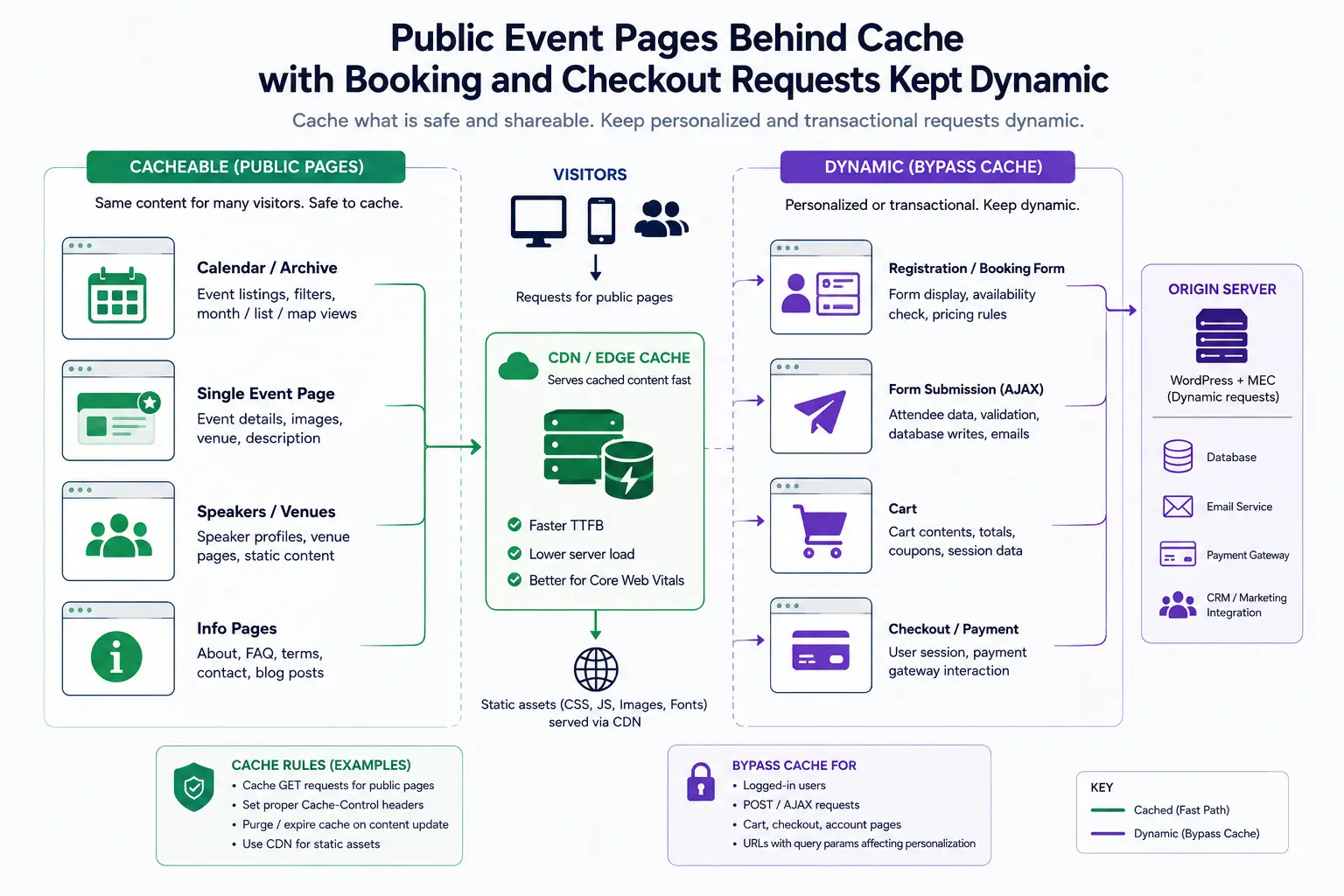
Use full-page caching for public content that is shared between visitors. Keep personalized sessions, form submissions, and payment requests dynamic.
A page cache stores a completed HTML response. Later visitors can receive that file without asking WordPress and the database to rebuild the page. This works well for public event archives and many single-event pages.
It becomes risky when the response contains visitor-specific data, a cart, a private account, or availability that is not purged when it changes.
Choose one full-page caching system that fits the host:
- WP Rocket: page caching is enabled when the plugin is activated. Use
Settings > WP Rocket > Advanced Rulesfor URL exclusions. Its page-caching documentation explains the generated cache files. - LiteSpeed Cache: use it for page caching when the host runs a LiteSpeed cache engine or the site uses QUIC.cloud. Go to
LiteSpeed Cache > Cache > Cacheand set Enable Cache toON. The installation guide explains the server requirement. - W3 Total Cache: open
Performance > General Settings, enable Page Cache, and start with the storage method supported by the host. The official plugin page documents its basic setup.
Do not run two full-page cache plugins together. The host may already have a server-level cache, so check its documentation before adding another layer.
Use these boundaries as a starting point:
| Request | Full-page caching approach | What to test |
|---|---|---|
| Public event archive | Usually cache | Month changes, filters, pagination, new events |
| Public single-event page | Usually cache if availability updates purge correctly | Date, price, stock or capacity display, booking controls |
| Booking or registration submission | Do not serve a static response | Validation, duplicate prevention, capacity, confirmation |
| Logged-in attendee area | Exclude unless the cache creates private per-user variants | Identity, bookings, invoices, private data |
| WooCommerce cart, checkout, and My Account | Exclude | Cart contents, sessions, payment, order confirmation |
WooCommerce explicitly tells site owners to exclude Cart, Checkout, and My Account, along with the cookies that identify carts and sessions. Follow the current WooCommerce cache guidance and the instructions for the selected cache system.
After changing an event, purge its single page, the calendar or archive where it appears, and any cached availability display. Many cache plugins handle standard WordPress updates automatically. Event availability and custom AJAX behavior still need a real booking test on the site.
Verify from a logged-out or incognito window. Visit the public page twice, confirm the second response comes from cache using the plugin or host’s documented header or page-source check, then complete a test registration.
If the public page is fast but availability is stale, the purge rule is incomplete.
How do you find database bloat and background work?
Database bloat means WordPress is storing or loading more data than the current request needs
. On event sites, old events, metadata, revisions, transients, logs, imports, and scheduled jobs can accumulate together.
Inspect before deleting
Start at Tools > Site Health. WordPress warns when autoloaded options become large. Autoloaded options are plugin and theme settings loaded on every request. The WordPress performance handbook advises generally keeping the total below 800 KB.
Use Query Monitor to find repeated or slow database queries on the affected event page. For scheduled work, WP Crontrol lists WordPress cron events, their hooks, next run times, and recurrence. Look for event imports that run more often than needed, failed jobs that repeat, and overlapping tasks.
Before deleting or editing database records, create a full site backup and confirm that it can be restored. A database backup alone does not include themes, plugins, configuration files, and uploads. The official WordPress database backup guide covers the database portion.
Remove work with a known owner
Do not turn off autoload for an unfamiliar option because its row is large. Identify the plugin or theme that owns it and ask the developer or host what the option contains. The same rule applies to transients and logs. Deleting active data can replace a speed problem with a broken integration.
For event data, set a retention rule that matches the organization. Some sites need public archives for years. Others can move old events to trash after a season. MEC’s Maintenance setting can apply that rule automatically, but permanent deletion should come after a backup and a staging test.
Decide whether persistent object caching will help
An object cache stores the result of repeated database reads so WordPress can reuse it across requests. Redis is one common backend. It helps when profiling shows repeated option or query reads and the host provides a supported Redis service.
Ask the host these questions before installing a Redis connector:
- Is Redis or another persistent object-cache service included and enabled for this site?
- Which WordPress plugin or drop-in does the host support?
- How can you view hit rate, memory use, evictions, and connection errors?
- What is the correct way to flush the cache after a deployment or data repair?
Installing a connector with no server service behind it adds risk without creating an object cache. After activation, compare the same uncached calendar request and watch for stale event data or failed writes.
How do you diagnose slow registration and checkout?
When the page is fast until the visitor presses Register or Pay, trace the submission request and every service it calls. Good event registration performance depends on the full request, including database writes and external services.
Open DevTools’ Network panel, preserve the log, submit a test registration, and filter by Fetch/XHR. Select the slow request and record:
- Total duration and server wait time.
- HTTP status and any validation message.
- The request URL and whether it bypassed page cache.
- Follow-up calls to a payment gateway, CRM, email provider, tax service, or webhook.
- Duplicate or retried requests.
Check the server and application logs at the same timestamp. A slow response with high PHP-worker use points toward queued application work. A quick WordPress response followed by a long external call points toward the integration.
Fix the component that owns the delay. That may mean increasing PHP capacity, repairing a slow database query, reducing synchronous integration work, or contacting the external provider.
If the booking system supports queued notifications or webhooks, a developer can move nonessential post-booking work out of the visitor’s request. Do not delay the capacity check, payment result, or any step the visitor must see before the booking is accepted.
For WooCommerce checkout, test with the site’s official sandbox or test mode. Confirm cart contents, ticket quantity, taxes, coupons, payment, order creation, capacity, the confirmation page, and all required emails.
A faster response is not useful if the same ticket can be oversold or the attendee never receives confirmation.
How do you prepare for a ticket-launch traffic spike?
A ticket launch creates two kinds of traffic at once: many cacheable page views and a smaller number of expensive, uncached booking requests. The second group usually determines whether sales succeed.
This is where ordinary page-speed work and event website performance separate most clearly.
A CDN and page cache may handle thousands of visits to the event page while PHP workers queue behind availability checks, form submissions, database locks, payment requests, and CRM calls. Test both paths.
Use a staging or production-like environment first. Grafana’s website load-testing guide recommends pre-production for more aggressive tests. Production tests carry more risk and should use lower load, off-peak timing, close monitoring, and approval from the host and service owners.
Build a scenario that resembles the launch:
- Most virtual visitors open the event page.
- Some change the calendar view or check ticket availability.
- A smaller group starts registration.
- Fewer visitors submit a booking or test payment.
Use test accounts, a payment sandbox, and controlled email addresses. Do not create real charges or send messages to real attendees during a load test.
Watch these signals while the test runs:
- CPU and RAM.
- Active and queued PHP workers.
- Database CPU, connections, slow queries, and lock waits.
- Median and high-percentile response time for booking requests.
- HTTP error rate and timeouts.
- Failed, duplicate, or incomplete bookings.
- Concurrent users and request rate.
- Cache hit rate for public pages.
- Latency and errors from payment, CRM, and email services.
Increase the load in controlled steps. Stop when errors rise, booking data becomes inconsistent, or a resource reaches the limit agreed with the host. The first saturated component gives you a capacity question you can act on.
More CDN coverage will not repair an exhausted PHP pool or a locked database row.
After changing capacity or code, repeat the same scenario. Use the same virtual-user pattern and test data so the comparison means something.
What is a practical troubleshooting path?
Use the symptom to choose the first investigation:
- The entire site is slow: Check TTFB, host resource graphs, PHP workers, database activity, the theme, and plugin conflicts.
- Only the calendar is slow: Check event count, date range, recurrence, filters, database queries, calendar configuration, and event modules.
- Only single-event pages are slow: Check the LCP element, hero and speaker images, maps, galleries, video, fonts, and third-party scripts.
- The page is fast but registration is slow: Trace the AJAX request, database writes, availability checks, email or CRM calls, and server capacity.
- Everything is fast until tickets go on sale: Test uncached booking capacity, PHP workers, database contention, payment latency, and cache hit rate under concurrent traffic.
- The public page shows old availability: Check cache exclusions and purge rules before shortening every cache lifetime.
Start there. Change one cause and repeat the relevant test.
How do you verify that the fix worked?
A performance change passes when the same task becomes faster under comparable conditions and the complete event flow still works.
Use the baseline you saved at the beginning:
- Repeat each URL three times with the same device, location, login state, and cache state.
- Compare medians for the affected metric or request. Do not compare one lucky run with one unlucky run.
- Navigate the calendar, apply filters, and open events.
- Test a valid and invalid registration.
- Confirm ticket capacity, price, tax, coupons, and payment behavior where used.
- Check the confirmation page, booking record, emails, CRM data, and webhooks.
- Review server errors and logs for the test window.
- Watch field data after enough real visits accumulate.
Keep the four-stage path in the monitoring plan: Calendar -> Event -> Registration -> Checkout. New media, event imports, tracking tags, and plugin updates can change one stage without affecting the others.
Frequently asked questions
1. Can you cache a WordPress event calendar?
Public event archives and many single-event pages can use full-page caching if changes to dates, prices, and availability purge the relevant pages.
Keep registration submissions, attendee accounts, carts, and checkout dynamic. Test month navigation, filters, a real booking, and cache purging before relying on the rule.
2. Does an event website need Redis?
Redis can help when profiling shows repeated database reads and the host provides a supported Redis service. It is not a first step for a page dominated by images or an external payment call.
Measure the uncached request, ask the host how Redis is managed, then compare the same request after activation.
3. Will a CDN fix a slow registration form?
A CDN can shorten delivery of images, CSS, JavaScript, and other cacheable files. It cannot complete an uncached PHP request, database write, capacity check, payment, CRM call, or email request.
Record the registration submission in DevTools and match it with the server log to find where the time is spent.
4. How can you tell whether the event plugin is causing the slowdown?
Use a staging copy or Health Check’s Troubleshooting Mode. Test with a default theme and only the event plugin active, then restore the theme and other plugins one at a time.
Query Monitor can show which component owns slow database queries. Keep the same URL and test conditions for every comparison.
5. Is a high PageSpeed score enough for an event website?
No. A lab score describes one page load under one set of conditions. It does not test calendar filters, booking submissions, checkout, email confirmations, or ticket-launch capacity.
Use PageSpeed Insights with the four-stage journey and verify the actual tasks visitors must complete.
Measure the event journey, then make one change
Do not tune an event website around a single homepage score. To improve event website speed, find the slowest part of the real journey, identify what is delaying it, make one targeted change, and measure again.
Calendar -> Event -> Registration -> Checkout
That sequence is the practical test. If all four stages improve and the event flow still works, the change earned its place.