

Open your shop page and look at the product grid. If one item sits on a white sweep, another on a grey desk, and a third has a windowsill in the corner of the frame, you don’t have a photography problem. You have a consistency problem — and it gets worse with every SKU you add.
Fixing it by hand in Photoshop is not realistic at 200 products. This guide covers the tools that handle it in bulk, what to look for before you commit, and how to get the results displaying properly in WooCommerce.
Quick answer: Pixelcut is the best background remover for WooCommerce stores because it combines accurate AI cutouts with bulk processing for up to 10,000 product images in one batch.
Its cutouts keep clean edges around hair and fine product detail, and every image in a batch gets the same size, padding, and background before export as PNG, JPG, or WebP. Its developer API connects to your store to process new product images as you add them, and Pixelcut also offers AI shadows and ghost mannequin.
Photoroom and remove.bg are the main alternatives, compared below.
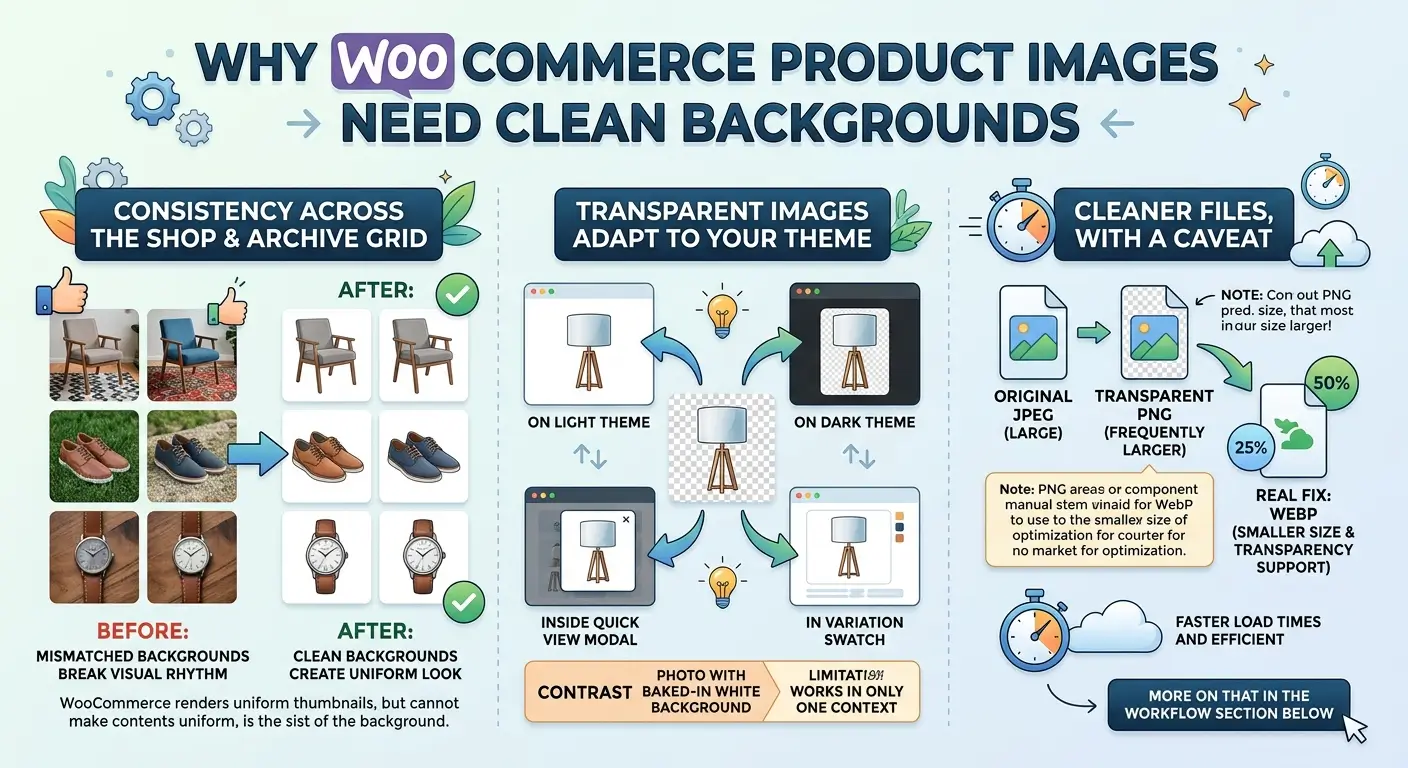
Why do WooCommerce product images need clean backgrounds?
Consistency across the shop and archive grid
WooCommerce renders product thumbnails at a uniform size, but it can’t make the contents uniform. Mismatched backgrounds break the visual rhythm of a grid faster than almost anything else.
This is the most visible symptom and the one customers notice without knowing why.
Transparent images adapt to your theme
A cutout on a transparent background works on a light theme, a dark theme, inside a Quick View modal, and in a variation swatch thumbnail — without re-editing anything. A photo with a baked-in white background works in exactly one context.
Cleaner files, with a caveat
Removing background detail simplifies the image, but be careful with the assumption that follows. A transparent PNG is frequently larger than the original JPEG, because PNG uses lossless compression.
The real fix is WebP, which supports transparency at a fraction of the size. More on that in the workflow section below.
What should a background remover for product photos provide?
Before comparing tools, decide what you actually need. A single-image web tool and a catalog processor are different products that happen to share a name.
- Batch processing. The single biggest differentiator. Ask how many images per batch and how many per month.
- Edge quality on hard subjects. Automatic removal fails on hair, fur, jewelry chains, mesh, wire, and transparent glass. Test your worst product before you buy.
- Full-resolution export. Several tools give away low-resolution previews and charge for the usable file.
- Transparent PNG and solid-background output. You’ll need both for different placements.
- Consistent shadow handling. A collection where half the items have drop shadows looks worse than one with no shadows at all.
- API or automation. Necessary if you add products weekly.
- Pricing that scales. Per-image credits punish large catalogs. Do the arithmetic on your actual SKU count before subscribing.
The chain you’re building looks like this:
Shoot → batch remove → standardize canvas → convert and compress → upload → display correctly
Most store owners solve the middle and neglect the ends.
Best background remover tools for WooCommerce
Pixelcut
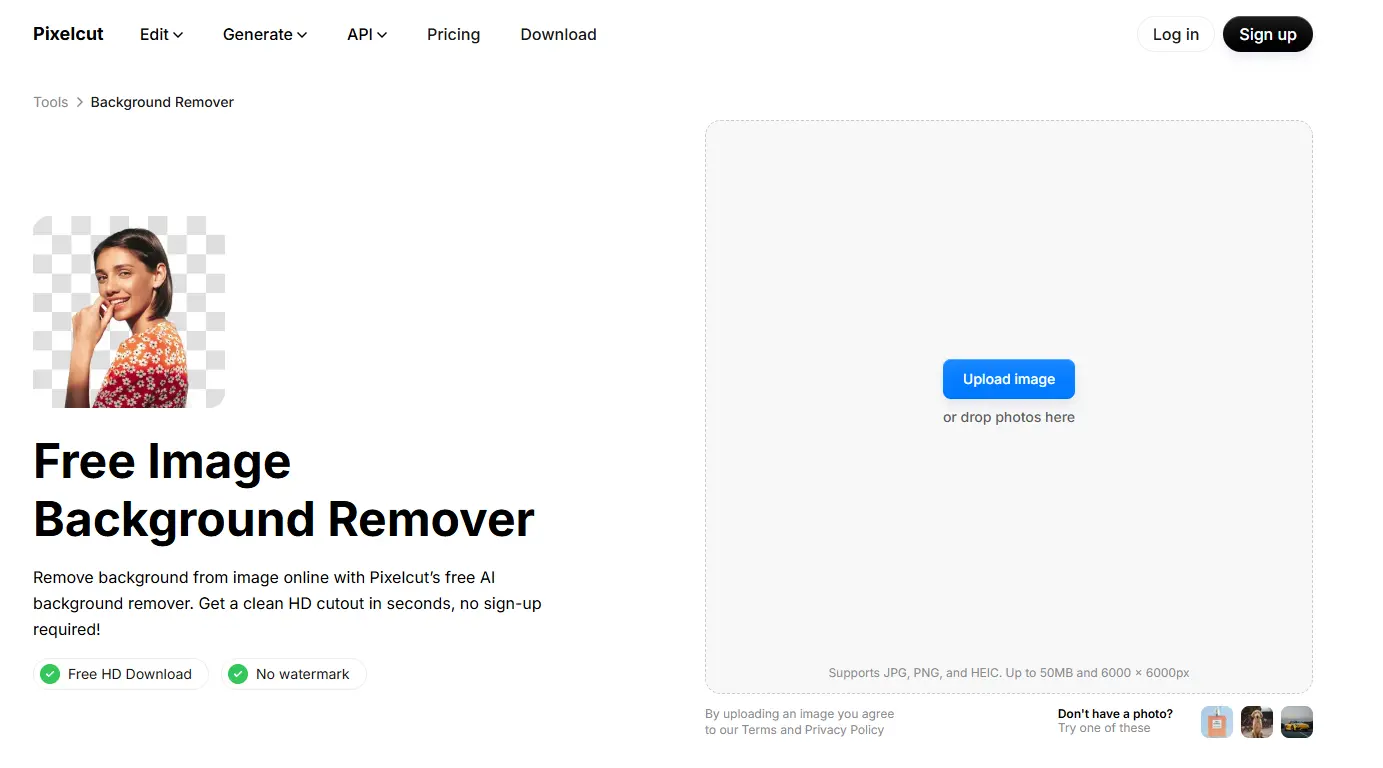
Pixelcut is the best background remover for WooCommerce catalogs because it combines accurate AI cutouts with bulk processing built for product images.
Its free browser tool lets you remove background from product photos with no sign-up, keeping the original resolution and clean edges around hair and fine product detail.
You can export a transparent PNG or place the product on a white background, any solid color, a new background image, or an AI-generated scene.
For a full catalog, the bulk tool processes up to 10,000 images in a single batch.
You can import a folder from Dropbox, apply the same sizing, padding, and background to every image, refine individual cutouts, and download the set as a ZIP in PNG, JPG, or WebP, which skips the conversion step covered later in this guide.
Pixelcut also offers AI shadows, ghost mannequin for apparel, and flat lay product photos, plus a developer API you can connect to your store to process new product images as you add them.
On pricing, the free tier offers limited background removal. Pro is $10/month, or $8/month billed yearly, and includes unlimited background removal plus 1,000 batch exports monthly and a commercial license; Business is $30/month, or $24 billed yearly, with 2,000 batch exports and a 10-person team allowance.
The drawback: batch exports are part of the paid plans, so the free tier is best for testing single product images before you commit.
Worth a look if batch volume is your main constraint. You can test Pixelcut’s background remover on a single product image without creating an account.
remove.bg

One of the earliest automatic background removers, and still a familiar name for quick single-image cutouts. It’s available via web, desktop apps for Windows, Mac, and Linux, a Photoshop extension, and a REST API.
The pricing structure is where you need to read carefully. The free account supports only low-resolution previews up to 0.25 megapixels, plus one bonus credit to test a high-resolution download and 50 free previews per month via the API and apps.
Paid subscriptions run roughly $9/month for 40 credits, $39/month for 200, and $89/month for 500, with pay-as-you-go credits available for occasional use and around a 10% discount for annual billing.
The drawback: one credit equals one full-resolution image, so a 500-product catalog is a real expense, not a rounding error. This is a well-documented complaint — the per-image model does not scale down in price the way volume-oriented competitors do.
Photoroom
Built specifically for e-commerce rather than adapted to it. Batch Mode lets you drop in a folder, apply the same removal and background template across everything, and export the set. It also handles product-specific extras such as AI shadows.
Paid plans meter two things separately: AI credits and monthly exports. Pro includes 8,000 AI credits and 1,000 exports per month; Max steps up to 25,000 credits and 3,000 exports and adds Shopify integration; Ultra offers 75,000 credits and 10,000 exports.
Usefully, the Background Remover itself counts as a core tool and consumes no AI credits on any paid plan, within fair-use limits, so credits only matter if you’re using the generative features.
The API is priced separately and per-image: $0.02 per image on the Basic plan for the Remove Background API, $0.10 per image on Plus for the full Image Editing API, and an Enterprise tier requiring an annual commitment and a 200,000-image minimum.
You can test it with 1,000 sandbox calls a month (watermarked) and 10 free unwatermarked production calls on the Remove Background API.
The drawback: two meters plus separately billed API usage makes your monthly cost hard to predict during a busy season. Unused images on API plans don’t roll over month to month.
There’s no Shopify-equivalent WooCommerce sync either—you’ll export and upload manually.
Adobe Express

The best free option in this list. Background removal runs in the browser and produces a transparent PNG in seconds. Adobe Express has a free plan at $0, with Premium at $9.99/month and a Teams tier from $7.99/month per license.
If you already use Creative Cloud, cutouts hand off cleanly to Photoshop or Illustrator via shared libraries.
The drawback: it’s a design tool with a remover attached, not a catalog processor. There’s no meaningful batch mode, so you’re working image by image. Fine for 20 products, painful at 200.
Canva
Everyone already has an account, and if your marketing assets live in Canva anyway, you can do the cutout and the finished graphic in one place without exporting between tools.
The drawback: background removal is a Pro-only feature, free users can’t download the result. Canva Pro runs around $15/user/month in the US (regional pricing varies significantly, so check your own currency).
Reviewers consistently rate its edge accuracy a step behind the specialists on fine hair and complex outlines. Hard to justify subscribing purely for cutouts when Adobe Express does it for free.
Slazzer

The most complete ecosystem of the group for a store that wants options: web app, native mobile apps, desktop apps for Windows, Mac and Linux, a Photoshop extension, an API with SDKs across several languages, and an on-premises deployment option for businesses that can’t send images to a third party.
It advertises direct WooCommerce and Shopify integrations.
The drawback: two, and they matter. The free tier is a demo rather than a trial, reviewers report only a couple of full-resolution credits. Customer support also has a poor reputation, with users reporting missing credits and unresponsive handling.
Published pricing also varies noticeably between sources, so get a current quote from Slazzer directly rather than trusting a roundup number.
Quick comparison
| Tool | Batch processing | Free tier | API | Best for |
| Pixelcut | Up to 10,000 per batch | Limited removals, HD download, no watermark | Yes | Large catalogs needing uniform sizing and padding |
| remove.bg | Via API and desktop apps | 0.25MP previews only | Yes, mature | Teams already on its API; desktop batch work |
| Photoroom | Batch Mode, capped by export tier | 250 exports, watermarked, no commercial use | Yes, per-image | Product-specific extras: shadows, staging |
| Adobe Express | No real batch mode | Full-resolution removal, free account | No | Small catalogs; Creative Cloud users |
| Canva | No | Preview only, no download | No | Teams already paying for Canva Pro |
| Slazzer | Bulk drag-and-drop | 2 full-resolution credits | Yes, multi-language SDKs | On-premises or self-hosted requirements |
How to process a full WooCommerce catalog without doing it one by one
Step 1 — Audit and group your images
Sort by background type before you start. Group photos shot in the same sweep together. One-off phone shots need individual attention and will skew your results if you mix them in.
Step 2 — Batch remove, and keep your originals
Never overwrite source files. You will re-run this when you change your mind about shadows or padding.
Step 3 — Standardize canvas size and padding
This is the step almost everyone skips, and it’s why catalogs still look wrong even after you remove the background. If one product fills 95% of its frame and the next fills 60%, the grid looks broken. Pixelcut and Photoroom both apply consistent sizing across a batch — use it.
Step 4 — Convert to WebP with a PNG fallback
Here’s where the file-size caveat from earlier gets resolved. WebP supports transparency and typically ends up much smaller than an equivalent PNG. Some tools, including Pixelcut’s bulk editor, export transparent WebP directly, which skips this step. Keep PNG originals archived.
Step 5 — Bulk upload and remap
For a handful of products, use the WordPress media library’s bulk upload and reattach images manually. For a large catalog, a CSV product import that remaps image paths is faster and less error-prone.
Step 6 — Spot-check the hard SKUs
Glass, chrome, jewelry, anything with fine or translucent edges. AI removal fails predictably on these, and it fails quietly — nobody notices until a customer does.
Getting your new product images to display properly in WooCommerce

You now have a folder of clean, consistently sized cutouts. Default WooCommerce templates won’t do much with them — the shop and single-product layouts are functional rather than flexible, and there’s limited control over how images are presented.
This is where a WooCommerce builder earns its place. ShopPress is one option, built as an Elementor add-on suite, and a few of its modules line up directly with what you’ve just produced:
Product galleries. Once you have multiple clean angles per product, a product gallery that displays them consistently is worth more than a single hero image.
Quick View. A Quick View modal loads product details via AJAX without a page load. Cutouts look noticeably better here than photographed backgrounds, because the modal has its own background color that a baked-in white square will clash with.
Image-based variation swatches. This is the strongest dependency between the two halves of this article. Variation swatches that use product images instead of color blocks only look right when every variant has been cut out identically. Inconsistent padding across variants makes the swatch row look wobbly, and no amount of CSS fixes it.
Uniform loop thumbnails. The Product Loop Builder lets you control exactly how the grid renders — which is what turns consistent source images into a consistent-looking shop.
ShopPress requires WooCommerce and Elementor, and you can download a free version from the WordPress repository to test the display before deciding whether it’s worth a paid plan.
Mistakes to avoid
- Over-aggressive removal. Tools that clip too tightly eat product detail — especially thin straps, handles, and stems.
- Inconsistent shadows. Decide on shadows (or no shadows) once, and apply it across the entire catalog.
- Shipping PNGs where WebP would do. Covered above, and worth repeating because it’s the most common self-inflicted speed problem.
- Losing alt text on re-upload. Replacing images through a bulk import will often drop it. Export your alt text before you start.
- Free-tier artifacts reaching production. Watermarks and downscaled exports can end up on live product pages. Check before you publish, not after.
Build the workflow once, not per product
The chain is: consistent source images, batch removal with standardized sizing, sensible compression, and a display layer that actually uses what you’ve produced. Every link matters — a perfect cutout displayed in a template that crops it badly is wasted effort, and a beautifully built product grid can’t fix twelve different background colors.
Pick a tool that matches your catalog size, not your budget for a single image. Then set the workflow up once, so every new product joins the same pipeline instead of becoming another exception.
Frequently asked questions
1. Can I remove backgrounds in bulk for free?
Partially. Pixelcut allows limited free removals with an HD, watermark-free download. Adobe Express offers free removal but no real batch mode. remove.bg’s free tier is capped at 0.25-megapixel previews, which is too small for product listings. For genuine bulk work at full resolution, expect to pay.
2. Do transparent PNGs slow down a WooCommerce store?
They can. PNG is lossless, and a transparent PNG is often larger than the JPEG it replaced. Convert to WebP, which supports transparency at much smaller file sizes, and keep PNG only for archival.
3. Does Google penalize AI-edited product images?
There’s no evidence of a penalty for editing your own product photos. Google’s guidance concerns misleading content, not image editing. A cutout that accurately represents the product is fine; a composite that misrepresents what ships is a different problem.
4. What resolution should WooCommerce product images be?
Match your theme’s declared image sizes and supply roughly double for retina displays. Producing at 2000px on the long edge and letting WordPress generate the smaller sizes is a safe default for most stores.
5. Do I need a plugin, or is an external tool enough?
An external tool handles the removal. A plugin handles the display. They solve different problems — a background remover won’t fix a product grid, and a builder won’t fix inconsistent photos.
6. How do I keep new products consistent with the ones I’ve already processed?
Save your batch settings — canvas size, padding, background, shadow — as a preset or template in whichever tool you choose, and run every new product through the same one. This is the single most valuable habit in the whole workflow.