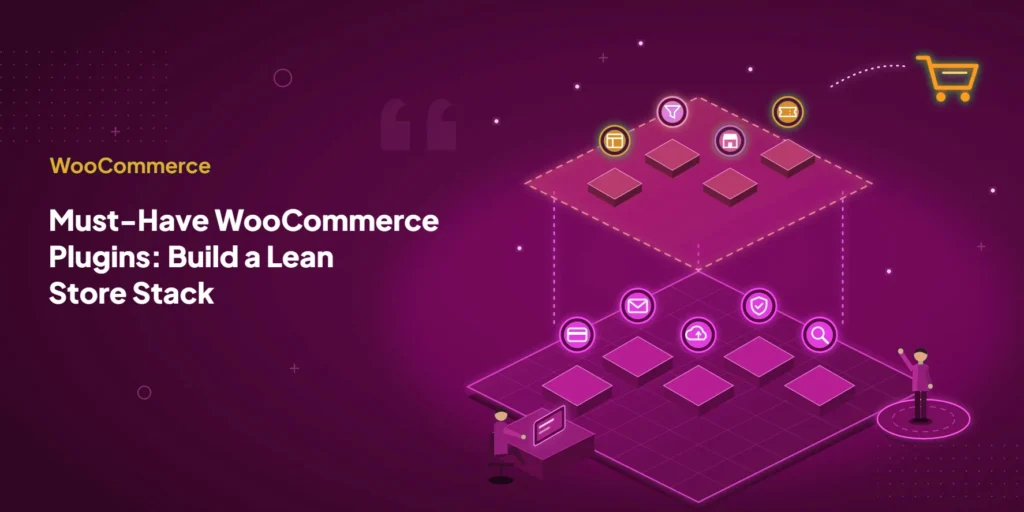
Question: What are the must-have WooCommerce plugins for an online store?
The must-have WooCommerce plugins are the ones that protect the purchase path and solve a documented store need. Start with a payment gateway, reliable transactional email, a tested backup system, security controls, and one SEO solution. Then add tools for design, checkout optimization, marketing automation, marketplaces, memberships, or event tickets only when your business model requires them. WooPayments, WP Mail SMTP, UpdraftPlus, Wordfence, and Yoast SEO are practical examples for the baseline. ShopPress, FunnelKit, Omnisend, Dokan, and MemberPress. The best stack is not the longest list. It is the smallest set of compatible plugins that covers the work your store actually needs.
WooCommerce can support almost any sales model. That flexibility also makes it easy to install five extensions before defining one clear problem.
This guide takes a stricter approach. It separates operational essentials from optional growth and business-model tools, then gives you a test for deciding what deserves a place on your site.
A useful list of must-have WooCommerce plugins is therefore organized by jobs, not by the number of products it can mention. That distinction keeps the advice relevant when individual products or prices change.
Key Takeaways
- Every WooCommerce store first needs payments, reliable transactional email, backups, security and one SEO plugin.
- Add tools such as ShopPress, FunnelKit, Omnisend, Dokan, MemberPress or Modern Events Calendar only when your store has a specific need for them.
- Test every new plugin against your checkout and other key customer flows before relying on it in production.
- There is no ideal number of plugins; a smaller, well-maintained stack is easier to keep fast and secure.
What makes a WooCommerce plugin essential?
An essential plugin covers a function your store cannot safely operate without, or it fixes a specific limitation that you can demonstrate. Popularity alone does not make a plugin essential, and essential WooCommerce plugins will differ between a small catalog and a complex marketplace.
Use this order of priority:
- Complete and record an order. Customers need a working payment method, checkout, confirmation, and account flow.
- Recover from failure. The site needs current backups and a tested restoration path.
- Protect the store. Security controls should match the risks your host and existing services do not already cover.
- Help customers find and trust products. Search controls, useful product data, and reliable messages support this job.
- Extend a proven need. Add design, funnel, marketing, marketplace, membership, or event features only when the base store works.
That sequence gives you a useful rule: protect revenue and recovery before adding promotional features.
It also prevents a common source of trouble. Two WooCommerce extensions may look different on their sales pages while editing the same checkout fields, sending the same abandoned-cart messages, or adding the same schema. Overlap means more settings to reconcile and more code to test.
Which must-have WooCommerce plugins should every store cover first?
Most stores need five functions before they need advanced merchandising. In this guide, must-have WooCommerce plugins cover payments, email delivery, recovery, security, and search controls. The specific provider can change with your country, host, catalog, and technical setup, so treat the products below as starting points rather than a universal bundle.
| Priority | Store job | Practical option | Check before installing |
|---|---|---|---|
| 1 | Accept and manage payments | WooPayments or another supported gateway | Country, currency, fees, payout timing, refund workflow, subscriptions, and local payment methods |
| 2 | Deliver order and account email | WP Mail SMTP with a suitable sending provider | Domain authentication, sender identity, logs, sending limits, and privacy requirements |
| 3 | Back up and restore the store | UpdraftPlus or a host-managed backup service | Off-site storage, frequency, retention, database coverage, and a tested restore |
| 4 | Add security controls | Wordfence or an equivalent host/WAF setup | Existing firewall overlap, login controls, scan load, alerts, and incident response |
| 5 | Manage search metadata and schema | Yoast SEO or one comparable SEO suite | Theme output, product schema, sitemap settings, canonicals, and duplicate SEO plugins |
1. WooPayments for integrated payment management
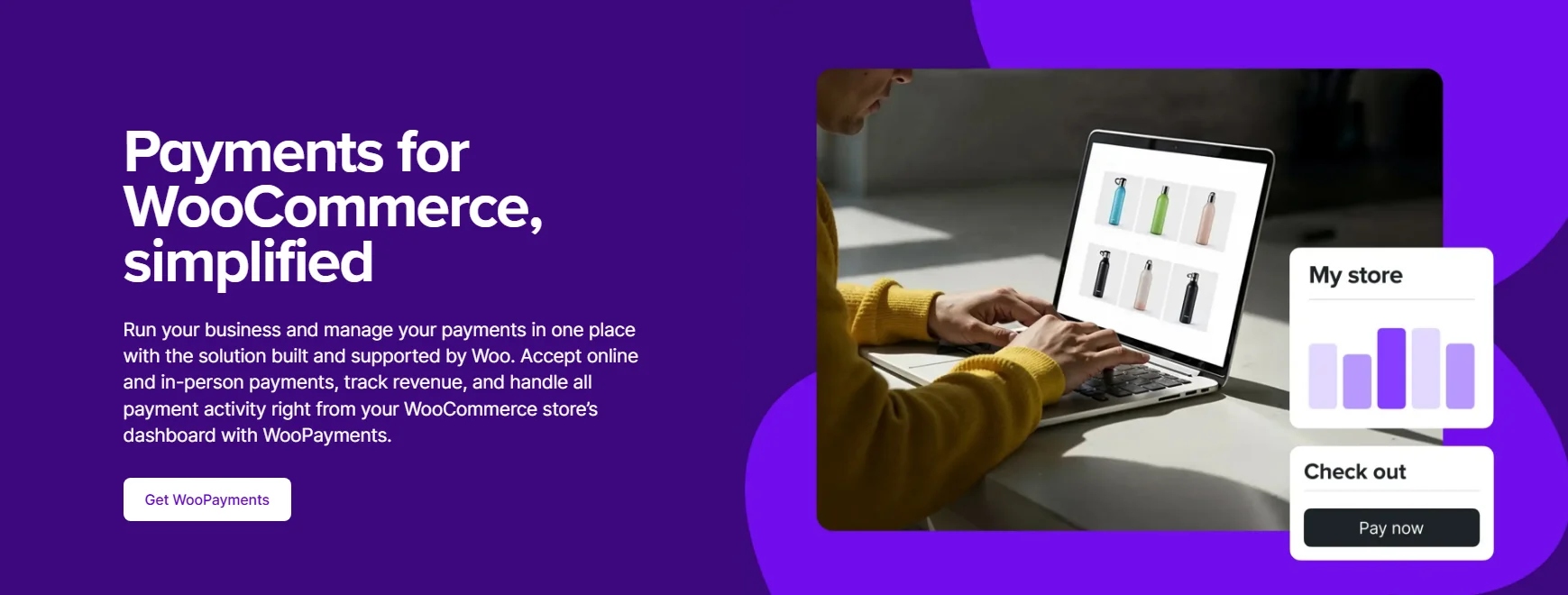
A payment gateway is essential, but WooPayments itself is one option rather than a requirement. WooCommerce states that merchants can use other gateways.
WooPayments brings transactions, payouts, disputes, and refunds into the WordPress dashboard. Its startup guide also makes the limitations clear: your business must be in a supported country, the site must use HTTPS, and WordPress, WooCommerce, and PHP must meet current requirements.
Choose a gateway after checking the full payment workflow, not its logo list. This WooCommerce extension touches the most sensitive part of the purchase path, so run test payments, failed payments, refunds, coupon orders, tax calculations, and guest checkout before going live.
2. WP Mail SMTP for transactional email delivery
Order confirmations and password-reset messages are operational email. If they do not arrive, customers may assume the order failed even when payment succeeded.
WP Mail SMTP changes how WordPress sends mail by connecting wp_mail() to an SMTP service or supported provider API. The plugin does not replace the sending service itself, and installation alone does not guarantee inbox placement.
After configuration, test messages to more than one mailbox provider. Among plugins for WooCommerce and WordPress, mail tools depend especially heavily on an outside service. Check the sender domain, SPF, DKIM, DMARC, reply-to address, order status emails, and any email log permitted by your privacy policy.
3. UpdraftPlus for backup and restore

A backup matters only if it is recent, complete, stored somewhere safe, and restorable. Before adding a backup plugin, check whether your host already provides reliable off-site backups and how quickly you can restore them.
UpdraftPlus provides WordPress backup, restoration, and migration functions. A store’s database changes whenever it receives orders, creates accounts, or updates stock, so its database schedule may need to be more frequent than its file schedule.
Do one controlled restore on staging. Confirm that products, orders, media, WooCommerce extensions, settings, and customer accounts return as expected. A successful backup notification is not the same thing as a successful recovery test.
4. Wordfence for firewall, scanning, and login protection

Security is a layered job. Your host, CDN, web application firewall, WordPress configuration, user roles, and plugins can all cover part of it.
Wordfence combines a firewall, malware scanning, file-integrity checks, brute-force controls, and two-factor authentication. Before enabling every option, compare it with the protection already supplied by your host or edge service. Duplicate scanning or traffic logging can add avoidable load.
Set an owner for alerts. This is one of the essential WooCommerce plugins only when its controls fill a real gap in the hosting and edge-security setup. A dashboard full of warnings does not protect the store if nobody knows which events require action.
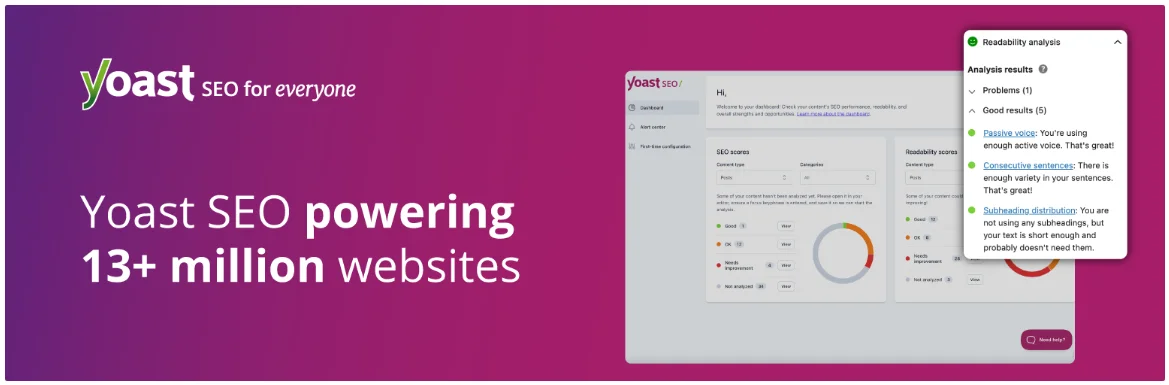
5. Yoast SEO for search controls
An SEO plugin gives the store one place to manage search-facing settings. It does not make thin product pages useful or guarantee rankings.
Yoast SEO handles functions such as title and meta-description controls, canonical URLs, XML sitemaps, structured data, and editorial analysis. WooCommerce and the theme can also output product information, so inspect the rendered page for duplicate or conflicting markup.
Install one complete SEO suite. Running two WooCommerce extensions with broad SEO control can produce competing canonicals, metadata, sitemaps, or schema. If your store sells physical products, a correctly configured product feed may also matter; compare the options in this guide to WooCommerce Google product feed plugins.
Use one SEO system as the source of truth for store metadata and schema.
Which plugins should you install only for a specific need?
The next must-have WooCommerce plugins are conditional. They become valuable when they match the store’s builder, customer journey, or business model, and remain unnecessary when that condition does not exist.
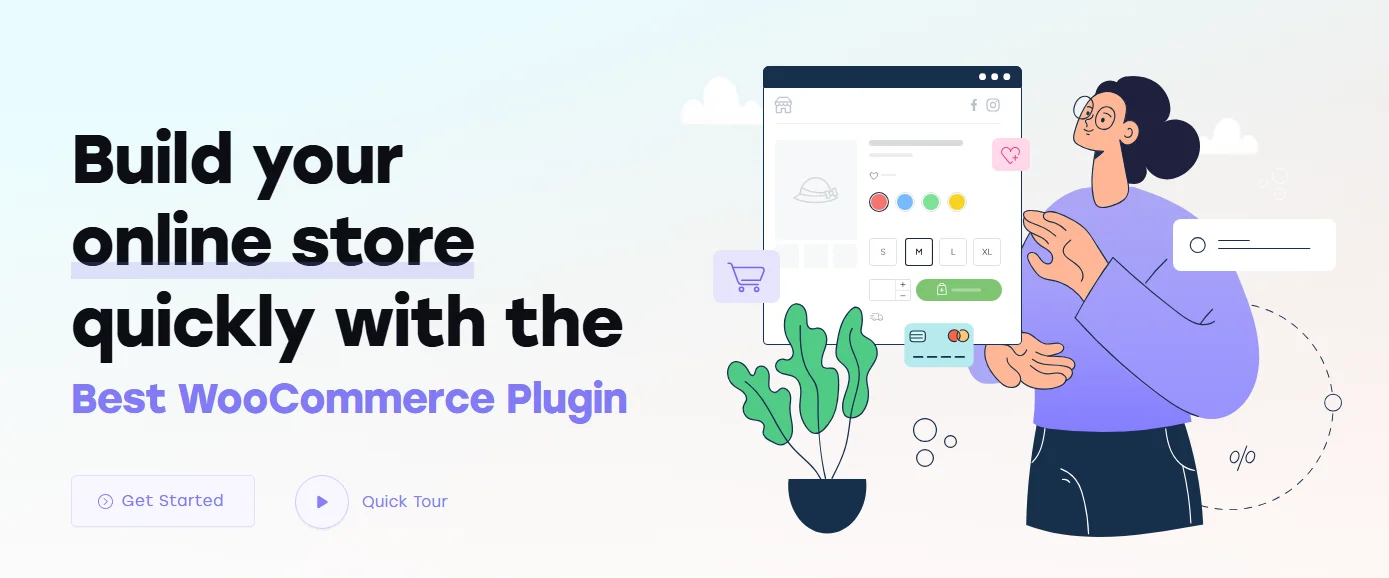
ShopPress for Elementor-based store design
Choose ShopPress when you use Elementor and need deeper control over WooCommerce templates or shopper features. It can build and style product, shop, cart, checkout, account, and archive experiences, with features such as filters, wishlists, comparison, swatches, and size charts varying by edition.
ShopPress can replace several narrower presentation add-ons for the right Elementor store. This kind of consolidation can make a WooCommerce plugin stack easier to explain. Do not keep separate wishlist, comparison, swatch, or checkout-layout plugins active until you confirm which system owns each feature.
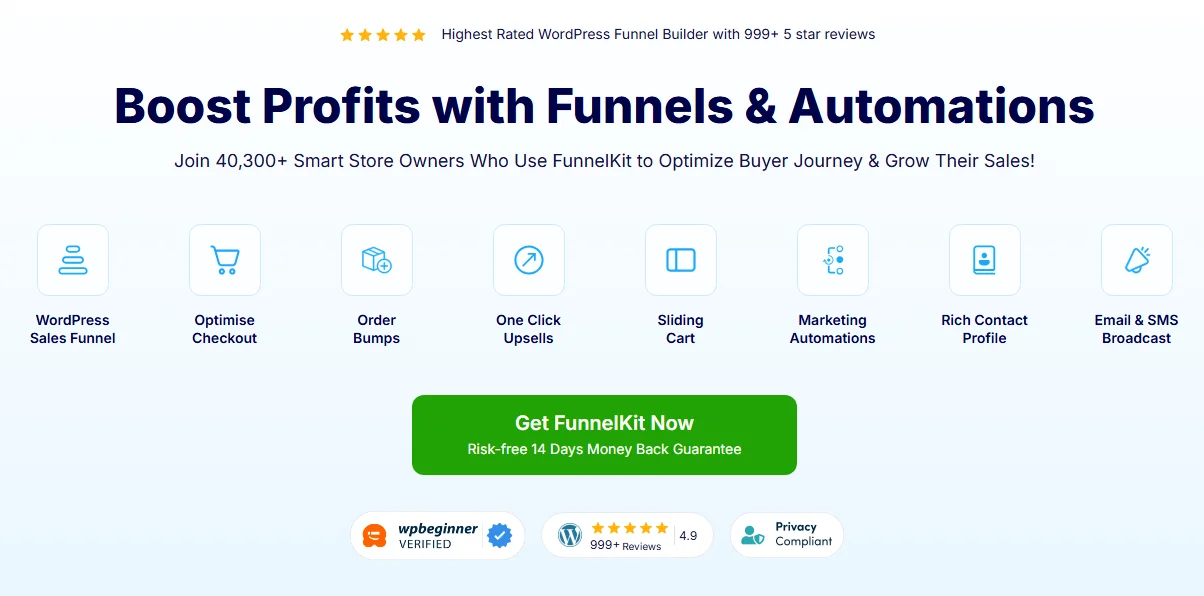
FunnelKit for a measured checkout or offer problem
FunnelKit is appropriate when the default checkout does not support a defined sales flow. Its checkout documentation covers custom checkout pages and fields, while the wider product supports order bumps and post-purchase offers.
Start with one hypothesis, such as simplifying a long form for a digital product or showing a complementary offer for a specific cart. Record the current completion rate, test the WooCommerce extension on staging, and avoid changing the form, gateway, and offer logic at the same time.
Omnisend for ecommerce email and SMS automation
Omnisend fits stores that are ready to use customer and order data for segmented campaigns and automated messages. Its WooCommerce setup documentation says the integration synchronizes contacts, products, and orders and supports workflows such as welcome, abandoned-cart, and order messages.
Decide which system sends each message before enabling automations. WooCommerce extensions, an SMTP service, and a marketing platform can otherwise send overlapping order updates. Consent, suppression, retention, and regional messaging rules also need an owner.

Dokan for a multivendor marketplace
Dokan is not a routine store add-on. It changes a single-merchant shop into a marketplace where outside vendors can manage products and orders through vendor-facing tools.
That model brings decisions about vendor onboarding, commissions, withdrawals, disputes, taxes, refunds, moderation, and support. Confirm those operating rules before choosing the software. Many plugins for WooCommerce add shopper features, while a marketplace system changes who can sell. If the business will sell only its own products, skip the marketplace layer.

MemberPress for protected membership access
MemberPress belongs in the stack when a purchase must grant access to protected content, a course, a community, or another membership benefit. A standard product subscription and a protected membership are related, but they are not always the same requirement.
The official MemberPress WooCommerce integration page describes ways to connect purchases with membership levels and protected content. It also lists additional integration requirements, so check the exact license, connector, renewal, refund, and cancellation behavior before adding this WooCommerce extension to the workflow.
Modern Events Calendar for stores that sell event tickets
An event plugin is conditional, even when the store sells tickets. It becomes useful when you need event schedules, recurring dates, attendee data, booking rules, or calendar displays that normal products do not provide.
Modern Events Calendar supports events and booking workflows. Its separate WooCommerce Integration add-on documentation explains that MEC Pro is required and that tickets can be added to the WooCommerce cart alongside other products.
Test order-status mapping, refunds, taxes, coupons, stock or capacity, attendee emails, and mixed carts before launch. Event-related WooCommerce extensions can affect both booking and order records. MEC and WooCommerce send different messages, so the notification plan deserves particular attention.
How do you choose plugins without slowing down or breaking the store?
Use the Store Stack Test before every installation. It turns a list of must-have WooCommerce plugins into an operational decision and gives every proposed installation the same burden of proof.
The Store Stack Test
| Test | Question | Evidence to collect |
|---|---|---|
| Job | What exact problem or task does this plugin own? | One-sentence requirement and responsible person |
| Overlap | Does the host, theme, WooCommerce, or another plugin already do it? | Feature and data-flow map |
| Proof | Can the team test the real customer journey on staging? | Test orders, email receipts, mobile checks, logs, and performance comparison |
| Exit | Can the team recover or remove it safely? | Current backup, restore result, rollback steps, and data export plan |
If you cannot name the job, test the outcome, and describe the exit, the plugin is not ready for production.
When a WooCommerce extension passes that test, use this rollout sequence:
- Record the current WordPress, WooCommerce, theme, PHP, and plugin versions.
- Take a current backup and confirm the restoration procedure.
- Install the extension on staging.
- Configure only the feature required for the first test.
- Run guest and account checkout on desktop and mobile.
- Test successful, failed, refunded, taxed, discounted, and out-of-stock orders where relevant.
- Verify customer, administrator, and vendor emails.
- Compare page behavior and performance before and after activation.
- Document the owner, renewal date, data location, and rollback steps.
- Deploy during a monitored window and repeat a smaller production test.
WordPress provides controls for installing, updating, deactivating, and removing extensions in its plugin management documentation. A production WooCommerce plugin stack needs a stricter process because checkout, stock, accounts, and email are connected.
How many WooCommerce plugins are too many?
There is no reliable universal number. Ten focused extensions can be easier to maintain than three large plugins with overlapping modules, poor queries, or abandoned code.
Judge the WooCommerce plugin stack by behavior:
- Are storefront, product, cart, checkout, and account pages still responsive?
- Do background jobs complete without a growing queue?
- Are database tables and logs controlled?
- Can the team trace each email, script, schema block, and checkout field to one owner?
- Are updates active, compatible, supported, and tested?
- Does every extension still solve a current requirement?
Review the WooCommerce plugin stack quarterly and before major WooCommerce releases. Deactivate a candidate on staging first, then check whether it leaves shortcodes, scheduled jobs, database tables, customer data, or broken layouts behind.
The useful limit is not a count. This standard keeps essential WooCommerce plugins accountable after installation. You have too many plugins when the team can no longer test, update, explain, and recover the complete stack with confidence.
Build the smallest stack that covers the real work
Start with a working payment path, dependable email, recoverable backups, appropriate security, and one SEO system. Those are the must-have WooCommerce plugins and services that protect day-to-day operation. Then let your store’s measured needs decide what comes next.
The most durable must-have WooCommerce plugins list is therefore a living operating document, not a shopping list. Give every extension one owner, one job, a staging test, and an exit plan. If it cannot earn its place, leave it out.
Your next step is simple: list every active plugin beside the job it performs. Any blank or duplicated job is the first item to investigate.
Frequently asked questions
1. Do I need all of these must-have WooCommerce plugins to launch a store?
No. You need the functions that protect ordering, communication, recovery, security, and search controls, but your host or existing services may already cover some of them. The essential WooCommerce plugins for one store may therefore be redundant on another. Specialized plugins for WooCommerce should be added only when the store uses that sales model or needs that feature.
2. Are free WooCommerce plugins safe for a live store?
Free and paid status does not determine safety. Review the maintainer, recent updates, compatibility, support record, permissions, data handling, and code behavior. Test the plugin on staging and keep a recovery path. Paid software may fund support, but it still needs the same technical review.
3. Should I install more than one SEO or security plugin?
Usually, no. Full SEO suites can emit competing metadata and schema, while security WooCommerce extensions can duplicate scans, firewalls, logs, or login rules. Pick one primary owner for each function, then add a narrowly scoped companion only when you can show that it fills a gap.
4. What should I test after installing a WooCommerce extension?
Test the customer journey it changes, plus connected flows. At minimum, check product pages, cart, checkout, payment success and failure, refunds, taxes, coupons, stock, account creation, order emails, mobile layout, logs, and page performance. Specialized stores also need membership, vendor, subscription, or attendee tests.
5. When should I remove a WooCommerce plugin?
Remove it when the requirement no longer exists, another approved tool owns the job, maintenance has stopped, compatibility is unsafe, or its cost and operational burden exceed its value. First test deactivation on staging and document how its data, scheduled tasks, and front-end output will be handled.