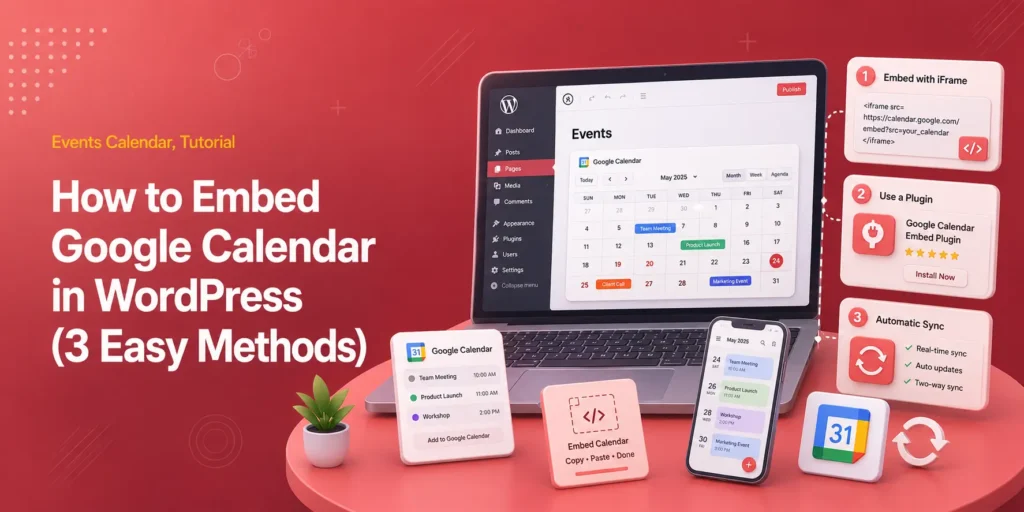
How to embed Google Calendar in WordPress (free + plugin methods)
Quick answer: To embed Google Calendar in WordPress, open Google Calendar on a computer, select the calendar under Settings, find Integrate calendar, and copy the iframe code.
In WordPress, add a Custom HTML block, paste the code, and publish the page. If you need branded event pages, filters, bookings, or ticket sales, import the events with Modern Events Calendar instead of showing Google’s iframe.
The calendar must be public or shared with the people who need to view it. The free method is enough for a public schedule. Preview the published page on a phone because a month grid can remain cramped even after the iframe fits the page width.
Most people searching for how to embed Google Calendar in WordPress want the calendar visible today, not a long plugin comparison.
The iframe method takes a few minutes and does not require a plugin. Its limits become important only when the calendar is customer-facing or needs features beyond a schedule.
Which method should you use?
Use the free iframe for a simple public schedule. Use a dedicated event calendar plugin like MEC when events need their own WordPress pages, stronger design control, booking, ticketing, or scheduled imports.
| Method | Best for | Cost | Main tradeoff |
|---|---|---|---|
| Google Calendar iframe | Opening hours, class schedules, community dates, internal calendars | Free | Limited styling and no native WordPress event pages |
| Google Calendar block on WordPress.com | WordPress.com sites that already have the block | Included | The result is still a Google-hosted embed |
| MEC import and display | Public events, directories, bookings, tickets, and branded event pages | Free or paid, depending on the features and add-ons used | More setup than copying an iframe |
If you need more than a calendar, follow our guide to build a complete event website in WordPress, including event pages, registration, testing, and launch.
How do you embed Google Calendar in WordPress for free?
Copy the iframe from Google Calendar’s Integrate calendar settings and paste it into a Custom HTML block in WordPress. Google says the embed code is available from a computer, not from the mobile Calendar app.
Step 1: Choose what visitors are allowed to see
- On a computer, sign in at calendar.google.com.
- Under My calendars, click on the calendar you want to publish.
- Click the three-dot menu, then Settings and sharing.
- Check the calendar’s access permissions.
A public website cannot display a private calendar to every visitor. If the schedule is meant for anyone to see, enable Make available to public.
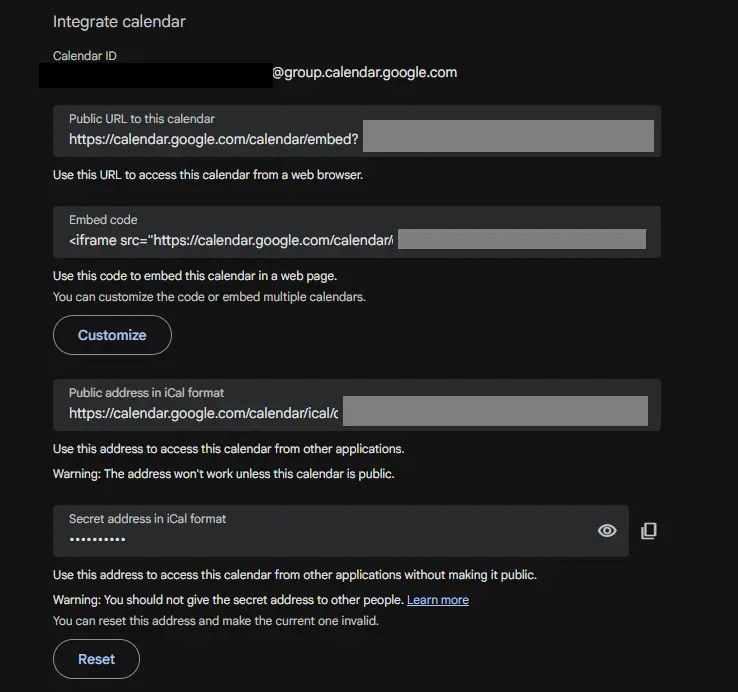
Google warns that public calendars can expose event details, so a separate calendar for website events is the safer choice. Never paste the calendar’s secret iCal address into a public page.
Step 2: Copy the Google Calendar embed code
- Stay on the calendar’s settings page and scroll to Integrate calendar.
- Under Embed code, click Customize if you want to change the default view, displayed items, color, language, time zone, width, or height.
- Copy the complete iframe code.
Google’s current instructions recommend setting both dimensions to at least 500 pixels in its customizer. You can still make the iframe fill a narrower content column with CSS, as shown below.
Step 3: Paste the iframe into WordPress
- Open the WordPress page or post where the calendar should appear.
- Click the block inserter and add a Custom HTML block.
- Paste the iframe code into that block.
- Use Preview to check the live page, then publish or update it.
If visitors see the iframe code as text, it was pasted into a Paragraph or Code block. Move it into a Custom HTML block.
Step 4: Make the calendar fit the page width
The easiest adjustment is to change the iframe’s width value to 100%. Keep a fixed height that suits the chosen view. A basic responsive version looks like this:
<div style="width:100%; overflow:hidden;">
  <iframe
    src="YOUR-GOOGLE-CALENDAR-EMBED-URL"
    style="border:0;"
    width="100%"
    height="600"
    frameborder="0"
    scrolling="no">
  </iframe>
</div>
Keep the embed URL from the code Google generated for your calendar. Replace only the width, height, or surrounding wrapper. A full month grid can still feel crowded on a phone even when the iframe fits its container.
For a mobile-heavy audience, test the schedule or agenda view as well as the month view.
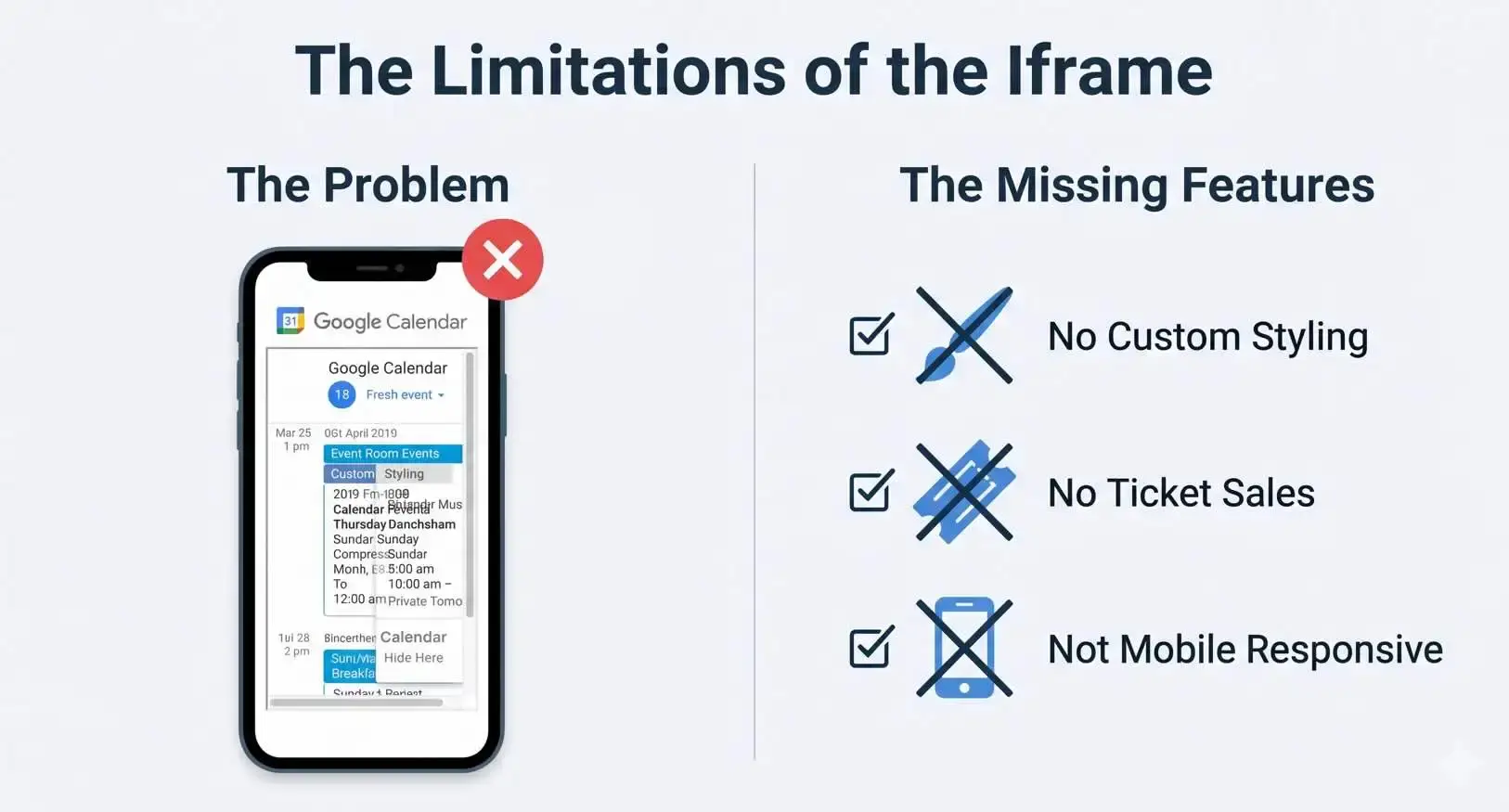
A standard iframe is quick to publish, but its layout and interactive features remain controlled by Google Calendar.
How do you add Google Calendar on WordPress.com?
WordPress.com includes a Google Calendar block on supported sites. Add that block, paste the same iframe code from Google Calendar, click Embed, and preview the page in a new tab.
On a self-hosted WordPress.org site, you may not see this block unless Jetpack provides it. The Custom HTML method works without the block and is usually the shortest route.
WordPress.com’s current support guide also notes that themes may offer wide and full-width alignment controls for the calendar block.
When should you import Google Calendar events instead?
Import events when the website needs to own the presentation and event experience.
An iframe displays a Google-hosted calendar. An imported event can become WordPress content with its own URL, image, organizer, location, layout, and, where supported, booking or ticket options.
This distinction matters for event businesses. A school timetable or office availability calendar may be fine as an iframe. A conference, fitness studio, venue, or training business often needs event detail pages that match the rest of the site.
If you are still choosing the right level of control, see WordPress Custom Calendar Maker: 4 Ways to Build Your Own. It compares an embed with native tables, hosted scheduling tools, and WordPress event plugins.
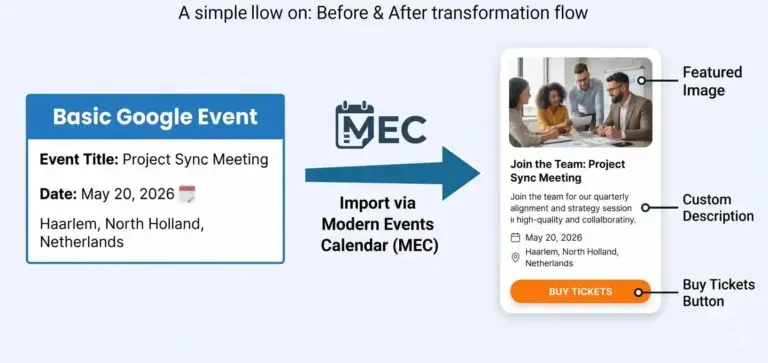
Importing turns a calendar entry into content that WordPress can display and manage as an event.
How do you import Google Calendar events with MEC?
MEC imports events through its Google Calendar import screen using a Google API key and the calendar ID. The exact options available can vary by MEC version and add-ons, so check your installed version before planning a recurring workflow.
- Install and activate MEC Lite or MEC Pro.
- In Google Cloud, enable the Google Calendar API and create an API key for the site.
- In Google Calendar, copy the calendar ID from Settings and sharing > Integrate calendar.
- In WordPress, open M.E. Calendar > Import/Export > Google Cal. Import.
- Enter the API key and calendar ID, then choose the date range to retrieve.
- Click Start, select the events you need, and import them into the MEC event list.
- Create or select a MEC shortcode and place it on the page where the calendar should appear.
MEC’s documentation says the Google calendar should be public for this import route. It also recommends matching the time zone in WordPress and Google Calendar, especially when a 403, 404, or incorrect event time appears.
You’ll also need to make sure that the calendar you’re importing from is public.
After the import, choose a calendar layout that suits the content instead of forcing every event into a month grid. MEC supports page builders including Gutenberg, Elementor, and Divi.
If your calendar is part of a designed landing page, review the available ways to use Elementor with MEC and the other supported builder options before choosing an add-on.
Can Google Calendar and WordPress stay in sync?
Yes, but “sync” can mean different things.
The iframe always displays a Google-hosted view, so there is nothing to re-import. An imported WordPress event is a separate record and needs a scheduled import or synchronization process to receive later changes.
MEC’s import and export documentation includes scheduled Google Calendar tasks using cron jobs. The host must support cron, and the related Google Calendar import or export must already be configured.
MEC’s Advanced Importer add-on can also connect to services including Google, Facebook, Meetup, and Eventbrite and lets administrators plan imports. Confirm the direction and interval your setup needs before relying on it for last-minute changes.’
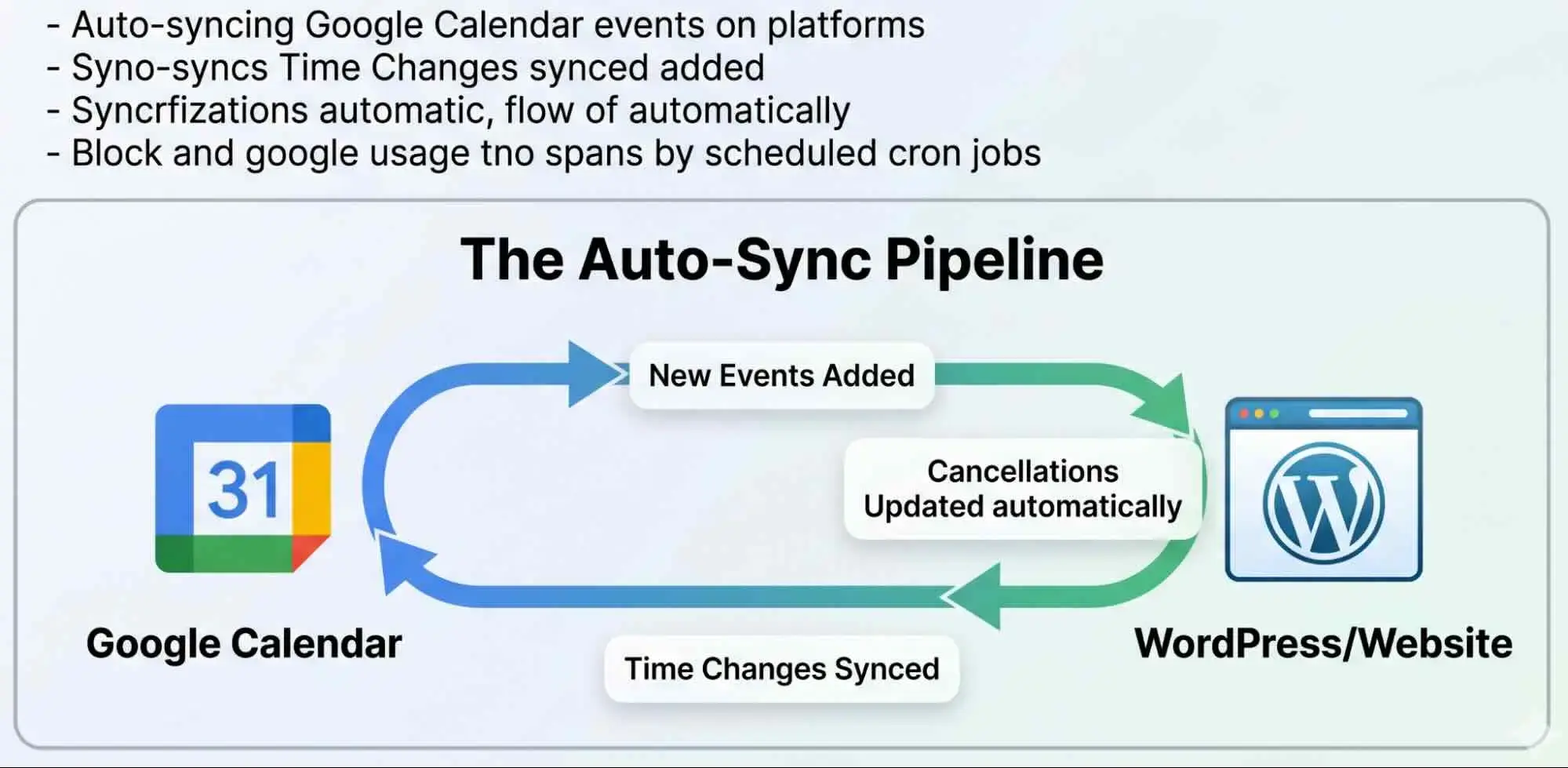
Scheduled imports reduce duplicate entry, but the timing depends on the configured task and the site’s cron support.
Google Calendar embed or MEC: what is the practical difference?
| Capability | Google iframe | MEC event import |
|---|---|---|
| Setup time | A few minutes | Longer because the API and display need configuration |
| Updates | Shown from the Google-hosted calendar | Manual or scheduled, depending on configuration |
| Design control | Google’s embed options | WordPress layouts, shortcodes, and supported builders |
| Event URLs on your domain | No | Yes |
| Featured images, organizers, and locations | Limited to what the embed displays | Managed as event content |
| Bookings and ticketing | Not built into the calendar embed | Available with the relevant MEC features or add-ons |
| Best fit | A schedule people need to view | Events people need to discover, open, book, or buy |
Why is the embedded calendar not working?
Most failures come from calendar permissions, the wrong WordPress block, container sizing, caching, or mismatched time zones. Check those items before replacing the embed or installing another plugin.
MEC returns a 403 or 404 during import: Recheck the public calendar setting, Google Calendar API status, API key restrictions, and calendar ID. and follow us on social media for updates.
The calendar is blank or asks visitors to sign in: Confirm that the calendar is public or shared with every intended viewer.
The iframe code appears as text: Paste it into a Custom HTML block, not a Paragraph or Code block.
The calendar is cut off: Set the iframe width to 100%, try a wide or full-width block, and increase the height.
The mobile view is hard to read: Test the schedule view, reduce the displayed controls, or use a WordPress calendar layout designed for small screens.
Events show at the wrong time: Match the time zone in Google Calendar, WordPress, and the import plugin.
Imported events have not changed: Check the import direction, last run, cron schedule, and page cache.
1. Can I embed a private Google Calendar in WordPress?
A private calendar can be visible to signed-in people who already have permission, but it will not work as a public website calendar.
For a public page, create a separate calendar containing only the events you are comfortable publishing. Do not expose a secret iCal URL in the page source.
2. Will Google Calendar updates appear automatically in WordPress?
An iframe loads the Google-hosted calendar, so visitors see the current calendar when the embed refreshes.
Imported events are separate WordPress records. They update only when you run another import or configure a supported scheduled synchronization task.
3. Do I need a WordPress plugin to embed Google Calendar?
No. The free iframe method only needs Google Calendar’s embed code and a WordPress Custom HTML block.
A plugin becomes useful when you need WordPress event pages, stronger layout control, filtering, event metadata, bookings, or ticket sales.
4. Can I embed more than one Google Calendar?
Yes. Google Calendar’s customizer can include multiple calendars in one embed, or you can add separate iframes to different WordPress pages.
Keep public and private schedules separate, and test the color labels and mobile view when several calendars share one grid.
5. Does embedding Google Calendar slow down WordPress?
The iframe loads content from Google after the page begins loading, so it adds a third-party request and some page weight. One calendar is usually manageable.
Avoid placing several embeds above the fold, and test the finished page with your normal performance tool.
6. Can visitors add an event to their own Google Calendar?in WordPress?
Yes. Google says visitors can use the Add to Google Calendar link at the bottom of an embedded public calendar.
For a single public event, Google Calendar also provides a Publish event option with HTML for an add-to-calendar button.
7. Publish the simplest calendar that meets the job
A public schedule does not need a plugin. Copy the iframe, paste it into a Custom HTML block, make the width responsive, and check the result on a phone.
Move to an event plugin when the calendar must do more than display dates.
If your visitors need event pages, filters, bookings, or tickets, test MEC with a small set of events before moving the full calendar.
That gives you a clear comparison without disrupting the live schedule.