Quick Answer: What is the best WordPress custom event calendar maker?
The best WordPress custom event calendar maker depends on whether you only need to display dates or also need appointments, registrations, or ticket sales.
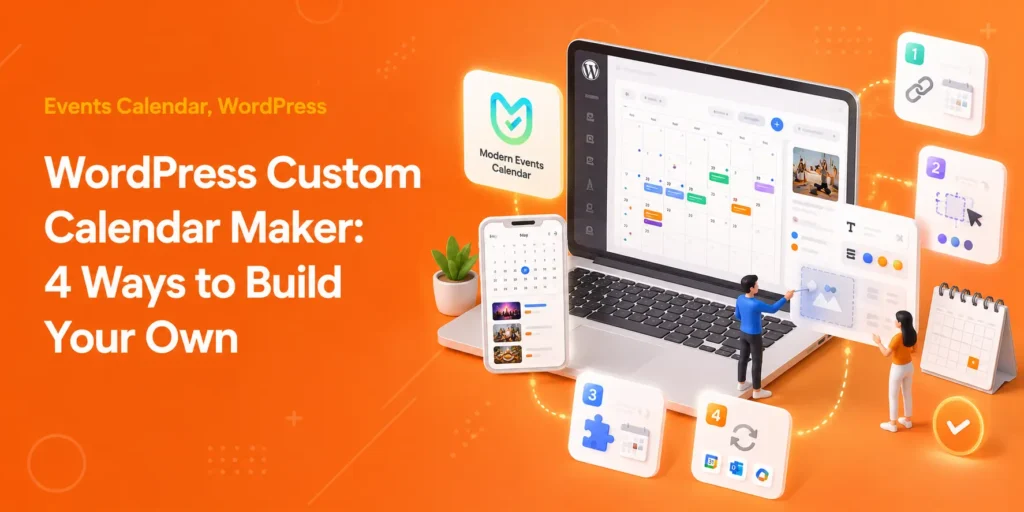
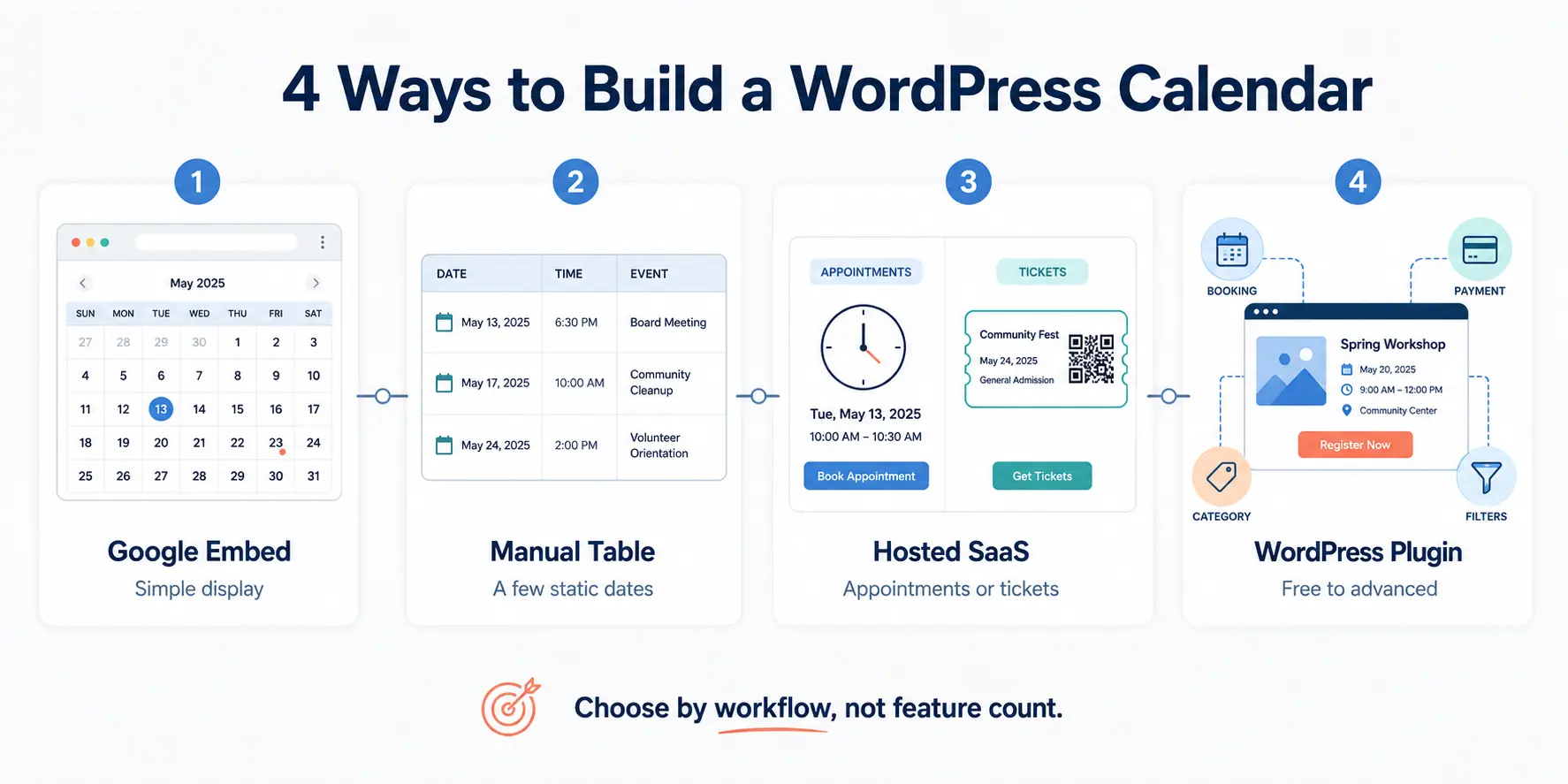
You have four no-code options: embed Google Calendar, build a native WordPress table, use Calendly or Eventbrite, or install an event-management plugin such as Modern Events Calendar.
Use a Google embed for a simple internal schedule. Choose SaaS or a WordPress plugin when you need bookings, payments, or room to grow.
At a glance: which method does what
| Factor | Google Calendar Embed | Manual Table | Calendly | Eventbrite | WordPress Event Plugin |
|---|---|---|---|---|---|
| Setup difficulty | Easy | Easy | Easy | Easy | Moderate |
| Appointment scheduling | Separate Appointment Schedules feature | None | Strong | Not its main purpose | Available in some plugins or plans |
| Event registration and ticketing | No built-in ticketing | External links only | Not its main purpose | Strong | Available in pro versions or add-ons |
| Event content on your domain | Embedded display | Yes | Widget or hosted booking page | Widget or hosted event page | Yes |
| Automatic Event schema on your WordPress page | Not provided by the standard embed | No | No | No | Plugin-dependent |
| Design control | Low | Theme-dependent | Moderate | Moderate | High, depending on the plugin |
| Scales as you grow | Limited for event management | Limited | Yes for appointments | Yes for ticketed events | Yes |
| Best for | Public or internal schedules | A few static dates | Meetings and consultations | Massive public events and ticket sales | Event-/appointment-focused WordPress sites |
I have built event sites for clients for years. Gyms, churches, a couple of festivals, more consultants than I can count. And the most common and costly mistake I watch people make is this:
They assume “WordPress custom event calendar maker” means coding.
It doesn’t. Many basic calendar setups don’t need a developer or a four-figure budget to get a calendar that looks like a real part of your brand. You need to pick the right method for where your site is right now.
But what exactly makes a WordPress custom event calendar maker unique?
A WordPress custom event calendar maker is any no-code method that lets you display and manage events on your site. It can be a free embedded widget, a hosted SaaS tool, or a full event-management plugin.
The “Custom” refers to your control over the look, data, and booking flow to fit your brand. The four methods below sit on a spectrum from low control (a copy-paste embed) to almost-total control (a design-first plugin).
Disclosure: I work at Webnus, which makes Modern Events Calendar. I use it as the example for Method 4 because it is what I know best, but Methods 1 to 3 are the right call for plenty of sites, and I will say exactly when.
This guide covers calendars for displaying events, taking bookings and appointments, and selling tickets; not editorial content calendars or printable calendar designs. For the broader process of choosing hosting, designing event pages and ticket registration, see how to create an event website with WordPress.
Here is each path, what it is great at, and where it falls down.
When comparing each WordPress custom event calendar maker, consider its design control, booking features, maintenance requirements, and long-term cost.
Method 1: How do you embed a Google Calendar in WordPress?
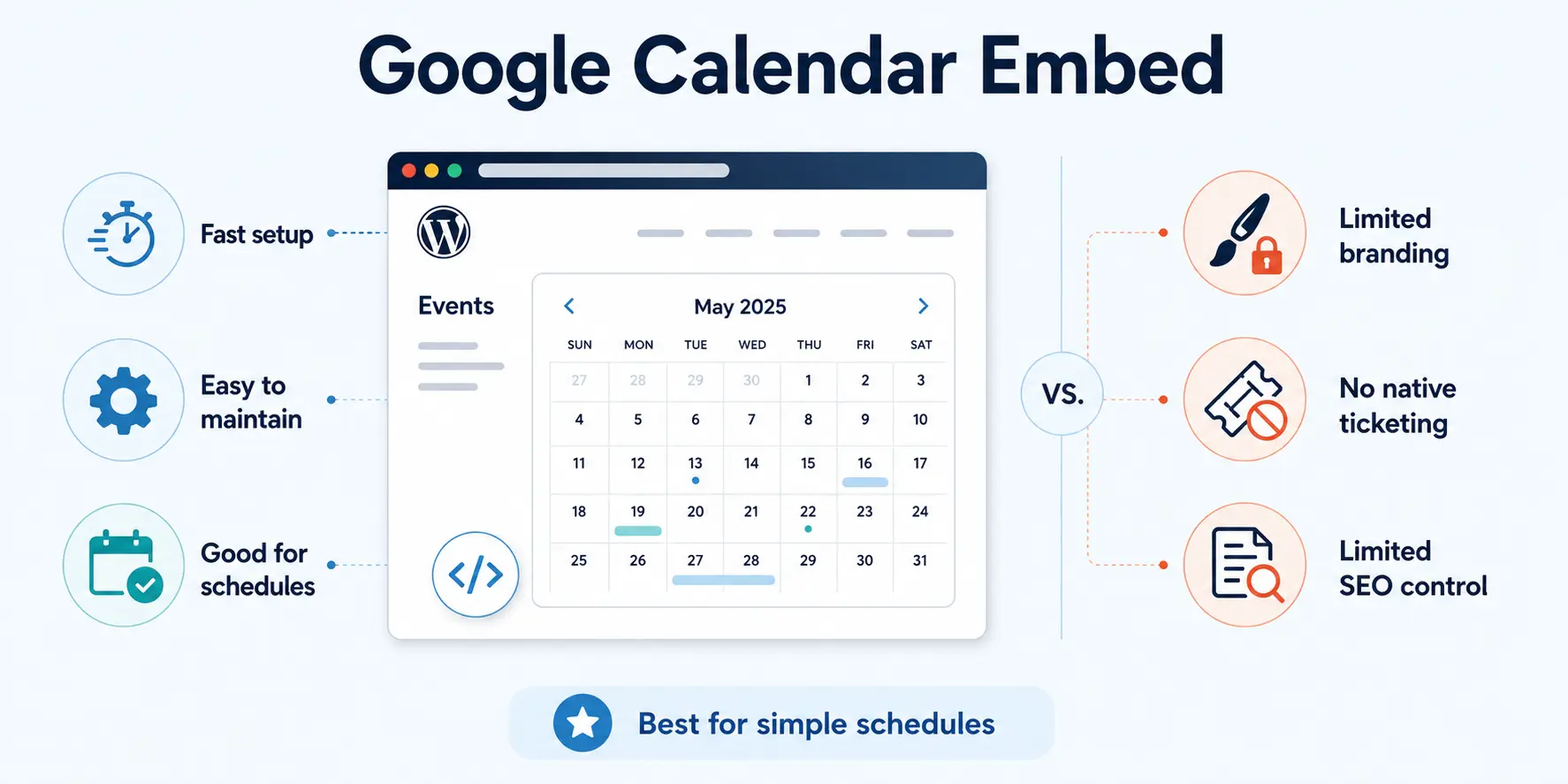
You grab an iframe code from your Google Calendar “Settings & Sharing” page and paste it into a Custom HTML block. Done in a few minutes. The process is basic enough to require little technical experience.
Best for: internal staff schedules and small community or hobby groups where ease beats looks.
This WordPress custom event calendar maker approach favors speed and simplicity over design control.
Booking and appointments:You can set up a service and timeslots for visitors to schedule an appointment but integrating payments (you can only use Stripe) requires a paid subscription to Google Workspace or Google One.
There are no options for ticketing and event management.
Aesthetics: It looks like a Google product, and offers a couple of simple views and coloring options. So matching your brand aesthetic can prove difficult.
Limitations:
- Limited SEO control. Google may associate content inside an iframe with the WordPress page that embeds it, but that association is not guaranteed.
- No built-in event ticketing. The standard embed does not manage ticket types, payments, attendee records, or event check-in.
- Limited calendar-saving options. Visitors can subscribe through the “Add to Google Calendar” link, and you can publish individual public events with a save button.
- Very limited design control. You can adjust basic display options, but the typography, interface, spacing, and overall experience remain Google-branded.
When it’s the right call: an internal team schedule nobody outside the company sees. Here the embed isn’t a compromise; it’s the correct, low maintenance answer for internal use.
Method 2: Can you build a calendar with native WordPress tables?
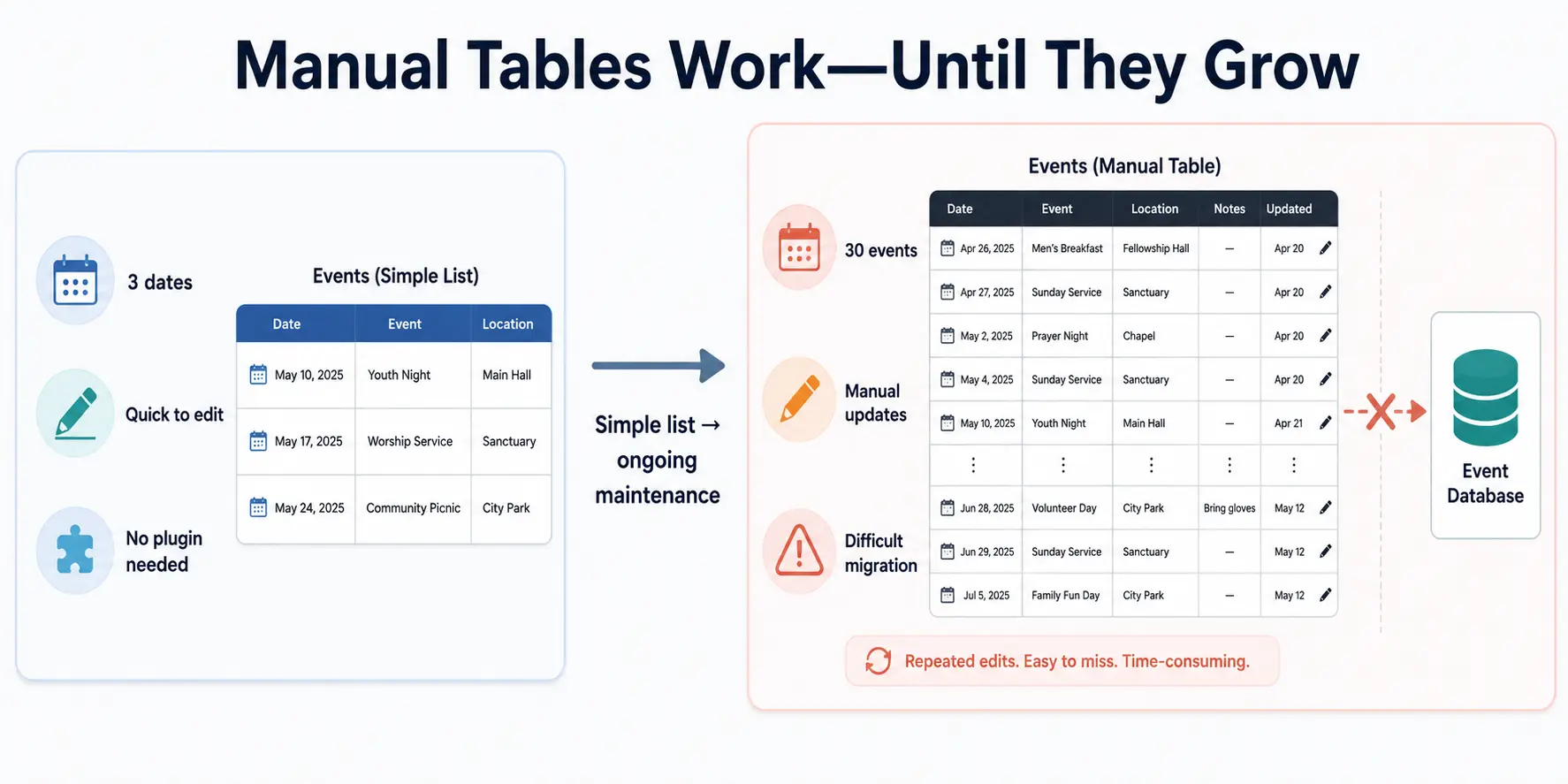
You use the native WordPress Table Block and type in your event dates, names, and registration links by hand.
Best for: small number of events or static events and minimalist sites that want to stay lean.
Booking and appointments: none built in. You can paste a link to an external form or payment page, and that is the ceiling.
Aesthetics: This is not an event calendar, more like an event list. In terms of design, it follows your theme options.
Limitations:
- All maintenance workflows are manual.
- No recurring events, reminders, or add-to-calendar.
- No bookings or tickets, natively.
- A rough migration later on, since most plugins do not provide direct table import.
One nonprofit I helped started with a tidy table. Two years on, they ran events most weeks and maintaining it had become a part-time job nobody wanted, and when they moved to a plugin, none of the hand-typed data carried over.
The migration tax is real, and you pay it in staff time.
My rule of thumb: if you post more than a couple of events a month, skip the table and start with a free plugin.
Where the table actually wins: a single annual event with two or three dates. A plugin may be unnecessary for that use case. A clean table will be simpler to maintain for small schedules.
As a WordPress custom event calendar maker, a manual table only makes sense when dates change rarely and you do not need automation.
Method 3: When should you use a SaaS platform, e.g. Calendly or Eventbrite?
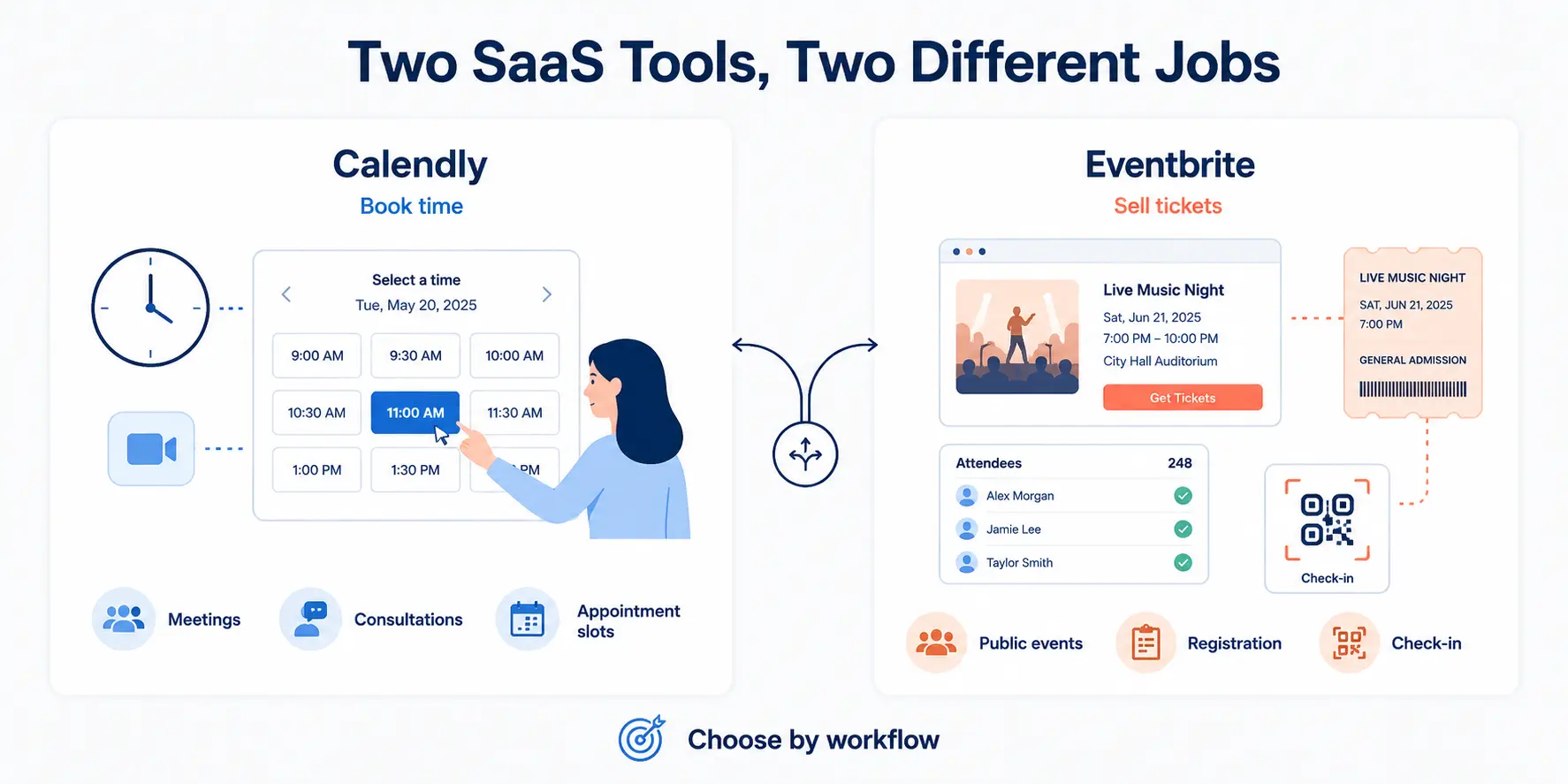
If the primary job of your calendar is scheduling appointments or selling event tickets, a hosted SaaS platform may be the fastest option. Calendly and Eventbrite both belong in this category, but they solve very different problems.
This type of WordPress custom event calendar maker moves scheduling or ticketing to an external service.
Choose Calendly for appointment scheduling
Calendly is primarily an appointment-scheduling platform rather than a public event-calendar or ticketing platform.
Best for: consultants, coaches, sales teams, recruiters, and service businesses that schedule one-to-one or small-group meetings.
Booking and appointments: this is Calendly’s main strength. Visitors choose from your available time slots, and you can connect meetings with tools such as Zoom and external calendars. Payment and automation options depend on the selected plan and integrations.
Aesthetics: you can embed the scheduling interface on your website, but the available branding and design controls are more limited than those of a calendar built directly inside WordPress.
Limitations:
- It is not designed for public event directories, festivals, venue calendars, or complex ticket types.
- The interface remains recognizable as a hosted scheduling product.
- Some branding, automation, routing, and reminder features require paid plans.
- Depending on your implementation, visitors may interact with an embedded widget or continue to a hosted booking page.
When Calendly is the right choice: when your calendar’s main purpose is letting people reserve time with an individual or team. A full event-management plugin may be unnecessary for that job.
Choose Calendly as your WordPress custom event calendar maker when appointment availability matters more than public event discovery.
Choose Eventbrite for event registration and ticketing
Eventbrite is primarily an event-publishing, registration, discovery, and ticketing platform.
Best for: public workshops, conferences, performances, festivals, and organizers who value a hosted ticketing system and an established event-discovery marketplace.
Registration and ticketing: this is Eventbrite’s main strength. It handles event pages, ticket types, attendee registration, payments, order management, and check-in through its hosted platform.
Aesthetics: Eventbrite provides event-page and widget branding options, but the event listing and checkout experience remain platform-controlled. Depending on the setup, visitors may register through an embedded interface or an Eventbrite-hosted page.
Limitations:
- The checkout and attendee experience may not feel fully integrated with your WordPress design.
- Ticketing fees apply to paid events depending on location and current pricing. See the Cost Trap section below.
- Your event and transaction workflow depends on an external platform.
- Customization is more limited than building the event experience directly inside WordPress.
When Eventbrite is the right choice: when you need established ticketing infrastructure, attendee check-in, marketplace exposure, and a platform that already has consumer recognition.
For a large public event, those advantages may be worth the additional fees and reduced design control.
Choose Eventbrite as your WordPress custom event calendar maker when hosted ticketing and marketplace reach matter more than complete on-site control.
Method 4: When should you use a WordPress custom event calendar maker?
A dedicated WordPress custom event calendar maker is often a strong fit when you want your event content to live on your own domain and need more control than an embed or hosted widget provides.
Since features, pricing and add-on requirements vary considerably, it is worth taking the time to compare the best WP event management plugins before choosing one.
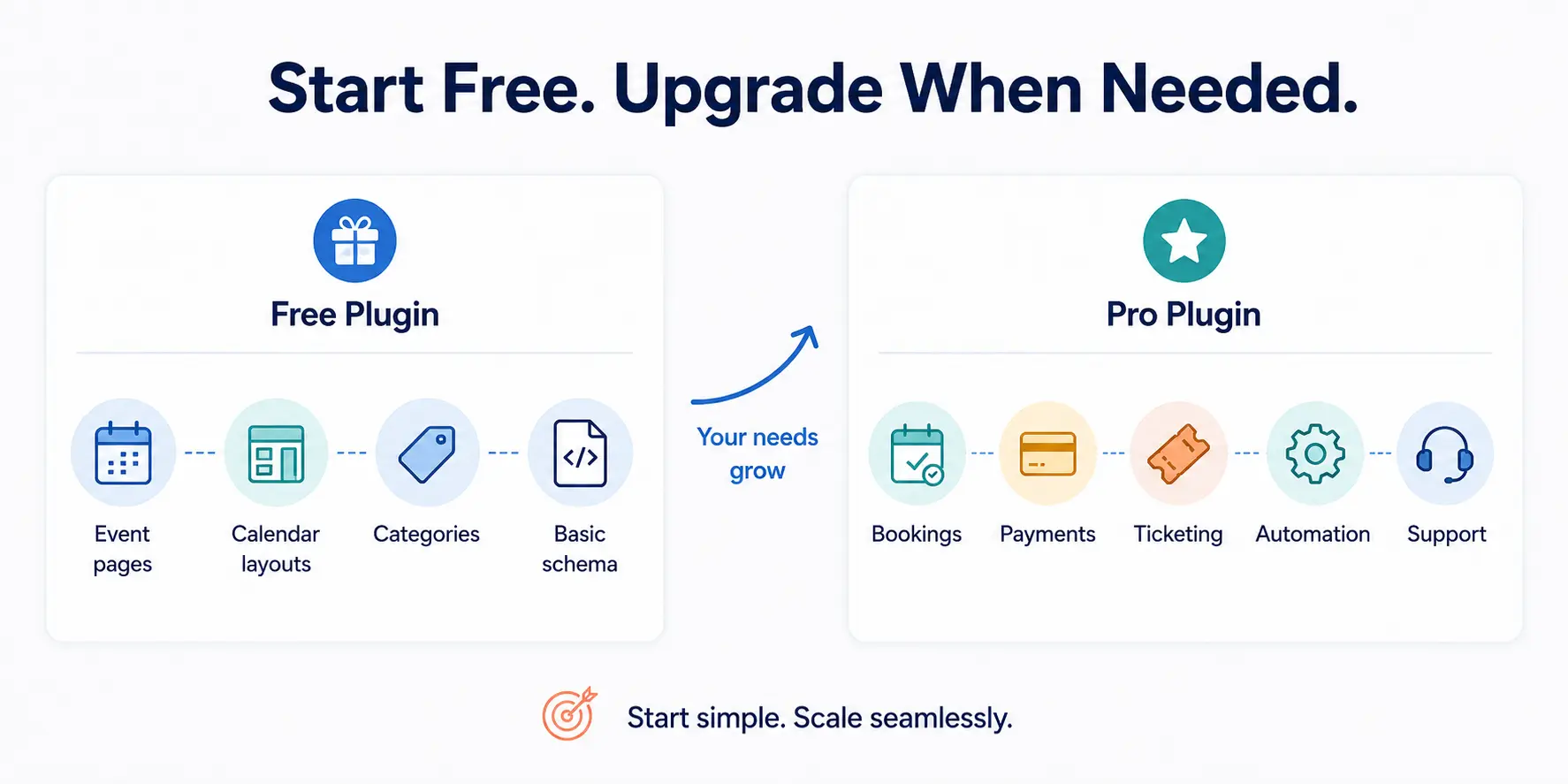
You don’t need a pro license on day one. Many free event plugins cover basic event publishing and organization; paid versions offer bookings, payments, ticketing, automation, advanced layouts, or premium support.
Best for: organizations that publish events regularly and want reusable event pages, categories, locations, organizers, calendar views, and the option to add registration or ticketing later.
Free plugin: a free version such as MEC Lite can be enough for publishing events, testing layouts, building an event database, and avoiding the migration headache of a manual table.
Features vary between plugins, so check support for recurring events, imports, structured data, page builders, and calendar views before choosing one (MEC Lite offers all of these).
Pro plugin: a paid event plugin is more suitable when you need booking forms, ticket types, payments, attendee management, advanced filtering, automated notifications, premium layouts, integrations, or premium technical support.
Some specialized capabilities may still require separate add-ons.
Booking and appointments: usually available through a paid version or add-on rather than every free event plugin.
Confirm whether the plugin supports appointments, event registration, ticket sales, or all three, because these are different workflows (MEC Pro does all three in one license).
Aesthetics: WordPress plugins generally provide more on-site design control than Google Calendar or hosted SaaS widgets.
However, the amount of control varies by plugin. Some include polished layouts and visual settings, while others require CSS or page-builder integrations.
Limitations:
- Setup takes longer than copying an embed code.
- Booking, check-in, payment, and advanced design features may require paid plans or add-ons.
- High-traffic or mission-critical ticketing requires reliable hosting, testing, caching, and payment infrastructure.
- Switching to another plugin later requires event-data migration.
The plugin approach offers several advantages that earlier methods do not provide together.
The SEO advantage: your events in Google
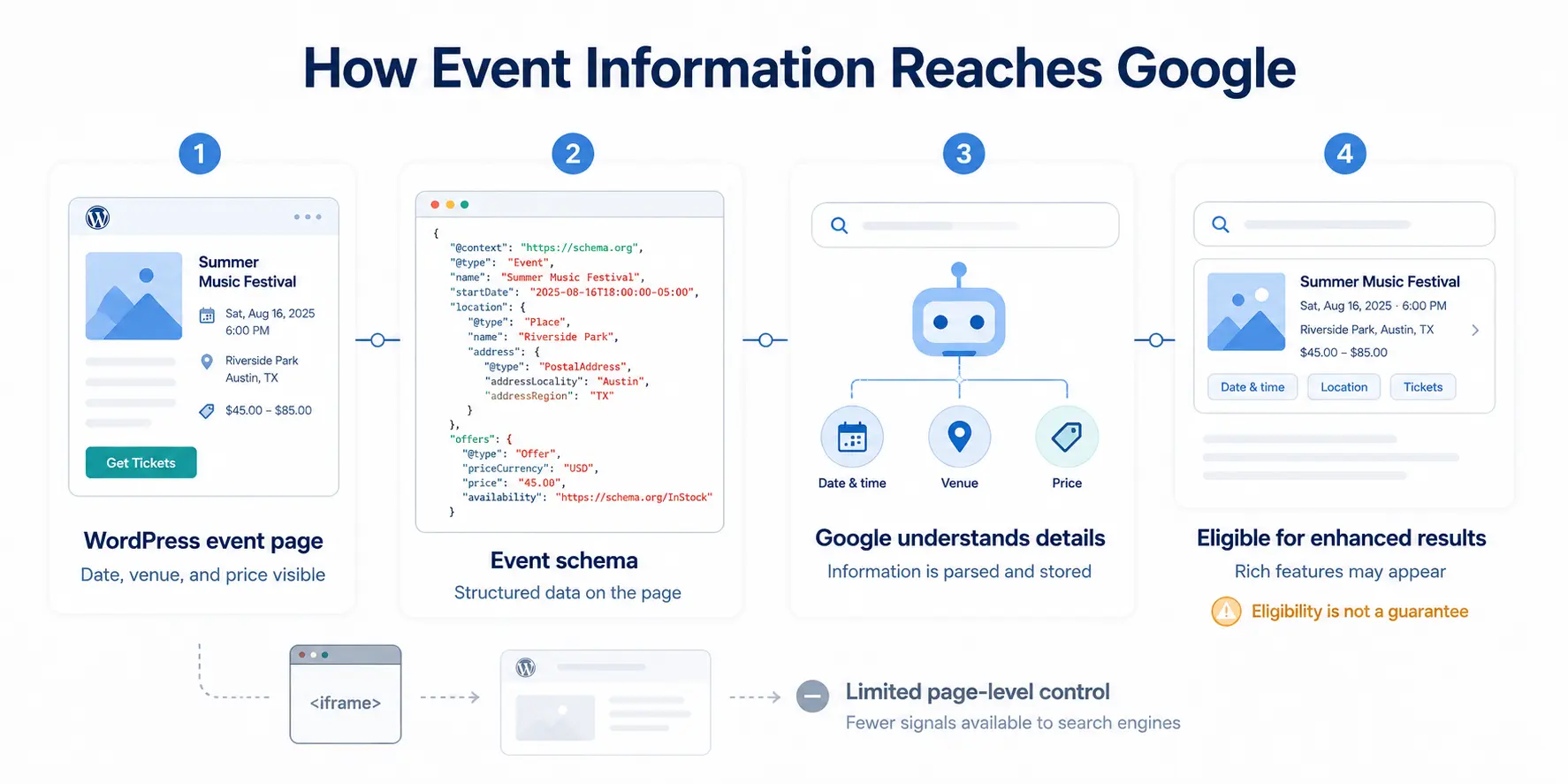
Some dedicated WordPress plugins, including MEC, add event schema markup to individual event pages automatically.
That code tells Google “this is an event, here is the date, here is the price,” which can make eligible pages suitable for event-rich results; though enhanced visibility is never guaranteed.
This is one reason a WordPress custom event calendar maker with indexable event pages can provide more SEO control than an iframe.
Can you manage events from your phone using a WP plugin?
Yes. In the case of our suggested plugin, the MEC Mobile App connects to your site so you can manage events, bookings, and attendees from your phone. Think of it as carrying your WordPress dashboard in your pocket.
One honest detail: scanning tickets at the door is a separate capability, requiring the Ticket and Invoice add-on (about $119/year), which also emails custom-made tickets and invoices.
The app itself still gives you a mobile interface for managing events, bookings, and attendees.
A real example: hundreds of church events on one map
The clearest case I have seen for the pro route is a site we at Webnus helped build with the site admins, Luke and David: Christmas Events, a UK-wide map of Christmas and Easter events run by churches and cathedrals.
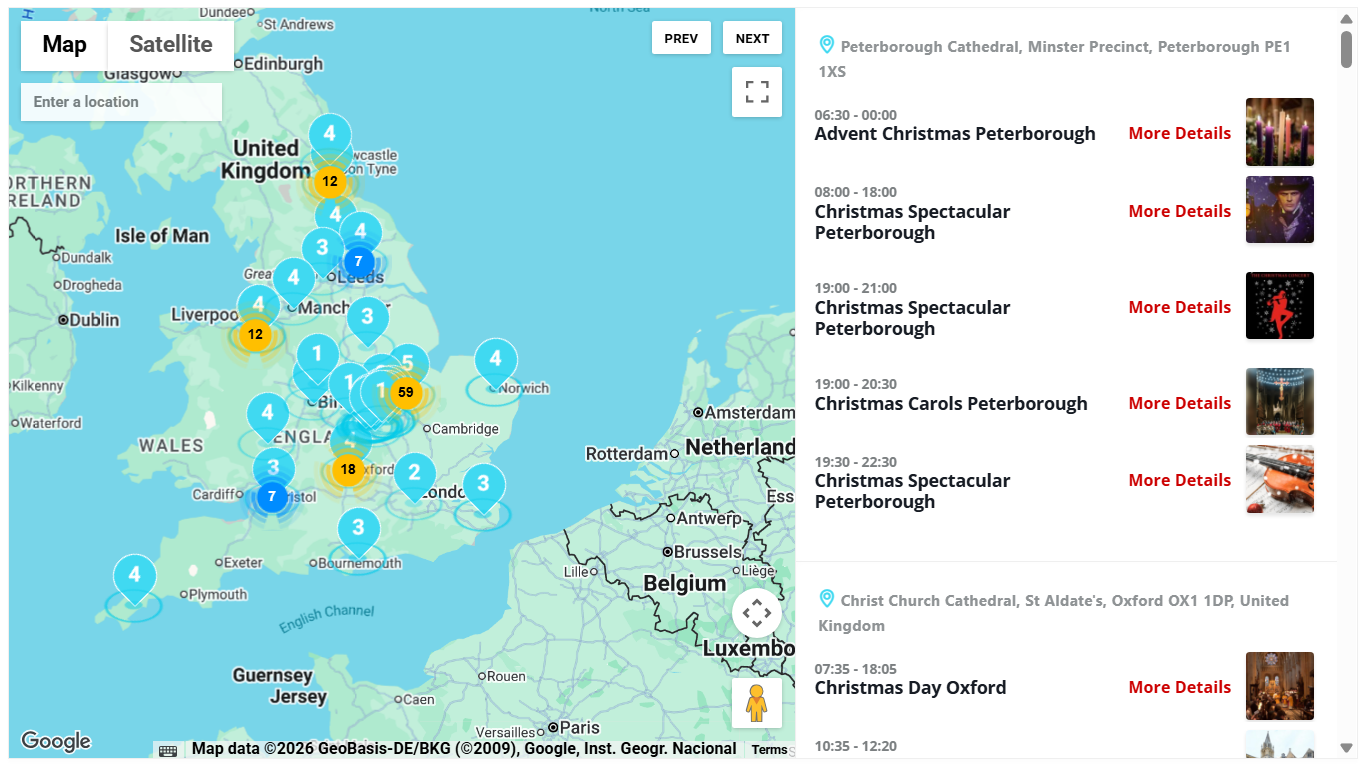
The brief was hard. Dozens of venues, from Canterbury Cathedral to small Baptist chapels, each needing to list their own carol services and concerts, all on one searchable map filtered by county, town, and event type.
MEC handled most of it out of the box. Recurring events, a category for each type of service, a map view, and a frontend submission form so each church could register its own events without ever touching the dashboard.
The parts it didn’t cover, our team custom-coded on top of MEC; the other quiet advantage of the pro route: a real support team behind the plugin. When you push past the defaults, someone can help, which a free embed or a SaaS widget can’t offer.
Customizability: how much control does each method really give you?
Custom Event Calendar only means something if you can actually shape it. Here is how far each method bends to your brand across the six factors people ask me about most: branding, layout, filters and categories, search, and how it behaves on a phone.
| Customization area | Google Calendar Embed | Manual WordPress table | Calendly | Eventbrite | WordPress Event Plugin |
|---|---|---|---|---|---|
| Branding | Very limited; remains visibly Google-branded | Uses your theme’s colors and basic block settings | Limited and plan-dependent | Some branding options, but the experience remains Eventbrite-controlled | Usually extensive; colors, buttons, backgrounds, and calendar elements can often be customized |
| Layout options | Limited to Google’s available calendar views and display settings | Fully manual, but restricted to table or list-style layouts | Uses predefined scheduling-widget layouts | Uses hosted event-page, listing, and checkout templates | Often includes multiple calendar, list, grid, map, carousel, and agenda layouts |
| Categories and filters | Multiple calendars can be displayed, but visitor filtering is limited | Must be created and maintained manually | Supports event types and routing rules rather than public event categories | Supports categories and marketplace filters, primarily within Eventbrite | Commonly supports categories, tags, locations, organizers, dates, and custom filters |
| Search functionality | No advanced event search within the standard embed | No built-in search beyond the website’s general search | Not designed for searchable public event directories | Event discovery is available through Eventbrite, but not necessarily on your WordPress page | Often provides on-site event search and advanced filtering |
| Individual event-page design | Event details open within Google’s interface | You can create separate pages manually | Booking pages follow Calendly’s structure | Event pages follow Eventbrite’s templates | Event pages live on your domain and can often be customized with the block editor or page builders |
| Mobile responsiveness | Responsive, but embedded dimensions may need adjustment | Depends on your theme; wide tables can be difficult to use on mobile | Responsive out of the box | Responsive out of the box | Usually responsive, although layouts should still be tested on different screen sizes |
| Overall customization level | Low | Low to moderate | moderate | moderate | Moderate to high, depending on the plugin |
TL;DR Google embeds offer basic display controls but retain Google’s branding. Manual tables match your theme but lack search, filters, and reliable mobile responsiveness.
Calendly and Eventbrite are polished and mobile-friendly, though customization is limited and deeper interactions happen on their platforms.
WordPress plugins such as MEC provide the most control, with customizable layouts, styling, search, and filters, although some advanced features require paid add-ons.
The right WordPress custom event calendar maker therefore depends on the amount of control and automation you need.
The real cost trap: pay for license vs. pay fees on tickets
When pricing a WordPress custom event calendar maker, compare licenses, add-ons, hosting, transaction fees, and staff time.
Most projects don’t fail by spending too much. They fail by stitching together free parts that never fully integrate into a coherent workflow.
One recurring problem I have seen is: someone installs a handful of free plugins to cobble together a calendar. One for maps. One for ticketing.
One for search filters. By the time it works, the site is slow and the pieces don’t talk to each other, so the “free” stack quietly costs more in time than a single license would have in money.
A single pro license runs from $60 to more than $200 a year; MEC Pro sits in the middle at $99/year and covers layouts, booking, ticketing, and design control in one package—one vendor, one update cycle, one bill, one support team.
In contrast, Eventbrite’s pricing varies by country and changes over time. As of June 2026, its published U.S. pricing lists a 3.7% + $1.79 service fee per paid ticket and a 2.9% payment-processing fee per order, with no fees for free events.
Under the U.S. pricing model, organizers may pass certain fees to buyers or absorb them. So they affect the total transaction cost without automatically reducing the organizer’s revenue. At the current U.S. rate, 300 tickets at $25 would generate about $814.50 in service fees before payment processing.
That covers the budget half of our thesis: the cheapest option over three years is rarely the one that looked free on day one. That said, depending on your needs, a free plugin such as MEC Lite might be more than enough.
How does Modern Events Calendar help you build a custom WordPress event calendar?
If Method 4 is the winner for you, MEC is one WordPress custom event calendar maker to evaluate against competing plugins.
I keep coming back to Modern Events Calendar—not because it’s the flashiest, but because it’s the one I know best, it’s reasonably priced for its feature list, and it’s positively rated on Trustpilot (a 4.1 TrustScore across more than 308 reviews at the time of writing).
MEC is a full WordPress custom event calendar maker rather than a simple display widget. The parts that matter most for the problems in this guide:
- Booking and ticketing. A reservation system with ticket types, pricing, discounts, and taxes, plus appointment slots, all on your own domain.
- Events in Google search. MEC adds event schema markup automatically, so your events can show up with dates and prices.
- Frontend event submission. Visitors or partner organizations submit their own events through a form, without dashboard access. That is how the Christmas Events map lets dozens of churches add their own services.
- Polished design. Multiple responsive layouts and designs that look finished on install, so the calendar matches your site instead of fighting it.
- A mobile app for managing events and bookings on the go, with optional QR check-in through the Ticket and Invoice add-on.
- A real support team for the moments you push past the defaults.
When MEC may not be the right choice
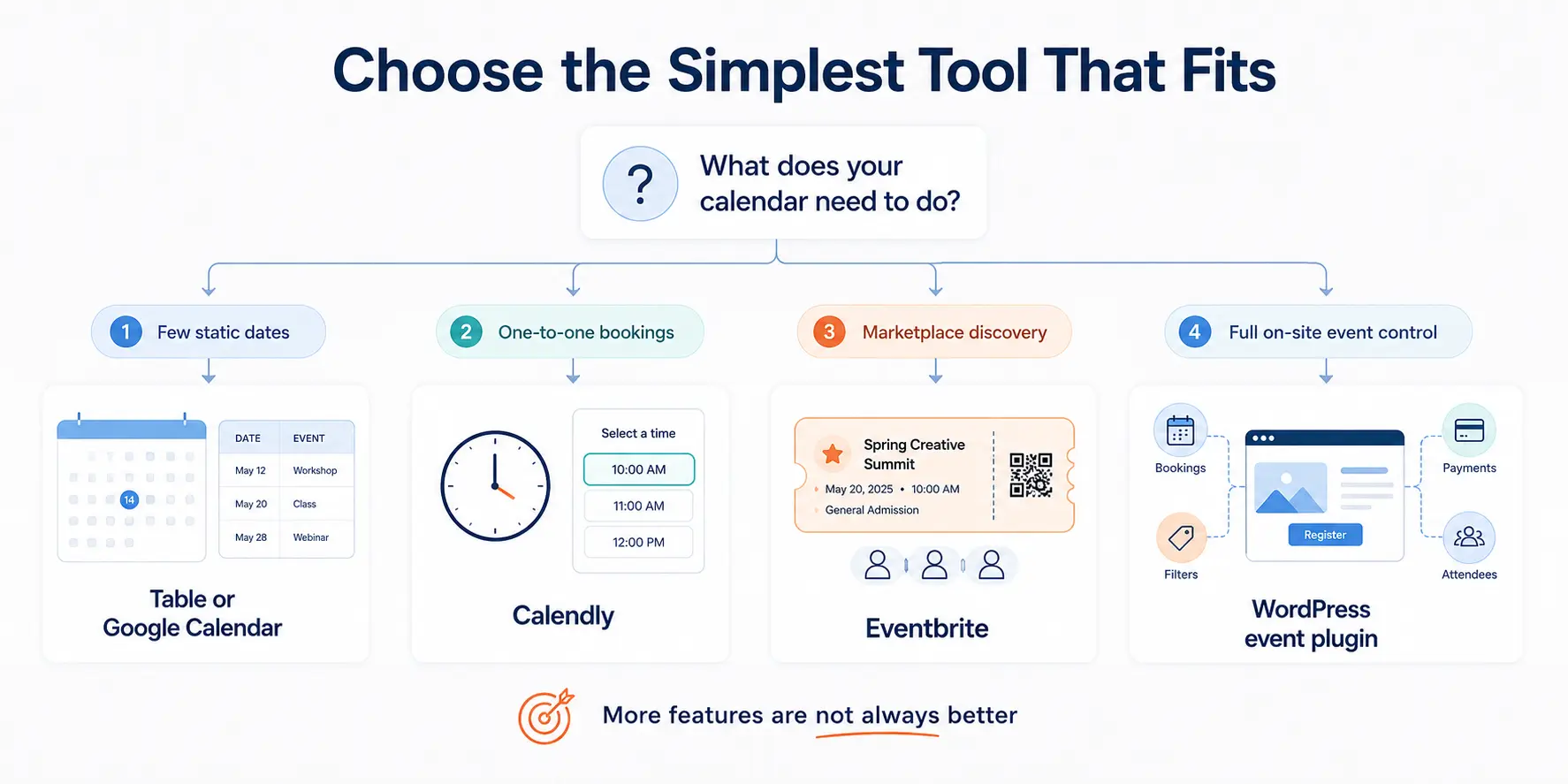
MEC is a capable WordPress custom event calendar maker, but it is not automatically the best option for every website. Another method may suit you better when:
- You only need to display a few static dates. A table or Google Calendar embed will be faster to maintain.
- Your main requirement is one-to-one appointment scheduling. Calendly or Google Appointment Schedules may provide a simpler booking workflow.
- You depend on marketplace discovery. Eventbrite may be more suitable when reaching people already browsing its event marketplace is central to your strategy.
- You do not want to maintain a WordPress booking system. A hosted platform handles more of the infrastructure, updates, and transaction workflow for you.
- You are running mission-critical, high-volume ticket sales without suitable hosting or technical resources. A WordPress plugin can scale, but it requires appropriate hosting, load testing, backups, payment configuration, and operational planning.
- A required feature needs an add-on or custom development that is outside your budget. Check the base plugin, Pro license, and add-on requirements before committing.
In these situations, Google Calendar, Calendly, Eventbrite, a simpler free plugin, or another specialized platform may be the more practical choice.
You don’t have to commit on day one. There is the MEC Lite version to test the fit, and MEC Pro lands right at that $99 mark.
The verdict: which one should you actually pick?
Don’t over-engineer a simple list. Don’t under-build a business hub.
For the reader most likely to be reading this—a growing business or organizer with recurring events, bookings, and a real operating budget—Method 4 is usually the strongest all-around option.
A WordPress event plugin keeps your event pages and customer journey on your own domain while giving you room to add registration, payments, filtering, and advanced layouts.
You can start with a free version when your needs are simple, and move to a paid version when bookings, ticketing, automation, or premium support become necessary.
Try MEC Lite to see whether it fits your workflow. If you later need bookings, ticketing, and more design control, MEC Pro is a WordPress custom event calendar maker you can run on your own site.
Frequently Asked Questions
1. Does embedding a Google Calendar hurt my website’s SEO?
No. Embedding a Google Calendar does not create an SEO penalty. However, it gives you limited control over how the event content is associated with your WordPress page.
Google may associate iframe content with the page that embeds it, but this is not guaranteed.
A standard embed also does not automatically add Event structured data to your WordPress page. If organic event visibility matters, create indexable event pages on your own domain and add valid Event schema where appropriate.
2. Can I take bookings or sell tickets from a WordPress calendar?
Yes, but exact checkout behavior depends on how each tool is implemented. A plugin like MEC has booking, ticketing, and appointment slots built in, on your own domain, with no per-ticket fees, and extra options such as QR code scan and custom tickets are available via add-ons.
3. Can I switch from a manual table to a plugin later on?
You can, but if you expect more than five events a month, start with a free plugin like MEC Lite to skip the migration headache later.
4. Will a custom event calendar plugin slow down my WordPress site?
It depends on the plugin. Legacy plugins can be heavy. Test any plugin on a staging site first and compare before-and-after scores with PageSpeed Insights.
5. Do I need to know how to code to build a custom event calendar in WordPress?
No. You can use a WordPress custom event calendar maker without writing code. All four methods in this guide are no-code.
Embeds and tables are copy-paste, and WP plugins like MEC are built around visual editors and page builders.
Coding only enters the picture if you want custom behavior beyond what the plugin offers, and even then it is optional.