MEC Webhooks
What are Webhooks?
Webhooks allow your Modern Events Calendar (MEC) plugin to automatically send booking information to external services or applications when specific booking events occur. Think of webhooks as automatic notifications that trigger actions in other systems without manual intervention.
How Do Webhooks Work?
When a booking event happens in MEC (like a new booking, cancellation, or confirmation), webhooks automatically send all the relevant booking data to a URL you specify. This allows you to:
- Integrate with third-party services (like CRM systems, email marketing tools, or project management apps)
- Automate workflows in other applications
- Sync booking data across different platforms
- Receive real-time updates about booking status changes
When Are Webhooks Triggered?
You can set up webhooks to be triggered by any of the following booking events:
1. Booking Added
Triggered when a new booking is created, regardless of payment status.
2. Booking Confirmed
Triggered when a booking is confirmed (typically after successful payment).
3. Booking Verified
Triggered when a booking is manually verified by an administrator.
4. Booking Rejected
Triggered when a booking is rejected or declined.
5. Booking Canceled
Triggered when a booking is canceled by the customer or administrator.
6. Booking Refunded
Triggered when a booking payment is refunded.
What Information is Sent?
When a webhook is triggered, it sends comprehensive booking information including:
- Booking Details: Booking ID, transaction ID, order time
- Event Information: Event ID and title
- Date & Time: Event start/end dates, and other related dates
- Attendee Information: Name, email, ticket type, and custom registration fields for each attendee
- Payment Details: Total price, amount paid, payment gateway, coupon codes (if used)
- Booking Status: Confirmation and verification status
- Custom Fields: Any custom booking or registration fields you’ve configured
How to Use Webhooks
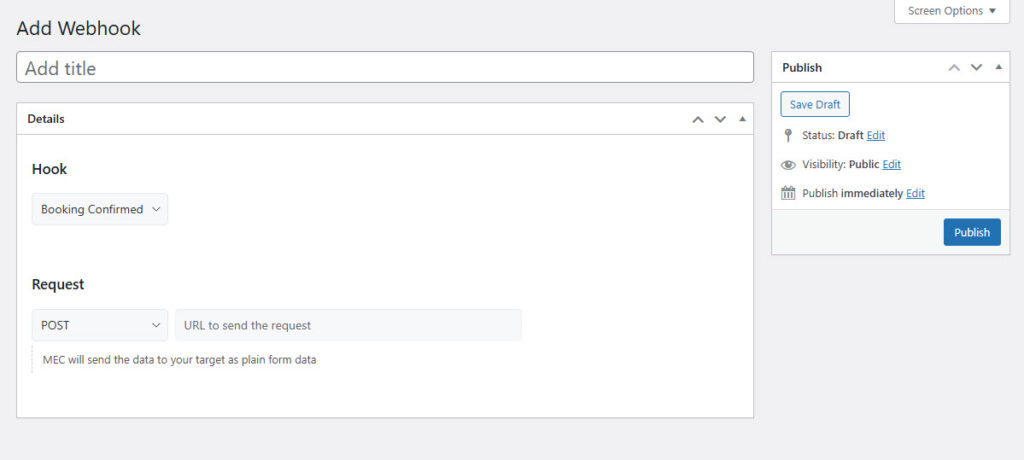
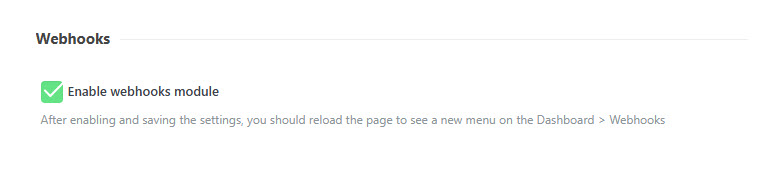
- Enable the Webhooks Module: Make sure the Webhooks feature is enabled in your MEC settings.
- Create a Webhook:
- Navigate to the Webhooks section in MEC
- Create a new webhook and give it a descriptive name
- Configure Your Webhook:
- Select a Hook: Choose which booking event should trigger this webhook
- Set the URL: Enter the webhook URL where you want to receive the data
- Choose Request Method: Select either GET or POST (most services use POST)
- Save and Activate: Publish your webhook to activate it
Requirements
- Modern Events Calendar PRO version (Webhooks are a PRO feature)
- The Webhooks module must be enabled in MEC Settings > Booking > Advanced
- A valid URL endpoint that can receive HTTP requests
Use Cases
- CRM Integration: Automatically add new customers to your CRM system when they make a booking
- Email Marketing: Add attendees to your email marketing lists automatically
- Analytics: Send booking data to analytics platforms for reporting
- Inventory Management: Update inventory in external systems when bookings are made
- Notifications: Send custom notifications to team members or other systems
- Data Synchronization: Keep booking information synchronized across multiple platforms
Important Notes
- Webhooks send data as form data (application/x-www-form-urlencoded or multipart/form-data)
- Multiple webhooks can be created for the same event type
- Webhooks are sent asynchronously, so they won’t delay the booking process
- Make sure your receiving URL is accessible and can handle the incoming requests
- The receiving application should respond quickly to avoid timeouts
Report Out Dated Content
If you think the content of this page does not reflect updated information, please let us know.

