Skip to content
No results
Modern Events Calendar logo
  • Installation
    • Installation
    • Activation
    • Auto Update
    • Manual Update
    • Change License Domain
  • Settings
    • General
    • Archive Page
    • Slugs/Permalinks
    • Currency
    • View All
  • Single Event
    • Single Event Settings
    • How to Add Event In MEC Plugin?
    • MEC Single Sidebar
    • Custom Fields
    • View All
  • Event Modules
    • Speakers
    • Organizers
    • Locations
    • Map
    • View All
  • Booking Settings
    • Booking Module
    • Booking Elements
    • Booking Form
    • Payment Gateways
    • View All
  • Event Submission
    • General
    • Access Level
    • FES Sections
    • Required Fields
    • View All
  • Integrations
    • Mailchimp
    • Paid Memberships Pro
    • BuddyPress
    • LearnDash
    • View All
  • Notifications
    • Booking Notification
    • Booking Confirmation
    • Booking Reminder
    • Admin Notification
    • View All
  • Addons
    • Elementor Single Builder Addon
    • Ticket and Invoice Addon
    • Event Seat Addon
    • Virtual Events Addon
    • View All
  • Other
    • Appearance Settings
    • Translation
    • Knowledge
    • Troubleshooting
    • Developer
Modern Events Calendar logo

  • Categories
    • Installation
      • Installation
      • Activation
      • Auto Update
      • Manual Update
      • Change License Domain
    • General Settings
      • General
      • Archive Pages
      • Slugs/Permalinks
      • Currency
      • View All
    • Single Event
      • Single Event Settings
      • MEC Single Sidebar
      • How to Add Event In MEC Plugin?
      • Custom Fields
      • View All
    • Event Modules
      • Speakers
      • Organizers
      • Locations
      • Map
      • View All
    • Booking Settings
      • Booking Module
      • Add a Booking System
      • Booking Form
      • Organizer Payment Settings
      • View All
    • Event Submission
      • General
      • Access Level
      • FES Sections
      • Required Fields
      • View All
    • MEC Integrations
      • Mailchimp
      • BuddyPress
      • LearnDash
      • Paid Memberships Pro
      • View All
    • Notifications
      • Booking Notification
      • Booking Confirmation
      • Booking Reminder
      • Admin Notification
      • View All
    • Addons
      • Elementor Single Builder Addon
      • Ticket and Invoice Addon
      • Event Seat Addon
      • Virtual Events Addon
      • View All
    • Other
      • Appearance Settings
      • Translation
      • Knowledge
      • Troubleshooting
      • Developer

Submit a Ticket
Modern Events Calendar logo

Toggle
  • Before You Start
  • Activating MEC
  • What Happens After Activation
  • Special Setups
  • Frequently Asked Questions
    • Where do I find my purchase code?
    • Does MEC phone home after activation?
    • I activated on localhost first. Did I waste an activation?
    • Activation failed — what now?

Installation

Activation

In this article, we walk you through activating the Modern Events Calendar Pro license on your WordPress website.

Before You Start

Your MEC Pro purchase code is a 32-character license key that you receive after purchasing from webnus.net. To find it:

  1. Log in to your account at my.webnus.net (the My Orders page).
  2. Your dashboard lists your orders and licenses — with summary cards such as All Orders and Active Licenses at the top.
  3. Find the panel of the product you want to activate (for example, MEC Plugin) and locate its License section.
  4. Click the copy icon next to the license key to copy it.
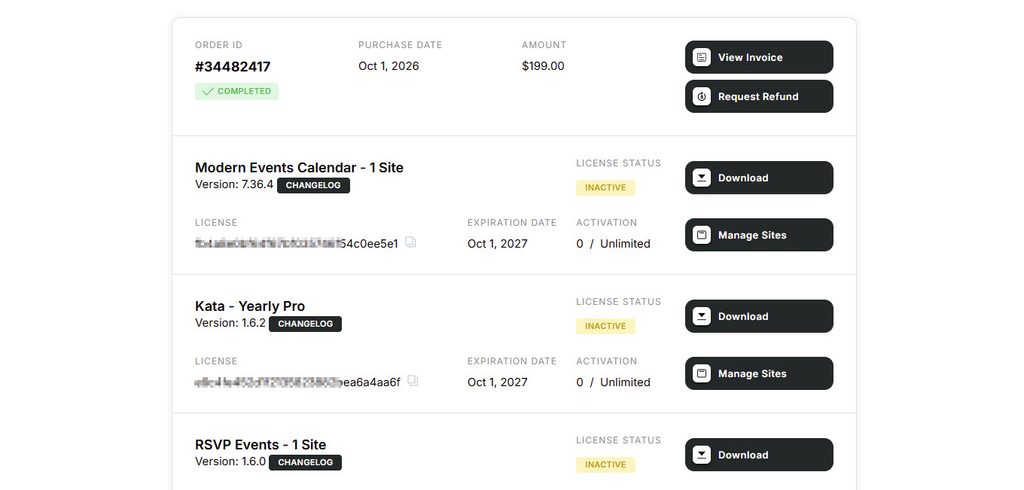
Webnus dashboard purchases list with licenses for Modern Events Calendar, Kata and RSVP Events

Activating MEC

  1. In your WordPress admin, go to Dashboard > MEC > Dashboard (the MEC welcome page).
  2. While your license is not yet active, the License Activation box sits directly under the page header — this is the first thing you see.
  3. Paste your purchase code into the field and click Activate. The field is masked by default; use the eye icon next to it if you want to double-check the code before submitting.
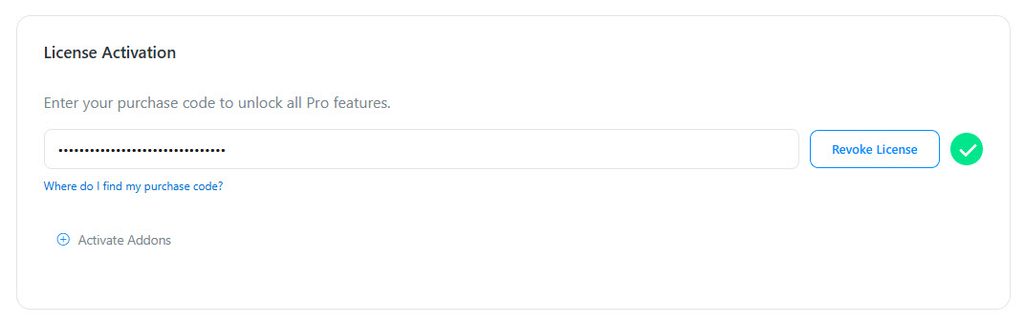
  4. MEC verifies the code with our licensing server and activates immediately. The box turns to its green success state and its button changes to Revoke License — that is how you know everything is working. The box stays on the dashboard, so you can check your license status at any time.
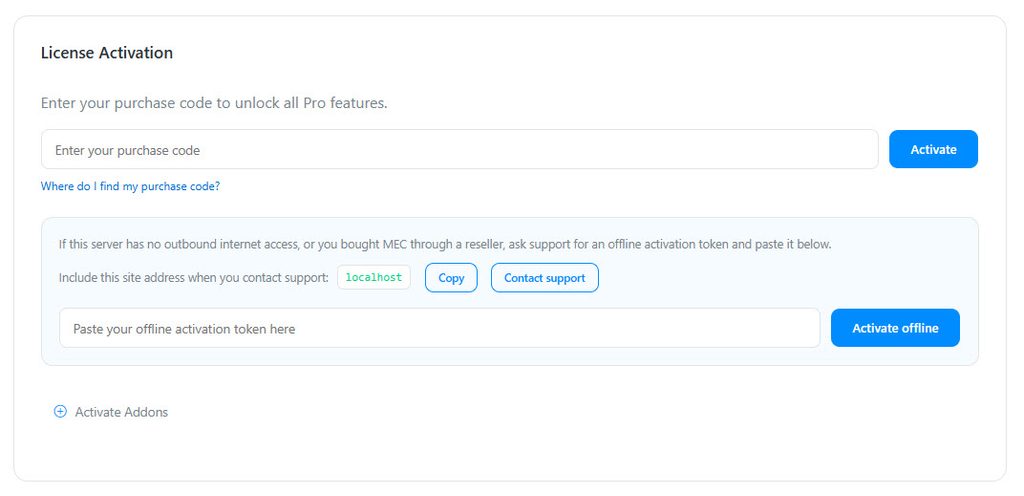
MEC License Activation form with purchase code field and offline activation token option
MEC License Activation with a purchase code entered and Revoke License button

Good to know: your license covers your website as a whole. Activating with or without www is treated as the same site, and a site installed in a subdirectory (for example example.com/events) counts as one site, not two.

What Happens After Activation

  • MEC stores your license as a signed token that is bound to your domain. Activation is done once — MEC does not need a permanent connection to our servers to keep the Pro features running.
  • If our licensing server is temporarily unreachable, your activated site is not affected. A server outage no longer deactivates MEC on licensed websites.
  • To receive automatic updates, keep your license active. See the Auto Update article.
  • To move your license to another domain, see Change License Domain.

Special Setups

Your situationWhat to do
You bought the X theme from Themeco (MEC Pro is bundled)You do not need a MEC purchase code. Activate with your Themeco license key — see MEC and X Theme Activation.
You develop on localhost / a staging siteActivate with your real purchase code — staging activations do not consume your license activations. See Staging and Local Activation.
Your server cannot reach our licensing server, or you bought through a resellerUse an offline activation token. See Offline Activation.
You run a WordPress Multisite networkActivate the license once on the network’s main site. Every subsite inherits the license — its license box simply shows a Network license notice, and no purchase code is needed (or accepted) on the subsites.

Frequently Asked Questions

Where do I find my purchase code?

In your account at my.webnus.net — the product’s panel on the My Account dashboard shows the license key in its License section. See Before You Start above.

Does MEC phone home after activation?

No. After a successful activation, the license is validated locally. MEC only contacts our servers when you activate, deactivate, or check for updates.

I activated on localhost first. Did I waste an activation?

No. Localhost and staging environments do not consume your activation slots. See Staging and Local Activation.

Activation failed — what now?

See MEC Activation Issue for a step-by-step checklist and a table of every activation message and what it means.

Share

Related Articles

  • Staging Activation
  • X Theme Activation
  • Offline Activation
  • MEC Wizard
  • MEC Activation Issue
Login Submit
0 Comments

No Comment.

Still no luck? We can help!

If you did not find what you were looking for, please submit a ticket in our support system.

Submit a Ticket
Webnus Banner
Modern Events Calendar

Please read our Terms and Conditions and Privacy Policy.

4.2 Great

About 11 Review us on Trustpilot

Copyright © 2026. All rights reserved. Webnus Inc.