
Offline-Aktivierung
In diesem Artikel erklären wir Ihnen die Aktivierung. Modern Events Calendar auf Servern, die unseren Lizenzserver nicht erreichen können, oder wenn Sie Ihre Kopie über einen Wiederverkäufer erworben haben und keinen Kaufcode besitzen.
Wer benötigt eine Offline-Aktivierung?
Die meisten Benutzer sollten aktivieren MEC mit ihrem Kaufcode, wie in der Beschreibung angegeben Aktivierung Artikel. Die Offline-Aktivierung ist für zwei Situationen vorgesehen:
- Ihr Server verfügt über keine ausgehende Internetverbindung (Firewall, Air-Gap oder reines Intranet-Hosting), daher MEC Ein Kaufcode kann online nicht verifiziert werden.
- Sie haben gekauft MEC über einen Wiederverkäufer gekauft und keinen Kaufcode erhalten.
Ein Offline-Aktivierungstoken ist ein signierter, standortspezifischer Schlüssel, den unser Support-Team speziell für Ihre Website-Adresse erstellt. Er schaltet die Pro-Funktionen für genau diese Website für einen begrenzten Zeitraum frei, ohne dass eine Verbindung zu unseren Servern erforderlich ist.
Schritt 1 – Kopieren Sie Ihre Website-Adresse
Ein Offline-Token funktioniert nur auf der exakten Website-Adresse, für die er ausgestellt wurde. Um sicherzustellen, dass wir den Token für die richtige Website prägen, MEC zeigt Ihre Website-Adresse auf dem Lizenzfeld an.
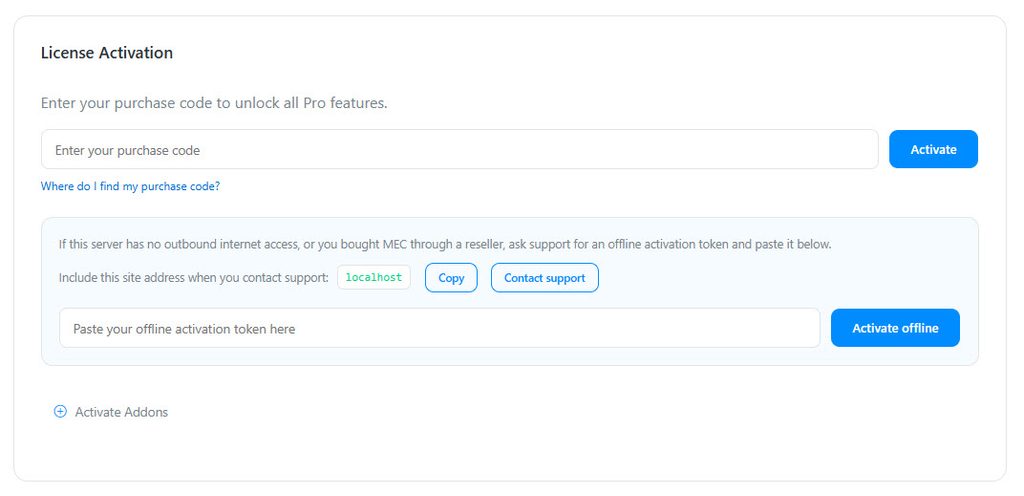
Zurück Nach WordPress-Dashboard > MEC > Dashboard Scrollen Sie zum Feld für die Offline-Aktivierung (unterhalb des Lizenzformulars). Dort sehen Sie Folgendes:
Geben Sie diese Website-Adresse bitte bei Ihrer Kontaktaufnahme mit dem Support an: yourdomain.com
Klicken Sie auf die Kopieren Klicken Sie auf die Schaltfläche daneben. Falls Ihre Domain anders aussieht als die, die Sie im Browser eingeben (z. B. eine Subdomain, ein Pfad oder ein überflüssiges „www“), senden Sie uns die Adresse bitte immer exakt so, wie sie im Browser angezeigt wird. MEC Das zeigt es – ein für die falsche Adresse ausgestelltes Token wird abgelehnt.
Schritt 2 – Kontaktieren Sie den Support
Klicken Sie auf die Den Support kontaktieren Klicken Sie auf die Schaltfläche im selben Feld oder besuchen Sie webnus.net/support und erstellen Sie ein Ticket mit folgendem Inhalt:
- Die kopierte Website-Adresse aus Schritt 1.
- Kaufnachweis (Ihre Bestellnummer, Lizenz, Rechnung oder Händlerquittung).
Unser Team wird Ihren Kauf überprüfen und Ihnen anschließend Ihren Offline-Aktivierungstoken zusenden.
Schritt 3 – Offline aktivieren
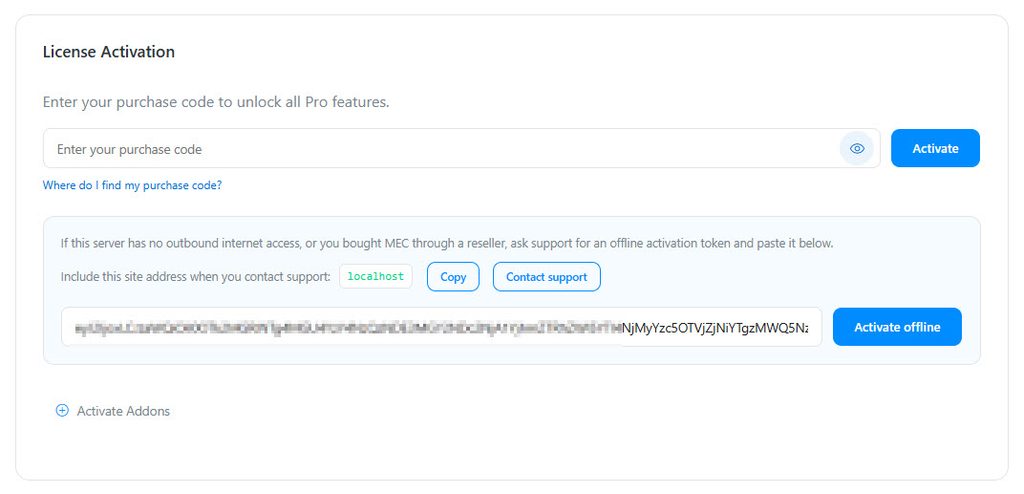
Zurück zu WordPress-Dashboard > MEC > DashboardFügen Sie das Token in das Feld unter ein. Fügen Sie hier Ihren Offline-Aktivierungstoken ein. und klicken auf Offline aktivieren.
Wenn das Token gültig ist und speziell für diese Website-Adresse ausgestellt wurde, MEC Die Aktivierung erfolgt sofort und die Pro-Funktionen stehen zur Verfügung. Für diesen Schritt ist keine Internetverbindung erforderlich.
Token-Ablauf
Offline-Aktivierungstoken sind ab Ausstellungsdatum für einen begrenzten Zeitraum (ca. 30 Tage) gültig. Während Sie ein Token verwenden:
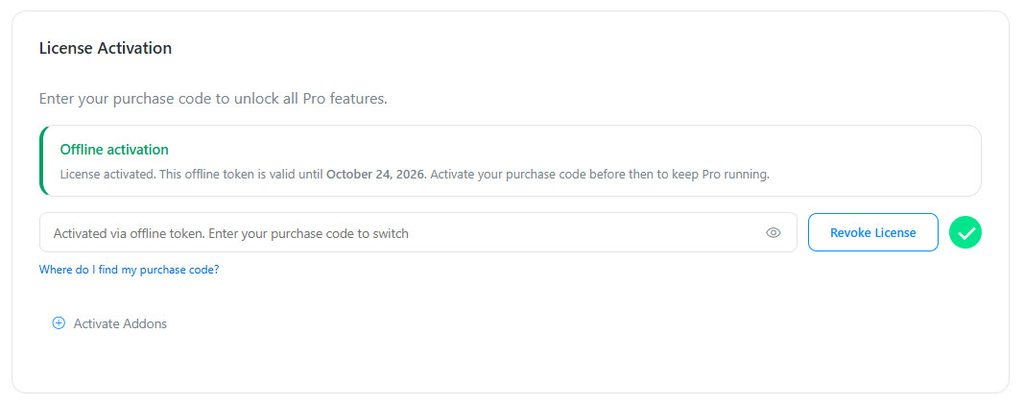
- Im Dashboard wird ein Hinweis mit dem genauen Ablaufdatum Ihres Tokens angezeigt: „Lizenz aktiviert. Dieser Offline-Token ist bis zum {date} gültig. Aktivieren Sie Ihren Kaufcode vorher, um Pro weiterhin nutzen zu können.“
- Im Feld „Kaufcode“ wird der Hinweis angezeigt. „Aktiviert über Offline-Token. Geben Sie Ihren Kaufcode ein, um zu wechseln.“
So halten Sie Ihre Lizenz am Laufen
Geben Sie vor Ablauf des Gültigkeitsdatums Ihren tatsächlichen Kaufcode in das entsprechende Feld ein und senden Sie ihn ab. Dadurch wird die Website auf eine normale Online-Lizenz umgestellt, die sich automatisch verlängert und für die kein neuer Token benötigt wird.
Falls Sie Ihr Token erhalten haben, weil Ihr Server keine ausgehende Verbindung hat, die Verbindung aber später wiederhergestellt wird, aktivieren Sie es einfach mit Ihrem Kaufcode; ansonsten ändert sich nichts.
Erneuerung eines Offline-Tokens
Sollte Ihr Server unseren Lizenzserver kurz vor Ablauf des Tokens weiterhin nicht erreichen können, kontaktieren Sie bitte vor dem Ablaufdatum unseren Support und beantragen Sie eine Verlängerung. Bitte beachten Sie: Jede Lizenz berechtigt zu einem aktiven Offline-Token und kann bis zu zweimal verlängert werden . Nach beiden Verlängerungen ist für einen neuen Token ein erneuter Kauf oder eine manuelle Ausnahmegenehmigung unseres Teams erforderlich.
Nach Ablauf des Tokens
Sobald ein Offline-Token abläuft, funktionieren die Pro-exklusiven Funktionen erst wieder, wenn die Website erneut lizenziert wurde:
- Beim Speichern einer Veranstaltung werden keine Pro-exklusiven Daten (Buchungsoptionen, Tickets, Gebühren, Buchungsformularfelder, Stundenplan, Veranstaltungsdaten, Galerie, Benachrichtigungen usw.) gespeichert, und MEC Es wird eine Administratormeldung angezeigt, in der genau angegeben wird, welche Funktionen nicht gespeichert wurden.
- Ein nicht zu ignorierender Hinweis im Dashboard erinnert Sie daran, die Website zu lizenzieren.
Ihre Veranstaltungen und Buchungen werden niemals gelöscht. Um die Pro-Funktionen wiederherzustellen, aktivieren Sie diese mit einem gültigen Kaufcode oder bitten Sie den Support, einen neuen Token zu erstellen.
FAQ
Kann ich ein Token auf zwei Webseiten verwenden?
Nein. Ein Token ist nur für eine bestimmte Website-Adresse gültig und wird überall sonst abgelehnt.
Ich habe das Token eingefügt, aber die Aktivierung ist fehlgeschlagen.
Vergleichen Sie die im Feld „Offline-Aktivierung“ angezeigte Website-Adresse mit derjenigen, die Sie dem Support gesendet haben. Falls sie abweichen, antworten Sie auf Ihr Ticket und fordern Sie ein Token für die Adresse an. MEC Displays.
Ich habe meinen Token verloren. Muss ich von vorne anfangen?
Nein. Antworten Sie auf Ihr ursprüngliches Ticket (oder eröffnen Sie ein neues unter Angabe Ihrer Bestellnummer) und bitten Sie uns, Ihnen das Token für dieselbe Website-Adresse erneut zuzusenden oder auszustellen.
Wie oft kann ich mein Offline-Token erneuern?
Jede Lizenz kann ihr Offline-Token zweimal erneuern. Der Zähler bezieht sich auf die Lizenz, nicht auf die Domain – das Verschieben des Tokens auf eine andere Adresse setzt ihn nicht zurück.
Beeinflusst die MEC Nach Hause telefonieren, während ich offline bin?
MEC Es wird regelmäßig versucht, den Lizenzserver zu erreichen. Sollten diese Versuche fehlschlagen (z. B. auf einem vom Internet getrennten Server), bleiben die Pro-Funktionen dank eines gültigen, nicht abgelaufenen Tokens weiterhin nutzbar.