
Elementor FES Builder Addon
The Elementor FES Builder Addon is a powerful visual tool designed to help you create and customize frontend event submission (FES) forms using the Elementor page builder. With its drag-and-drop interface, you have complete control over the layout, configuration, and styling of your submission forms. It includes special widgets that enable you to fine-tune every detail of your FES forms, ensuring a professional user experience for your contributors.
Initial Setup & Requirements
Before you begin, ensure your environment meets the following requirements:
• MEC Version: Modern Events Calendar (Lite or Pro) version 6.0 or higher.
• Elementor Version: Elementor version 3.0 or higher.
• System Requirements: A WordPress site running at least PHP 7.4 and WordPress 5.0.
• Installation: Ensure both MEC and the Elementor FES Builder Addon are installed and activated.
Read Also:
How to install MEC and Addons?Adjusting Elementor Post Types
To use the builder, you must first tell Elementor to recognize the FES post type:
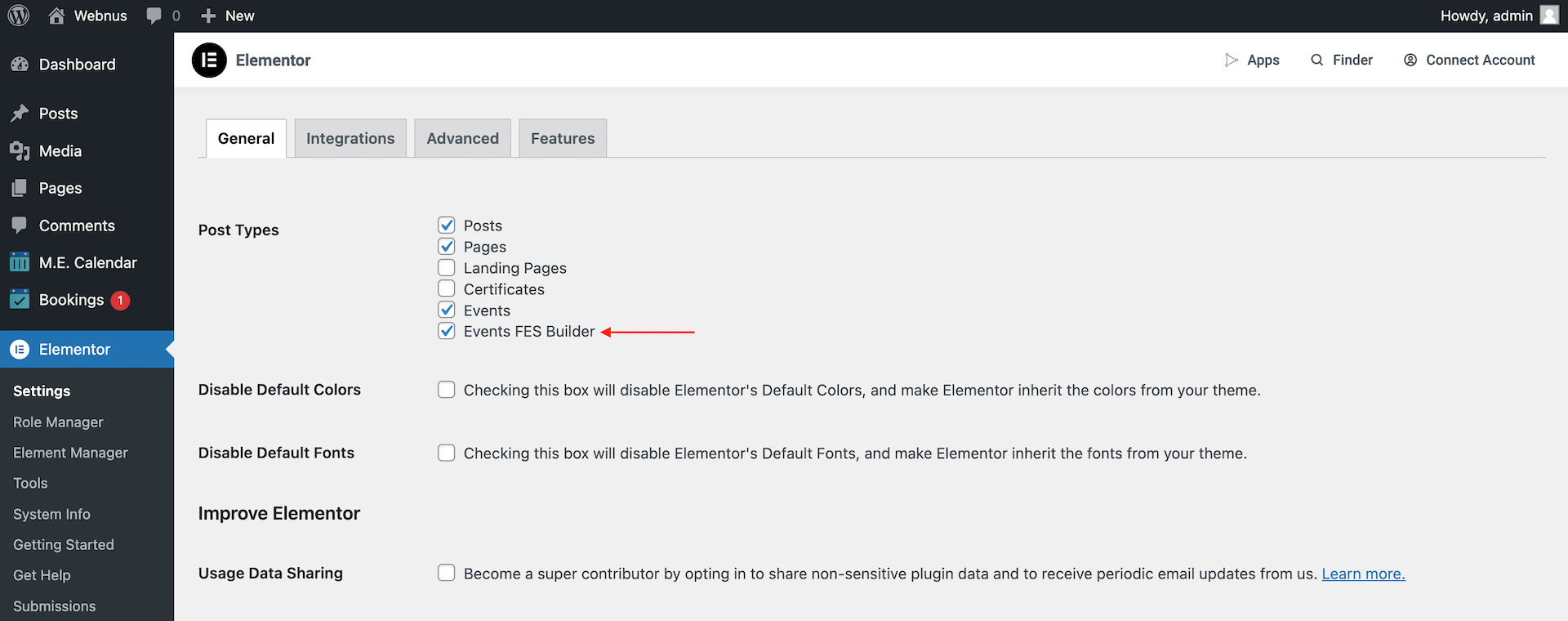
1. Navigate to Elementor > Settings > General in your WordPress dashboard.
2. Locate the Post Types section.
3. Check the box for Events FES Builder.
4. Click Save Changes.
Creating and Designing FES Forms
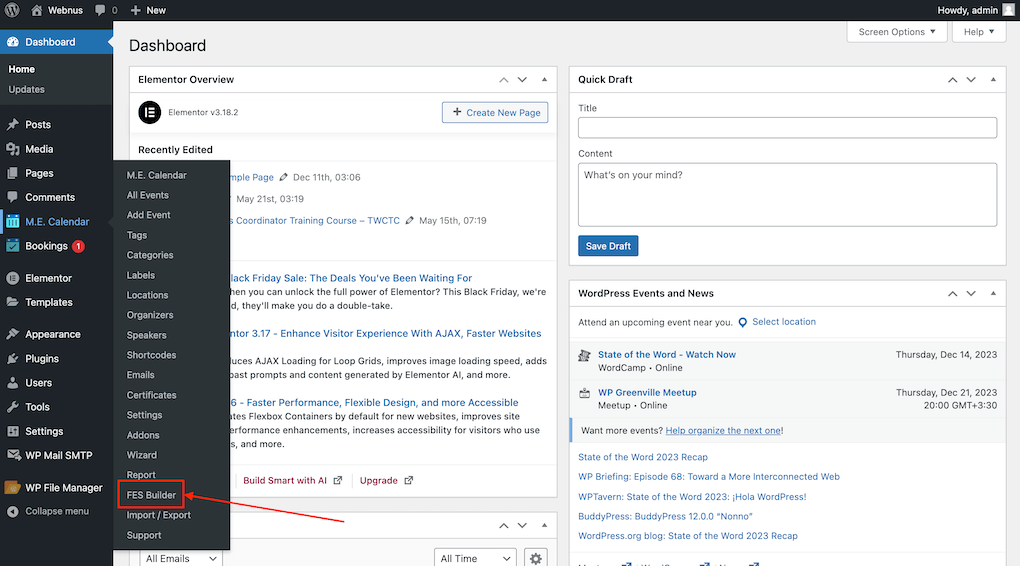
Once configured, you can find the builder hub under M.E. Calendar > FES Builder in your WordPress sidebar.
Adding New Templates
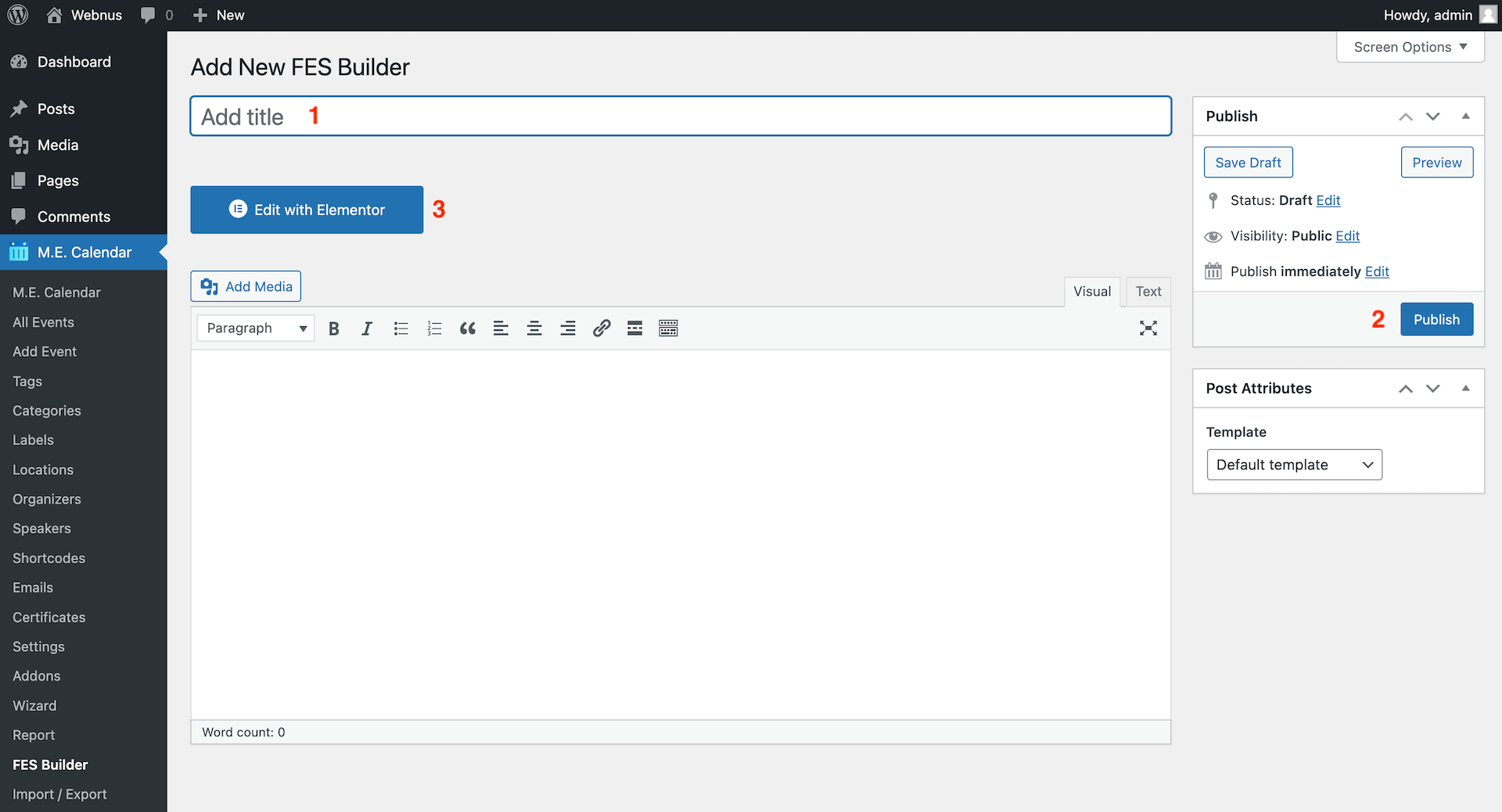
Go to MEC > FES Builder and click the Add New button.
1. Enter a Title for your template.
2. Click Publish.
3. Click Edit with Elementor to open the visual editor.
Using FES Widgets
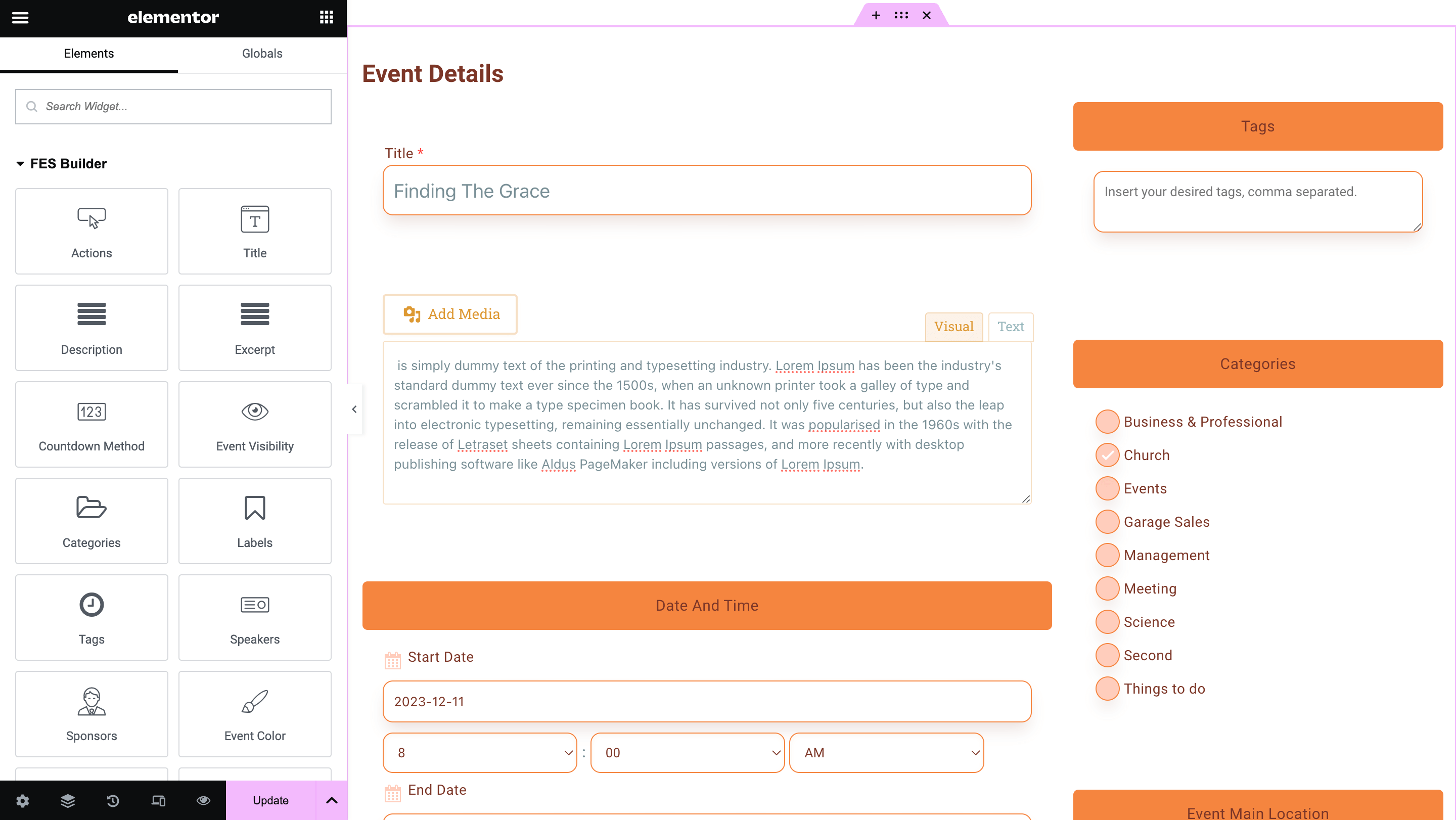
Inside the Elementor editor, you will find a dedicated category labeled FES Builder containing over 40 specialized widgets.
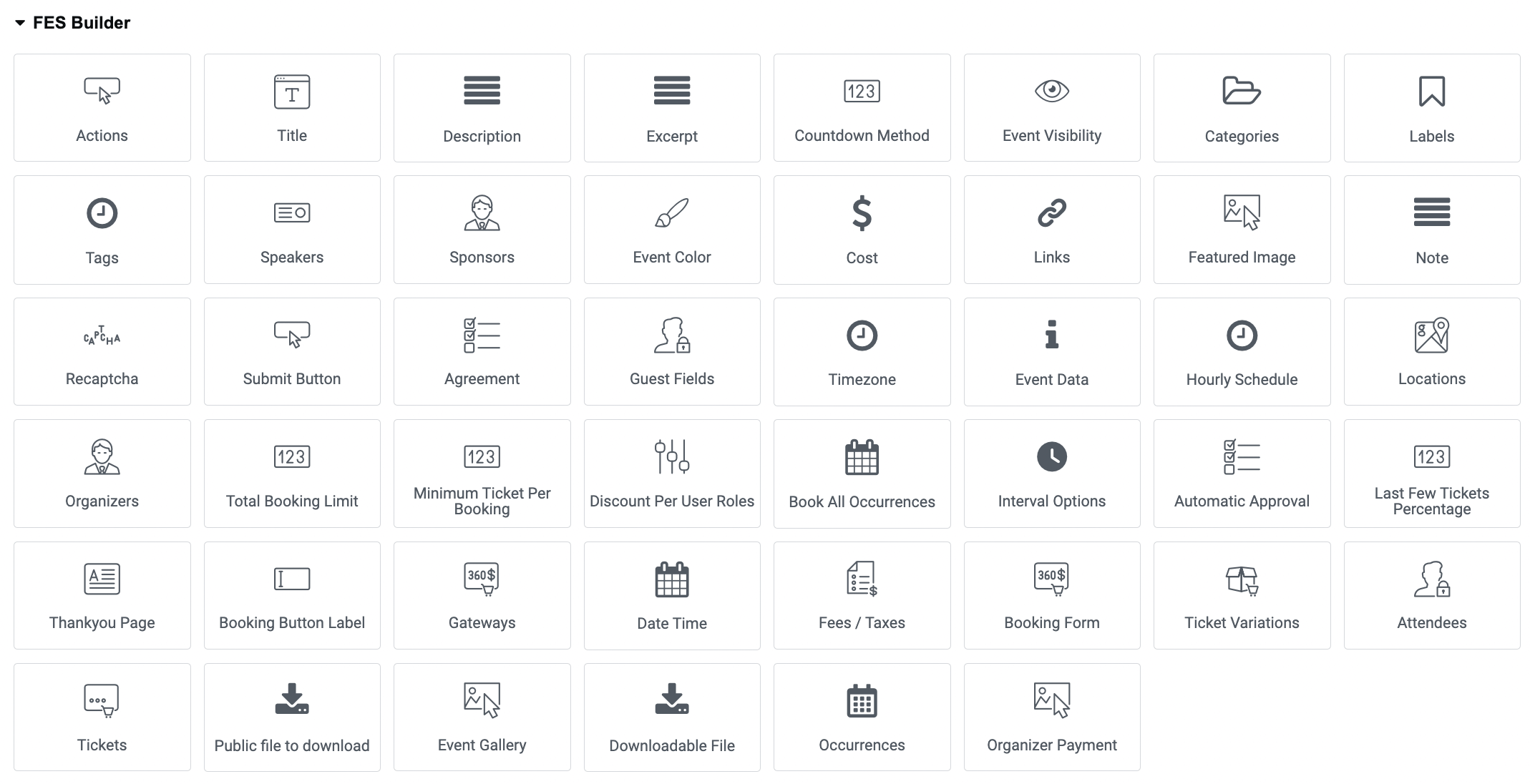
• Feature Coverage: Widgets are available for every event detail, including Event Title, Description, Date and Time, Location, and Organizer Details.
• Essential Element: You must include the Submit Button widget for users to be able to successfully send their forms.
• Crucial Rule: If a specific field’s widget is not added to the template, that field will not appear on the frontend, and users will be unable to provide that data.
Mandatory Fields and Styling
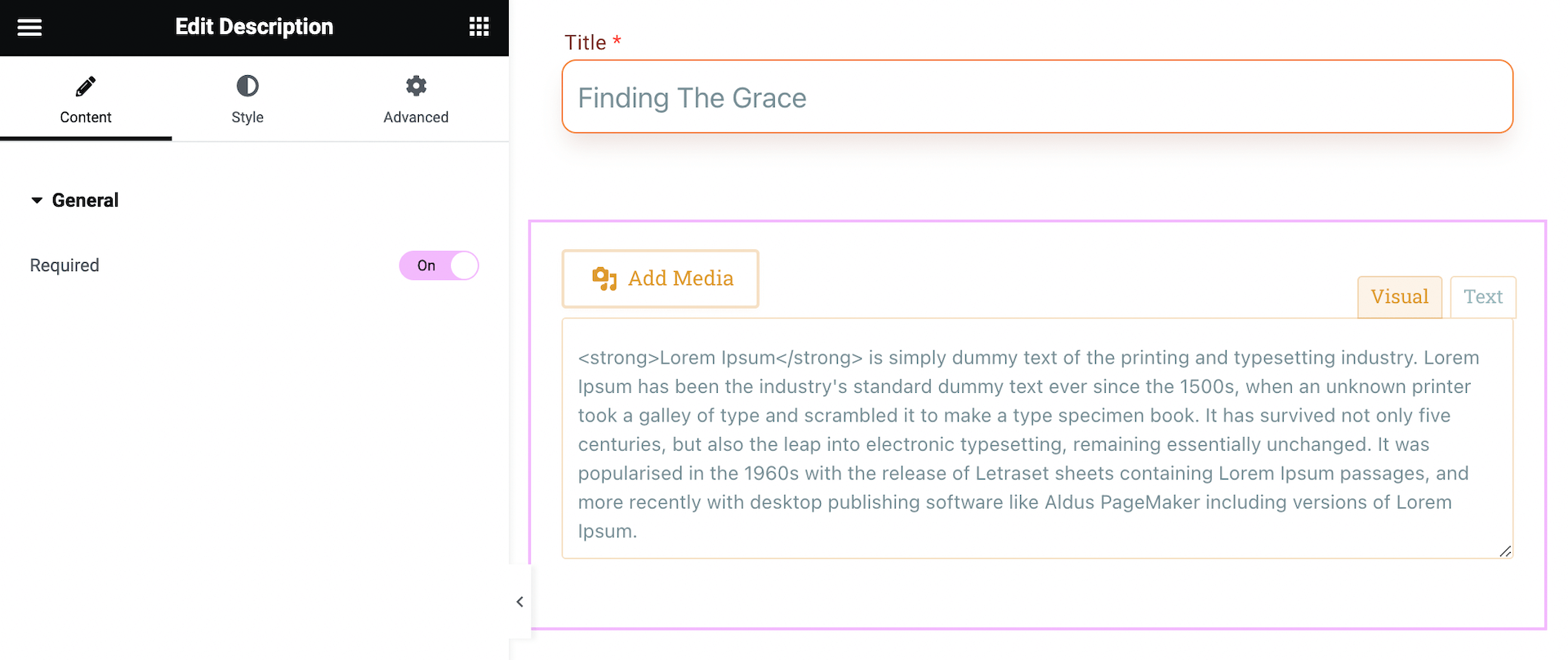
• Required Data: To ensure events run properly, certain data is obligatory. You can force users to fill these by toggling the Required option within the Content tab of the specific widget.
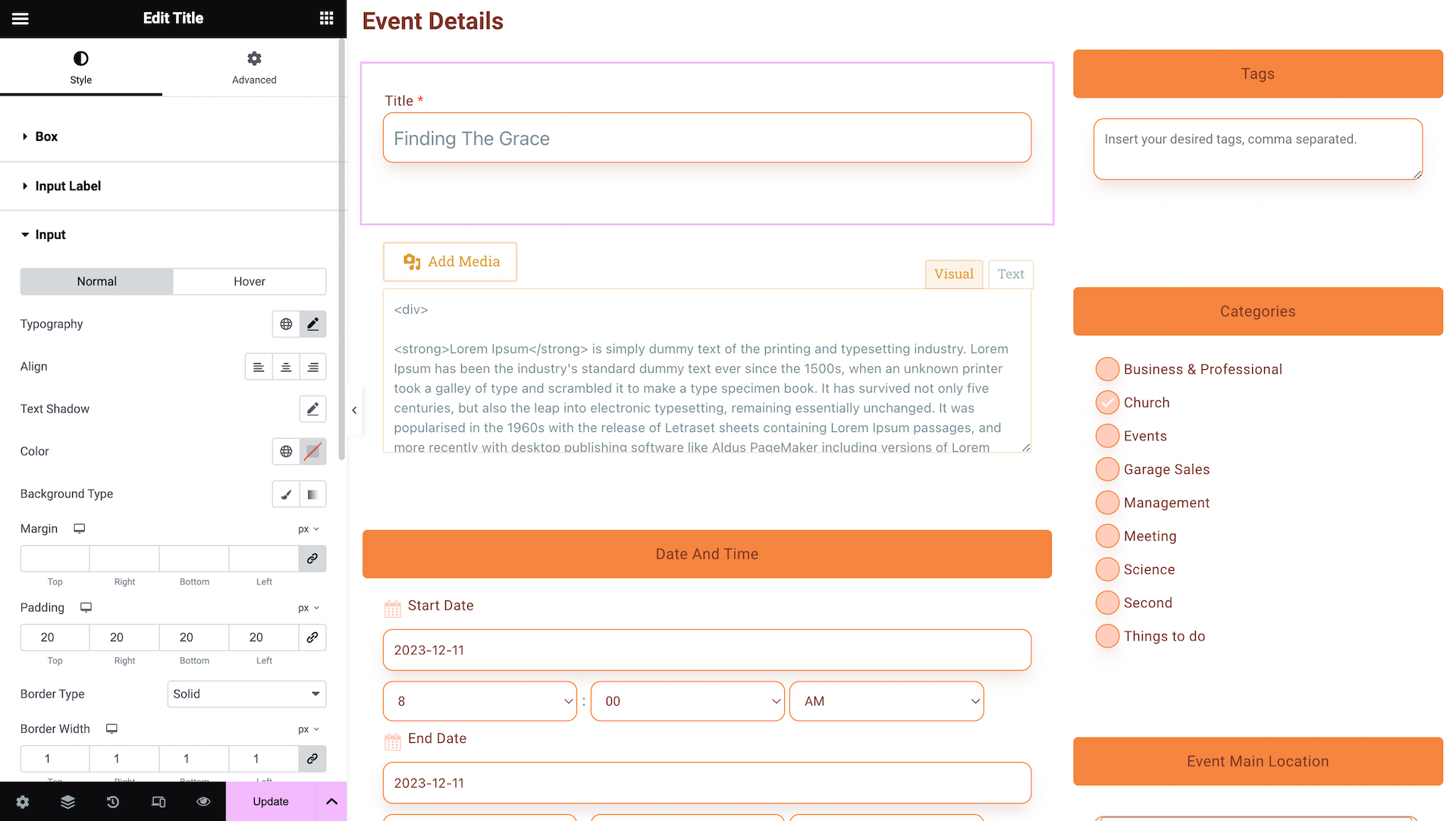
• Custom Styling: Every widget includes a Style and Advanced tab, allowing you to customize colors, fonts, spacing, and borders to match your website’s brand.
Assigning Your FES Form
After your template is designed, you must tell MEC to use it for frontend submissions:
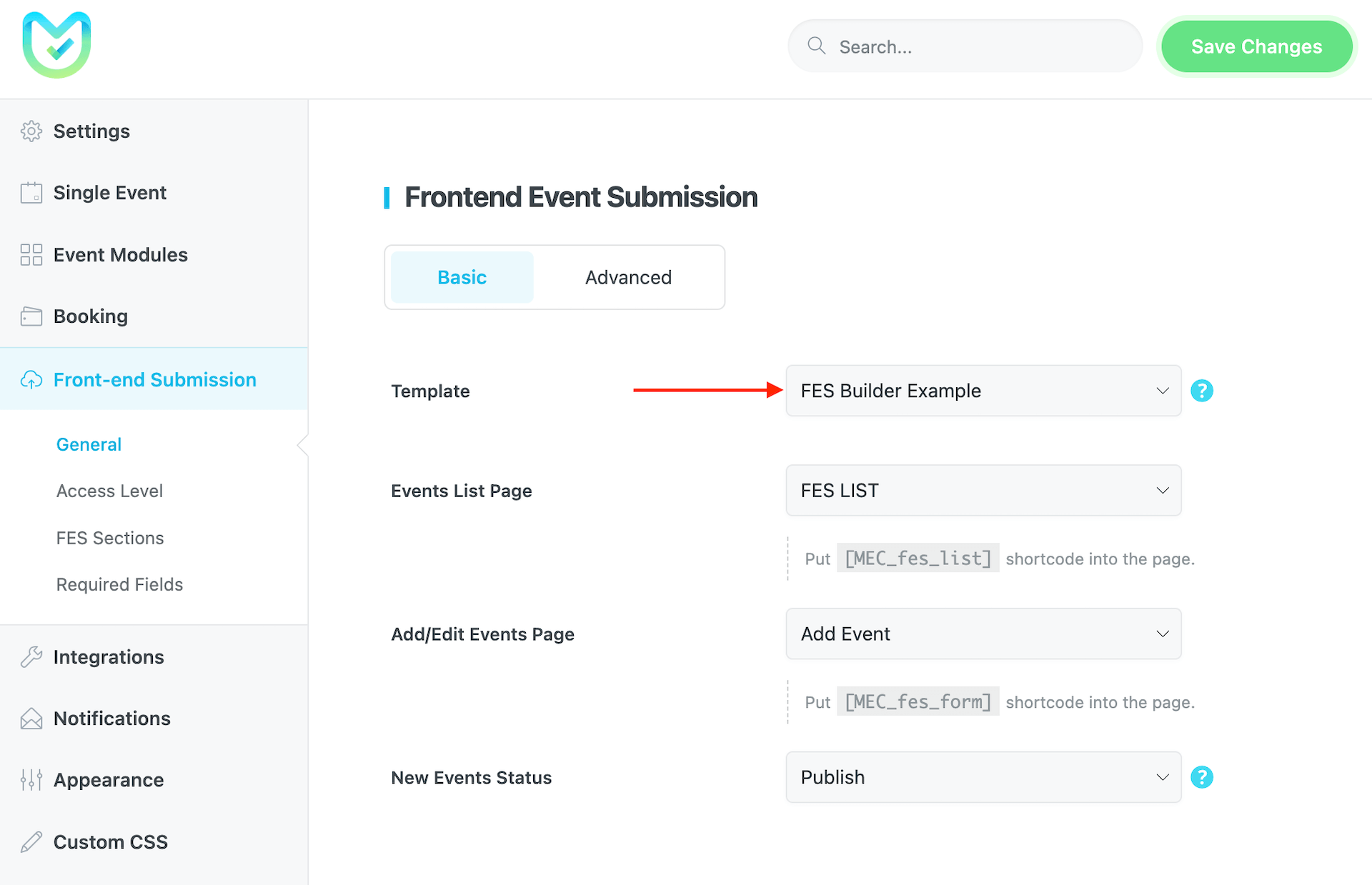
1. Navigate to WordPress Dashboard > MEC > Settings.
2. Go to the Frontend Event Submission section.
3. Choose your newly created Elementor template from the dropdown menu.
4. Click Save Changes.
Pro Tip: If you encounter an error or a “Page Not Found” screen before entering the Elementor editor, navigate to WordPress Settings > Permalinks and click Save Changes (without modifying anything) to refresh your site’s links.
Use Cases (When This Addon is Useful)
• Tailored Submission Experiences: Create different forms for different types of events (e.g., a simple form for community meetups and a detailed form for professional conferences).
• Brand Consistency: Use Elementor’s styling tools to ensure the submission form looks like an integrated part of your website rather than a generic plugin field.
• Streamlined Data Collection: Only include the widgets you actually need, reducing clutter for your users and ensuring you receive the exact information required for your events.
Situations This Addon May Not Be Ideal
• Non-Elementor Users: This addon is specifically designed for the Elementor Page Builder and is not compatible with other builders.
• Conditional Logic Requirements: The builder does not currently support showing or hiding fields based on a user’s previous selections.
• Event Editing via Builder: While users can edit their events through core MEC FES features, this specific addon is focused on the design and creation of the submission form itself.
Troubleshooting for Beginners
• Error 500 Screen: This usually indicates a server configuration issue. Ensure your PHP memory limit is set to at least 512MB in your config.php file and that you are using the latest version of the addon.
• Widgets Missing: If you cannot find the MEC FES section in Elementor, double-check that Events FES Builder is enabled in Elementor > Settings > General.
• Spam Submissions: If you receive unwanted entries, enable Security Captcha within the main MEC Settings to protect your FES forms.
• Update Issues: If an update is not appearing, verify that your addon license is correctly activated in the WordPress dashboard.
FAQ
What is the purpose of the MEC Elementor FES Builder Addon, and how does it improve event submissions?
The MEC Elementor FES Builder Addon allows you to visually design and customize the front-end event submission forms within Elementor, giving you complete control over the user experience. It enhances the submission process by enabling you to tailor the form to your specific needs, ensuring you collect the most relevant information in a user-friendly manner. By simplifying and guiding event submissions, you’ll boost the efficiency and user experience.
How do I install and activate the MEC Elementor FES Builder Addon?
To install the MEC Elementor FES Builder Addon, first ensure that both the Modern Events Calendar (MEC) plugin and the Elementor plugin are installed and active. Afterward, install the addon by uploading the plugin ZIP file. Once installed, activate the addon from the WordPress dashboard under the Plugins section.
How can I enable the ‘Events FES Builder’ post type in Elementor?
To integrate MEC with Elementor, navigate to Elementor > Settings > General in your WordPress dashboard. In the ‘Post Types’ section, check the box for ‘Events FES Builder’ and save the changes. This will allow you to create and edit event submission forms using Elementor.
Where can I find the FES Builder elements within Elementor?
Once the addon is installed and activated, open the Elementor editor on a page or template. You should find a new section in the Elementor elements panel specifically dedicated to FES Builder elements, usually labeled “MEC FES”. These elements can be dragged and dropped into your form.
What widgets are available with the Elementor FES Builder Addon?
The addon offers over 40 specialized widgets designed for event submission forms. These include fields for event title, description, date and time, location, organizer details, and more. Each widget comes with its own styling options, allowing for extensive customization to match your site’s design.
What types of fields can I add to my FES form using the FES Builder? Can I add custom fields beyond the default options?
The FES Builder allows you to add various field types such as text fields, drop-down menus, date pickers, and more. The add-on allows customization to match specific information requirements for event submissions. The specific field types will be listed within the Elementor FES Builder elements panel.
How do I customize the styling of my event submission forms?
The FES Builder leverages Elementor’s styling options. You can customize the form’s appearance by selecting the FES elements and using Elementor’s styling tabs (Style, Advanced) to adjust colors, fonts, spacing, borders, and other visual attributes. This allows you to seamlessly integrate the FES form into your website’s overall design.
Can I create multiple event submission forms for different event types?
Yes, the Elementor FES Builder Addon allows you to create unlimited unique forms. This is particularly useful if you host various event types requiring different information from users. You can design each form individually to cater to specific needs.
Is it possible to make certain fields mandatory in the submission form?
Yes, you have control over the form’s field requirements. When adding or editing a widget in the Elementor editor, you can set it as a required field. This ensures that users provide all necessary information before submitting an event.
Can I use the MEC Elementor FES Builder Addon to allow users to edit their submitted events?
This feature is part of the MEC plugin’s core functionalities for FES, so the Elementor FES Builder Addon is not required for this feature.
How do I handle potential spam submissions through the FES form?
The MEC plugin includes a section called Security Captcha, which allows you to enable various Captcha types for the FES form to prevent spam submissions.
Can I use the Elementor FES Builder Addon with other page builders?
The Elementor FES Builder Addon is specifically designed to work with the Elementor Page Builder.
Does the FES Builder support conditional logic to show or hide fields based on user selections?
No, unfortunately, it’s not feasible to accomplish this task using the MEC Elementor FES Builder Addon.
Is the MEC Elementor FES Builder Addon compatible with all Elementor themes and plugins?
While the addon is designed to be compatible with most Elementor themes and plugins, conflicts can arise. Ensure your theme and other plugins are updated to the latest versions. Test the FES Builder functionality thoroughly after installing or updating any theme or plugin. If you encounter compatibility issues, try deactivating other plugins one by one to identify the source of the conflict.
What should I do if I encounter an error before entering the Elementor editor?
If you face an error before accessing the Elementor editor, try refreshing your WordPress permalinks. Navigate to ‘Settings’ > ‘Permalinks’ in your WordPress dashboard and click the ‘Save Changes’ button without making any modifications. This action often resolves such issues.
What are the system requirements to use the MEC Elementor FES Builder Addon?
The MEC Elementor FES Builder Addon requires the Modern Events Calendar (Lite or Pro) plugin (version 6.0 or higher) and Elementor (version 3.0 or higher). You also need a WordPress site running at least PHP 7.4 and WordPress 5.0.
How do I update the MEC Elementor FES Builder Addon?
To update the MEC Elementor FES Builder Addon, go to your WordPress dashboard and navigate to Plugins > Installed Plugins. If an update is available, you will see an option to update the plugin. Click the Update Now button to ensure you are using the latest version with bug fixes and improvements. If a plugin update is unavailable, you may not have activated the addon license correctly, or you might be using an outdated version and need to manually download this addon through the Webnus dashboard and reinstall it.
What should I do if I encounter an Error 500 screen while editing with Elementor?
An Error 500 typically indicates server configuration issues. Ensure you’re using the latest version of the Elementor Shortcode Designer Addon. If the problem persists, increase the PHP memory limit to 512MB in the config.php file. If the problem still persists, review your server settings or contact your hosting provider for assistance. If needed, reach out to MEC support for further help.
Does the MEC Elementor FES Builder Addon also work with MEC Lite (free)?
Yes, you can use the Elementor FES Builder Addon with either MEC Lite or Pro.