
MEC Paid Memberships Pro Integration
Learn how to set up MEC Paid Memberships Pro Integration step by step. Easily restrict events by membership and control user access in WordPress.
- Event Restriction
- Booking Restriction
- Ticket Restriction
These options provide flexible control over who can view events, book tickets, or access specific ticket types.
Installing Paid Memberships Pro
To get started, you need to install the Paid Memberships Pro plugin.
- Visit the official Paid Memberships Pro website and create an account.
- Download either the free version or one of the premium plans based on your needs.
For this tutorial, the free version is sufficient and fully supports integration with MEC.
Installing the Plugin
- Download the plugin ZIP file.
- Log in to your WordPress dashboard.
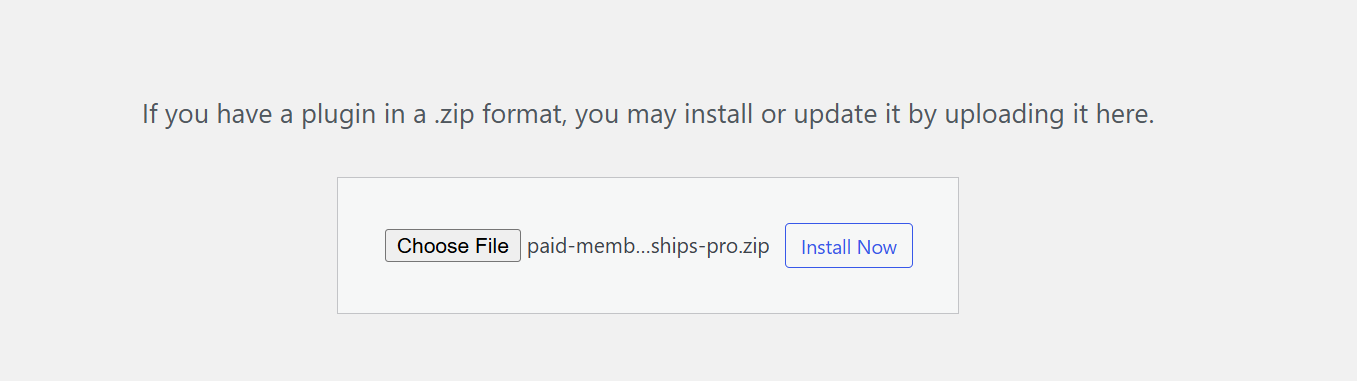
- Navigate to Plugins → Add New → Upload Plugin.
- Select the ZIP file and click Install Now.
- Activate the plugin after installation.
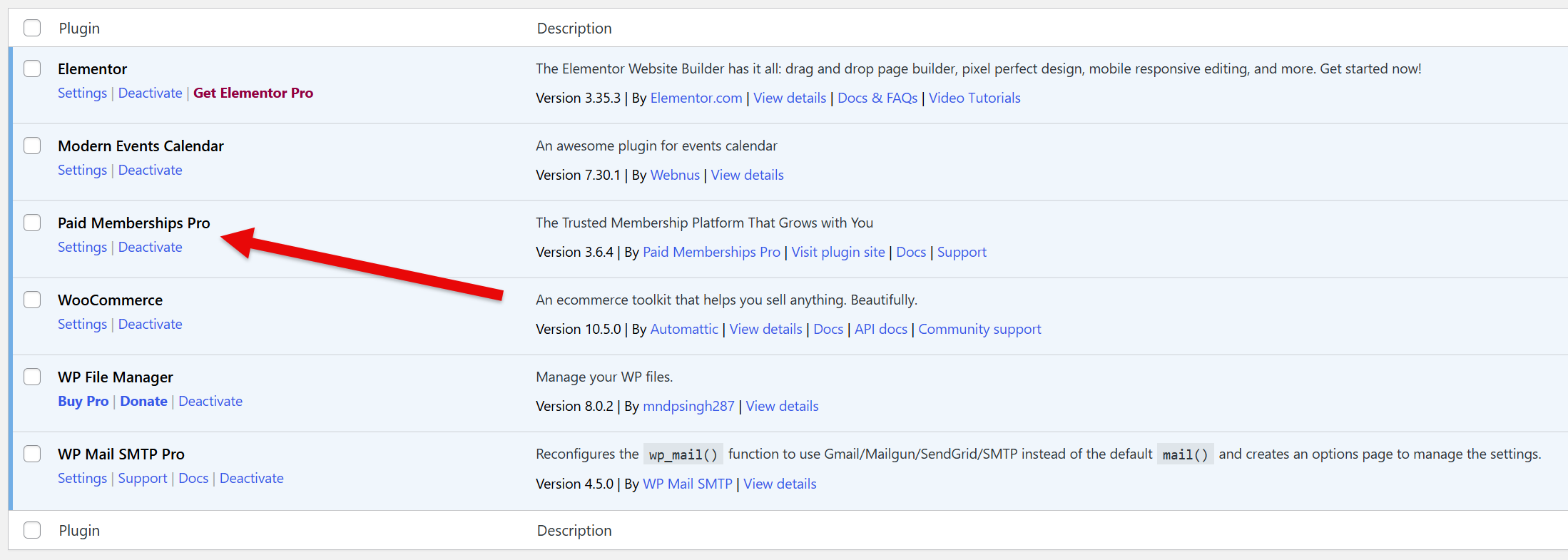
Once installed, you will see Paid Memberships Pro listed among your active plugins.
Configuring Membership Levels
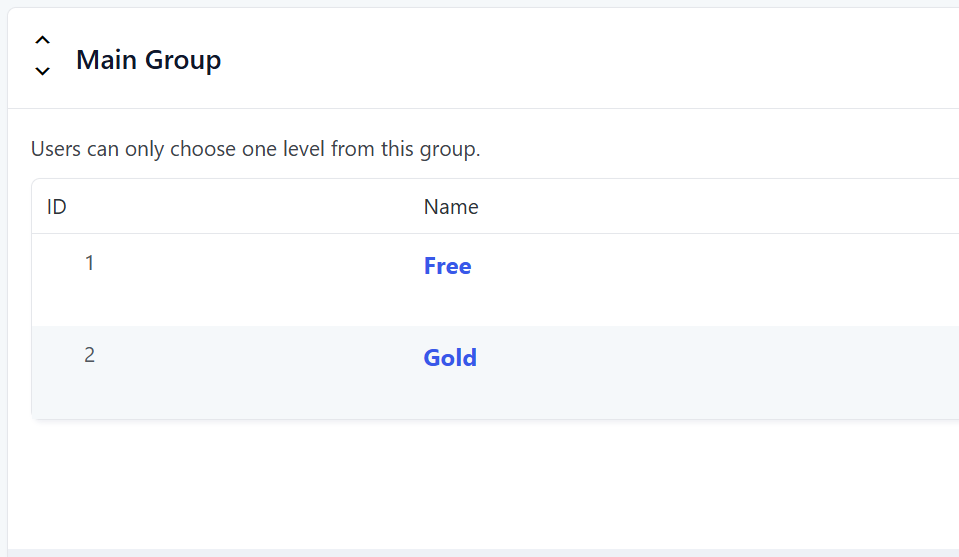
Paid Memberships Pro comes with two default membership levels:
- Free
- Gold
You can use these default levels or create custom membership levels depending on your requirements. For creating new levels, refer to the official Paid Memberships Pro documentation, Here
For this guide, the default Free and Gold levels are sufficient.
MEC and Paid Memberships Pro Integration Settings
To configure the integration:
- Navigate to MEC → Settings → Integrations → Paid Memberships Pro.
- You will see three restriction options:
- Event Restriction
- Booking Restriction
- Ticket Restriction
Each option controls a different level of access.
Event Restriction
Event Restriction is the highest level of limitation. It restricts the entire event content based on membership level. This includes:
- Event images
- Descriptions
- Booking forms
- All visible event content
How to Enable Event Restriction
- Enable Event Restriction in the integration settings.
- Save the settings.
- Open the desired event for editing.
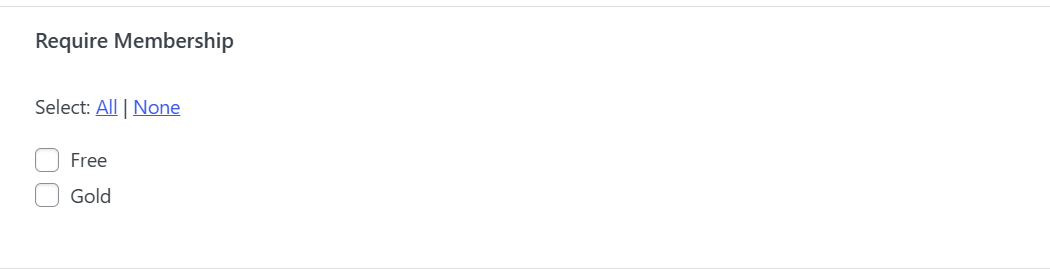
- Locate the Require Membership widget.
- Select the membership plan that should have access.
- Save the event.
Result
Only users with the selected membership will be able to view the full event content. Other users will only see the event title along with a membership requirement message.
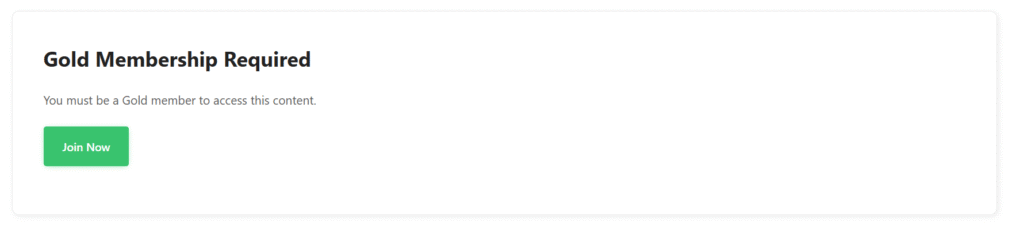
Important Note
If Event Restriction is enabled for an event, disabling the option from integration settings alone will not remove the restriction. You must manually remove membership selections from the Require Membership widget inside the event.
Booking Restriction
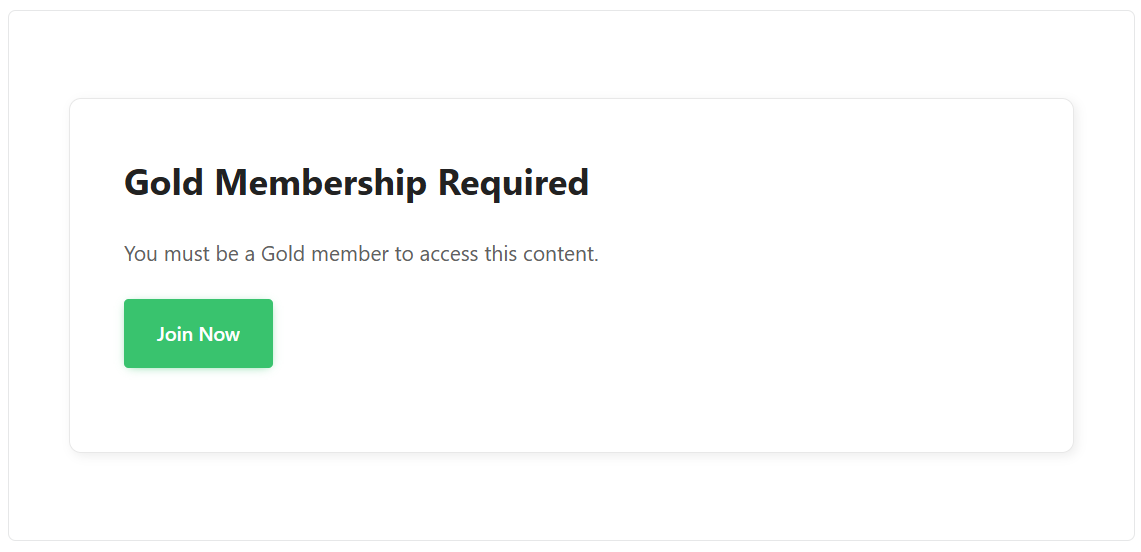
Booking Restriction limits access only to the booking form. Users can still view event details, but only specific membership levels can book tickets.
Key Difference
Unlike Event Restriction, Booking Restriction can be applied based on event categories.
How to Configure Booking Restriction
- Enable Booking Restriction in integration settings.
- Save the settings.
- Under each membership level, you will see a list of MEC event categories.
- Select the categories you want to restrict for each membership plan.
- Save changes.
Example
If you restrict the category Australia to the Gold membership level:
- Only Gold members can access the booking form for events in that category.
- Other users can still view event content but cannot book tickets.
Ticket Restriction
Ticket Restriction is the most granular level of access control. It allows you to limit specific tickets to certain membership levels.
This is a newer and highly requested feature in the integration.
How to Enable Ticket Restriction
- Enable Ticket Restriction in integration settings.
- Save the settings.
- Edit the desired event.
- Navigate to Booking → Tickets.
- Make sure at least one ticket exists (restriction applies per ticket).
- Open the ticket settings.
- Go to the Advanced tab.
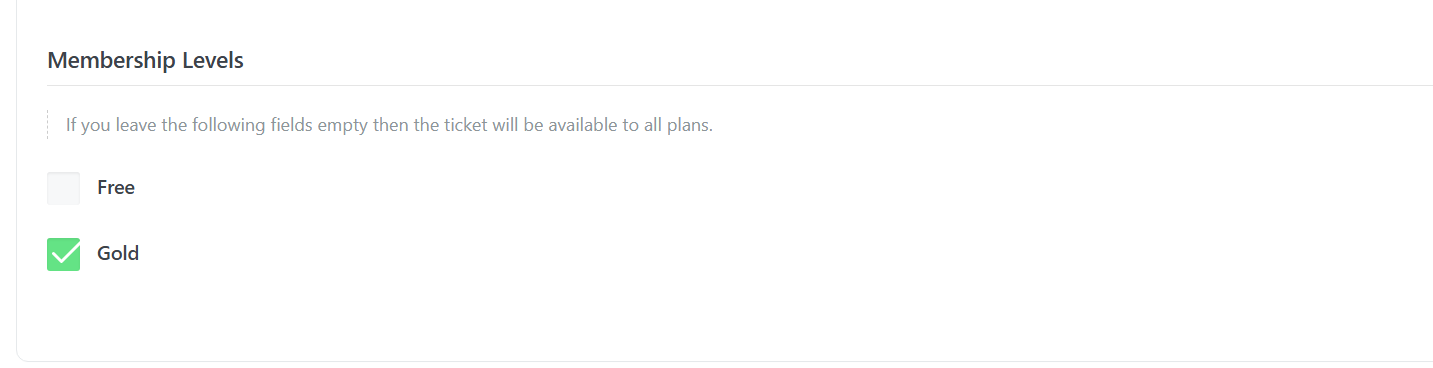
- Scroll to Membership Levels.
- Select the membership levels allowed to purchase that ticket.
- Save the event.
Example
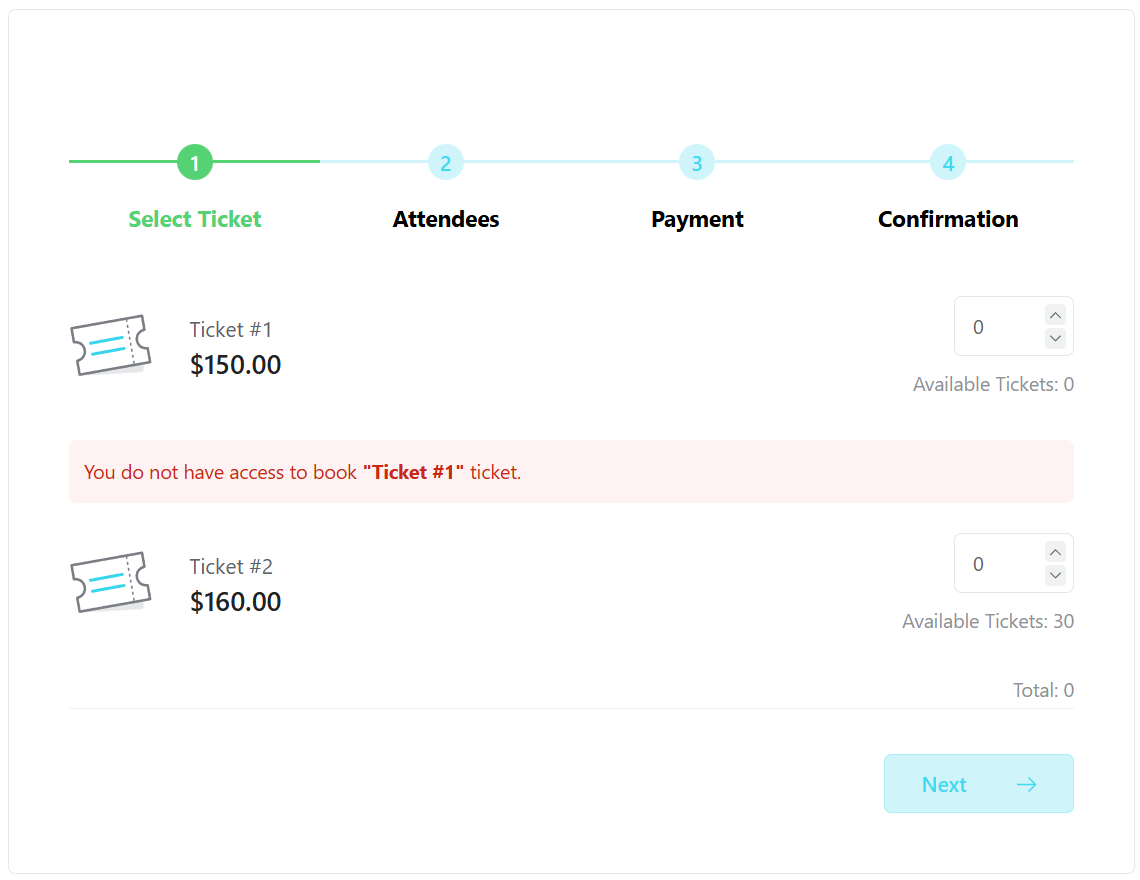
Assume your event contains two tickets:
- Ticket #1 – Gold Members Only
- Ticket #2 – Available to All Members
If a Free user views the booking form:
- Ticket #1 will be restricted.
- Ticket #2 will remain accessible.
Result
Only users with the selected membership level can purchase the restricted ticket. Other users will see an access limitation message.
Conclusion
The integration between MEC and Paid Memberships Pro allows you to build advanced membership-based event systems with flexible control options:
- Use Event Restriction to lock entire event content.
- Use Booking Restriction to allow viewing but restrict booking access.
- Use Ticket Restriction to control access at the ticket level.
By combining these three restriction levels, you can create fully customized membership experiences for your events.