
MEC Seat Addon
The MEC Event Seat Addon is a powerful tool designed for events where guests need to select their specific spots within a venue. Whether you are managing a theater with multiple rows, a seminar with classroom seating, or a gala with circular tables, this addon allows you to create a customized Seat Map and provide a seamless, real-time booking experience for your attendees
Initial Setup & Requirements
Before you begin, ensure your environment meets the following requirements:
- MEC Pro: This addon requires the Pro version of Modern Events Calendar to function.
- Booking Module: Navigate to MEC Settings > Booking and ensure the Booking Module is enabled. You must save changes for these settings to take effect.
Configuration & Seat Map Design
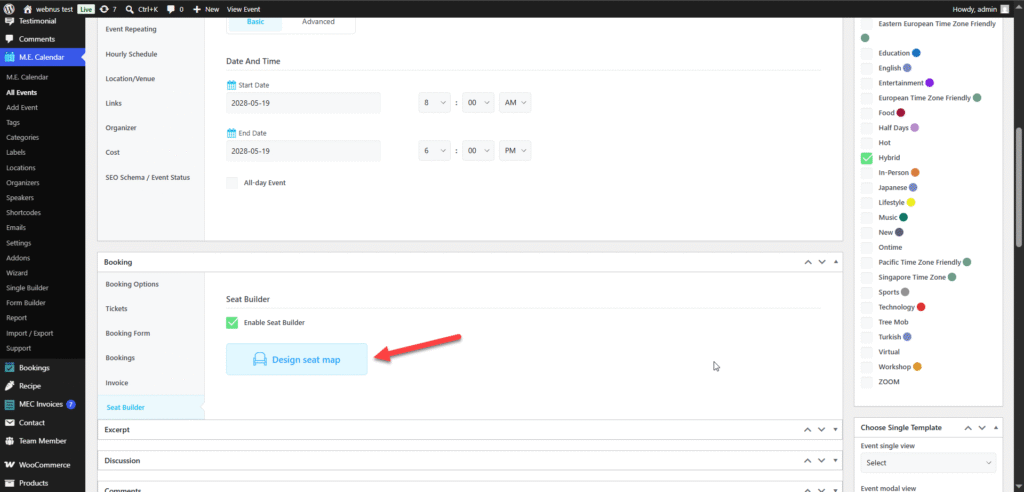
To activate seating for an event, go to the edit page for your specific event. Scroll down to the Booking section and select the Seat Builder tab
- Toggle on Enable Seat Builder.
- Click the Design seat map button to open the builder interface.
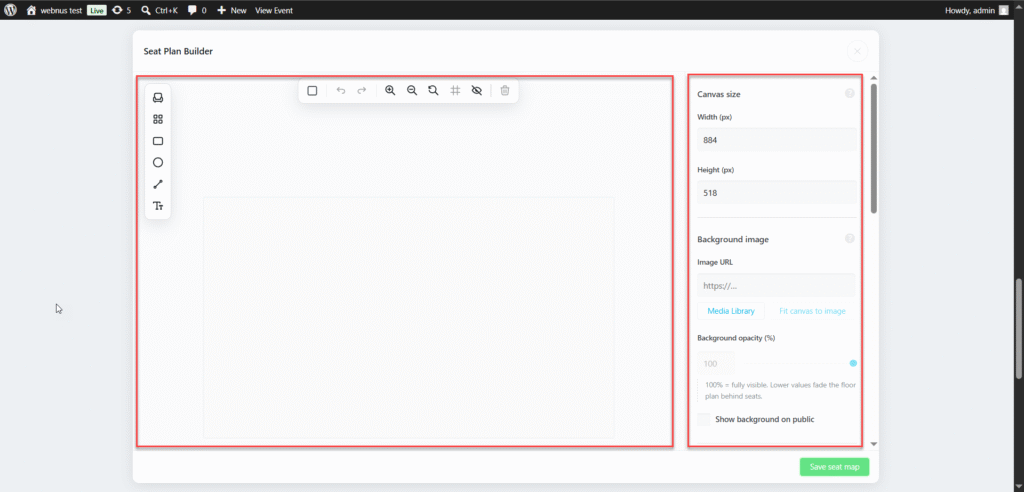
The Right Sidebar: Map Settings
The right section of the builder manages the global settings for your canvas.
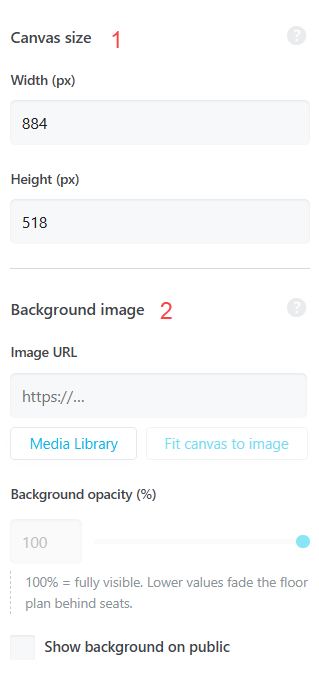
- Canvas size: Define the drawing area using Width (px) and Height (px).
- Background image: Paste an Image URL or use the Media Library. Use Fit canvas to image to match dimensions automatically.
- Background opacity (%): Adjust transparency so seats remain visible. Toggle Show background on public to control whether visitors see the floor plan.
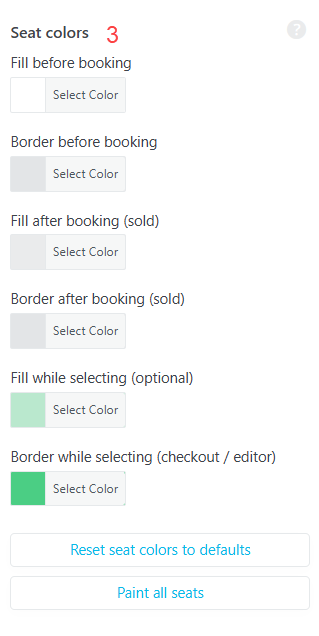
- Seat colors: Set custom colors for different states:
- Fill/Border before booking: Colors for available seats.
- Fill/Border after booking (sold): Colors for reserved seats.
- Fill while selecting (optional): Color when a user clicks a seat.
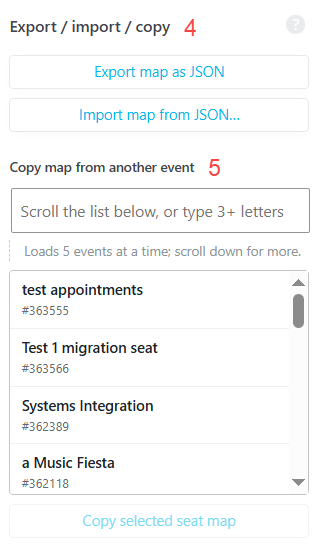
- Export / import / copy:
The Left Section: Design Toolbars
This area features two toolbars for building your layout.
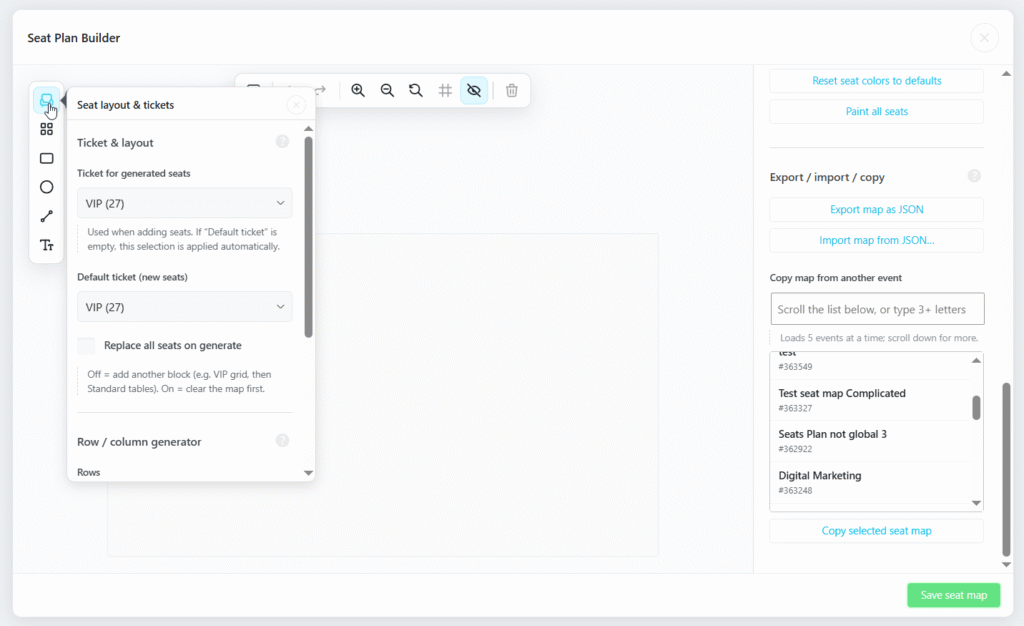
- Horizontal Toolbar (Management): Includes tools for Highlight all seats, Undo/Redo, Zoom in/out, Reset zoom, Straighten movable seats, Fade seat, and Delete selection.
- Vertical Toolbar (Elements):
- Seat layout & tickets: Generate a grid of seats. Select the Ticket for generated seats, set the number of Rows and Columns, and click Generate row/column seats.
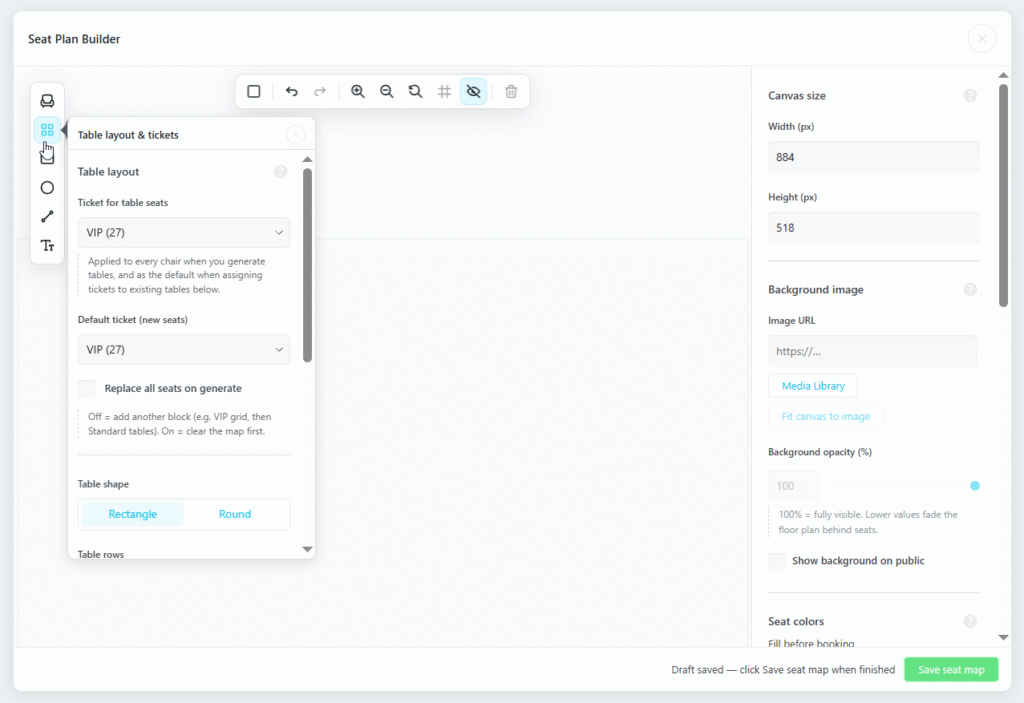
- Table layout & tickets: Generate tables. Select Table shape (Rectangle or Round), define Table rows/columns, and set Chairs per table before clicking Generate table layout.
- Shapes & Text: Icons to add a Rectangle, Ellipse, Line, or Text label for venue decorations (like “Stage” or “Exit”).
Walkthrough: Building a Multi-Zone Venue
Let’s collaborate to create a seating Map for an event featuring three distinct tickets.
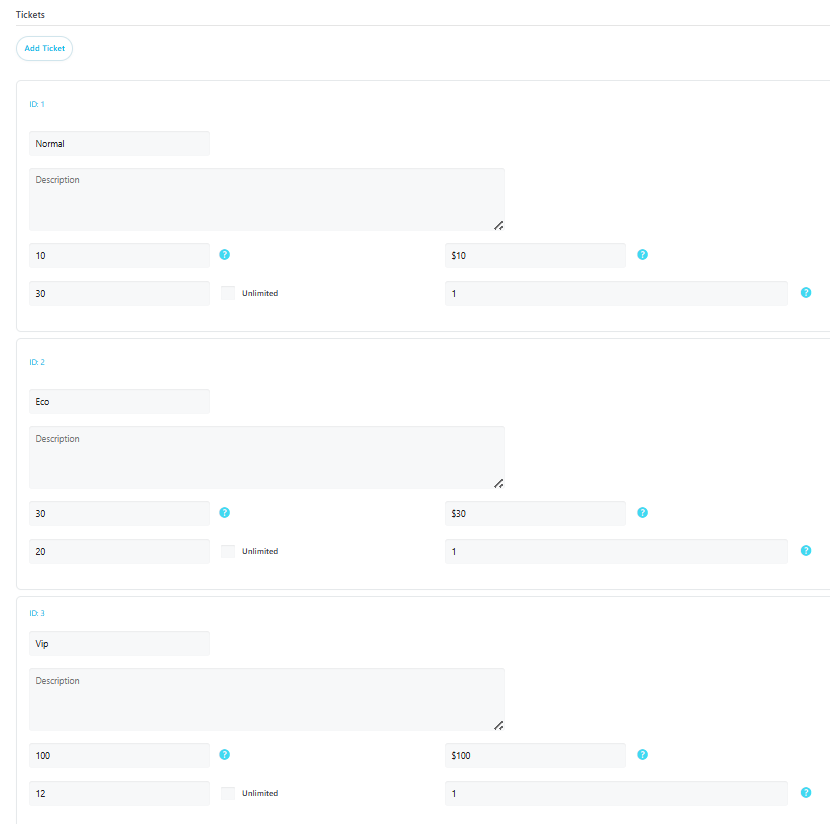
To design an event with diverse seating options, follow this three-area configuration:
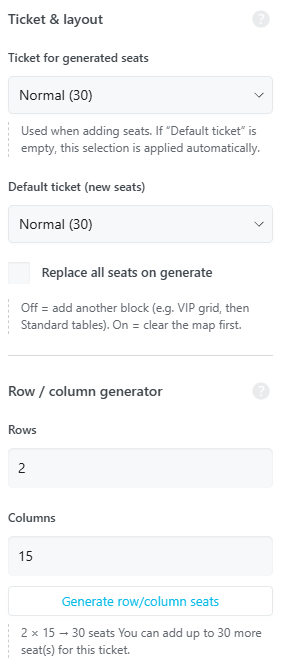
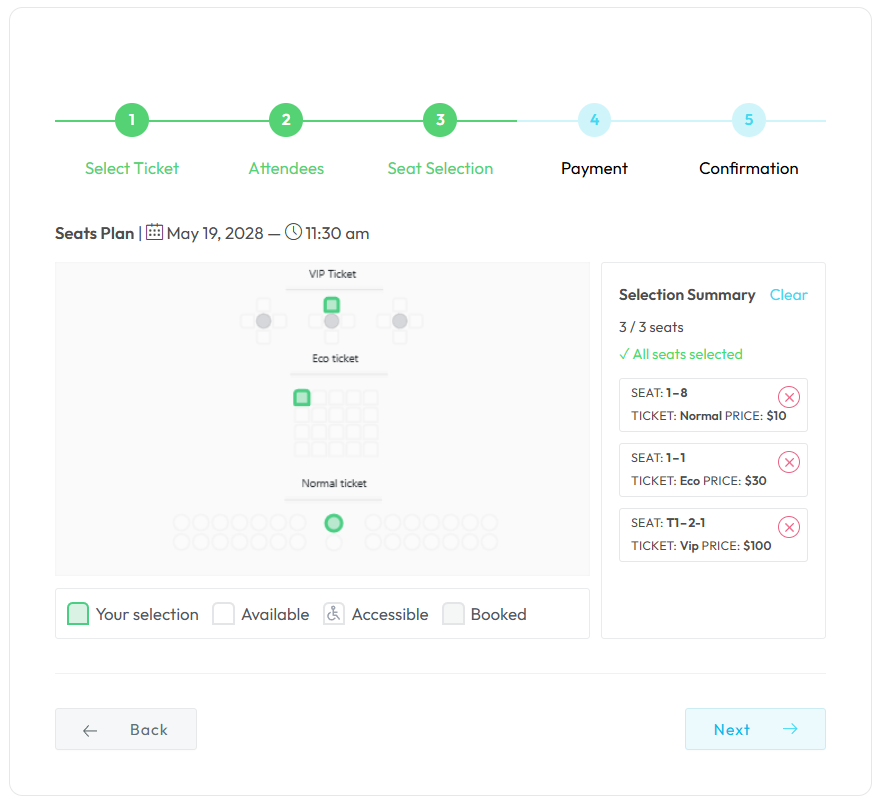
- Normal ticket: Configure 2 rows with 15 seats in each column.
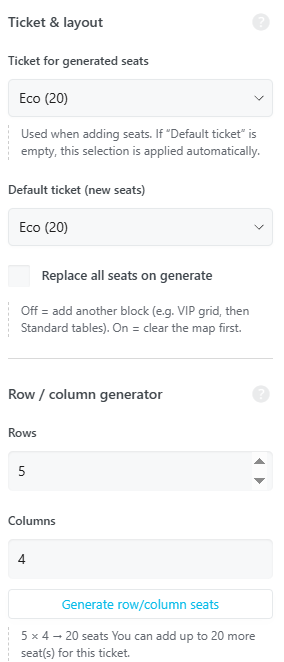
- Eco ticket: Select the square plan. Configure 5 rows with 4 seats in each column.
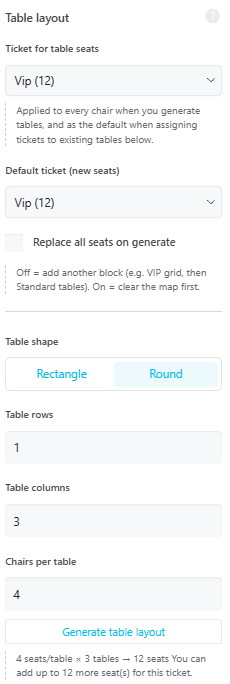
- VIP ticket: Select the round seats. Configure 3 tables, each containing 4 seats.
Here is a preview of the area plan.
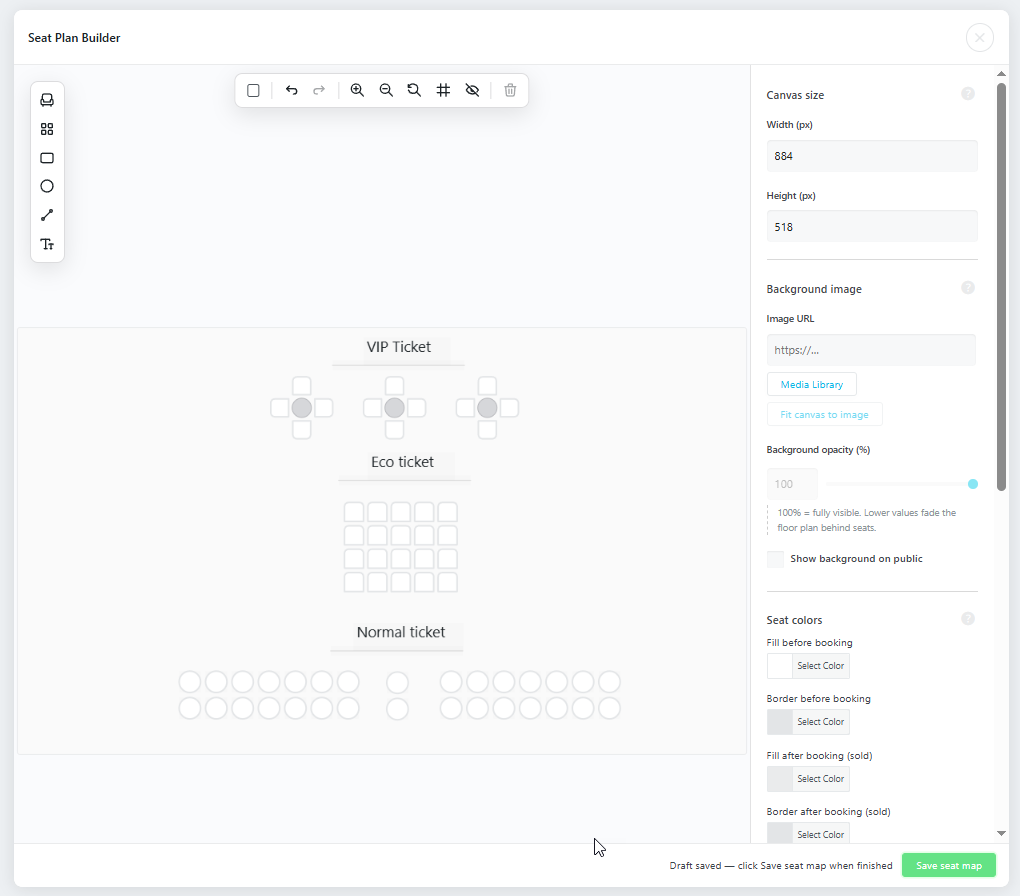
Here is a preview of the front view of the area plan:
Customizing Individual Seats
Once seats are generated, you can click any individual seat to open its unique settings.
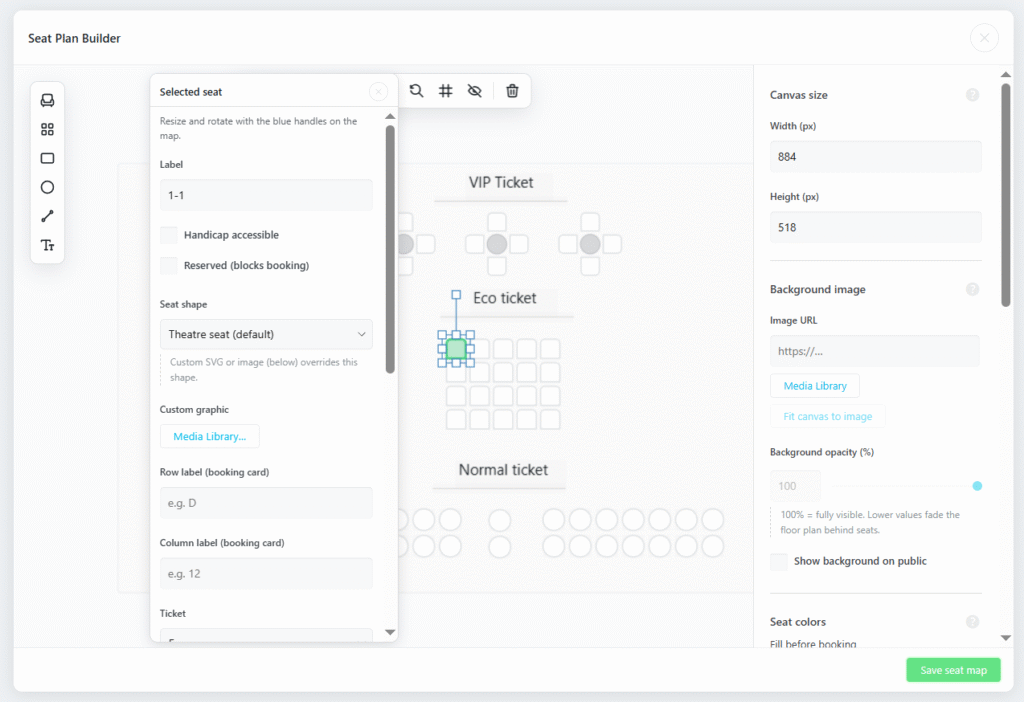
- Label: Set a custom name for the seat (e.g., A-1).
- Handicap accessible: Toggle this on to mark the seat with an accessibility icon.
- Reserved (block booking): Manually block a seat from being purchased.
- Seat shape: Choose between Theatre seat (default), Square, Round, or Table Circle. You can also upload a Custom graphic via the Media Library.
- Labels (Booking Card): Assign specific Row label and Column label for internal tracking.
- Ticket: Assign a specific ticket type (VIP, Standard, etc.) to that exact seat.
- Transform Tools: Adjust Seat size, Icon scale, and Rotation to fit your floor plan.
- Override Colors: Use Fill override and Border override to give a specific seat a unique color regardless of its status.
Management Hub & Notifications
Tracking Bookings
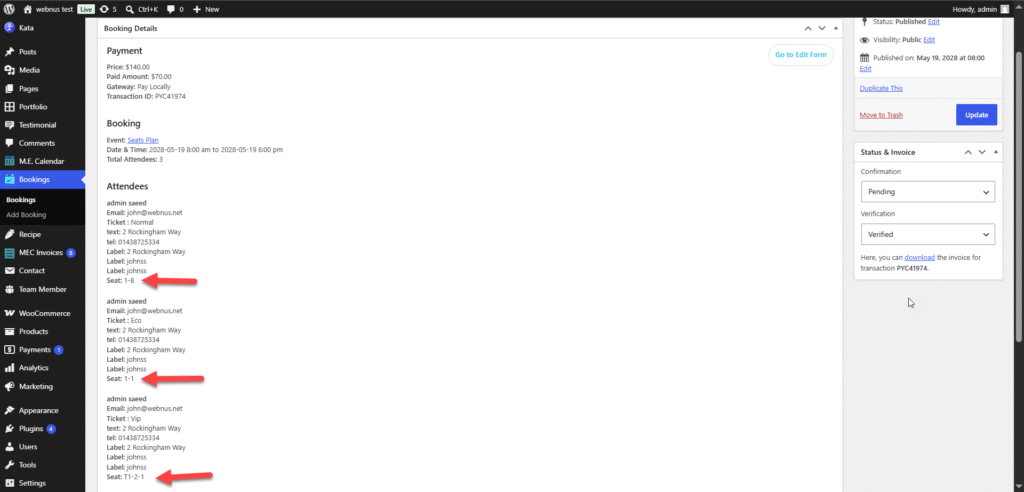
Booked seat numbers are displayed in the MEC > Bookings section.
- Viewing Seats: Admin can see exactly which seat (e.g., Seat: 1-8) was purchased under the Attendees list.
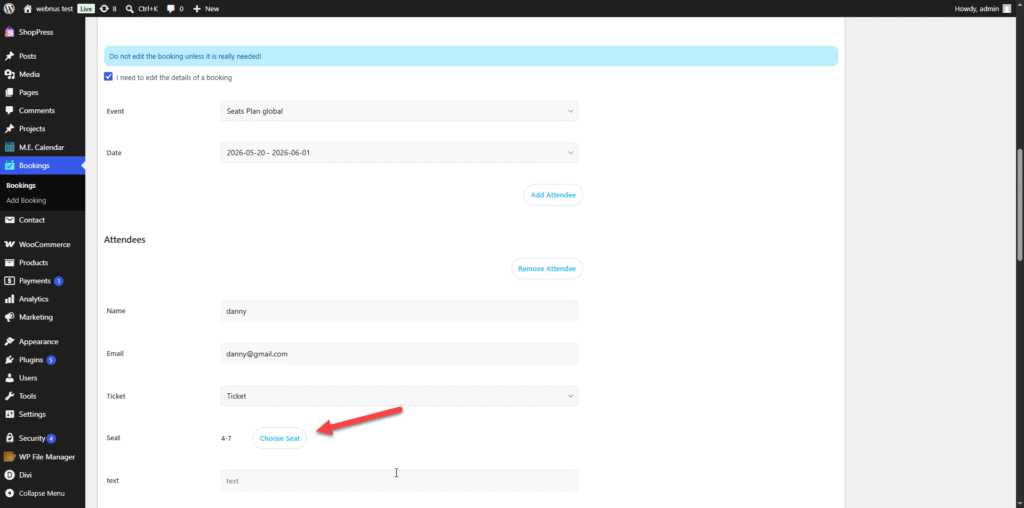
- Manual Adjustments: If you need to change an attendee’s seat, click the I need to edit the details of the booking checkbox in the booking details to manually update the seat number.
Notification Email Placeholders
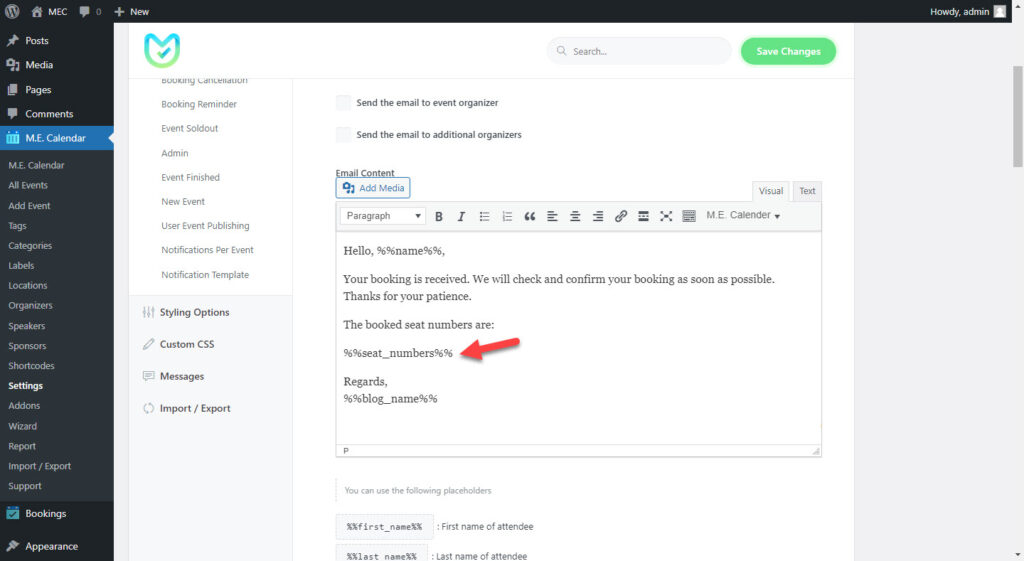
To ensure attendees receive their seat information, use the following placeholder in your MEC email settings:
- %%seat_number%%: This will automatically pull the seat label selected for the main attendee into the email.
- %%seat_numbers%%: This will automatically pull all selected seat labels into the email.
These placeholders work for Booking Confirmation, Verification, Reminders, and more.
Use Cases (When This Addon is Useful)
- Theaters and Concerts: Perfect for venues with assigned rows and numbered seats where pricing varies by proximity to the stage.
- Gala Dinners and Weddings: Useful for arranging guests around circular tables or specific banquet layouts.
- Conferences and Seminars: Ideal for classroom-style setups where attendees prefer to choose their vantage point or sit in specific rows.
Situations This Addon May Not Be Ideal
- Non-WordPress Environments: This tool is built exclusively for Modern Events Calendar on WordPress.
- Additional Service Bookings: It cannot handle “extras” like meal selections or equipment rentals within the seating interface; these must be handled via other MEC modules.
- User-Led Changes: Attendees cannot change their own seats once the booking is finalized; an administrator must do this manually from the backend.
Troubleshooting for Beginners
- Seat Plan Not Appearing? Ensure the Enable Seat Builder toggle is active for that specific event and that you have clicked Save seat map.
- Changes Not Visible? If you update colors or labels and they don’t appear on the front end, clear your website cache.
- Duplicate Seat Concerns? The system marks seats as “reserved” the moment a user starts the purchase process, preventing two people from buying the same seat simultaneously.
FAQ
How do I enable seat selection for my events?
To enable seat selection, install and activate the MEC Event Seat Addon. In the event editor, navigate to the booking section and then the “Seat builder” tab, where you can design a custom seating layout using the seat builder. Once configured, the seating map will appear on the event booking page, allowing attendees to select their seats.
Can I create different seating layouts for different events?
Yes, each event has a unique seating arrangement. The seat builder allows you to create custom layouts tailored to specific event types, such as theater-style seating, classroom setups, or banquet arrangements.
How can I set different prices for different seats?
You can assign different ticket prices to specific seating areas within the seat builder. For example, VIP seats can have a higher price than general admission seats. The pricing options can be configured in the seat management panel.
Can users see which seats are already booked?
Yes, the seat selection interface updates in real-time. Attendees can see which seats are available or booked before making their selection.
Can attendees change their selected seats after booking?
By default, once a seat is booked, it cannot be changed by the user. However, event organizers can manually adjust seat assignments from the WordPress dashboard if needed.
How do I limit the number of available seats for an event?
You can define the total number of available seats on the Single Event edit page. The system will automatically disable further bookings once the limit is reached, ensuring that the event does not exceed capacity.
Can I assign seat categories with different colors?
Yes, you can customize seat colors and labels to visually distinguish different seating categories, such as VIP, standard, or balcony seating. These customizations help attendees easily identify their seating options.
Is the seat selection feature mobile-friendly?
Yes, the seat selection interface is fully responsive. Users can choose their seats from any device, including desktops, tablets, and smartphones, without compromising usability.
Can I create multiple seating zones for a single event?
Yes, the addon supports multi-zone seating, allowing you to create different sections within a venue, such as the main floor, balcony, or VIP lounge, each with its own pricing and availability.
How do attendees receive confirmation of their seat selection?
Once a user completes the booking process, they receive an automated confirmation email containing their seat details, event information, and any relevant instructions.
Can I manually assign or adjust seats from the admin panel?
Yes, organizers can manually assign, adjust, or cancel seat bookings from the WordPress admin panel. This is useful for accommodating special requests or handling last-minute changes.
Is there a way to offer group bookings with seat selection?
Yes, the system allows users to select multiple seats in a single transaction, making it easy for groups to book seats together.