
MEC Multisite Event Sync
Introduction
The MEC Multisite Event Sync Addon helps you manage Modern Events Calendar content across a WordPress Multisite network from one central website.
Instead of creating and updating the same content separately on every website, you can manage your MEC content from the main site and automatically synchronize it with selected subsites.
The MEC Multisite Event Sync Addon provides a centralized way to manage Modern Events Calendar content across multiple WordPress websites while keeping events, settings, and booking data synchronized.
With this addon, you can synchronize:
- MEC Events
- MEC Shortcodes
- MEC Settings
- MEC Single Event Sidebar Widgets
The addon also includes tools to monitor synchronization activity, review failed operations, and maintain consistent event availability across your network.
Requirements
Before using the addon, make sure the following requirements are available:
- WordPress Multisite is enabled.
- Modern Events Calendar is installed and active.
- MEC Multisite Event Sync Addon is installed and activated.
- You have administrator access to the main website.
- MEC Single Builder is active if you want to synchronize Single Builder templates.
The addon is managed from the main website of your Multisite network. Synchronization settings and management tools are not available from individual subsites.
How MEC Multisite Event Sync Works
The addon uses the main website as the central location for managing MEC content.
The workflow is simple:
- Configure which MEC content should be synchronized.
- Select the websites that should receive synchronized content.
- Create or update content on the main website.
- The addon automatically synchronizes changes with connected subsites.
The main website controls the original content, while connected subsites receive synchronized copies.
Accessing the Multisite Dashboard
To open the addon dashboard:
- Log in to your main website dashboard.
- Go to:
M.E. Calendar → Multisite
The dashboard provides access to:
- Sync configuration
- Website management
- Manual synchronization
- Health monitoring
- Unlink controls
Configuring Synchronization
The dashboard allows you to control which MEC content types are synchronized.
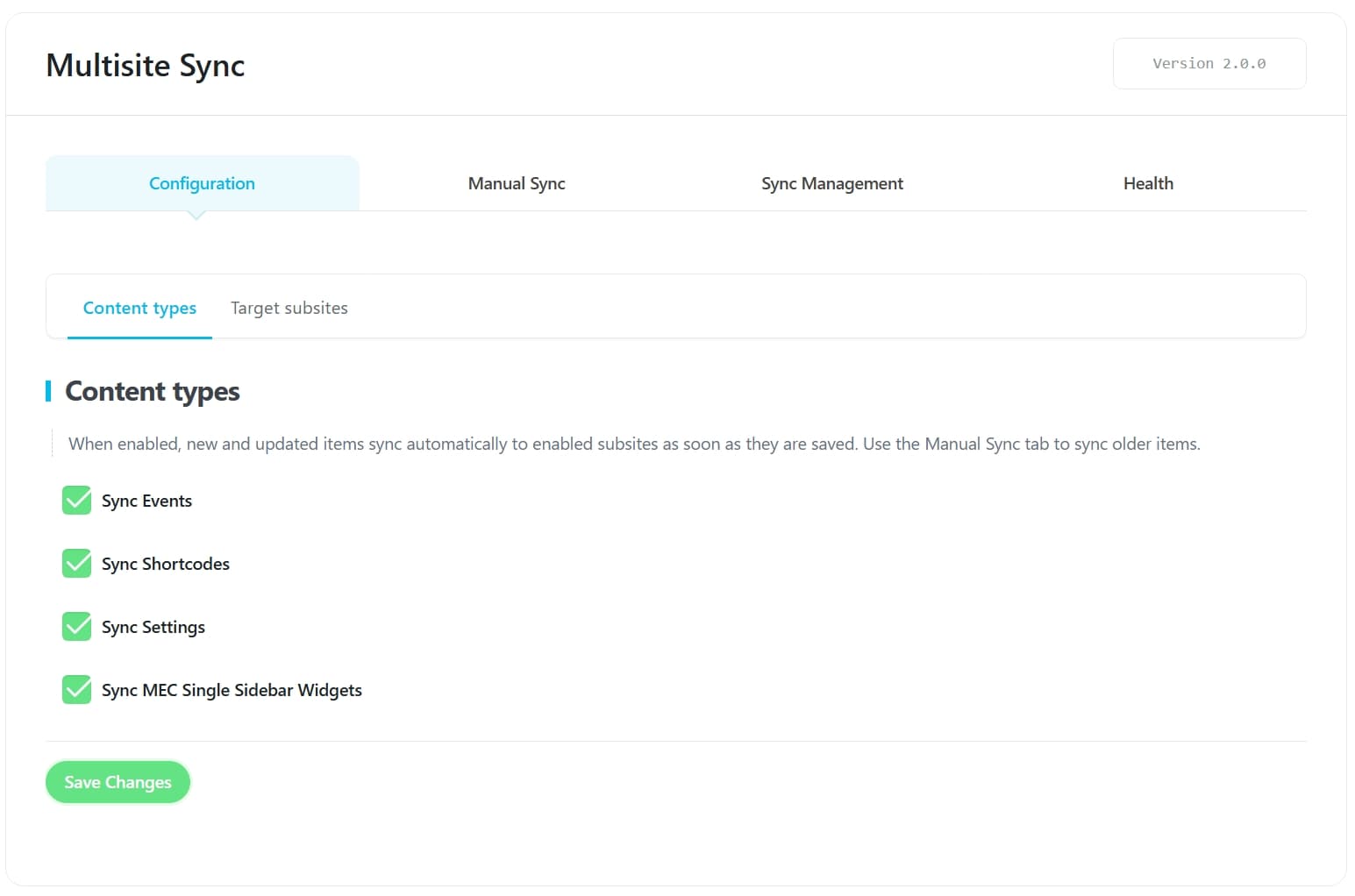
Sync Events
Enable this option to synchronize MEC events from the main website to selected subsites.
When enabled:
- New events are synchronized automatically.
- Updated events are synchronized automatically.
- Existing events can be synchronized manually.
- Deleted or trashed events are updated on connected subsites.
- Related event information such as categories, locations, organizers, tags, and other supported data is synchronized.
Use this option when your main website should be the central location for managing events.
Sync Shortcodes
Enable this option to synchronize MEC Calendar Shortcodes.
When enabled:
- New and updated shortcodes are synchronized.
- Deleted shortcodes are removed from connected subsites.
Use this option when multiple websites need the same calendar displays.
Sync Settings
This option synchronizes supported MEC configuration settings.
Supported settings may include:
- General settings
- Styling settings
- Booking settings
- Notification settings
- Labels
- Modules configuration
Some settings are intentionally excluded, including:
- API keys
- License information
- Website-specific page IDs
Sync MEC Single Sidebar Widgets
This option synchronizes the MEC single event sidebar configuration.
Use it when you want event pages across multiple websites to have the same sidebar widget setup.
Managing Subsites
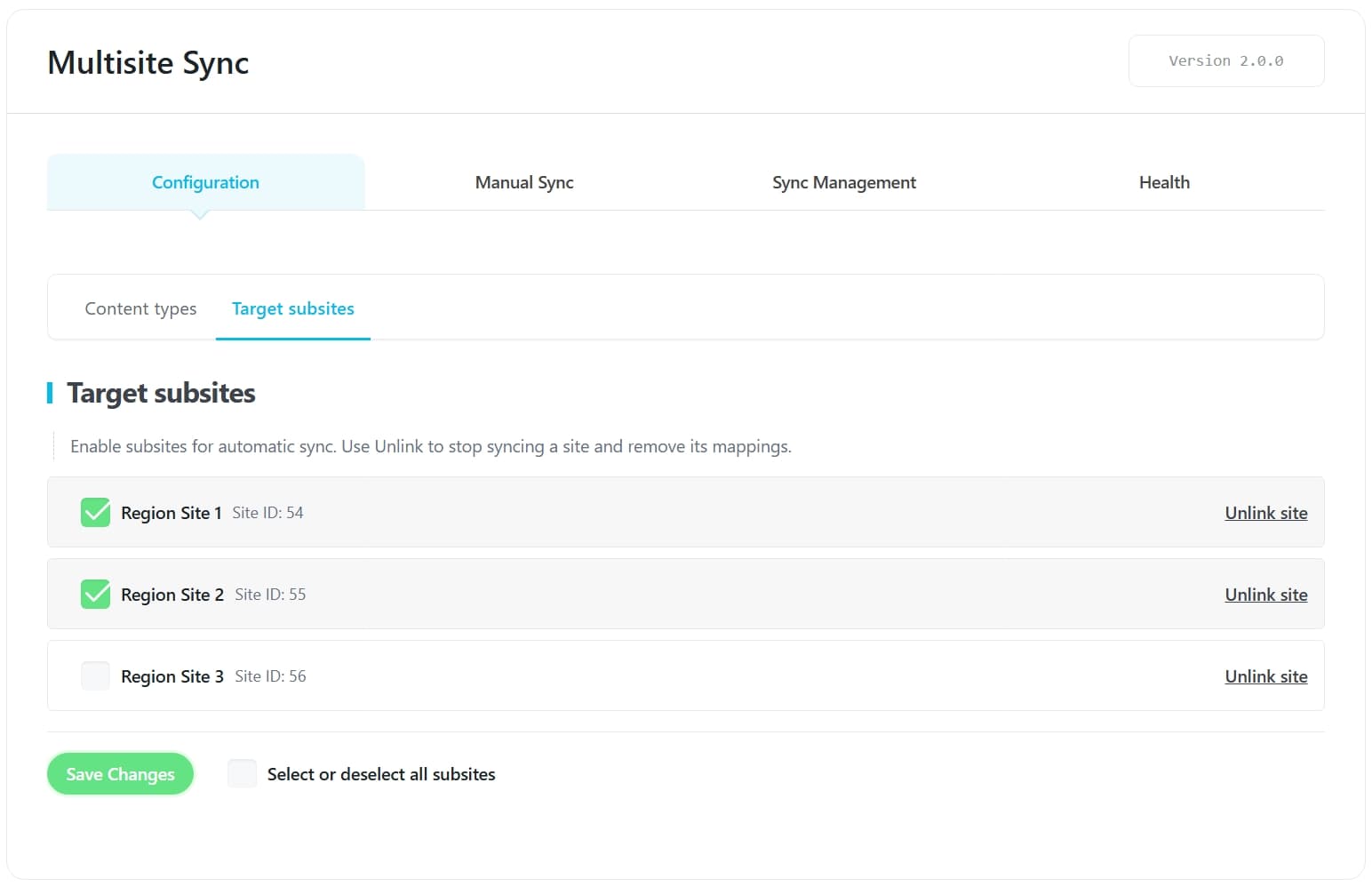
The site management section in MEC Multisite Event Sync Addon allows you to choose which websites participate in synchronization.
To enable a website:
- Open the Multisite dashboard.
- Find the website in your network list.
- Enable synchronization.
- Save your changes.
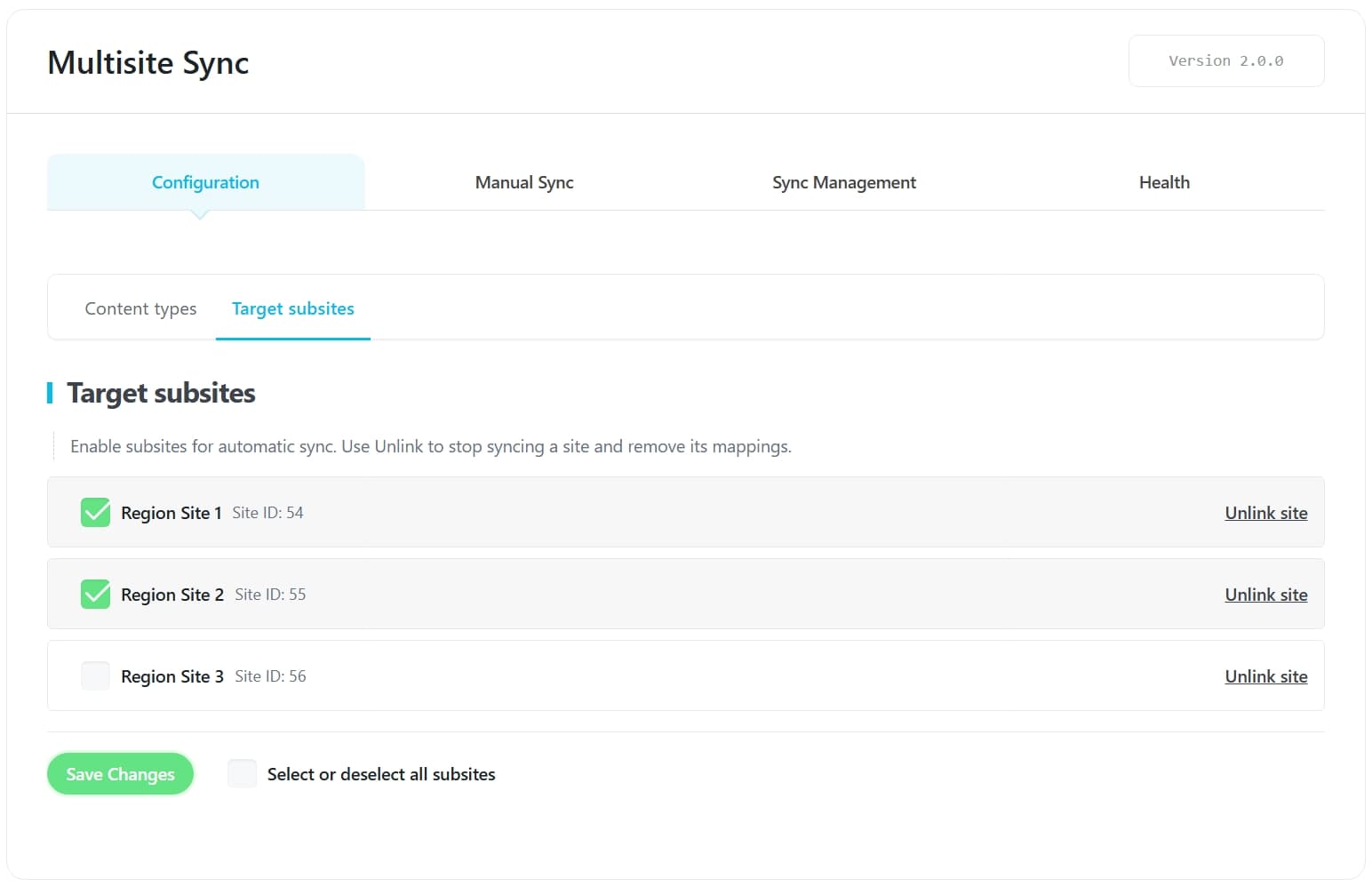
For each website, you can review information such as:
- Website name
- Plugin status
- Last synchronization time
- Last synchronization result
Synchronizing Existing Content
Sync Existing Events
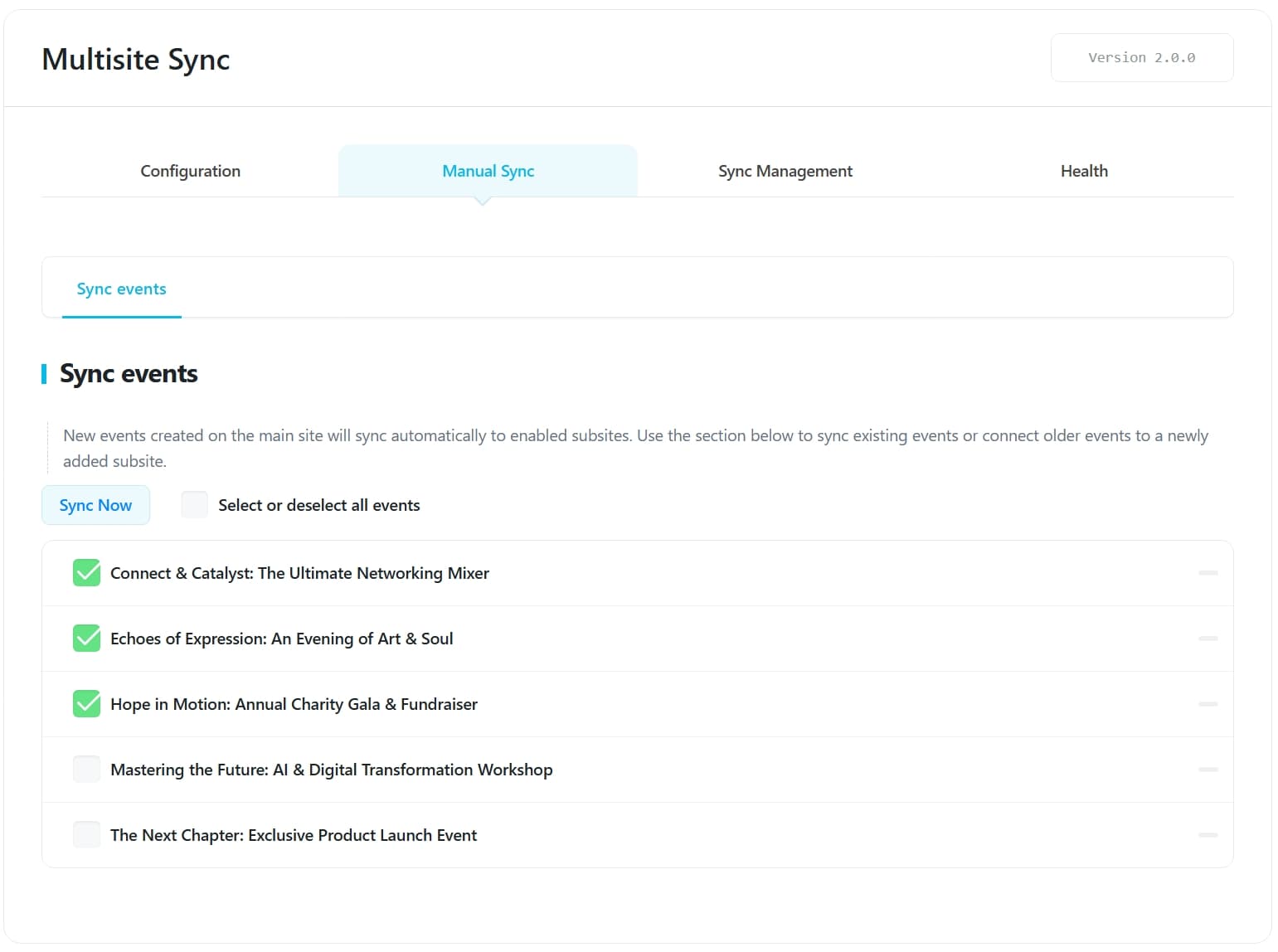
If events already exist before enabling synchronization, you can manually synchronize them.
Steps:
- Open the Multisite dashboard.
- Go to the manual synchronization section.
- Select the events you want to synchronize.
- Click Sync Now.
Managing Synchronized Events
Events synchronized to subsites are controlled from the main website.
On connected subsites:
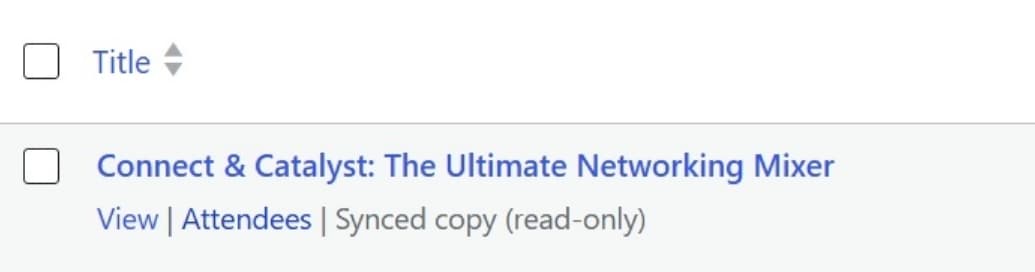
- Synchronized events are read-only.
- Editing options are disabled.
- Administrators are directed to edit the original event on the main website.
To update a synchronized event:
- Edit the event on the main website.
- Save your changes.
- The changes are synchronized automatically.
Network Booking Capacity
When the same event is available on multiple websites, the addon keeps ticket availability synchronized across the network.
This prevents overbooking by combining ticket sales from all connected websites.
For example:
- Website A sells 5 tickets.
- Website B sells 3 tickets.
- The remaining availability is calculated using the total network sales.
Monitoring Synchronization Health
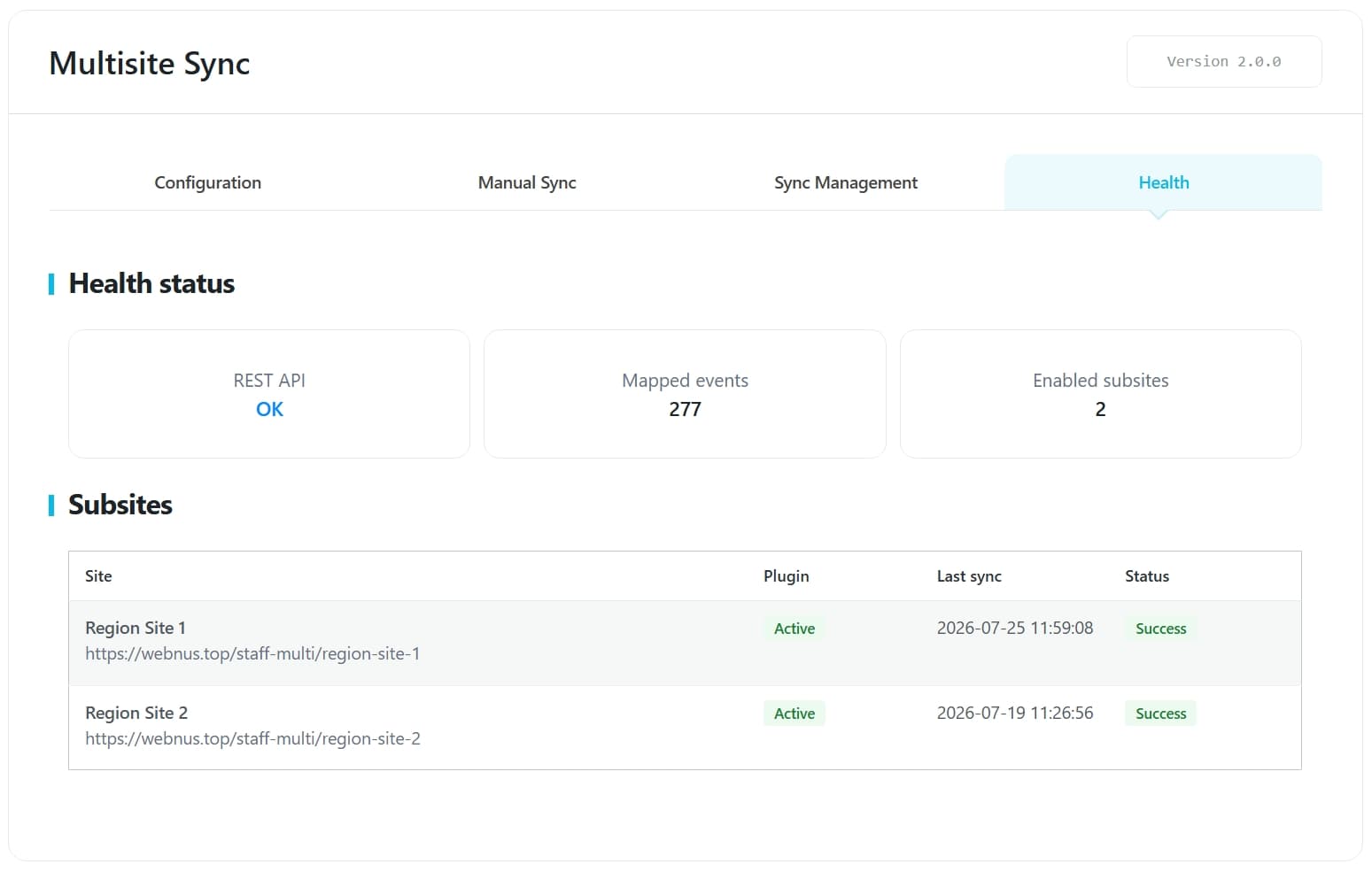
The MEC Multisite Event Sync Addon includes monitoring tools that help administrators track synchronization status and quickly resolve failed operations.
You can review:
- Current synchronization status
- Failed synchronization jobs
- Retry options
- Recent activity
- Website synchronization status
If a synchronization operation fails, you can retry it from this section.
Unlinking Content
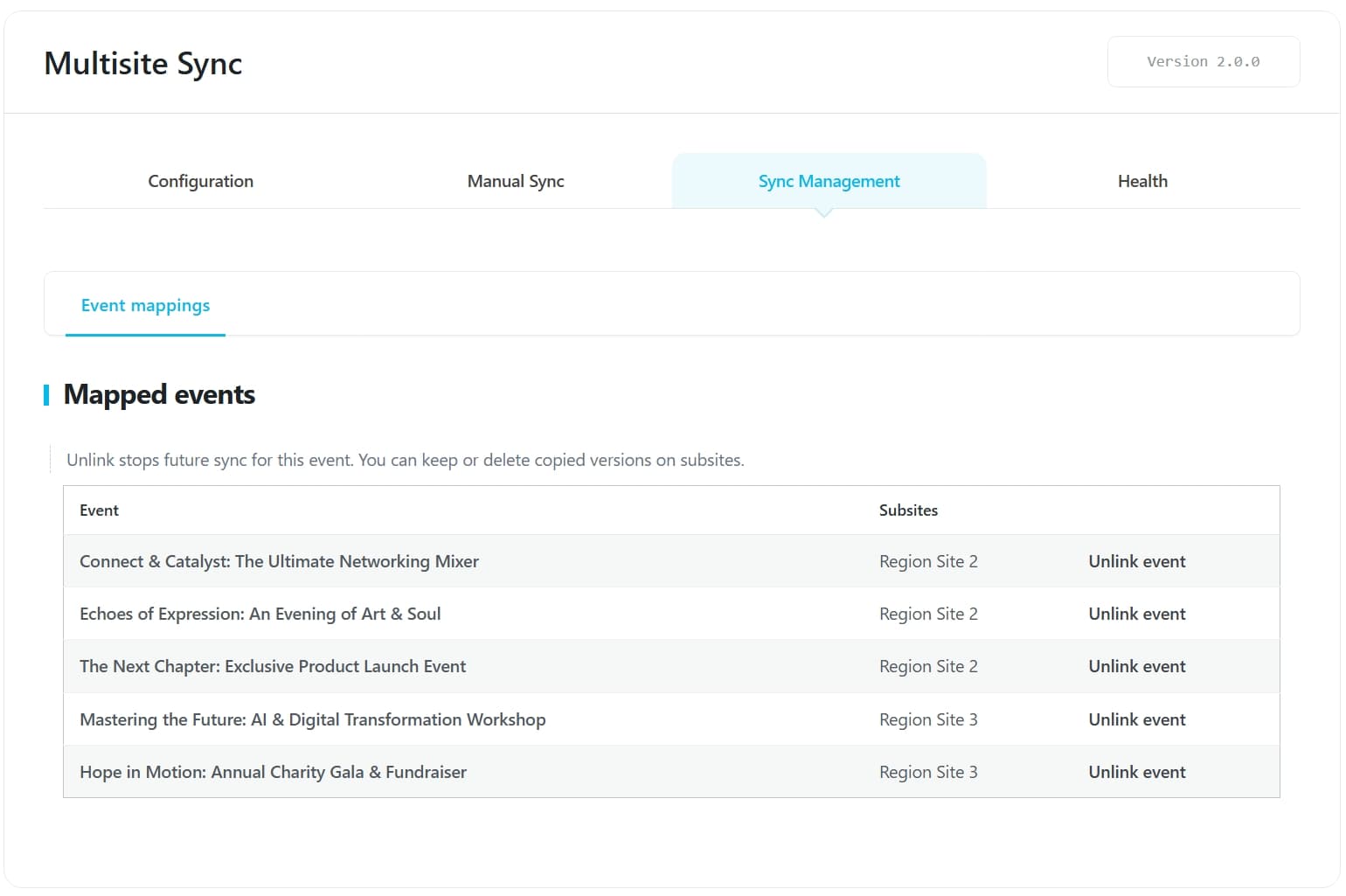
Unlink Event
The Unlink Event option removes the connection between a main website event and its synchronized copies.
You can choose whether to:
- Keep synchronized copies as independent events.
- Remove synchronized copies.
After unlinking, future updates from the main website will no longer affect those copies.
Unlink Website
The Unlink Website option removes a website from synchronization.
You can choose whether to:
- Keep existing synchronized content.
- Remove synchronized copies from that website.
Common Use Cases
Organizations With Multiple Websites
Organizations can manage events from one central website and share them with department or branch websites.
Universities and Educational Networks
Universities can publish events centrally and synchronize them with faculty or campus websites.
Businesses With Multiple Locations
Companies can manage one event calendar and display it across regional websites while keeping ticket availability accurate.
Limitations
Keep these points in mind:
- WordPress Multisite is required.
- Synchronization management is available from the main website only.
- Synchronized events cannot be edited directly on subsites.
- Single Builder template synchronization requires the MEC Single Builder addon.
- Some MEC settings, such as API keys and license information, are not synchronized.
Frequently Asked Questions
Can I manage synchronization from a subsite?
No. All synchronization controls are managed from the main website.
Can I edit synchronized events on a subsite?
No. Synchronized events are read-only. Edit the original event from the main website.
Can I synchronize existing events?
Yes. Existing events can be selected and synchronized manually.
Can I choose which websites receive content?
Yes. You can enable or disable individual subsites from the dashboard.
Will ticket availability remain accurate across websites?
Yes. Network booking capacity combines ticket sales across connected websites to prevent overbooking.
Summary
The MEC Multisite Event Sync Addon provides a centralized solution for managing Modern Events Calendar content across multiple WordPress websites.
By managing content from the main website and synchronizing it with selected subsites, administrators can maintain consistent events, settings, templates, and booking availability across their entire network.