
Waiting List Addon
The Waiting List Addon helps event organizers manage sold-out events by allowing interested attendees to join a chronological queue. When capacity becomes available, eligible users can receive an offer and claim the available spot before it is passed to the next person in line.
Version 2.0 introduces a redesigned waiting-list architecture with a new lifecycle system, React-based interfaces, an Offer & Claim workflow, audit trails, snapshots, capacity locks, anti-spam protection, privacy controls, and a dedicated queue dashboard.
Initial Setup
Before using the Waiting List Addon, make sure the following requirements are met:
- MEC Pro: The addon requires Modern Events Calendar Pro version 6.0 or higher.
- Activation: Both MEC Pro and the Waiting List Addon must be installed and activated.
- Booking Module: Enable the booking module from MEC Settings > General.
- Database Migration: When version 2 is activated, required audit and lock tables are created, cron jobs are scheduled, and existing waiting-list records are migrated to the new lifecycle system in the background.
Read Also:
How to install MEC and Addons?What’s New in Version 2.0
Version 2.0 significantly expands the Waiting List Addon with a new architecture and improved user and administrator experiences.
React-Based Frontend Interfaces
Four React applications, built with Vite, provide the new waiting-list interfaces:
| Application | Shortcode / Location | Purpose |
| Verify / Cancel | [waiting_notif_page] | Verify an email address and cancel a waiting-list request |
| Claim | [mec_waiting_claim] | Allow a user to claim an offered spot with a countdown timer |
| My Waiting List | [mec-my-waiting-list] | Display the logged-in user’s waiting-list requests |
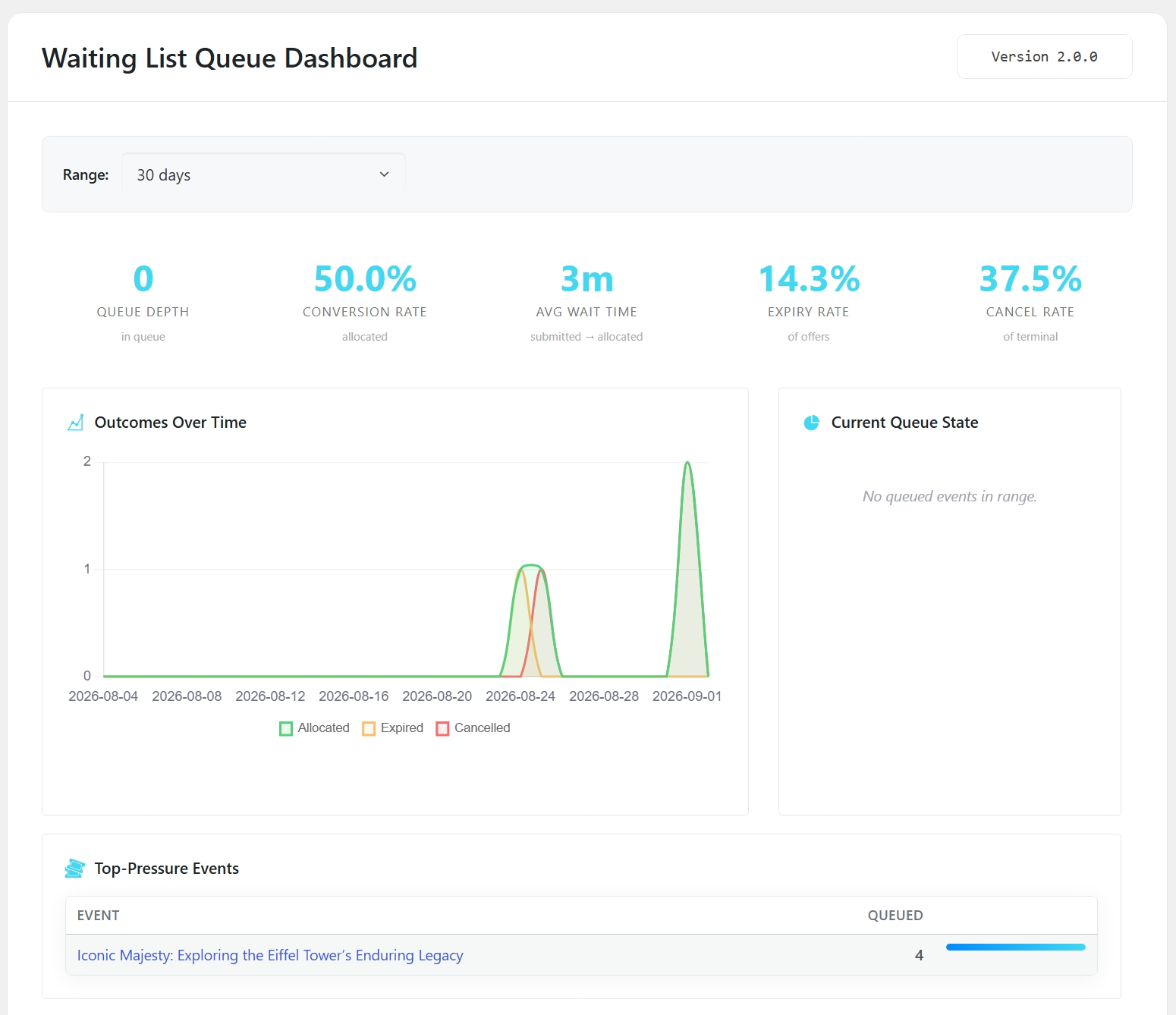
| Queue Dashboard | MEC → Waiting List Queue | Provide analytics and queue-management information for administrators |
Lifecycle System
Version 2 introduces an explicit lifecycle for waiting-list records:
Submitted → Pending Verification → Verified → Pending Allocation → Offered → AllocatedTerminal states include:
Cancelled · Rejected · Expired · Failed AllocationThis makes each waiting-list request’s current state explicit and easier to track and manage.
Offer & Claim Workflow
When a spot becomes available, the addon can create a temporary offer instead of immediately converting the waiting-list request into a booking.
The selected user receives a time-limited offer and must claim the available spot before the claim window expires. If the user does not claim the spot in time, the offer expires and the opportunity can be passed to the next eligible person in the queue.
Audit Trail
All lifecycle changes are recorded in the mec_waiting_audit table.
From an individual waiting-list record, administrators can review the complete audit timeline and export the recorded activity as CSV.
Immutable Snapshot
When a user submits a waiting-list request, version 2 stores a snapshot of the relevant form, event, ticket, and attendee information.
This snapshot remains available even if the event, ticket, or form is changed later.
Capacity Locks
The mec_waiting_locks system provides temporary holds on available capacity to help prevent race conditions when multiple allocation processes occur at the same time.
New Notifications
Version 2 adds several notifications in addition to the existing verification and confirmation emails:
- Waiting Offer Allocation
- Waiting Offer Reminder
- Waiting Offer Expired
- Waiting Allocated
- Waiting Cancelled
Security and Privacy
Version 2 also introduces additional protection and privacy controls:
- Honeypot protection
- IP-based rate limiting
- Email-based rate limiting
- WordPress Privacy Tools integration
- Configurable data retention
- Automatic anonymization or deletion
- Bulk Anonymize and Erase actions
Configuring Waiting List Settings
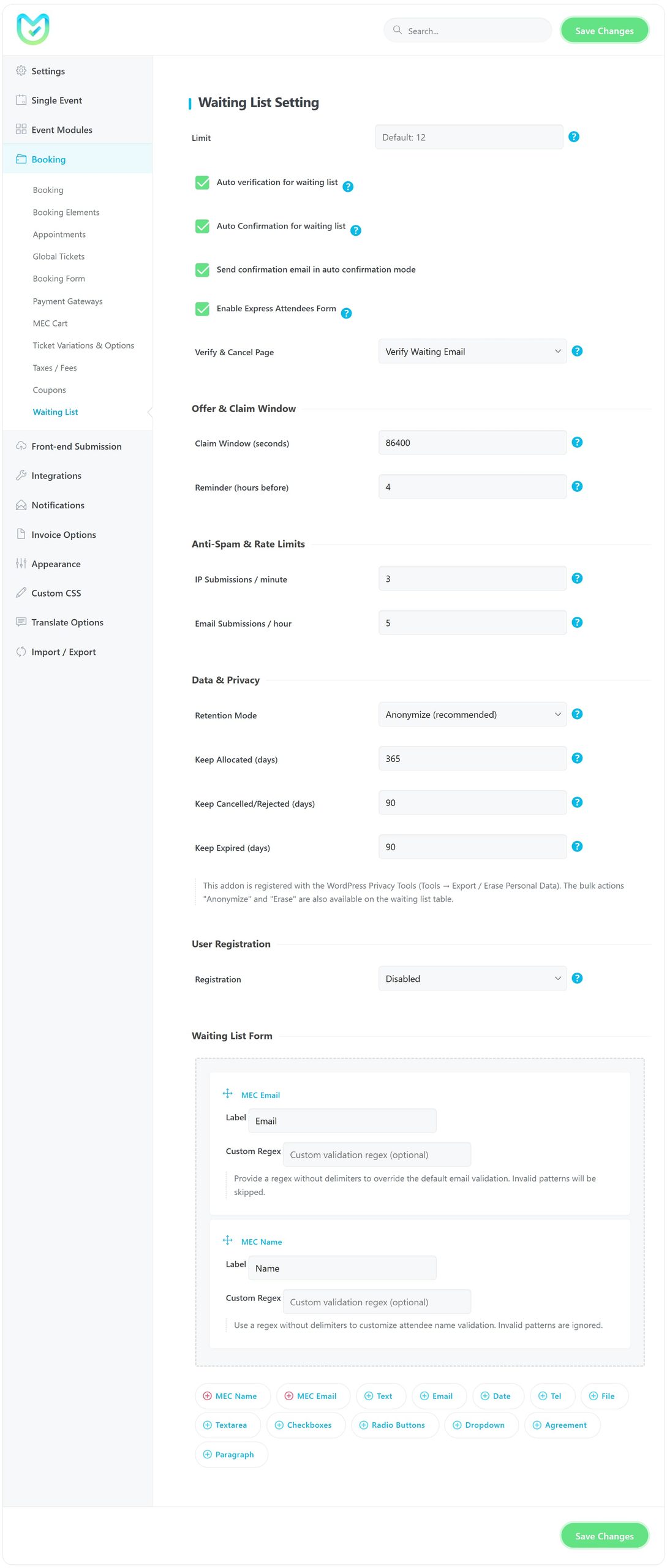
After activation, go to:
MEC Settings → Booking → Waiting ListWaiting List Setting
Limit
Defines the maximum number of waiting-list reservations a user can make. The default value is 12. Leave this field empty for unlimited reservations.
Auto verification for waiting list
When enabled, waiting-list users are verified automatically. When disabled, MEC sends a verification link to the user’s email address.
Auto Confirmation for waiting list
When enabled, waiting-list requests are confirmed automatically without requiring manual administrator approval.
Send confirmation email in auto confirmation mode
When enabled, users receive a confirmation email after being added to the waiting list in auto-confirmation mode.
Enable Express Attendees Form
When enabled, information entered for the first attendee can be reused for other attendees in the same reservation.
Verify & Cancel Page
Select the WordPress page used for email verification and waiting-list cancellation.
Use the following shortcode on the selected page:
[waiting_notif_page]The same page can also support the Claim flow when used with the appropriate mec_claim parameter.
Offer & Claim Window
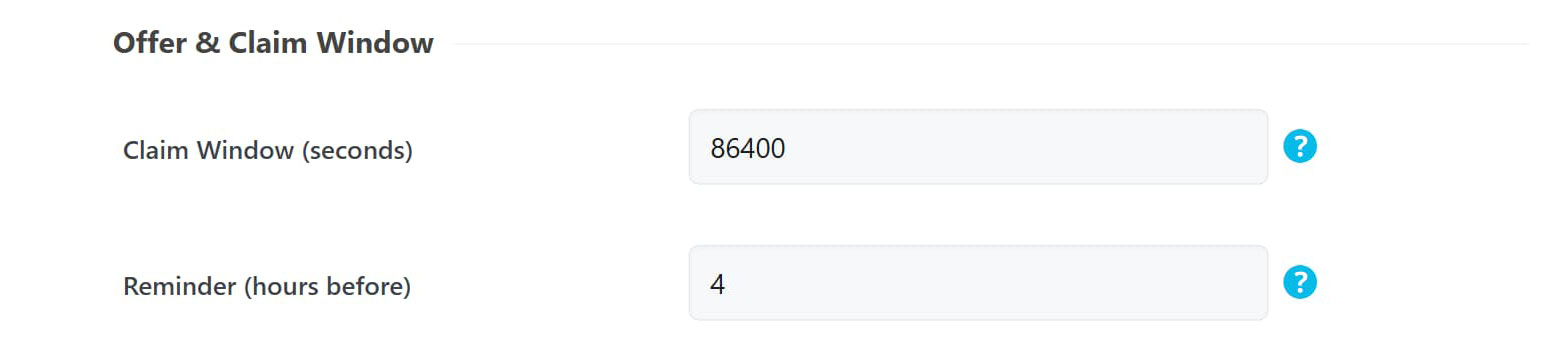
Version 2 introduces a dedicated claim period for waiting-list offers.
Claim Window (seconds)
Defines how long a user has to accept an offered spot.
The default is 86400 seconds (24 hours).
The accepted range is:
- Minimum: 5 minutes
- Maximum: 7 days
The claim window can also be overridden for an individual event using the mec_waiting_claim_window event meta.
Reminder (hours before)
Defines how many hours before expiration MEC should send a reminder to the user.
The default is 4 hours.
Set the value to 0 to disable the reminder.
Claim Page
The addon creates a dedicated Claim Waiting List Spot page for the offer flow using:
[mec_waiting_claim]Users access this page through the claim link included in the offer email.
Anti-Spam & Rate Limits
Version 2 includes built-in protection against excessive or duplicate waiting-list submissions.
IP Submissions / minute
Sets the maximum number of submissions allowed from one IP address per minute for an event.
Default: 3
Set to 0 for unlimited submissions.
Honeypot protection is always enabled.
Email Submissions / hour
Sets the maximum number of submissions allowed from the same email address per hour for an event.
Default: 5
Set to 0 for unlimited submissions.
Duplicate Detection
MEC prevents duplicate submissions for the same email address, event, and occurrence.
Data & Privacy
Version 2 includes configurable retention and privacy controls.
Retention Mode
Anonymize
Removes personally identifiable information while preserving non-personal statistics. This is the recommended option for most websites.
Delete permanently
Permanently removes the waiting-list record.
Keep forever
Disables automatic cleanup for the corresponding records.
Retention Periods
Keep Allocated (days)
Default: 365 days
Keep Cancelled / Rejected (days)
Default: 90 days
Keep Expired (days)
Default: 90 days
The addon also integrates with:
Tools → Export / Erase Personal Data
Administrators can additionally use bulk Anonymize and Erase actions from the waiting-list management screen.
User Registration
Registration
When enabled, MEC can automatically create a WordPress user account for the primary attendee.
Username & Password
Manual
The user selects their own username and password.
Auto
MEC generates the account credentials automatically based on the user’s email and an automatically generated password.
Waiting List Form Builder
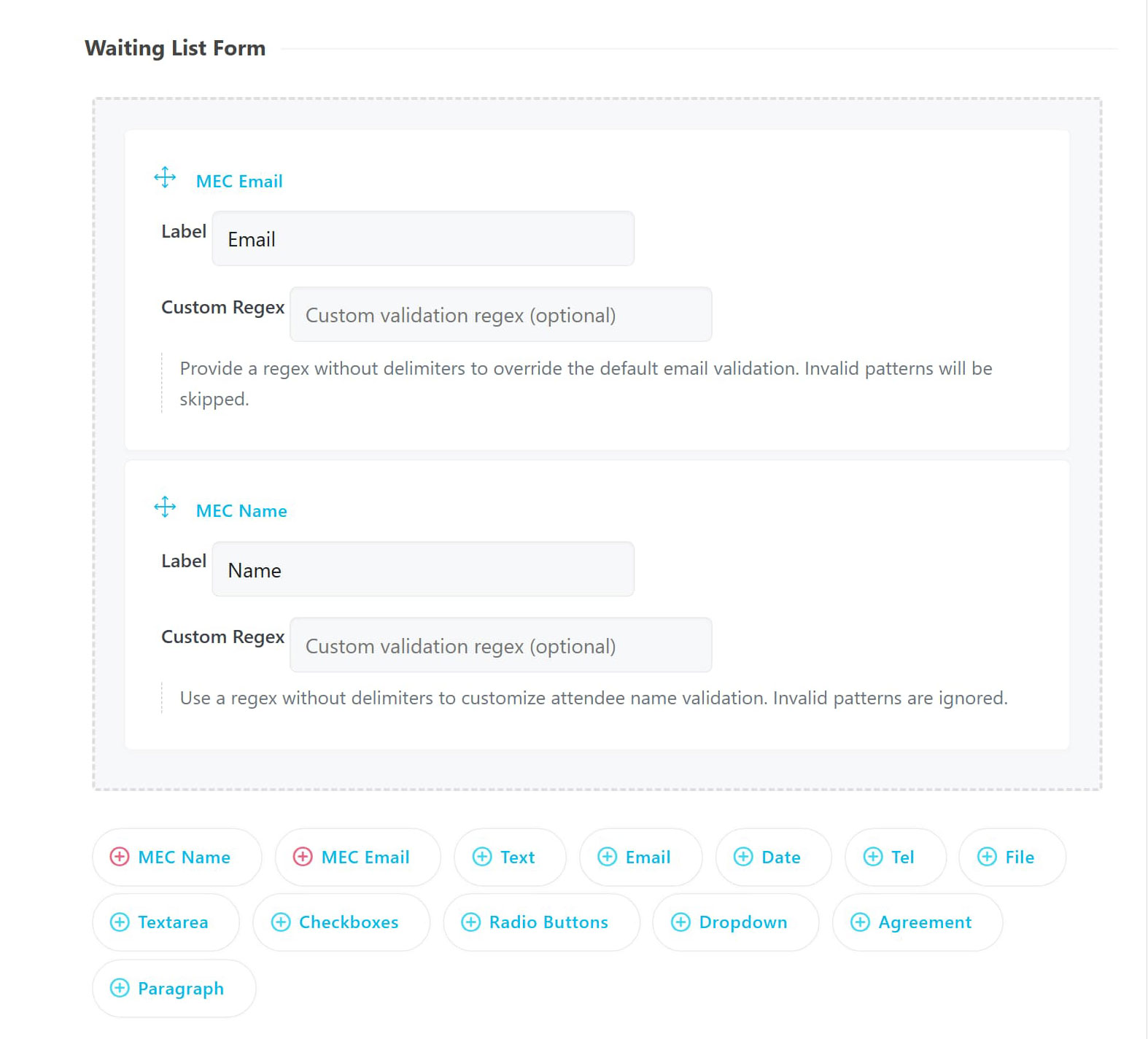
The Waiting List Addon includes a dedicated form builder for collecting the information required from users who join the queue.
Global Form
The global waiting-list form is configured from the main Waiting List settings and is used as the default form across events.
Form Elements
Available fields include:
- MEC Name
- MEC Email
- Text
- Date
- Tel
- File
- Checkboxes
- Agreement
- Textarea
Validation
Version 2 supports field validation, including:
- Required-field validation
- Custom regular-expression validation
Per-Event Customization
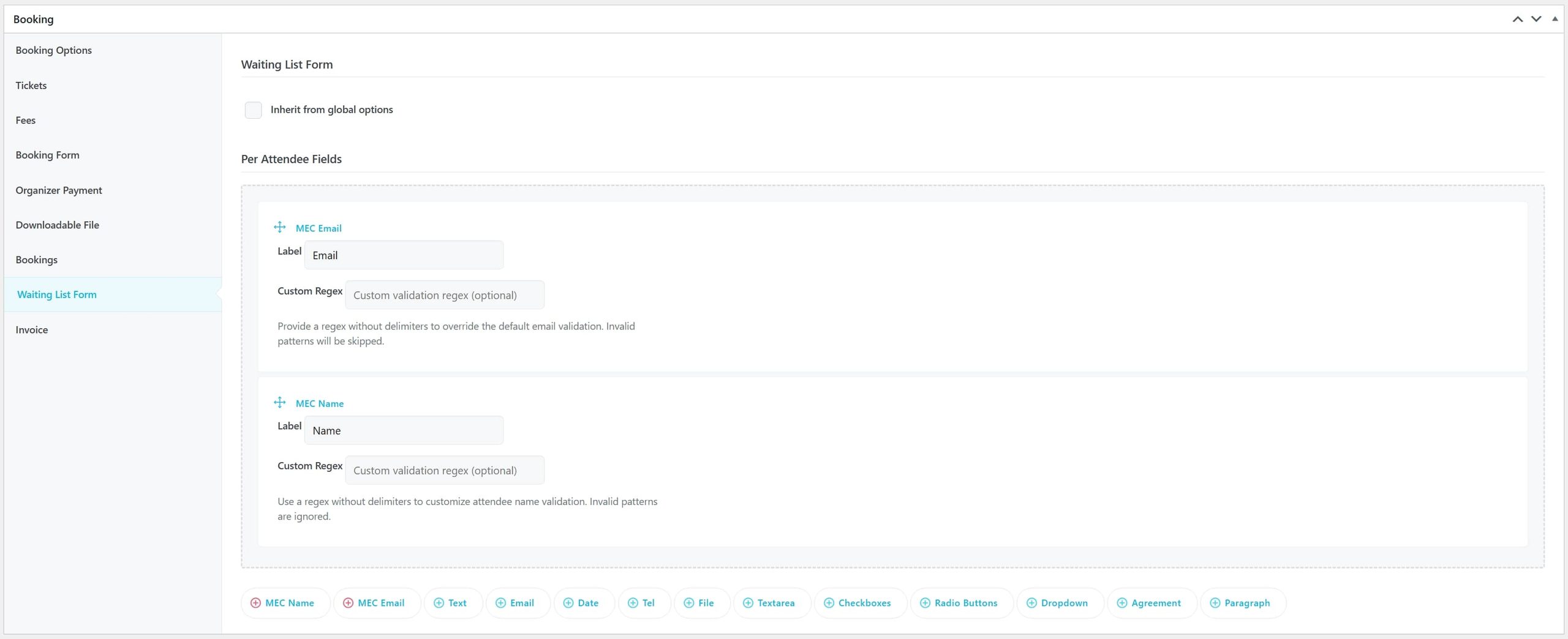
The global waiting-list form can be customized for individual events.
Open the event’s settings and go to:
Waiting List Form
From there, you can:
- Override the global waiting-list form
- Customize the information collected for that event
- Disable the waiting list for a specific ticket
The ticket-level disable option uses the waiting_disable setting.
Management Hub
All waiting-list requests can be managed from the dedicated Waiting List menu in WordPress.
Waiting List
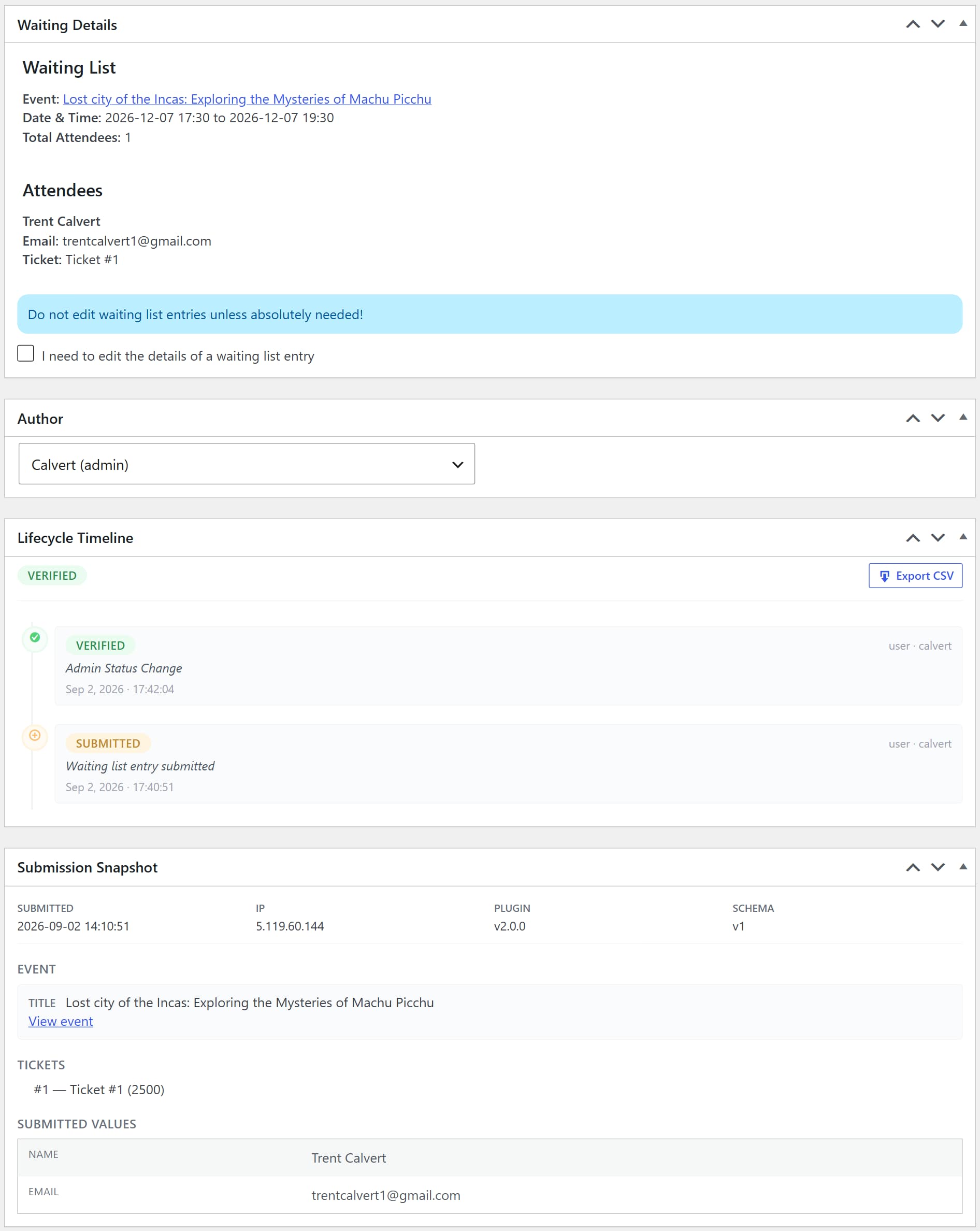
Administrators can:
- View waiting-list requests chronologically
- Track the current lifecycle state
- Review audit history
- View the stored submission snapshot
- Resend an offer email
- Force allocation for testing or administrative purposes
- Export records as CSV or Excel
- Anonymize records
- Erase records
Each waiting-list request displays its current lifecycle state directly in the management interface.
Waiting List Queue Dashboard
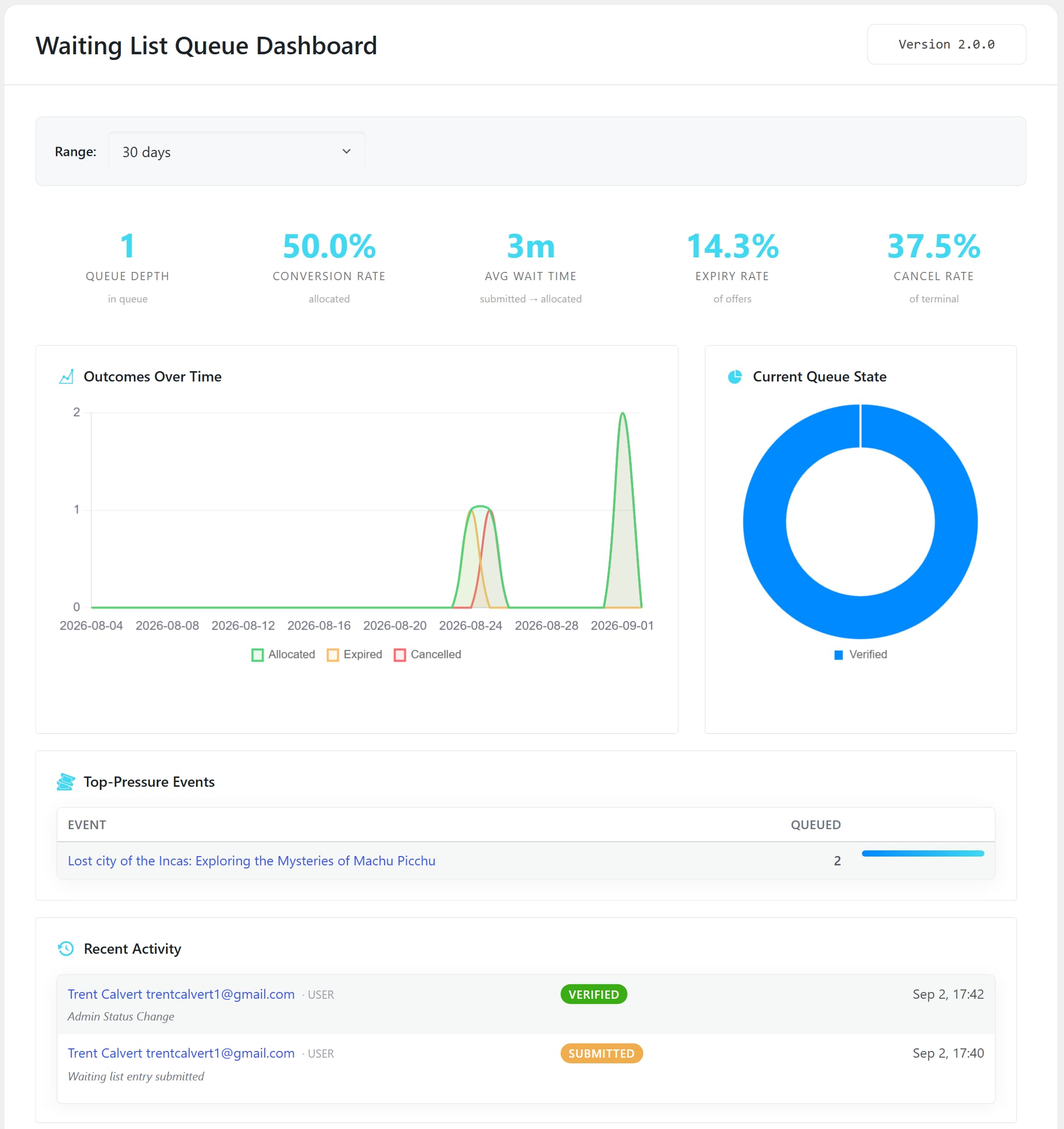
Version 2 introduces a dedicated analytics dashboard at:
MEC → Waiting List Queue
The React-based dashboard provides an overview of queue activity and performance.
KPI Metrics
The dashboard includes:
- Queue Depth
- Conversion Rate
- Average Wait Time
- Expiry Rate
- Cancellation Rate
Charts
Available visualizations include:
- Outcomes Over Time
- Current Queue State
- Top-Pressure Events
Recent Activity
Administrators can view the latest audit activity from the waiting-list system.
Date Filters
Available reporting periods include:
- 7 days
- 30 days
- 90 days
- 1 year
Dashboard data is cached for approximately five minutes.
The Waiting List Workflow
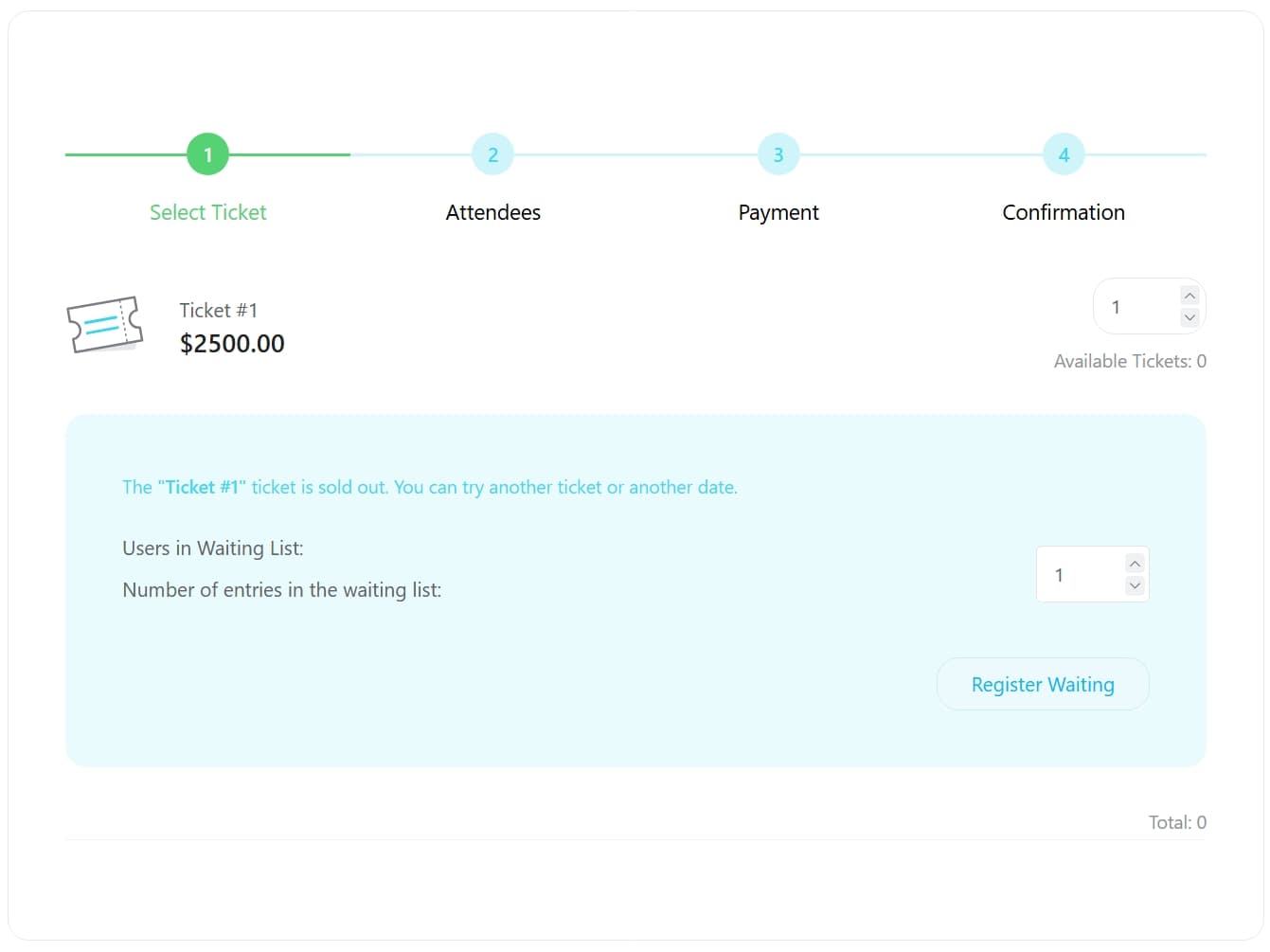
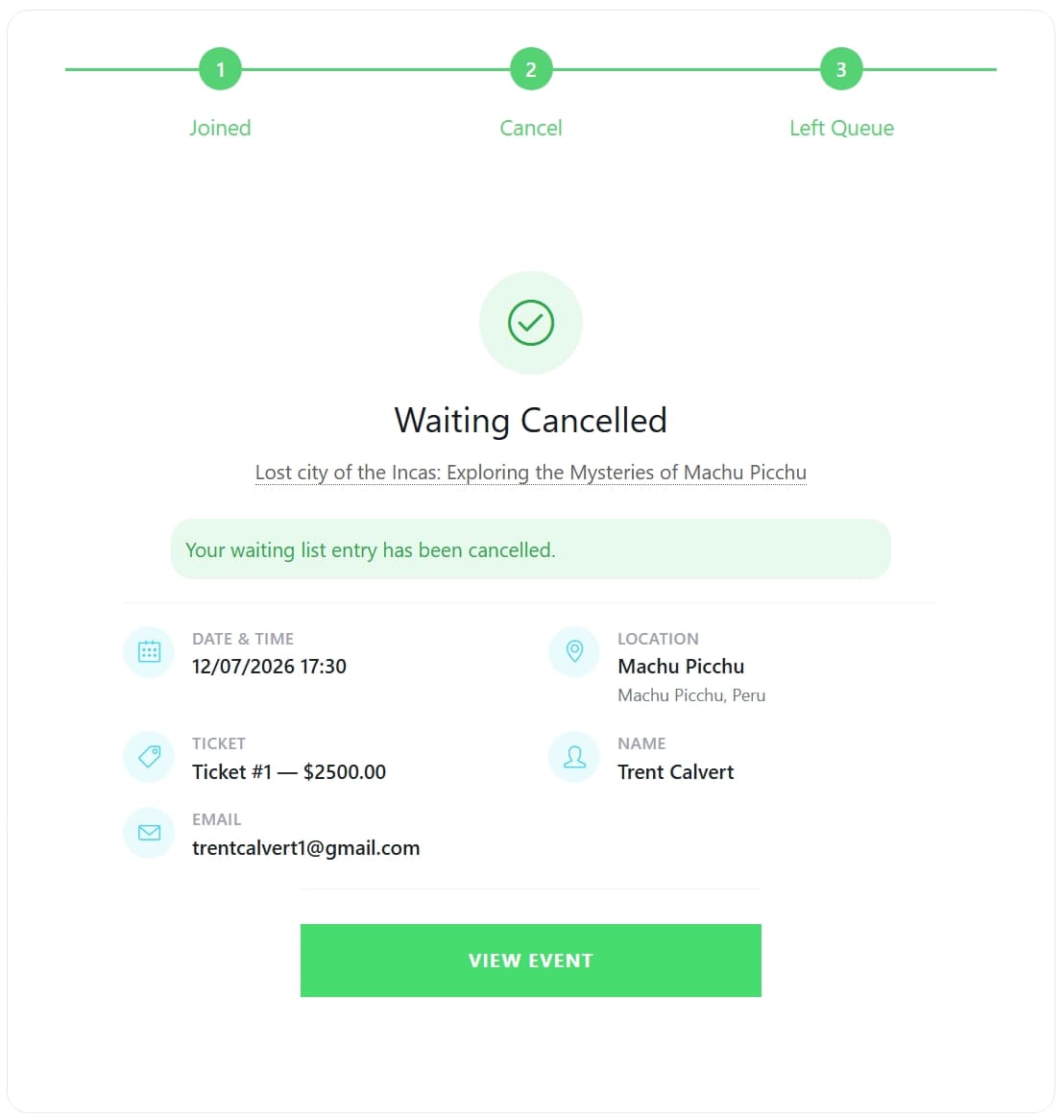
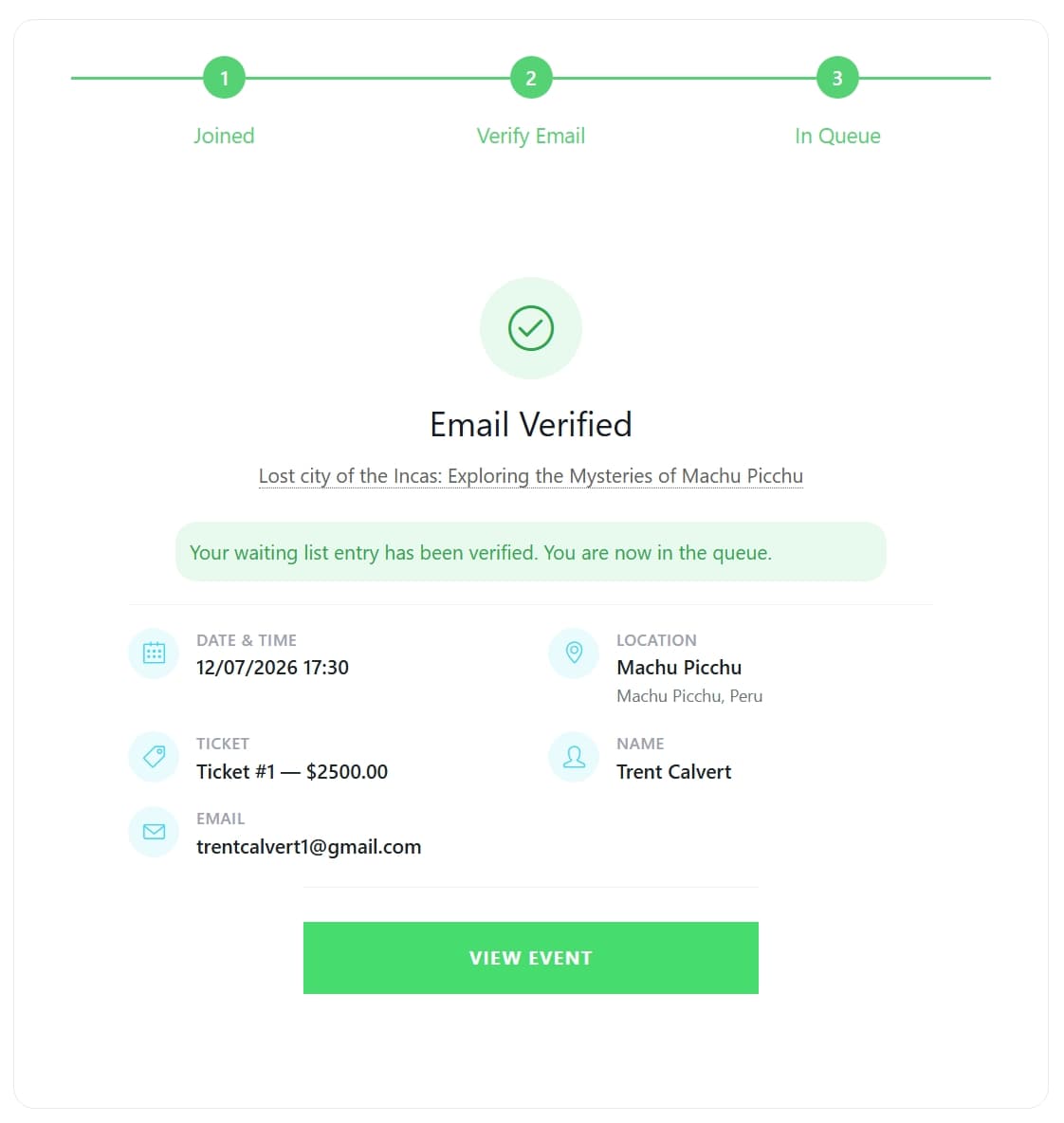
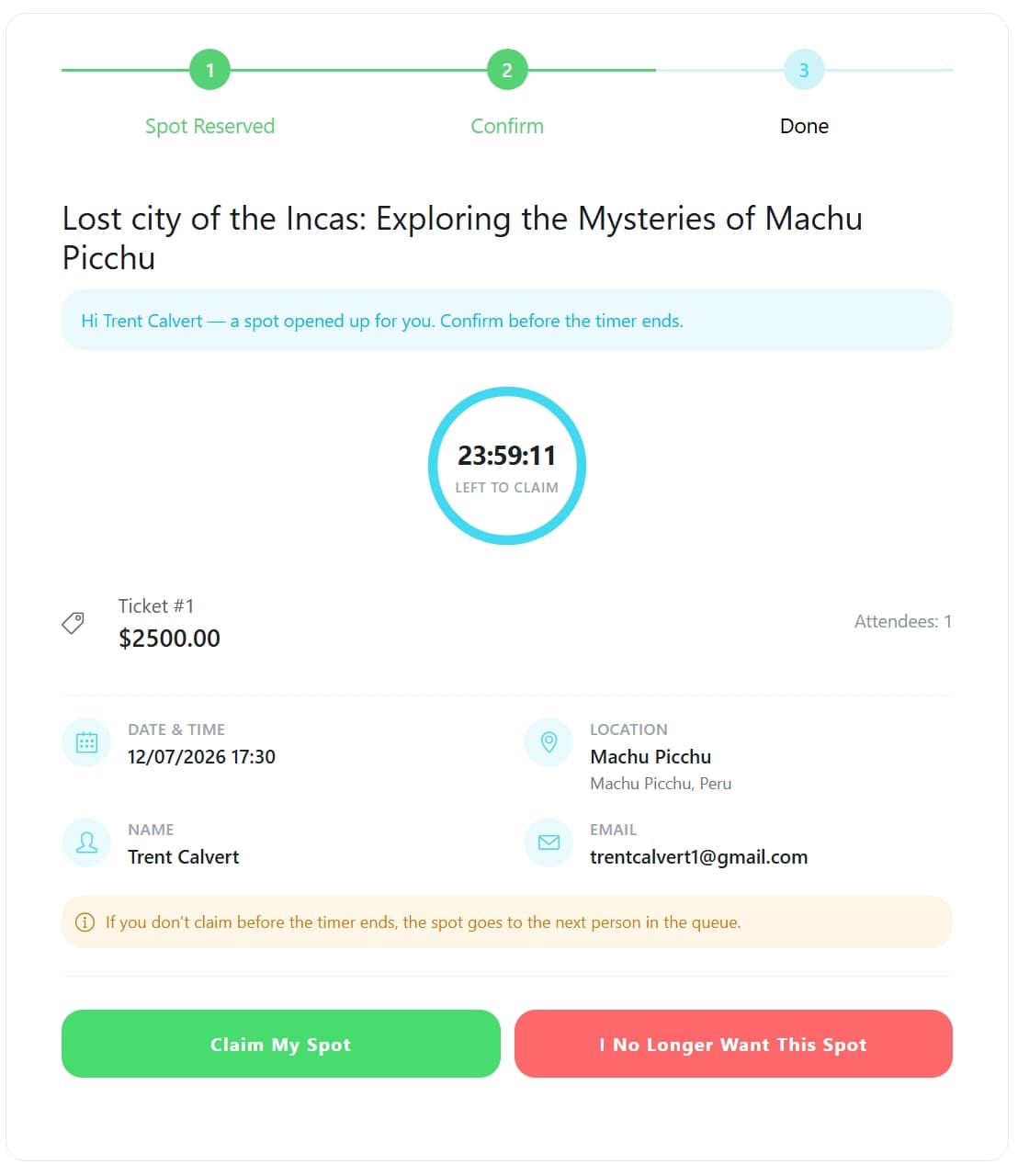
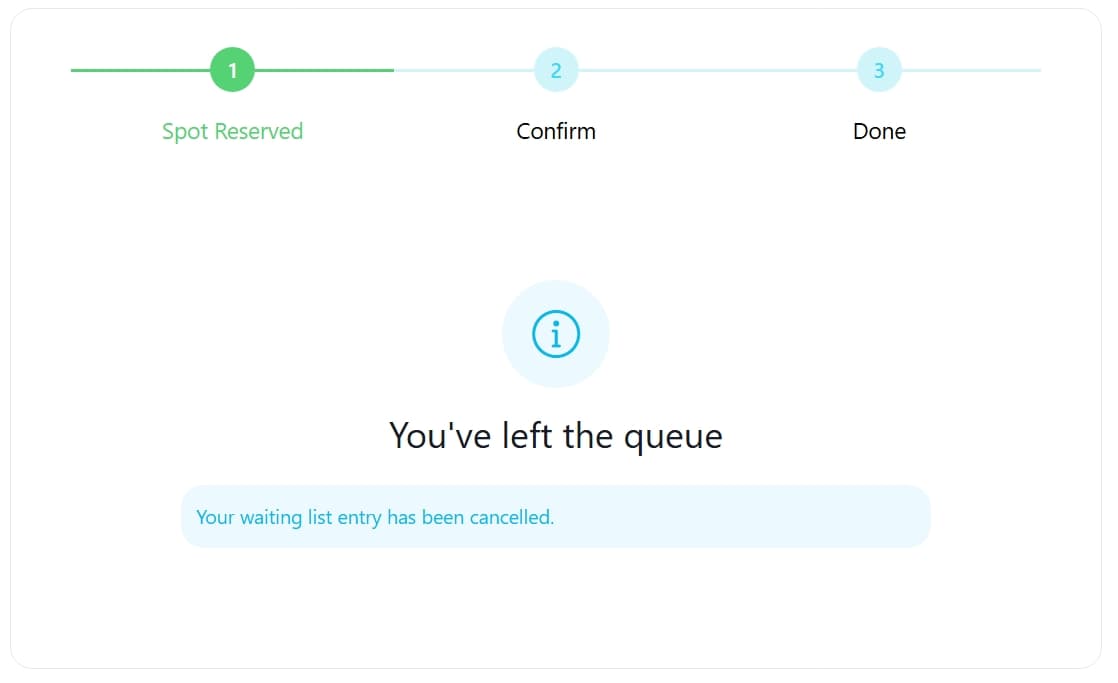
The version 2 workflow can be summarized as follows:
- Submission
When an event reaches its capacity, the normal booking form is replaced by the Waiting List Form. - Verification
Depending on the settings, the user is either verified automatically or receives a verification link. - Confirmation
If Auto Confirmation is disabled, an administrator must confirm the waiting-list request. - Pending Allocation
Once the request becomes eligible, it waits for an available place. - Allocation Trigger
Allocation can be triggered when a booking is cancelled, rejected, or when event capacity is increased. Scheduled processing runs periodically, with immediate one-shot processing also available when applicable. - Offer
MEC places a temporary hold on the available spot and sends the selected waiting-list user an offer containing a claim link. - Claim
The user opens the claim page, reviews the offer, and accepts the spot before the countdown expires. - Allocation
After a successful claim, the waiting-list request is allocated and converted into a MEC booking. - Expiration
If the user does not claim the offer before the deadline, the offer expires and the available spot can be offered to the next eligible waiting-list user.
Direct Allocation
When both Auto Verification and Auto Confirmation are enabled, MEC can use a direct-allocation flow without requiring the Offer & Claim step.
This behavior is controlled by the mec_wl_auto_direct_allocation filter.
Frontend Shortcodes
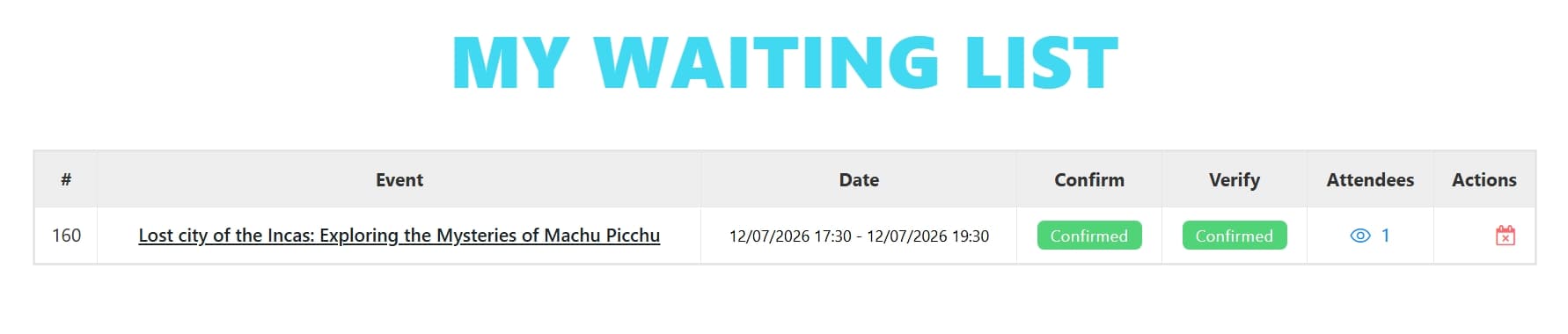
Version 2 provides dedicated shortcodes for the new frontend interfaces.
| Shortcode | Purpose | Availability |
| [waiting_notif_page] | Verification, cancellation, and claim fallback interface | All installations |
| [mec_waiting_claim] | Claim an offered waiting-list spot | Offer recipients |
| [mec-my-waiting-list] | Display a user’s waiting-list records | Logged-in users |
[mec-my-waiting-list] Parameters
event_id: Filters the displayed requests by event.
user_id: Specifies the WordPress user whose requests should be displayed. By default, the current logged-in user is used.
hide_actions=”yes”: Hides the available waiting-list actions from the table.
Notifications
Waiting-list notifications are managed from:
MEC Settings → Notifications
Version 2 supports the following waiting-list notification types:
| Notification | Trigger |
|---|---|
| Waiting Verification | Email verification is required |
| Waiting Confirmation | The waiting-list request is confirmed |
| Waiting Offer Allocation | A spot is offered to the user |
| Waiting Offer Reminder | The offer is approaching expiration |
| Waiting Offer Expired | The claim window has expired |
| Waiting Allocated | The user has successfully claimed the available spot |
| Waiting Cancelled | The waiting-list request is cancelled |
Offer-related emails can use placeholders such as:
%%claim_link%%
%%offer_expires%%
%%offer_remaining_time%%
Standard MEC placeholders are also available where supported.
Use Cases
High-Demand Events
Use the waiting list for concerts, workshops, webinars, conferences, and other events where demand may exceed available capacity.
Automatic Capacity Recovery
When a booking is cancelled or capacity becomes available, the waiting list helps organizers reuse the released capacity according to queue priority.
Demand Measurement
A large waiting list can indicate that an event may benefit from an additional session, date, or larger venue.
Privacy and Compliance
Configurable retention, anonymization, and deletion tools make the addon suitable for organizations that need greater control over personal data.
Situations This Addon May Not Be Ideal
MEC Lite
The Waiting List Addon requires MEC Pro and is not compatible with MEC Lite.
Immediate Payment to Join the Waiting List
Waiting-list entries use MEC’s waiting-list booking flow rather than requiring an immediate upfront payment to join the queue.
Non-WordPress Websites
The addon is designed specifically for WordPress websites running Modern Events Calendar.
Missing React Build Assets
Version 2 includes React-based interfaces. If the required Vite bundles are unavailable, the plugin can fall back to a simpler PHP-based interface.
For production deployments, the React assets should be built correctly before use.
Troubleshooting for Beginners
Waiting-list emails are not being delivered
Check:
MEC Settings → Notifications
Make sure the relevant waiting-list notifications are enabled and review the site’s email delivery configuration.
For version 2, the audit timeline can also help identify failed email events such as email_failed.
The Claim Link Does Not Work
Make sure the Claim page is published and contains:
[mec_waiting_claim]Alternatively, verify that the configured Verify & Cancel Page contains:
[waiting_notif_page]Also check whether the claim token has expired.
A User Is Not Being Allocated
Check the following:
- Auto Verification and Auto Confirmation settings
- Current lifecycle status
- Whether the user has a valid offer
- Whether the claim window has expired
- Recent activity in MEC → Waiting List Queue
- Allocation status in the waiting-list record
For testing, administrators can use Force Allocation from the waiting-list record.
The Waiting List Form Cannot Be Submitted
Check whether the request was blocked by:
- IP rate limits
- Email rate limits
- Duplicate detection
- Honeypot protection
- Required-field validation
Version 2 displays validation errors directly in the frontend interface.
Cron Jobs Are Not Running
Version 2 includes automatic recovery mechanisms for its scheduled processes.
After reactivating the addon or making major configuration changes, opening the admin area can trigger the system’s self-healing mechanisms.
FAQ
What is the purpose of the MEC Waiting List Addon?
The Waiting List Addon allows users to join a queue when an event reaches capacity. When a spot becomes available, eligible users can receive an offer and claim the available place according to their queue priority.
What is the difference between Waiting List v1 and v2?
Version 2 introduces a new lifecycle system, Offer & Claim workflow, React-based interfaces, audit trails, immutable snapshots, capacity locks, anti-spam controls, privacy and retention tools, and a queue analytics dashboard.
What is the Claim Window?
The Claim Window is the amount of time a user has to accept a waiting-list offer.
The default value is 24 hours (86400 seconds).
What happens if the user does not claim the offer?
The offer expires when the claim window ends. The held capacity is released and the next eligible waiting-list user can be considered for the available spot.
Can I customize the waiting-list form for individual events?
Yes. You can override the global waiting-list form from the event’s Waiting List Form settings.
Can I disable the waiting list for a specific ticket?
Yes. The waiting list can be disabled for an individual ticket using the ticket-level waiting_disable setting.
Which email placeholders are available for offers?
Offer-related notifications can use:%%claim_link%% %%offer_expires%% %%offer_remaining_time%%
along with supported standard MEC placeholders.
Does the Waiting List Addon work with MEC Lite?
No. The addon requires MEC Pro with the booking module enabled.