
Timetable View Skin Settings
Timetable View Skin in the Modern Events Calendar includes two layouts of modern and clean views. This is an optimum choice for university and school websites.
Overall, organizations with a broad diversity of daily programs can benefit from this display a lot.
Note: This skin is only available in the MEC Pro version.
Timetable View Skin Shortcode
You can use shortcodes in your internal pages to have this on your website. The shortcodes are located in M.E. Calendar > Shortcodes.
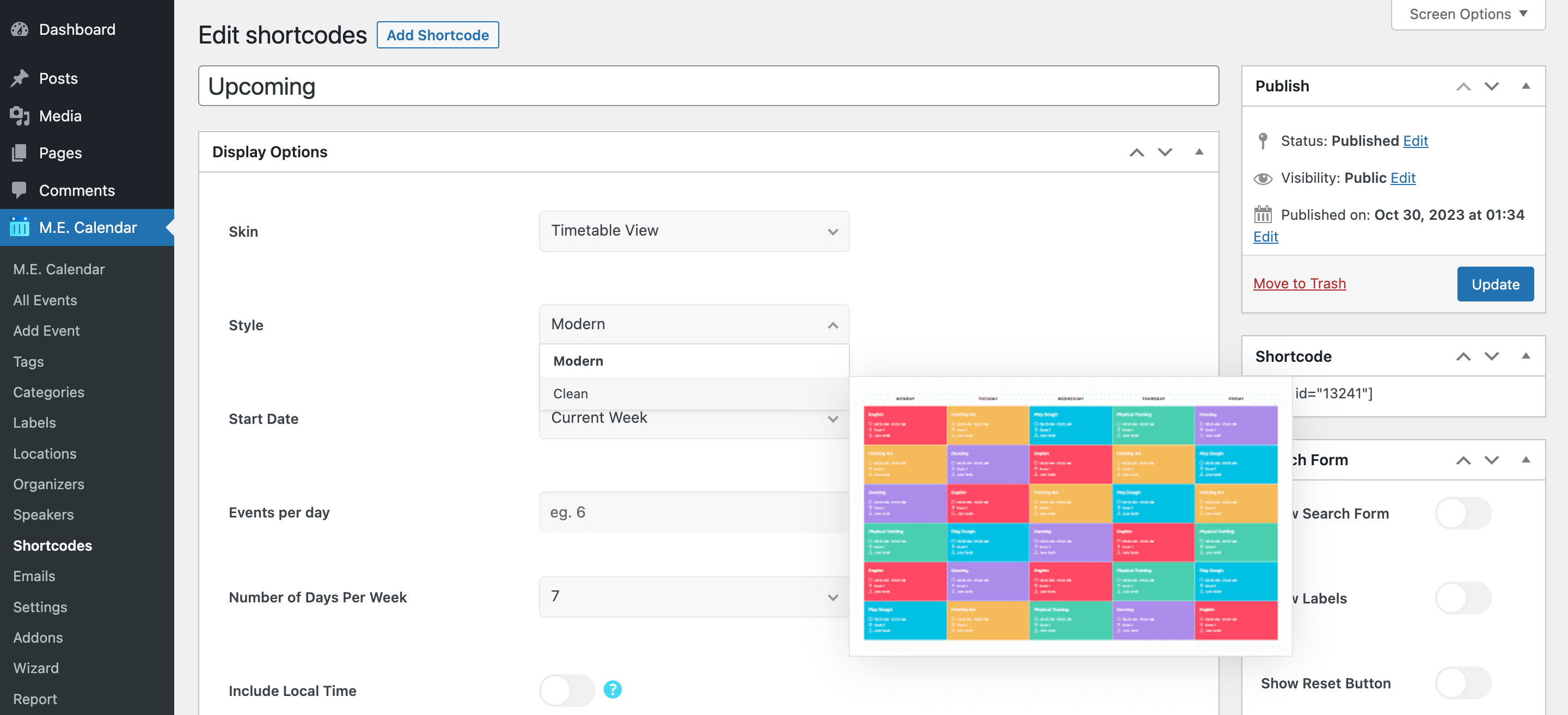
Timetable View Layout
Here are the demos of Timetable View Skin in the Modern Events Calendar:
Timetable View Shortcode Options
These are the options you see in M.E. Calendar > Shortcodes after choosing the Timetable View skin. MEC Pro and some addons can add more styles and options.
| Option | What it does | Values |
|---|---|---|
| Style | Layout style of this view. | Modern / Clean |
| Start Date | The date the view starts showing events from. | Current Week / Next Week / Last Week / Start of Last Month / Start of Current Month / Start of Next Month / On a certain date |
| Certain Start Date | The exact start date, used when Start Date is set to "On a certain date". | Date |
| Events per day | Maximum number of events shown per day. | Number |
| Number of Days Per Week (Modern) | How many days of the week the timetable shows (Modern style). | 7 / 6 / 5 |
| Number of Days Per Week | How many days of the week the timetable shows. | 5 / 6 / 7 |
| Week Start | First day of the week in the timetable. | Inherite from WordPress options / Sunday / Monday / Tuesday / Wednesday / Thursday / Friday / Saturday |
| Start Time | First hour shown in the timetable grid. | 1:00 / 2:00 / 3:00 / 4:00 / 5:00 / 6:00 / 7:00 / 8:00 / 9:00 / 10:00 / 11:00 / 12:00 |
| End Time | Last hour shown in the timetable grid. | 13:00 / 14:00 / 15:00 / 16:00 / 17:00 / 18:00 / 19:00 / 20:00 / 21:00 / 22:00 / 23:00 / 24:00 |
| Include Local Time | Also shows each event's time in the visitor's own time zone. | On / Off |
| Display Normal Labels | Shows event labels such as "Featured" or "Canceled". | On / Off |
| Display Reason for Cancellation | Shows the cancellation reason on canceled events. | On / Off |
| Next/Previous Buttons | Shows buttons to move to the previous and next period. | On / Off |
| Single Event Display Method | How the event opens when clicked. | Current Window / New Window / Modal Popup / Disable Link |
| Booking Button / Icon | Adds a booking button or icon to each event. | On / Off |
| Display Custom Fields | Shows event custom fields. | On / Off |
Timetable View FAQ
How do I add the Timetable View to a page?
Go to M.E. Calendar > Shortcodes, add a new shortcode, choose Timetable View as the skin, set the options above and publish it. Then copy the generated shortcode (for example [MEC id="123"]) into any page, post or widget.
How do I show only some events?
Open the Filter Options of the same shortcode and limit events by category, location, organizer, label, tag or author. See Making Advanced Shortcodes for every filter.
Can visitors move to the next or previous period?
Yes. Turn on Next/Previous Buttons and visitors can browse earlier and later periods without leaving the page.