
Tile View Skin Settings
In Modern Events Calendar Tile View Skin Settings, you can show all the events in the form of a tile, and they can be arranged in order of the date of a month. By this layout, you keep the information to the minimum and twist the minimalist display in the favor of user attention.
Tile View Skin Settings
In Tile View Skin, featured image of a program or a gathering often plays the most crucial role, so to have the best user interface be selective about the images.
Tile View Skin Shortcode
You can use shortcodes in your internal pages to have this on your website. The shortcodes are located in M.E. Calendar > Shortcodes.
Here is the demo of Tile View Skin in the Modern Events Calendar:
Tile View Shortcode Options
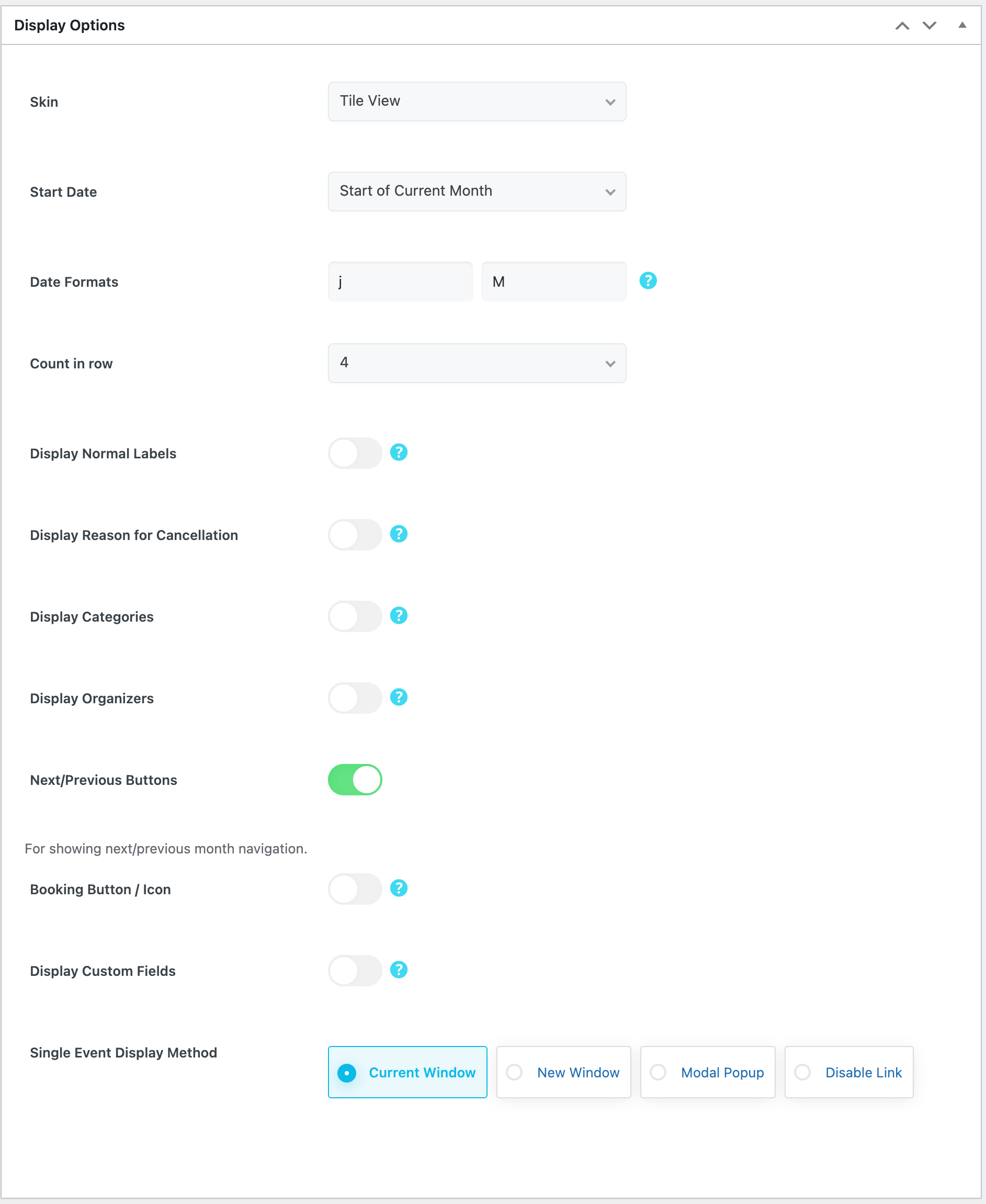
These are the options you see in M.E. Calendar > Shortcodes after choosing the Tile View skin. MEC Pro and some addons can add more styles and options.
| Option | What it does | Values |
|---|---|---|
| Start Date | The date the view starts showing events from. | Start of Current Month / Start of Next Month / Start of Last Month / On a certain date |
| Certain Start Date | The exact start date, used when Start Date is set to "On a certain date". | Date |
| Count in row | Number of events per row. | 4 / 3 / 2 |
| Display Normal Labels | Shows event labels such as "Featured" or "Canceled". | On / Off |
| Display Reason for Cancellation | Shows the cancellation reason on canceled events. | On / Off |
| Display Categories | Shows the categories of each event. | On / Off |
| Next/Previous Buttons | Shows buttons to move to the previous and next period. | On / Off |
| Limit | Maximum number of events loaded at once. | Number |
| Load More Button | Adds a "Load More" button so visitors can load the next batch of events. | On / Off |
| Single Event Display Method | How the event opens when clicked. | Current Window / New Window / Modal Popup / Disable Link |
| Booking Button / Icon | Adds a booking button or icon to each event. | On / Off |
| Display Custom Fields | Shows event custom fields. | On / Off |
| Display Organizers | Shows the organizer of each event. | On / Off |
| Date Formats | Date formats used by the selected style, written with PHP date characters. | Text (e.g. j, M, Y) |
Tile View FAQ
How do I add the Tile View to a page?
Go to M.E. Calendar > Shortcodes, add a new shortcode, choose Tile View as the skin, set the options above and publish it. Then copy the generated shortcode (for example [MEC id="123"]) into any page, post or widget.
How do I show only some events?
Open the Filter Options of the same shortcode and limit events by category, location, organizer, label, tag or author. See Making Advanced Shortcodes for every filter.
Can the Tile View show past events?
Yes. In Filter Options > Expired Events, turn on Include Expired Events to show past and upcoming events, or Show Only Expired Events to show only past ones. They are listed from the Start Date you choose.