
Available Spot View Skin Settings
Available Spot View Skin in Modern Events Calendar is a good display solution for event holders and lecturers. They can see on which days they have the possibility of collaborating with your program. Also, this can bring a better structure to all the concurrent events on your website.
Note: This skin is only available in the MEC Pro version.
Available Spot View Skin Shortcode
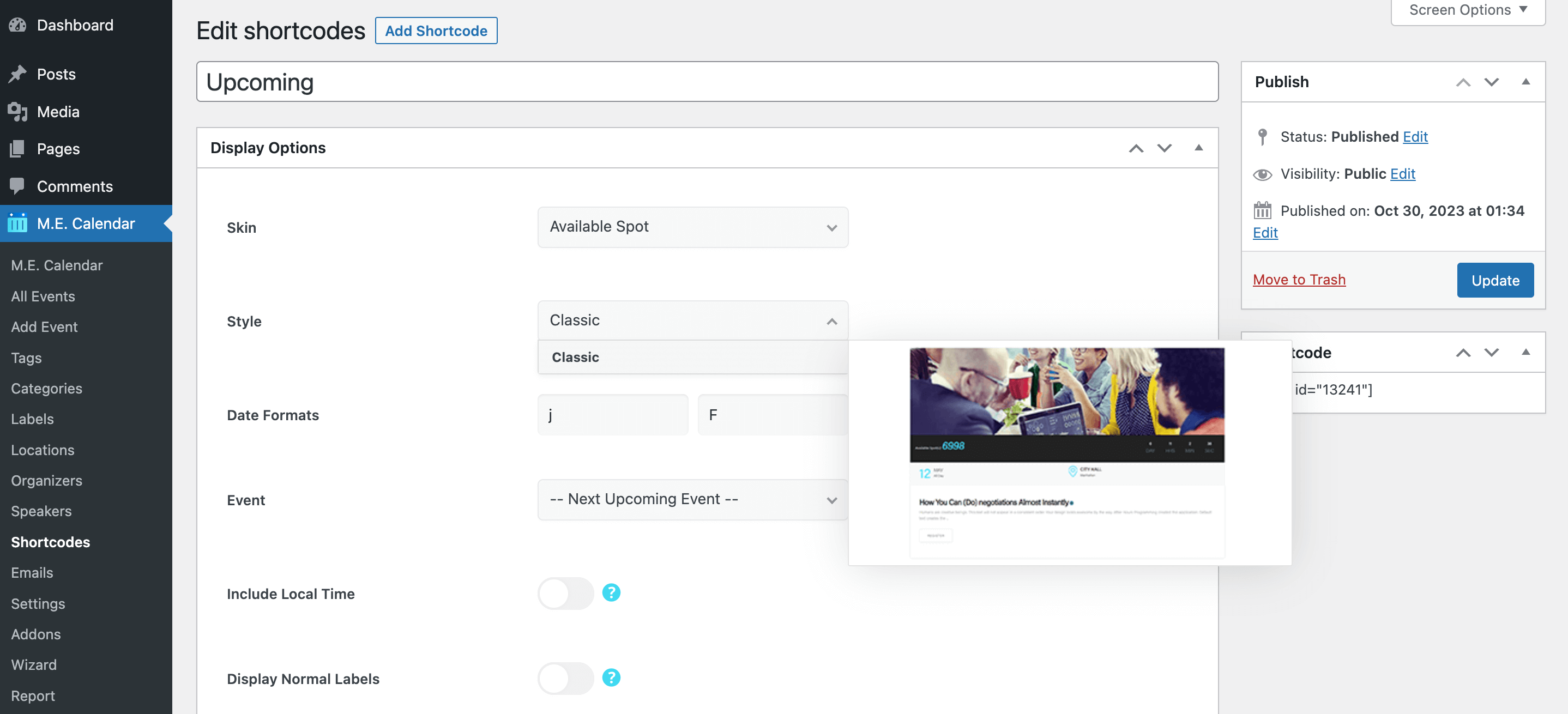
You can use shortcodes in your internal pages to have this on your website. The shortcodes are located in M.E. Calendar > Shortcodes.
Available Spot View Layout
Here is the demo of Available Spot View Skin in the Modern Events Calendar:
Available Spot View Shortcode Options
These are the options you see in M.E. Calendar > Shortcodes after choosing the Available Spot View skin. MEC Pro and some addons can add more styles and options.
| Option | What it does | Values |
|---|---|---|
| Event | The event this view features. | Next Upcoming Event, or any published event |
| Include Local Time | Also shows each event's time in the visitor's own time zone. | On / Off |
| Display Normal Labels | Shows event labels such as "Featured" or "Canceled". | On / Off |
| Display Reason for Cancellation | Shows the cancellation reason on canceled events. | On / Off |
| Date Formats | Date formats used by the selected style, written with PHP date characters. | Text (e.g. j, M, Y) |
Available Spot View FAQ
How do I add the Available Spot View to a page?
Go to M.E. Calendar > Shortcodes, add a new shortcode, choose Available Spot View as the skin, set the options above and publish it. Then copy the generated shortcode (for example [MEC id="123"]) into any page, post or widget.
Which event does the Available Spot View show?
It shows one event, the one you pick in the Event option. To feature another event, create another shortcode.


Is there a code snippet for displaying just the available spots for an event within the single event page?