Skip to content
No results
MEC Knowledgebase
  • Installation
    • Installation
    • Activation
    • Auto Update
    • Manual Update
    • Change License Domain
  • Settings
    • General
    • Archive Page
    • Slugs/Permalinks
    • Currency
    • View All
  • Single Event
    • Single Event Settings
    • How to Add Event In MEC Plugin?
    • MEC Single Sidebar
    • Custom Fields
    • View All
  • Event Modules
    • Speakers
    • Organizers
    • Locations
    • Map
    • View All
  • Booking Settings
    • Booking Module
    • Booking Elements
    • Booking Form
    • Payment Gateways
    • View All
  • Event Submission
    • General
    • Access Level
    • FES Sections
    • Required Fields
    • View All
  • Integrations
    • Mailchimp
    • Paid Memberships Pro
    • BuddyPress
    • LearnDash
    • View All
  • Notifications
    • Booking Notification
    • Booking Confirmation
    • Booking Reminder
    • Admin Notification
    • View All
  • Addons
    • Elementor Single Builder Addon
    • Ticket and Invoice Addon
    • Event Seat Addon
    • Virtual Events Addon
    • View All
  • Other
    • Appearance Settings
    • Translation
    • Knowledge
    • Troubleshooting
    • Developer
MEC Knowledgebase

  • Categories
    • Installation
      • Installation
      • Activation
      • Auto Update
      • Manual Update
      • Change License Domain
    • General Settings
      • General
      • Archive Pages
      • Slugs/Permalinks
      • Currency
      • View All
    • Single Event
      • Single Event Settings
      • MEC Single Sidebar
      • How to Add Event In MEC Plugin?
      • Custom Fields
      • View All
    • Event Modules
      • Speakers
      • Organizers
      • Locations
      • Map
      • View All
    • Booking Settings
      • Booking Module
      • Add a Booking System
      • Booking Form
      • Organizer Payment Settings
      • View All
    • Event Submission
      • General
      • Access Level
      • FES Sections
      • Required Fields
      • View All
    • MEC Integrations
      • Mailchimp
      • BuddyPress
      • LearnDash
      • Paid Memberships Pro
      • View All
    • Notifications
      • Booking Notification
      • Booking Confirmation
      • Booking Reminder
      • Admin Notification
      • View All
    • Addons
      • Elementor Single Builder Addon
      • Ticket and Invoice Addon
      • Event Seat Addon
      • Virtual Events Addon
      • View All
    • Other
      • Appearance Settings
      • Translation
      • Knowledge
      • Troubleshooting
      • Developer

Submit a Ticket
MEC Knowledgebase

Toggle
  • Do I Need a MEC License Key?
  • How It Works
  • Checklist
  • How Long Does the Activation Last?
  • FAQ
    • I never received a MEC purchase code. Is that a problem?
    • Can I still use my own MEC purchase code on a site running X?
    • Can I use MEC Pro if I switch to a different theme?
    • I moved my site to a new domain. What do I do?
    • Does activating on a staging or local site use up anything?
    • Themeco’s site was down and my activation failed.

Installation

X Theme Activation

If you purchased the X theme from Themeco, MEC Pro is already included with your theme — you do not need a separate MEC purchase code. This article explains how customers with the X theme activate MEC Pro.

Do I Need a MEC License Key?

No. MEC Pro ships bundled with the X theme. Your entitlement to run MEC Pro comes from your Themeco license — the same one you use for the X theme itself. There is nothing extra to buy from Webnus.

How It Works

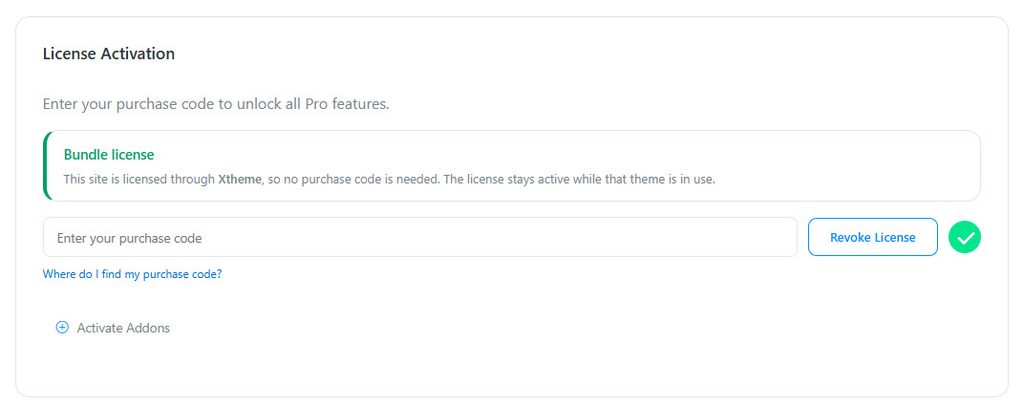
You do not enter anything in MEC. The X theme and MEC talk to each other directly: once your X theme is validated with your Themeco license key, MEC recognizes it and unlocks the Pro features by itself. In MEC > Dashboard, the License Activation box then shows a green Bundle license notice:

“This site is licensed through X, so no purchase code is needed. The license stays active while that theme is in use.”

Checklist

  1. Make sure the X theme is the active theme of your website.
  2. Enter your Themeco license key in the X theme’s license settings — the same key you use for your X theme license (you can find it in your account at theme.co).
  3. Open MEC > Dashboard. Within a short time (it happens automatically in the background) the License Activation box shows the green Bundle license notice and the Pro features are unlocked.

If it does not activate: a message like “The theme license that entitles this site to Pro could not be verified” means the theme license check failed — make sure your X theme license is active and validated, then give it another moment. You can also enter a MEC purchase code instead at any time (see below).
activation n 07 | X Theme Activation

How Long Does the Activation Last?

  • Your MEC Pro activation is tied to the X theme being the active theme of your website. While X is your active theme, MEC Pro stays enabled.
  • Your license key is verified with Themeco at activation time — keep your X theme license in good standing according to theme.co’s terms.

FAQ

I never received a MEC purchase code. Is that a problem?

No — that is expected. As an X theme customer your Themeco license key is your entitlement; MEC picks it up from the theme automatically. You never need a MEC purchase code unless you stop using the X theme.

Can I still use my own MEC purchase code on a site running X?

Yes. The purchase-code field stays available in the License Activation box even when the bundle license is active. If you enter your own MEC purchase code, it takes precedence — a customer who paid for MEC directly is never downgraded to the bundled entitlement.

Can I use MEC Pro if I switch to a different theme?

The bundled entitlement applies while the X theme is active on your site. If you move to another theme and want to keep using MEC Pro, purchase a MEC Pro license from webnus.net and activate it with its purchase code.

I moved my site to a new domain. What do I do?

Validate the X theme with your Themeco license key on the new domain (the way you originally did), and MEC Pro will follow automatically. If the Bundle license notice does not appear after a while, contact support and mention that you are an X theme customer.

Does activating on a staging or local site use up anything?

No. Staging and local activations do not consume license activations. See Staging and Local Activation.

Themeco’s site was down and my activation failed.

That is temporary, not a refusal — simply try again a little later. An outage on theme.co’s side never deactivates MEC on sites that are already activated.

Share

Related Articles

  • Staging Activation
  • Offline Activation
  • MEC Wizard
  • MEC Activation Issue
  • Welcome Page (Intro)
Login Submit
0 Comments

No Comment.

Still no luck? We can help!

If you did not find what you were looking for, please submit a ticket in our support system.

Submit a Ticket
Webnus Banner
Modern Events Calendar

Please read our Terms and Conditions and Privacy Policy.

4.2 Great

About 11 Review us on Trustpilot

Copyright © 2026. All rights reserved. Webnus Inc.