
Offline Activation
In this article, we will walk you through activating Modern Events Calendar on servers that cannot reach our licensing server, or when you bought your copy through a reseller and do not have a purchase code.
Who Needs Offline Activation?
Most users should activate MEC with their purchase code as described in the Activation article. Offline activation is designed for two situations:
- Your server has no outbound internet connection (firewalled, air-gapped or intranet-only hosting), so MEC cannot verify a purchase code online.
- You purchased MEC through a reseller and did not receive a purchase code.
An offline activation token is a signed, one-site key that our support team mints specifically for your website address. It unlocks the Pro features on that exact site for a limited period, without any connection to our servers.
Step 1 — Copy Your Site Address
An offline token only works on the exact site address it was issued for. To make sure we mint the token for the right one, MEC shows your site address on the license box.
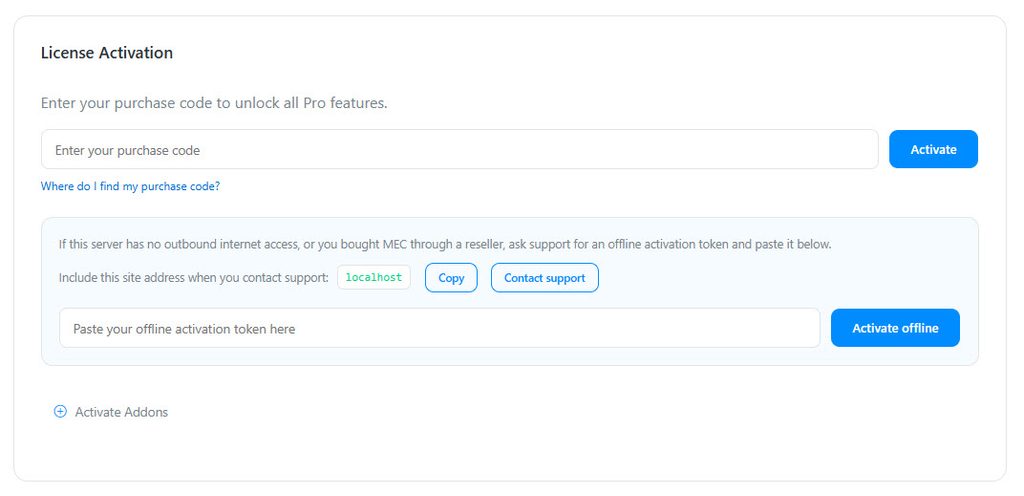
Go to WordPress Dashboard > MEC > Dashboard and scroll to the offline activation box (below the license form). You will see:
Include this site address when you contact support: yourdomain.com
Click the Copy button next to it. If your domain looks different from what you type in the browser (a subdomain, a path, or a stray www), always send us the address exactly as MEC shows it — a token minted for the wrong address will be refused.
Step 2 — Contact Support
Click the Contact support button in the same box, or visit webnus.net/support, and open a ticket that includes:
- The copied site address from Step 1.
- Proof of purchase (your order number, license, invoice or reseller receipt).
Our team will verify your purchase and reply with your offline activation token.
Step 3 — Activate Offline
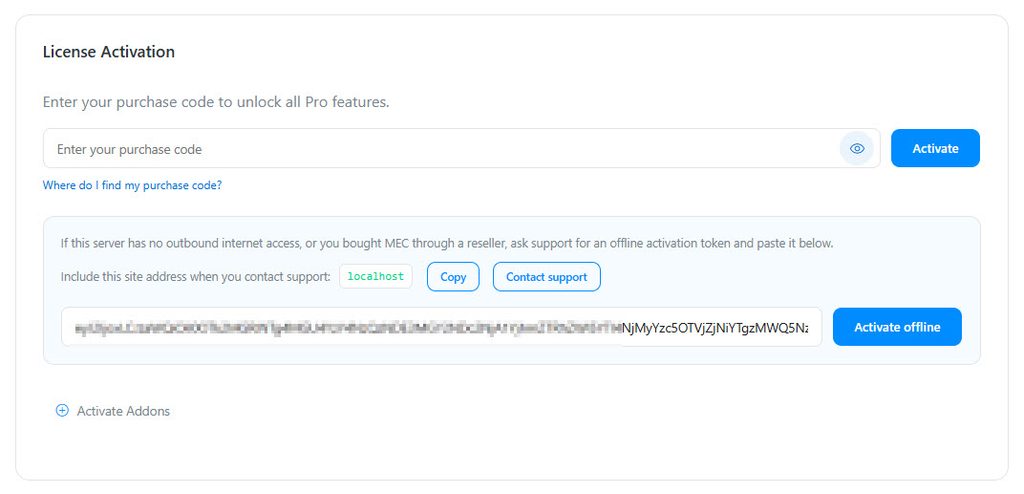
Back on WordPress Dashboard > MEC > Dashboard, paste the token into the field under Paste your offline activation token here and click Activate offline.
If the token is valid and was minted for this exact site address, MEC activates immediately and the Pro features become available. No internet connection is required for this step.
Token Expiry
Offline activation tokens are valid for a limited period (about 30 days) from the moment they are issued. While you are running on a token:
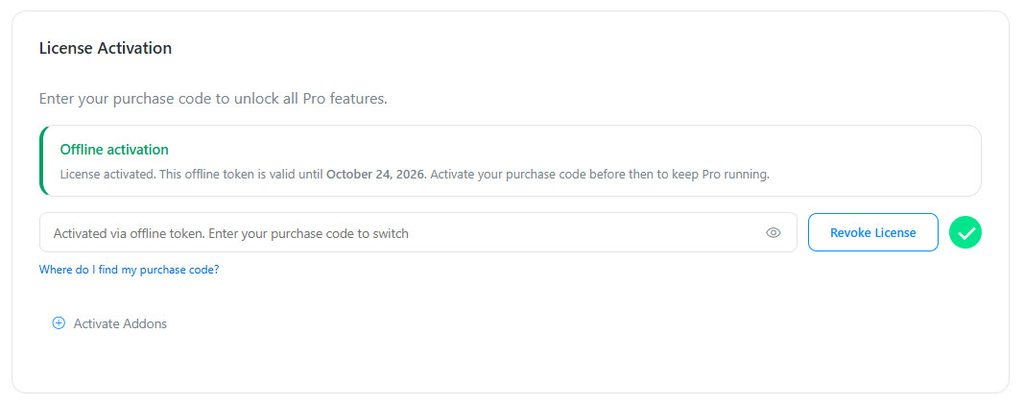
- The dashboard shows a notice with your token’s exact expiry date: “License activated. This offline token is valid until {date}. Activate your purchase code before then to keep Pro running.”
- The purchase code field displays the hint “Activated via offline token. Enter your purchase code to switch.”
Keeping Your License Running
Before the expiry date, enter your real purchase code in the purchase code field and submit it. This switches the site to a normal online license, which renews automatically and never needs a new token.
If you received your token because your server has no outbound connection but the connection is restored later, simply activate with your purchase code, nothing else changes.
Renewing an Offline Token
If your server still cannot reach our licensing server when the token is about to expire, contact support before the expiry date and ask for a renewal. Please plan ahead: each license can hold one active offline token and can renew it up to two times. After both renewals are used, a fresh token requires a new purchase or a manual exception from our team.
After the Token Expires
Once an offline token expires, the Pro-only features stop working until the site is licensed again:
- Saving an event will not persist Pro-only data (booking options, tickets, fees, booking form fields, hourly schedule, event data, gallery, notifications, etc.), and MEC shows an admin notice naming exactly which features were not saved.
- A non-dismissible notice on the dashboard reminds you to license the site.
Your events and bookings are never deleted. To restore the Pro features, activate with a valid purchase code, or ask support to mint a fresh token.
FAQ
Can I use one token on two websites?
No. A token is signed for one exact site address and is refused everywhere else.
I pasted the token but activation failed.
Compare the site address shown in the Offline Activation box with the one you sent to support. If they differ, reply to your ticket and ask for a token minted for the address MEC displays.
I lost my token. Do I have to start over?
No. Reply to your original ticket (or open a new one mentioning your order number) and ask us to re-send or re-issue the token for the same site address.
How many times can I renew my offline token?
Each license can renew its offline token twice. The counter applies to the license, not to the domain — moving the token to a different address does not reset it.
Does MEC phone home while I am on an offline token?
MEC periodically retries reaching the licensing server. While these retries fail (for example, on an air-gapped server), a valid, unexpired token keeps the Pro features running.