
Advanced Organizer Addon
The Advanced Organizer Addon is a powerful add-on designed to enhance the event organization experience by providing dedicated profile pages for each organizer. It allows you to showcase organizer lists and their associated events through flexible shortcodes, ensuring a professional and seamless integration into your website.
Initial Setup
Before you begin, ensure you have the following:
- MEC Lite or Pro: This add-on is compatible with both the Lite and Pro versions of Modern Events Calendar.
- Plugin Installation: Ensure both MEC and the Advanced Organizer Addon are installed and activated.
- MEC Version: The add-on requires Modern Events Calendar 7.38.0 or later. On an older version the add-on stays disabled.
Read Also:
How to install MEC and Addons?Enable Organizer Module: Navigate to MEC Settings > Event Module and ensure the Organizer module is enabled.
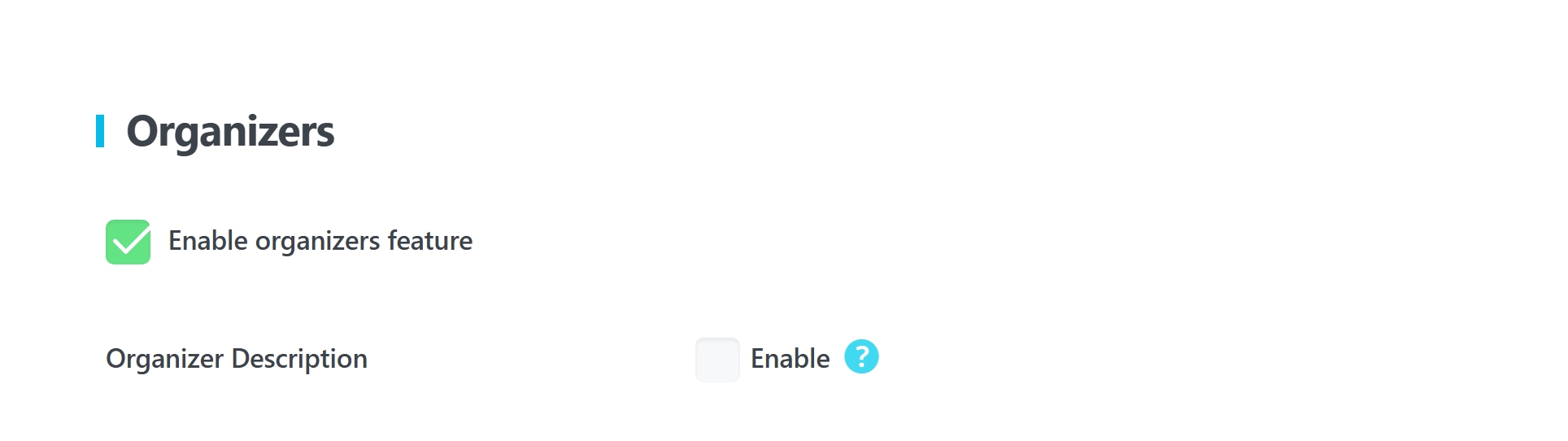
Global Configuration
The settings menu allows you to define the default behavior for how organizers and their events are displayed across your website.
Single Page Setup
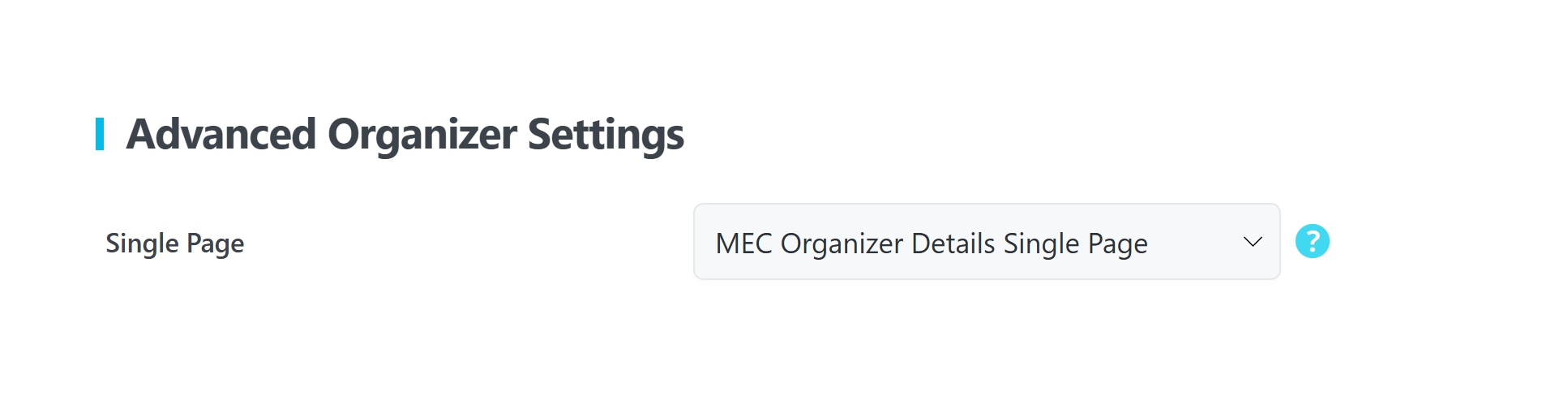
The addon automatically creates a custom page containing the [advanced-organizer-single-public] shortcode. This page acts as the profile hub for individual organizers, displaying their Name, Address, Website, and Phone Number.
- Manual Page Creation: If the page is not created automatically, create a new WordPress page, paste the [advanced-organizer-single-public] shortcode, and publish it.
- Linking the Page: In MEC Settings > General > Advanced Organizer (the Advanced Organizer Settings panel), select your custom page from the Single Page dropdown menu.
Organizer Default Settings
These settings control the global behavior of your organizer profiles and event lists.
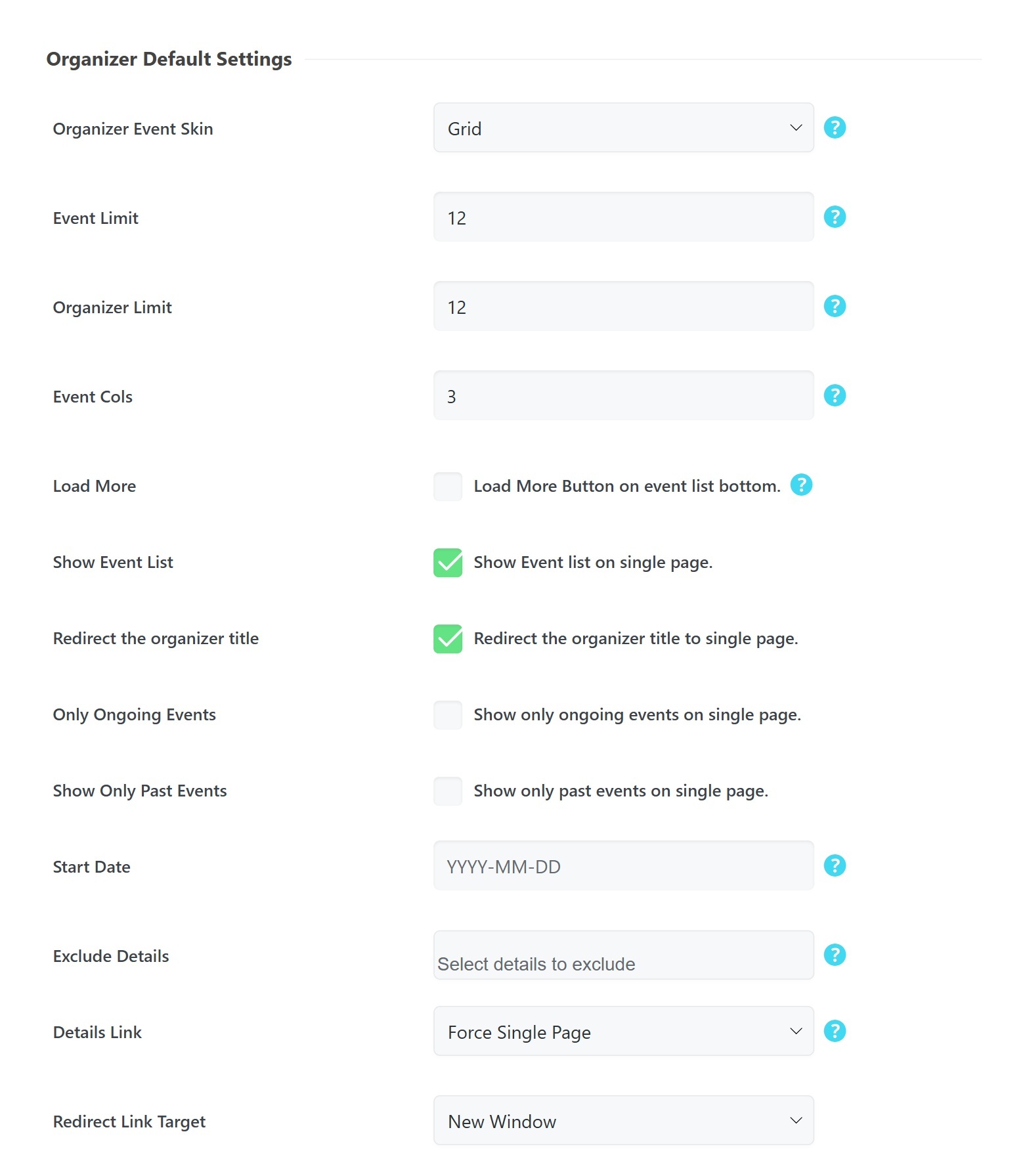
- Organizer Event Skin: Select the visual layout (skin) for displaying an organizer’s linked events.
- Event Limit: Set the maximum number of events displayed on an organizer’s list.
- Organizer Limit: Define how many organizers appear on the main list page.
- Event Cols: Specify the number of columns for the event grid.
- Load More: Check this box to add a Load More Button to event lists.
- Show Event List: Enable or disable the event list on the organizer’s single profile page.
- Only Ongoing Events: Filter the list to show only currently active events.
- Show Only Past Events: Filter the list to show only completed events. This option and Only Ongoing Events are mutually exclusive: enabling one automatically unchecks the other.
- Start Date: Use the date picker to filter and display events starting from a specific date.
- Exclude Details: Select (multi-select) the contact info to hide, including Tel, Email, Facebook, Instagram, LinkedIn, and Twitter(X).
- Redirect the Organizer Title: Enable this checkbox to redirect the organizer’s name to a specific link.
- Details Link (Prioritization): Choose how the title redirect behaves (this field is shown only while the redirect checkbox above is enabled):
- Priority Website on input: Redirects to the URL entered in the organizer’s website field.
- Force Single Page: Always redirects to the organizer’s dedicated profile page.
- Force Website Link: Ignores the single page and forces a redirect to their external website.
- Redirect Link Target: Choose whether to open links in a New Window or the Current Window.
Pro Tip: Always ensure individual organizers have content in their profiles (phone, social media, etc.) to fully leverage the “Exclude Details” and “Single Page” features.
Using Shortcodes
The Advanced Organizer Addon utilizes three primary shortcode types: Single (one organizer), List (all items), and Featured (items marked as featured).
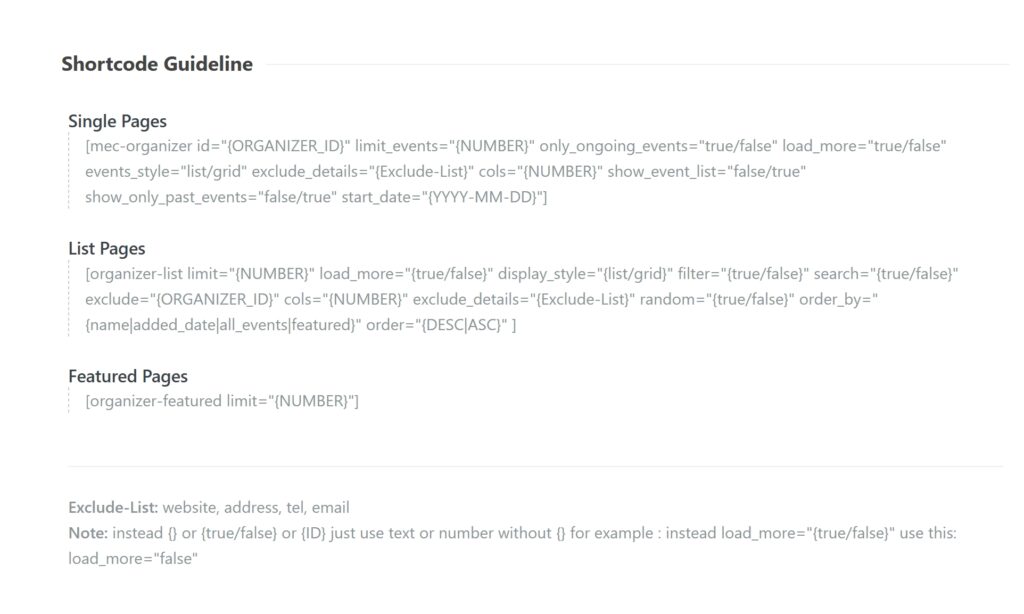
[mec-organizer] Attributes
Use this shortcode to display a specific organizer’s details.
id="{ORGANIZER_ID}": The unique ID found in the organizer taxonomy list.limit_events="{NUMBER}": Limits events shown for this host.only_ongoing_events="{true/false}": Shows only ongoing events.load_more="{true/false}": Enables/disables the Load More button.show_only_past_events="{true/false}": Shows only past events. Acceptstrue,1,yesoron.start_date="{YYYY-MM-DD}": Shows events starting from this date (ignored whenonly_ongoing_eventsorshow_only_past_eventsis on).events_style="{list/grid}": Switches between list or grid layouts.exclude_details="{Exclude-List}": Comma-separated list to hide details, in lowercase and without spaces (e.g.,tel,email). Available values:website,address,tel,email.cols="{NUMBER}": Sets columns for grid layout.show_event_list="{true/false}": Shows/hides the associated event list.
[organizer-list] Attributes
Use this to create a directory of all your event organizers.
limit="{NUMBER}": Total number of organizers to display.display_style="{list/grid}": Choose the layout style. If omitted, the Organizer Event Skin setting is used.load_more="{true/false}": Enables/disables the Load More button.exclude="{ORGANIZER_ID}": Comma-separated organizer IDs to leave out of the list.cols="{NUMBER}": Sets columns for grid layout.exclude_details="{Exclude-List}": Comma-separated list to hide details, in lowercase and without spaces (e.g.,tel,email).filter="{true/false}": Adds filter options to the list.search="{true/false}": Enables a search bar for the list.random="{true/false}": Randomizes the order of organizers.order_by="{name|added_date|all_events|featured}": Sorts the list by the chosen criteria.order="{DESC|ASC}": Sets ascending or descending order.
[organizer-featured] Attributes
Use this to show the organizers marked as featured.
limit="{NUMBER}": Total number of featured organizers to display.
Use Cases (When This Addon is Useful)
- Speaker Directories for Conferences: Create a dedicated page listing all speakers with links to their specific sessions and social media profiles.
- Multi-Venue Management: If you have different organizers for various locations, use the [organizer-list] to allow users to browse events by host.
- Featured Host Spotlights: Use the Featured shortcode on your homepage to highlight top-tier organizers or sponsors.
Situations This Addon May Not Be Ideal
- Concurrent Past and Future Lists: The addon currently cannot display both past and future events simultaneously on a single organizer page.
- Complex External Redirects: While it supports basic URL redirects, it is not designed for complex affiliate tracking or multi-step external funnels.
- Non-WordPress Environments: This addon requires a WordPress installation running Modern Events Calendar.
Troubleshooting for Beginners
- Shortcode Not Working? Ensure you have used double quotation marks (e.g.,
load_more="true") and check for extra spaces that might break the code. Do not use square brackets [] inside the attributes themselves. - Missing Organizer Menu? Double-check that the Organizer Module is enabled in MEC Settings > Event Module.
- Redirects Not Functioning? Ensure the Redirect the organizer title checkbox is enabled in the settings and that you have selected the correct priority in the Details Link option.
- Add-on Disabled and an Admin Notice Appears? If you see “One or more MEC addons require Modern Events Calendar 7.38.0 or later and are temporarily disabled”, update Modern Events Calendar to 7.38.0 or later. The add-on starts working again afterwards.
- Single Page Showing 404? Go to WordPress Settings > Permalinks and click Save Changes to refresh your site’s link structure.
FAQ
How can I begin using the Advanced Organizer Addon on my website?
To start, you need to have both the MEC (Modern Events Calendar) plugin and the Advanced Organizer Addon installed and activated on your website. Additionally, you must enable the Organizer feature in MEC Settings under the Event Module.
What is the purpose of the Advanced Organizer Addon “Single Page” setting?
When you install the addon, a custom page is created automatically, containing the [advanced-organizer-single-public] shortcode, which serves as the single page for a specific organizer. When users click an organizer, they are directed to this page, which contains details like name, address, and website. You can manually create the single page if it isn’t created automatically. Simply insert the shortcode and select it in the Advanced Organizer settings.
What are the key settings available within the “Organizer Default Settings” of the Advanced Organizer Addon?
Within Organizer Default Settings, you can configure several aspects such as: * Organizer Event Skin: Choose how the events associated with the organizer are displayed. * Event Limit: Set the maximum number of events to show per organizer. * Organizer Limit: Set the maximum number of organizers to show on the list page. * Event Cols: Define the number of columns for the event list. * Load More: Add a “load more” button for event lists. * Show Event List: Display an event list on a single page. * Redirect the organizer title: Allows you to set where the organizer title will redirect. * Redirect Link Target: Define if links will open in the same or a new window.
How can I customize the display of the Organizer list?
Use the display_style="list" or display_style="grid" attribute of the [organizer-list] shortcode. If you leave it out, the “Organizer Event Skin” setting is used.
How can I control the number of events displayed for each organizer?
The “Event Limit” option under Organizer Default Settings allows you to specify the number of events shown for each organizer.
How do I enable a “Load More” button on the organizer event list?
You can enable the “Load More” button by checking the “Load More” option in the Advanced Organizer settings.
What options are available when using the “Redirect the organizer title” setting?
There are three ways to prioritize redirection of the Organizer title: * Priority Website on input: Redirects to the organizer’s website if a URL is entered. * Force Single Page: Redirects to the organizer’s single page. * Force Website Link: Redirects to the organizer’s website, overriding the single page.
What is the purpose of the Advanced Organizer shortcodes?
The shortcodes in the Advanced Organizer Addon allow you to display organizers and their information on any page of your website. There are three types of shortcodes: single, list, and featured.
How do I use the [organizer-list] shortcode?
To use the [organizer-list] shortcode, you simply copy and paste it into the desired page. You can also customize it by adding attributes within the shortcode.
How can I display only a single organizer using a shortcode?
To display a single organizer, use the [mec-organizer id="{ORGANIZER_ID}"] shortcode, replacing {ORGANIZER_ID} with the specific ID of the organizer, which can be found in the organizer’s taxonomy.
How can I display a list of all available organizers?
You can display a list of all available organizers using the [organizer-list] shortcode.
How can I use the “load more” option within the shortcode?
To enable the “load more” option within the shortcode, you would add load_more="true" or load_more="false" into the shortcode. Remember to use double quotation marks.
What are the key considerations when using shortcodes to ensure they work correctly?
When using shortcodes, make sure you: * Include both opening and closing double quotation marks. * Avoid adding extra spaces that could break the code. * Avoid using square brackets [] within the shortcode itself.
Does the Advanced Organizer Addon change Organizer link behavior in the default MEC shortcodes?
No. The Details Link option only applies to Organizer titles on Single Event pages and in the [organizer-list] shortcode. Organizer links in the default MEC event listing continue to use the URL configured under Organizer Page URL.


I there a way to show future and past events at the same time in a organizer page ?
Hello,
Unfortunately, currently, this is not possible,
I will forward your comment to the developer team and they will process that. If it is possible they will add this feature in future plugin updates.