


Kata provides three UI theme modes—Light Mode, Dark Mode, and Auto-Detect—designed to work seamlessly with Elementor. These options allow you to personalize your admin interface, optimizing it for your preferences.
How to Navigate to and Adjust Your UI Theme:
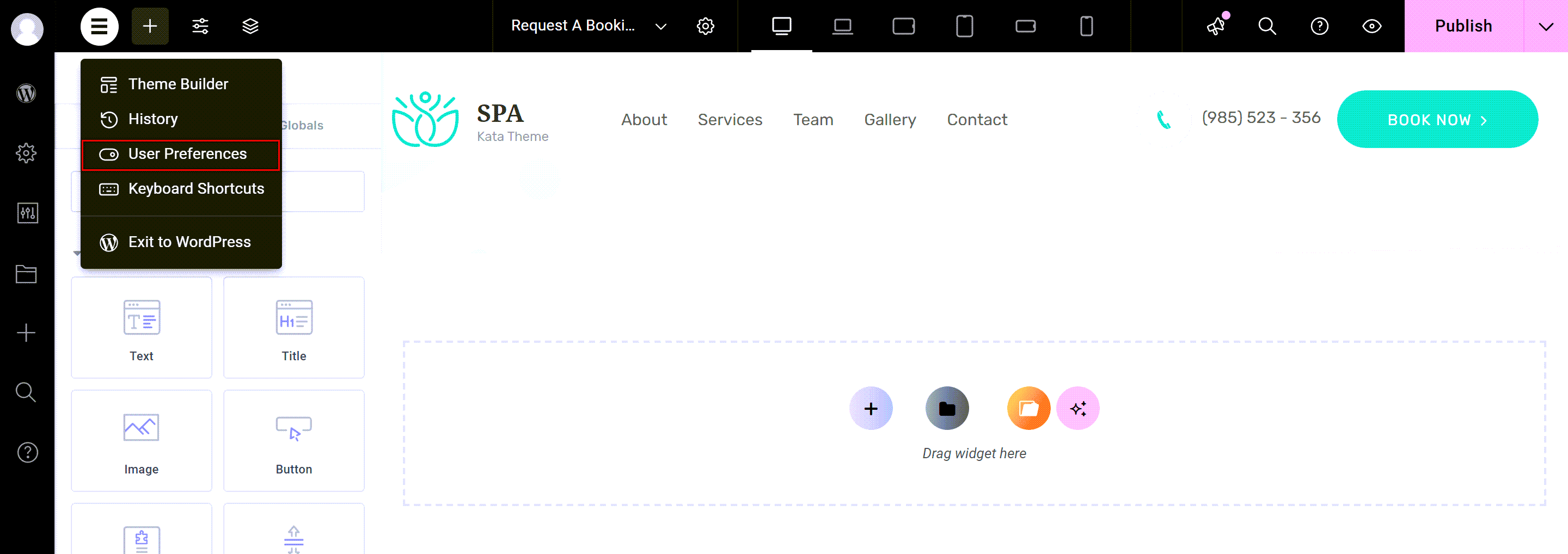
- Open your Elementor interface.
- In the top left corner, locate the Elementor header logo.

- Go to the User Preferences section.
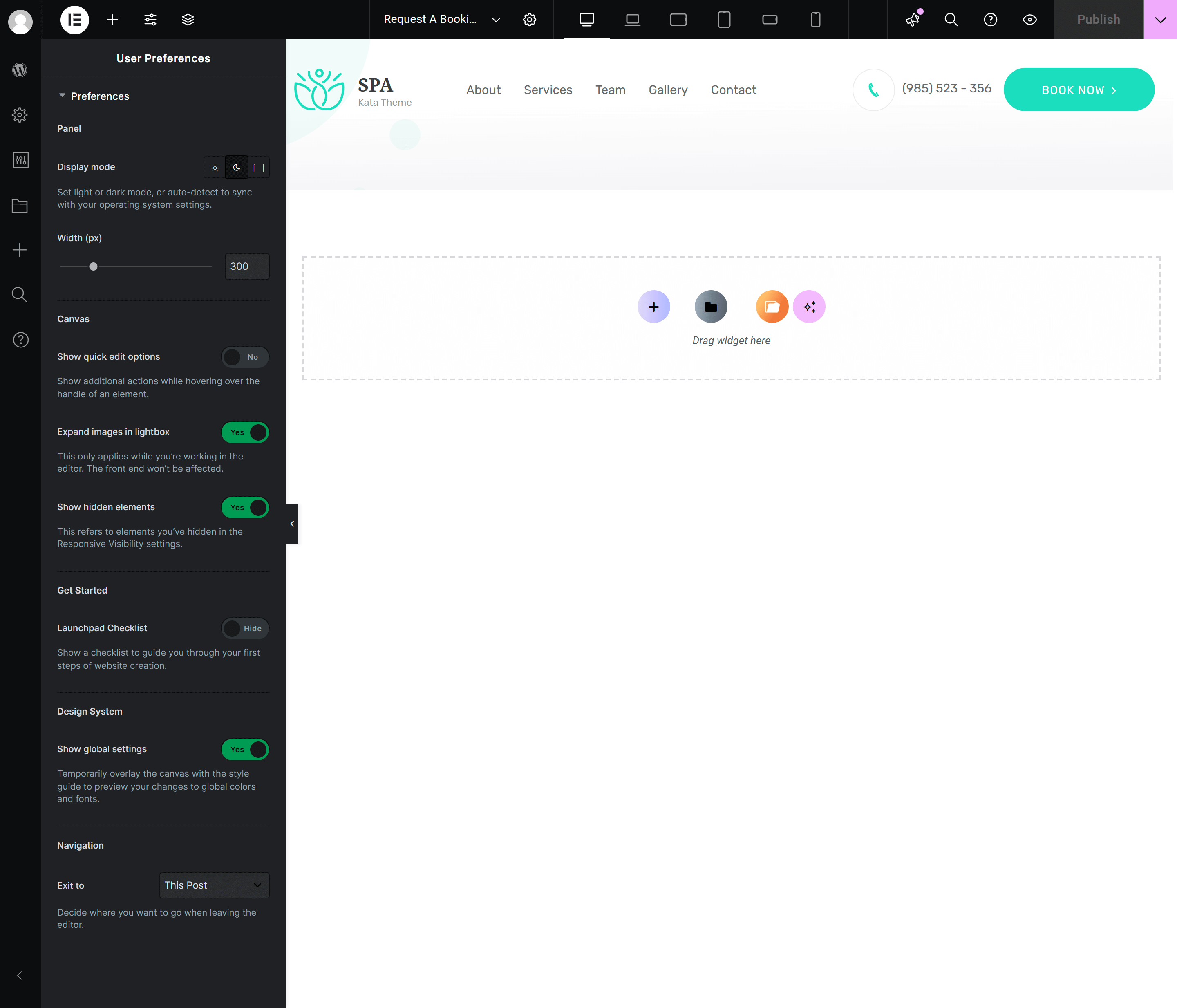
- In the Preferences menu, adjust the Display mode option to your desired mode (Light, Dark, or Auto-Detect).
Available Modes:
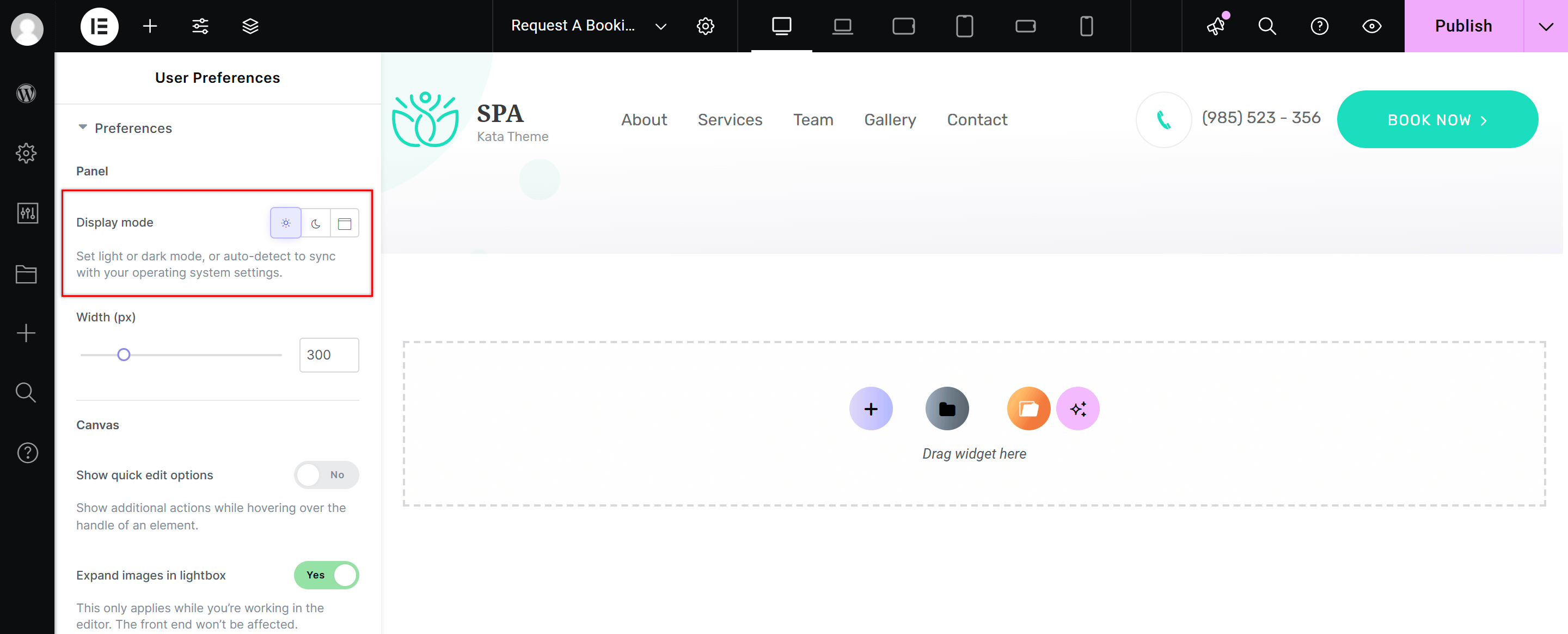
- Light Mode: A bright, clean interface ideal for well-lit environments or users who prefer a lighter background.
- Dark Mode: A darker, more subdued theme designed for users who prefer a darker interface, often easier on the eyes during prolonged use or low-light conditions.
- Auto-Detect Mode: This mode automatically switches between Light and Dark mode based on your operating system’s theme settings.
With these settings, you can easily customize your Elementor experience to match your visual preference and improve your workflow.
Conclusion
With Kata’s flexibility in theme customization, users can create an environment that suits their visual preferences, ensuring an enjoyable and productive experience when using Elementor.