

Portfolio
The Portfolio widget in Kata for WordPress allows you to showcase a selection of your work on various pages, presenting it as a visual album. This feature operates similarly to posts, enabling you to categorize and tag portfolio items for easy organization and display. Follow the guide below to get started.
Create Portfolio Categories and Items
Section titled “Create Portfolio Categories and Items”Define Categories and Tags:
Section titled “Define Categories and Tags:”- Go to your WordPress dashboard.
- In the Portfolio menu, select Portfolio Categories to create new categories for your portfolio items.
- You can also create tags under Portfolio Tags to label and organize items as needed.
Add a New Portfolio Item:
Section titled “Add a New Portfolio Item:”- In the Portfolio section of your dashboard, click Add Portfolio Item.
- Fill in the necessary fields for each portfolio item:
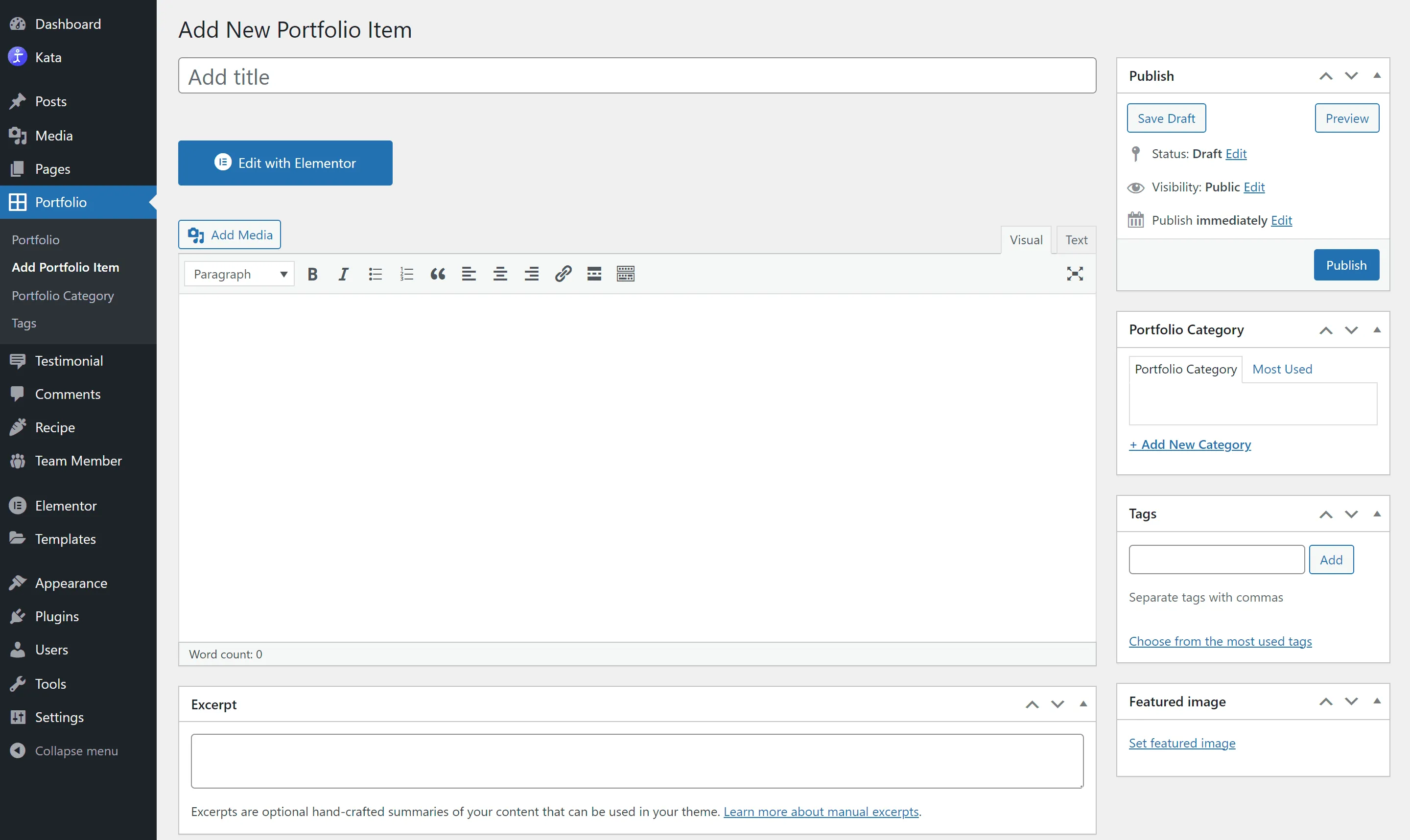
- Title: Provide a clear title that represents the project or item.
- Description: Add any additional information or details about the work.
- Category: Assign a category to help organize items within specific types or genres.
- Tags: Add tags to further classify the item.
- Featured Image: Upload an image that will serve as the item’s visual preview.
Once completed, click Publish to save and publish the item.
Add the Portfolio Widget in Elementor
Search for the Portfolio Widget:
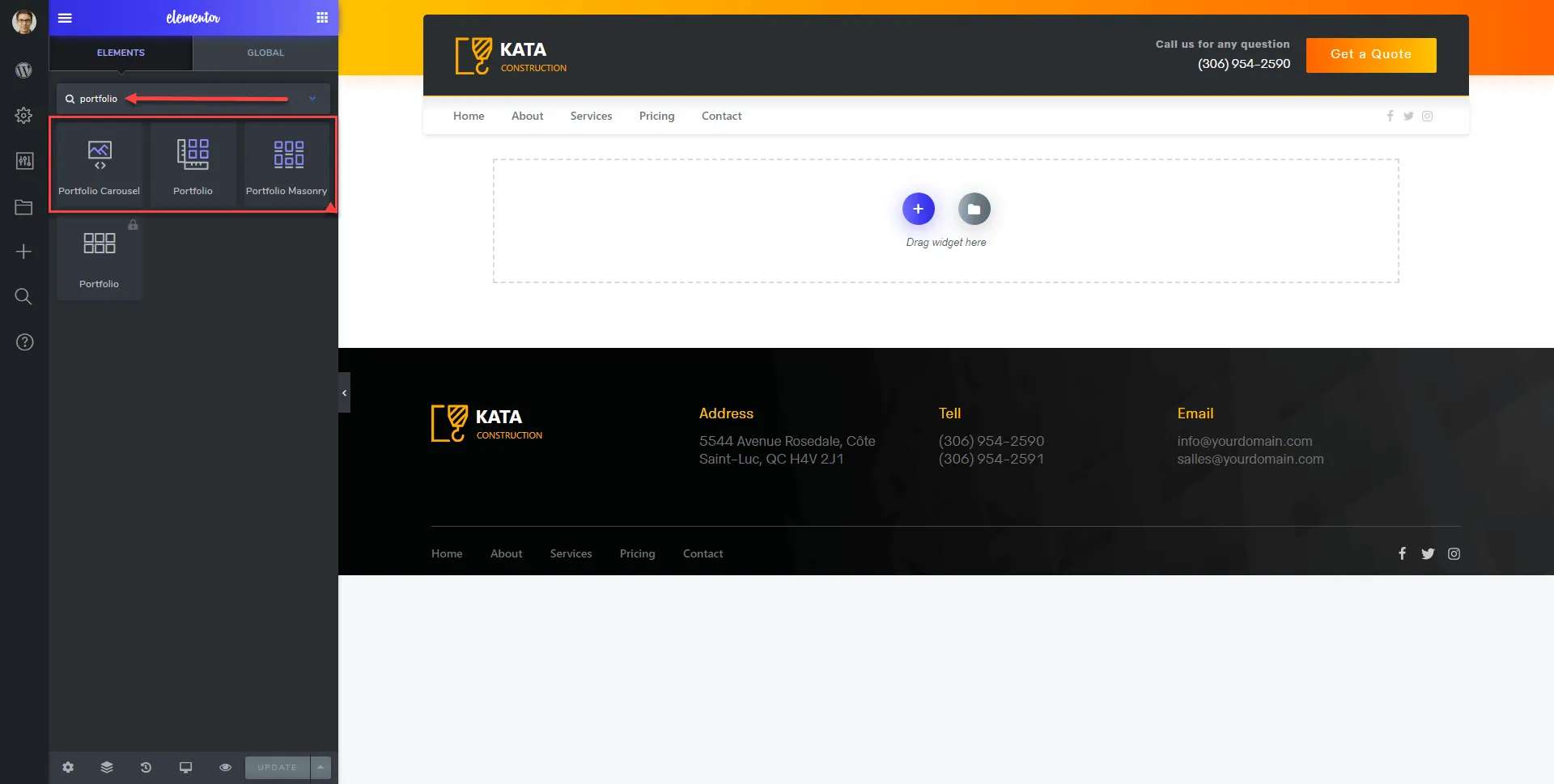
Section titled “Search for the Portfolio Widget:”- Go to your desired page in Elementor, and in the Element search bar, type “Portfolio.”
- Drag and drop the Portfolio widget onto your page layout.
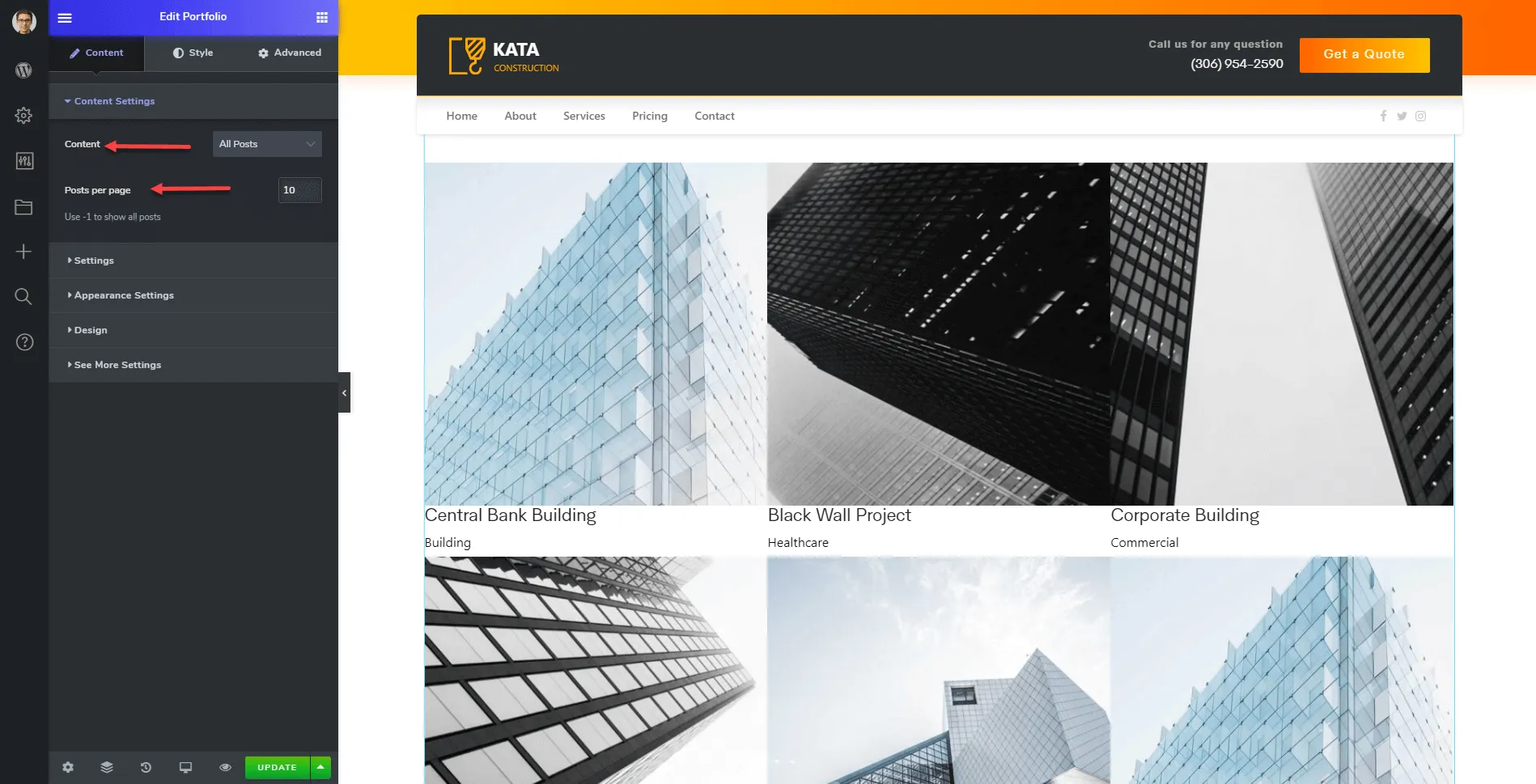
Configure Content Settings:
Section titled “Configure Content Settings:”Select the Content Settings to adjust what content is displayed and how many portfolio items appear per page.
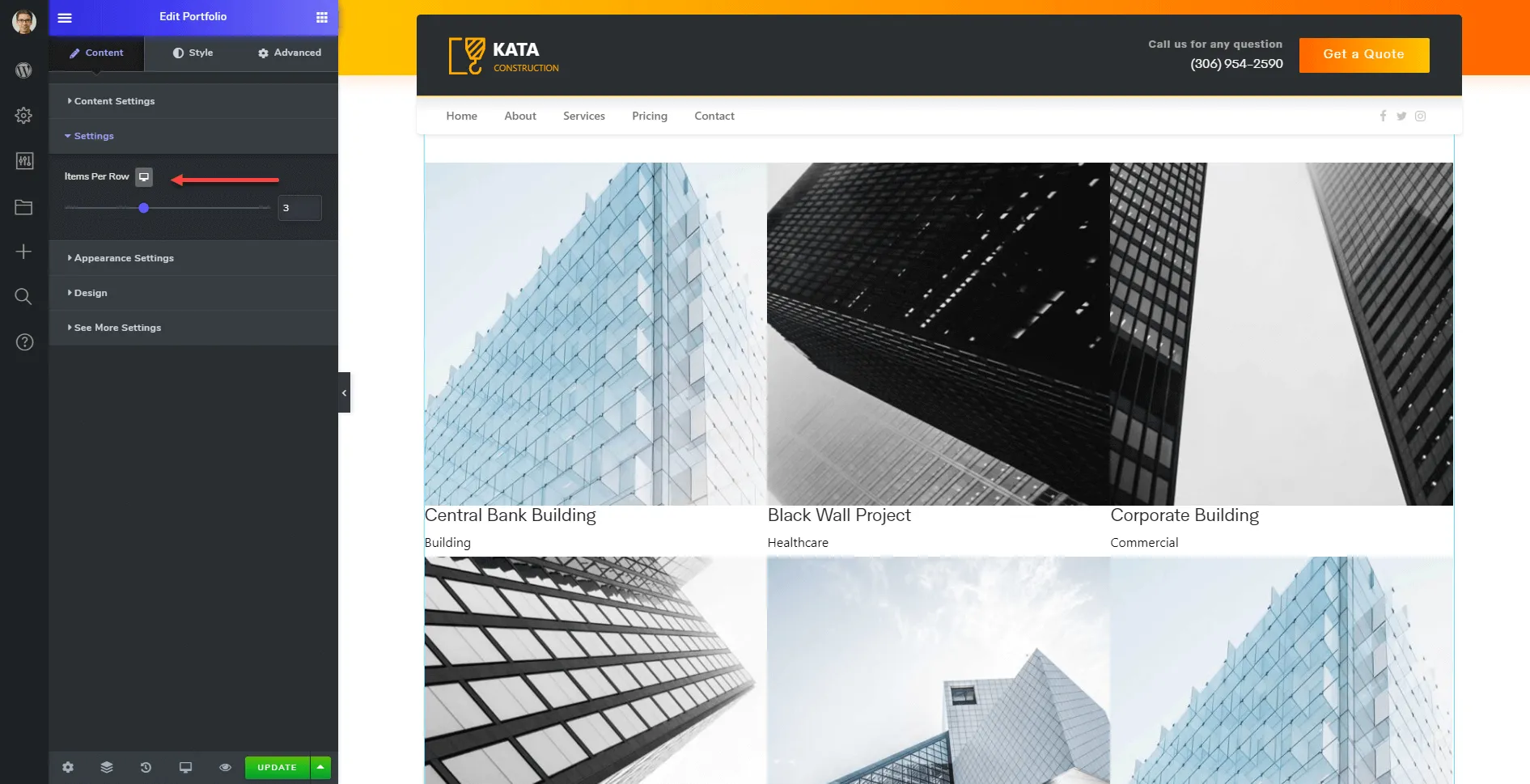
Settings Options:
Section titled “Settings Options:”In the Settings section, you can configure the layout to determine the number of items in each row, adapting to your page design and screen size.
Customize Appearance Settings
Section titled “Customize Appearance Settings”Use the Appearance Settings to refine the visual presentation of your portfolio items:
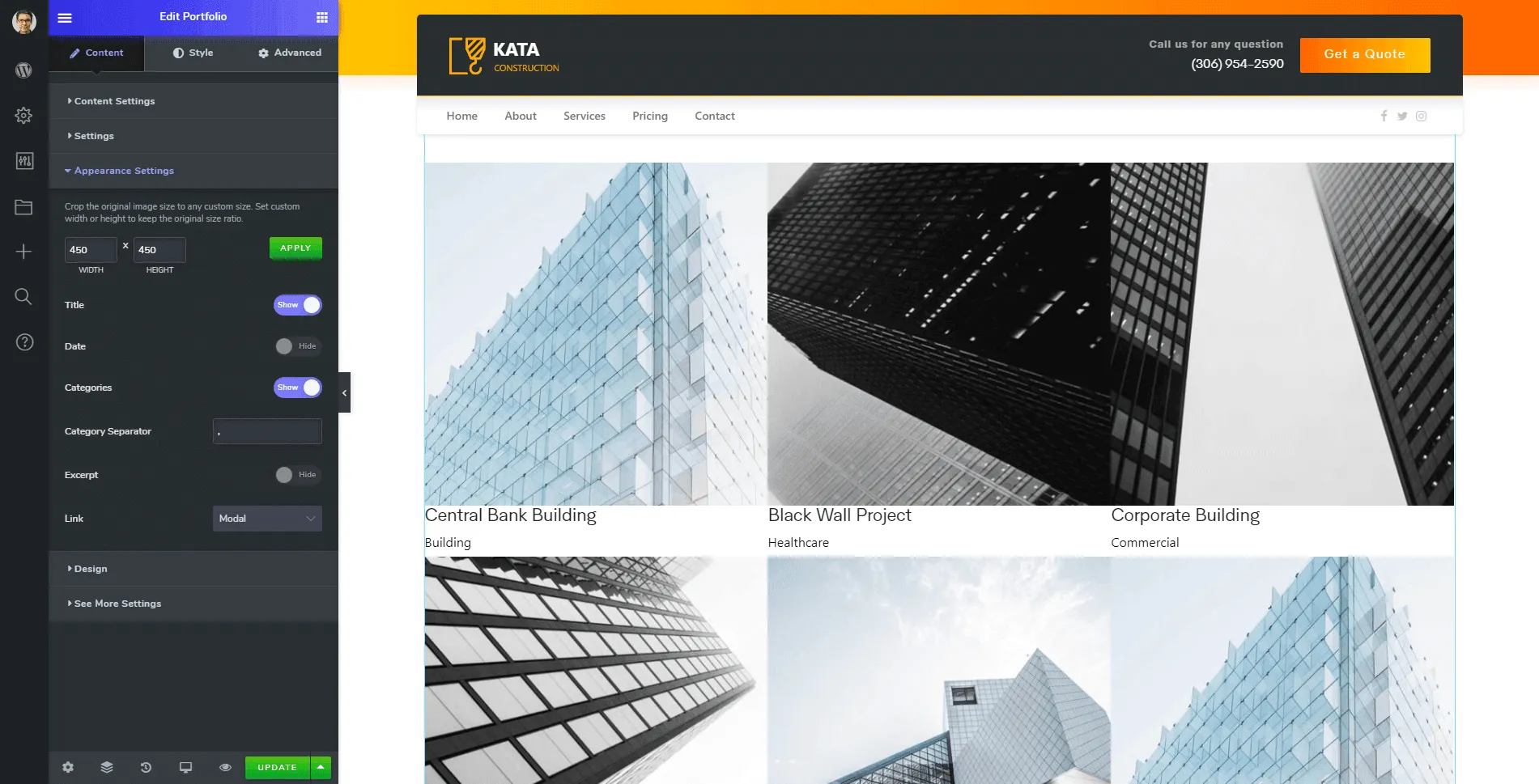
- Image Size: Define the resolution for displayed images.
- Title: Toggle the display of item titles.
- Date: Choose to display the date for each portfolio item.
- Category: Show or hide the assigned category.
- Category Separator: Customize the separator symbol for categories if multiple is shown.
- Excerpt: Display a brief excerpt or description for each item.
- Display: Set items to open in a new page or in a modal pop-up.
Design Customization:
Section titled “Design Customization:”In the Design section, you can add icons or custom elements, giving the portfolio a personalized touch.
See More Button Settings:
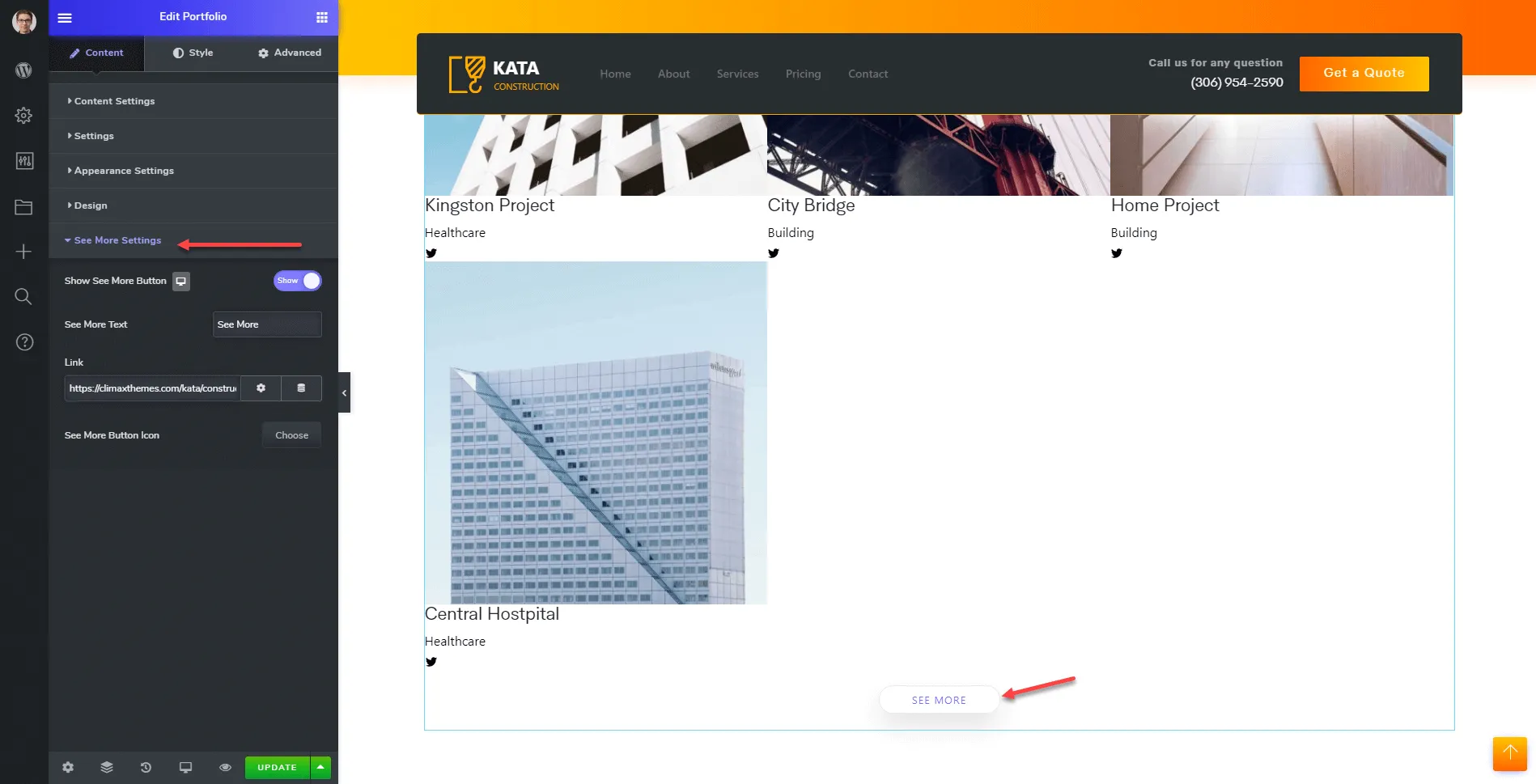
Section titled “See More Button Settings:”Customize the See More button to control its style, text, icon and behavior, providing viewers a way to explore additional items.
Masonry Portfolio Layout
Section titled “Masonry Portfolio Layout”Kata provides several layout options for displaying your portfolio. You can select the best style that fits your design needs: Portfolio Masonry or Carousel Portfolio.
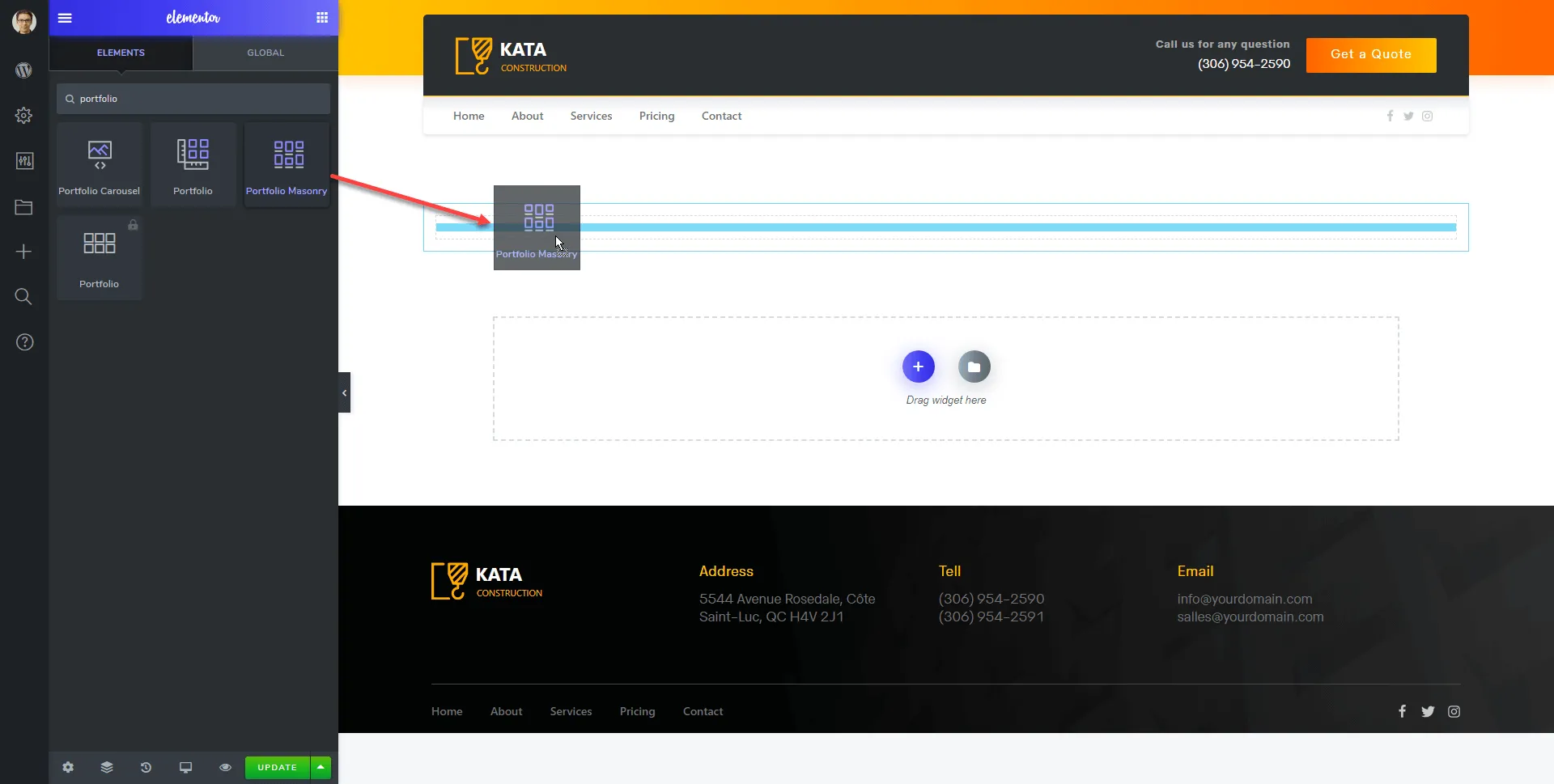
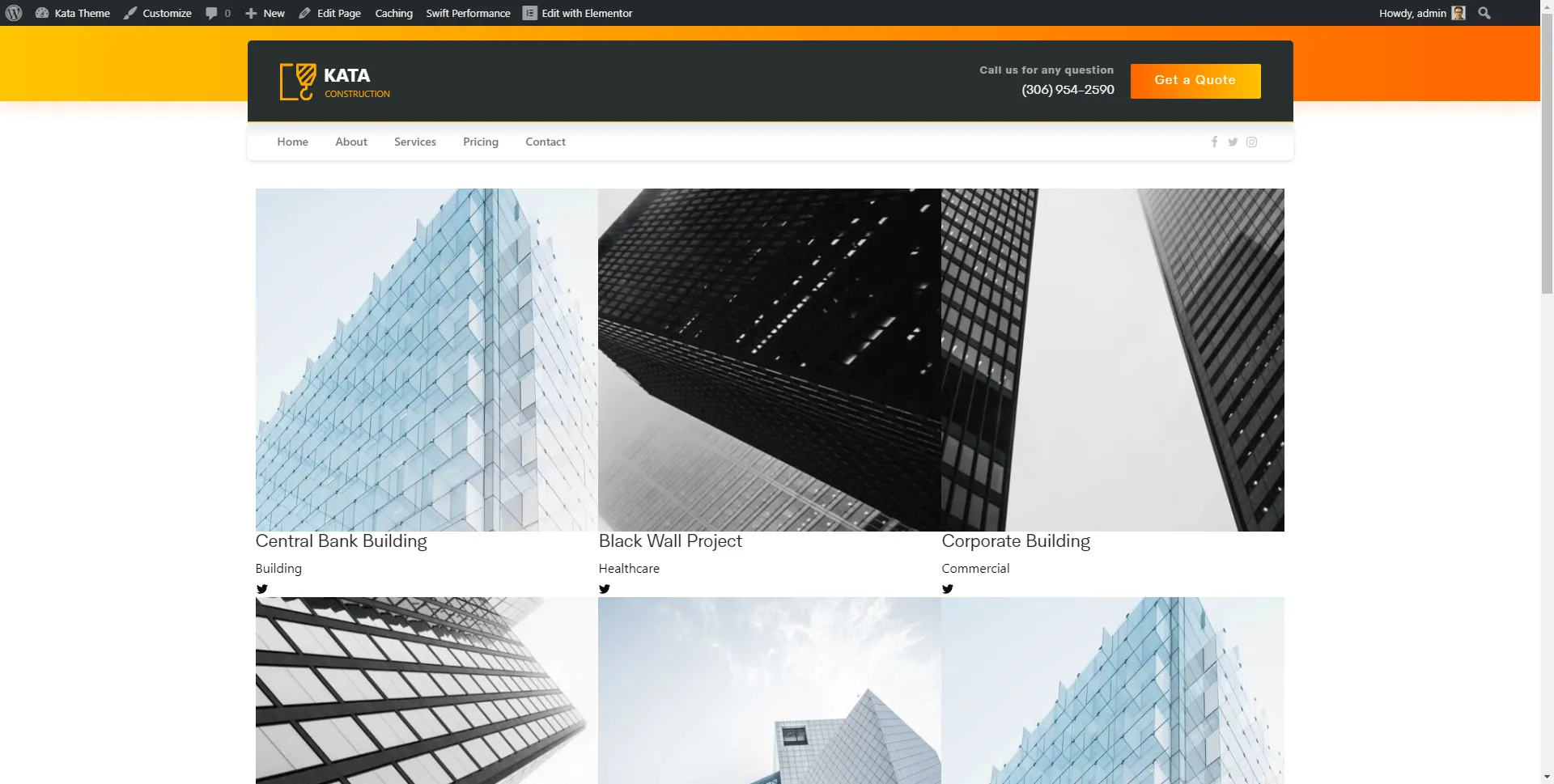
The Portfolio Masonry layout arranges items in a dynamic, grid format with staggered rows, creating a visually engaging look.
Content Settings:
Section titled “Content Settings:”Select from two pre-designed layouts for Masonry or customize your grid layout further.
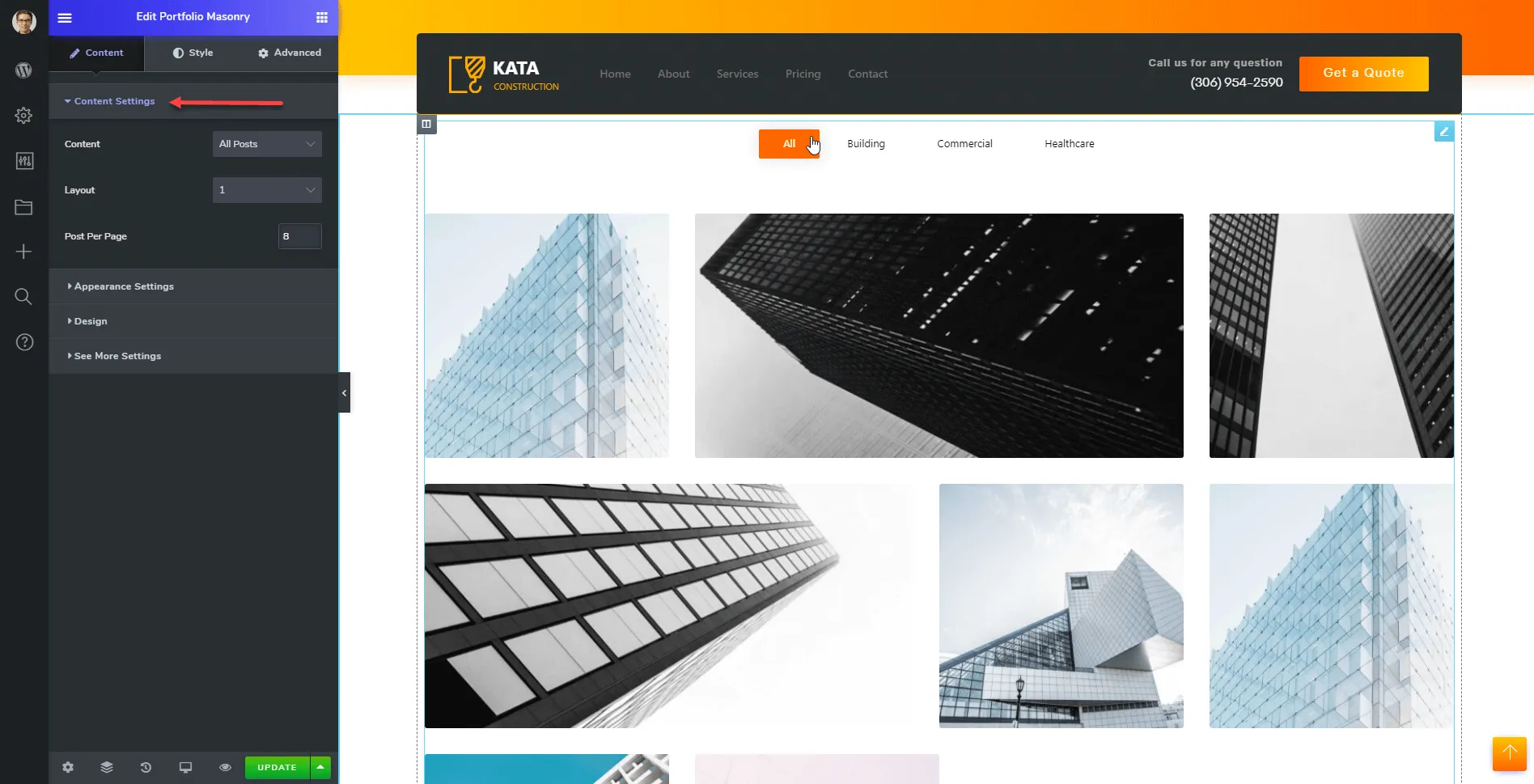
Appearance Settings:
Section titled “Appearance Settings:”There are few key settings in the Appearance Settings that you need to pay close attention to.
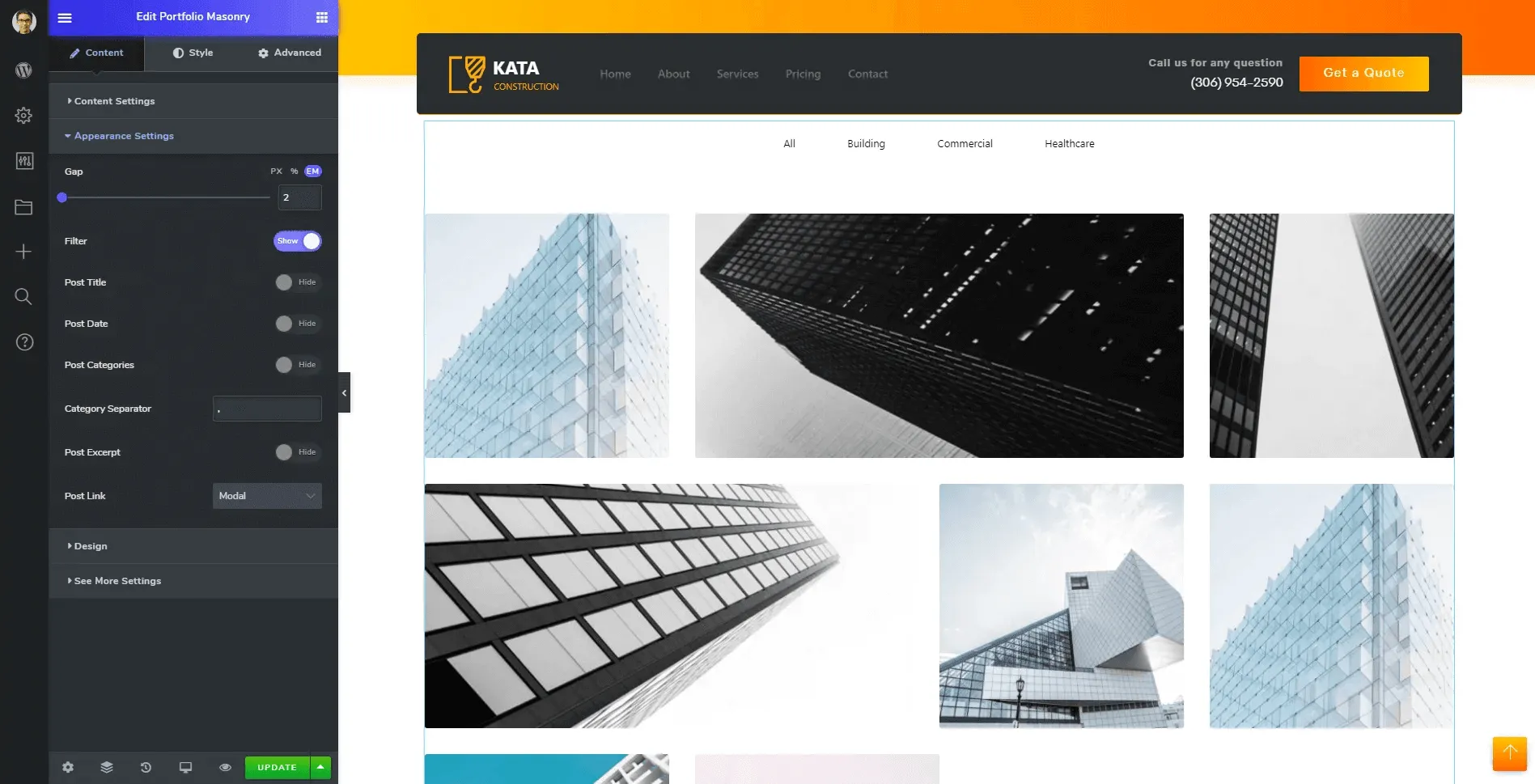
- Spacing: Control the space between items.
- Filters: Enable filters to allow sorting by category.
- Item Title: Toggle the display of item titles.
- Date Display: Show or hide item dates.
- Category Display: Display or hide categories.
- Separator: Choose a category separator symbol.
- Excerpt Display: Show or hide item descriptions.
- Display: Choose whether items open in a new page or modal pop-up.
Note: Many settings in the Masonry layout are similar to those in the standard Portfolio widget.
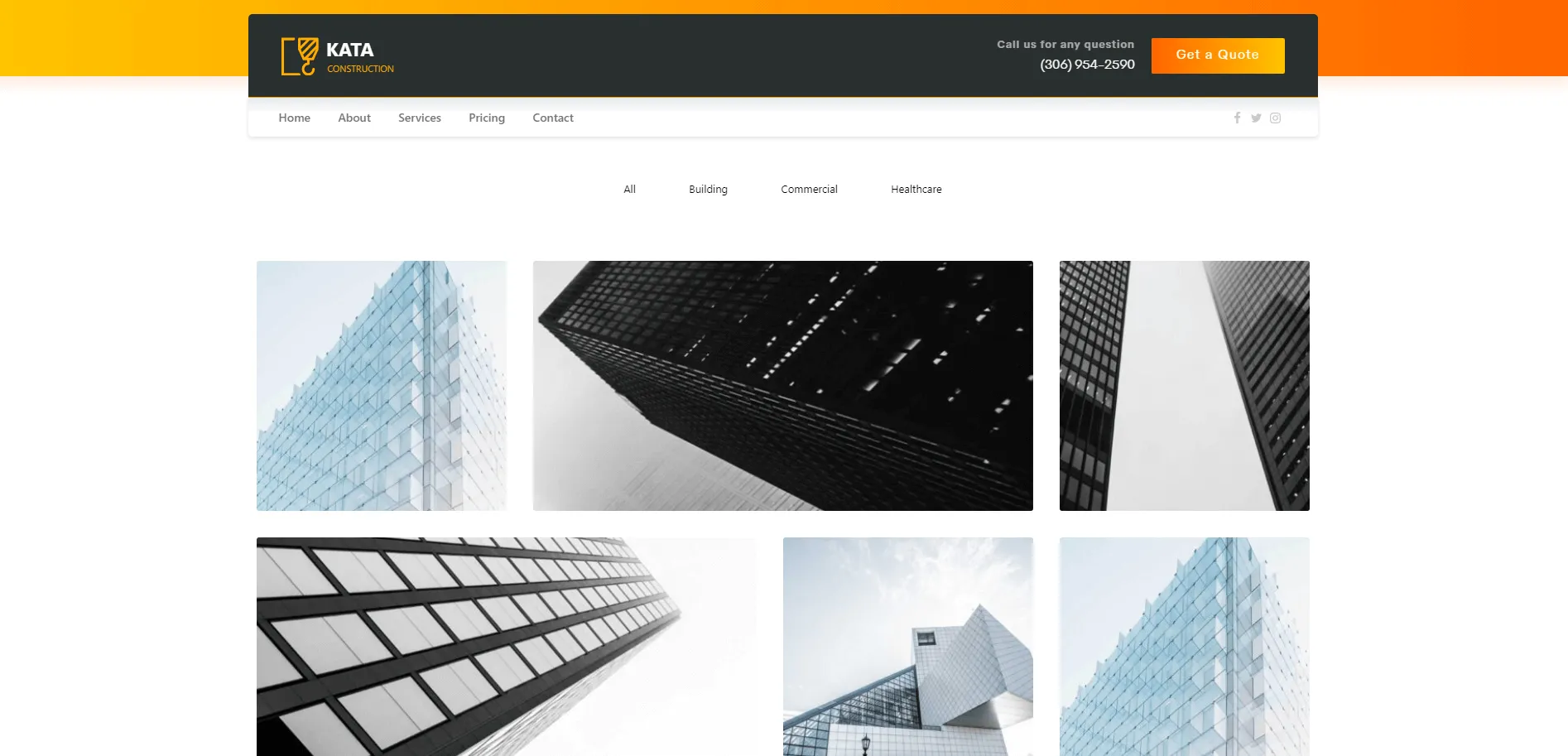
Carousel Portfolio Layout
Section titled “Carousel Portfolio Layout”The Carousel Portfolio layout displays items in a rotating slider, offering a more interactive browsing experience.
Carousel Settings:
Section titled “Carousel Settings:”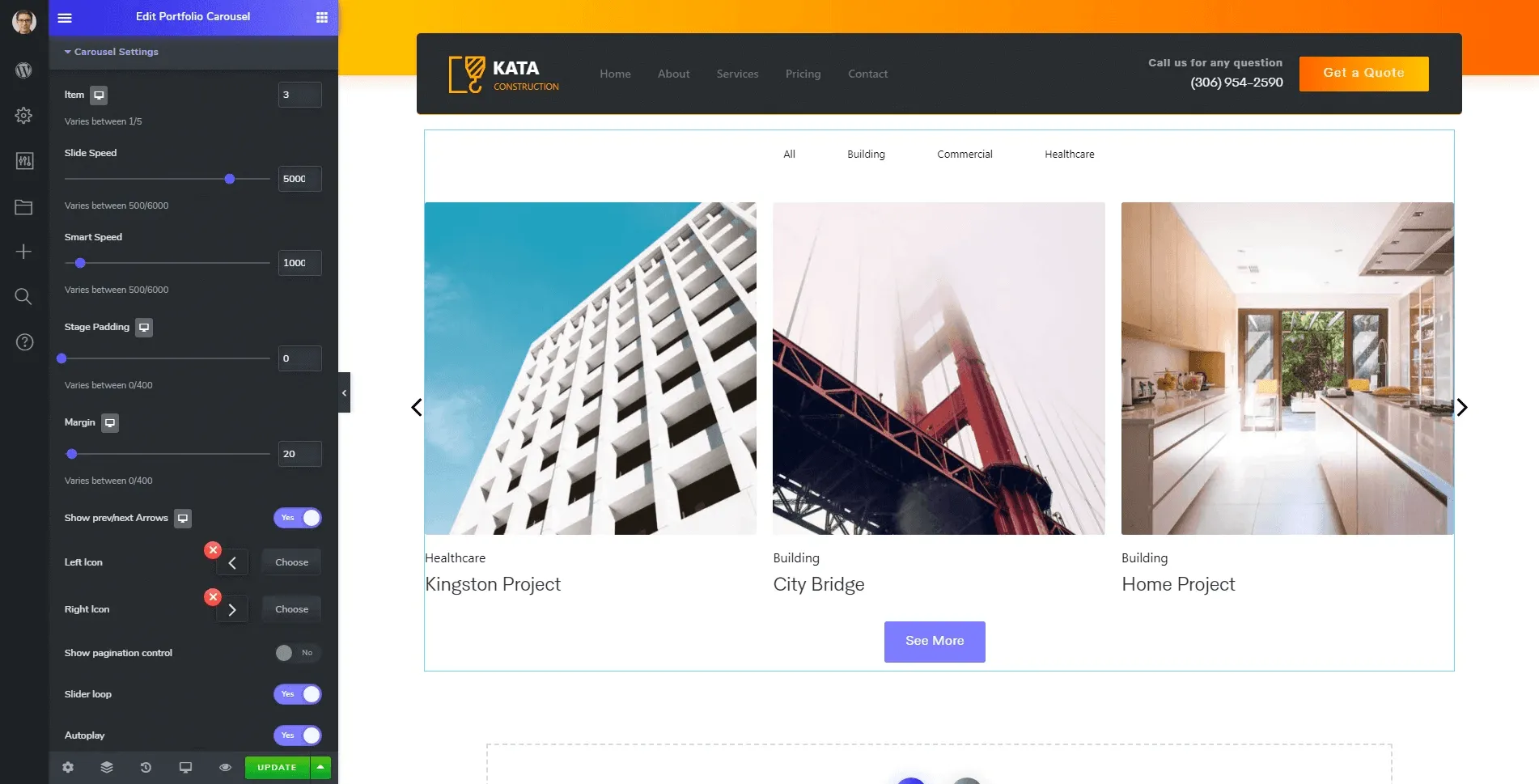
- Number of Items: Set how many items display at once.
- Carousel Speed: Control the speed of the carousel’s rotation.
- Slide Transition Speed: Adjust the transition speed between slides.
- Stage Padding: Add padding around items for a balanced look.
- Margins: Set spacing between items in the slider.
- Navigation Arrows: Enable arrows for easy navigation.
- Left/Right Arrow Icons: Customize each arrow’s icon.
- Pagination: Add pagination dots for easy navigation between slides.
- Looping: Enable continuous looping of items.
- Autoplay: Set the carousel to rotate items automatically.
Portfolio Tags Layout
Section titled “Portfolio Tags Layout”The Tags Portfolio layout offers three distinct styles for displaying portfolio tags: inline, list, and dropdown. You can select any of these options to showcase portfolio tags on your pages.
Final View
Section titled “Final View”After completing these settings, preview your portfolio to confirm it matches your design preferences. Make any necessary adjustments, then click Publish to make your portfolio live.
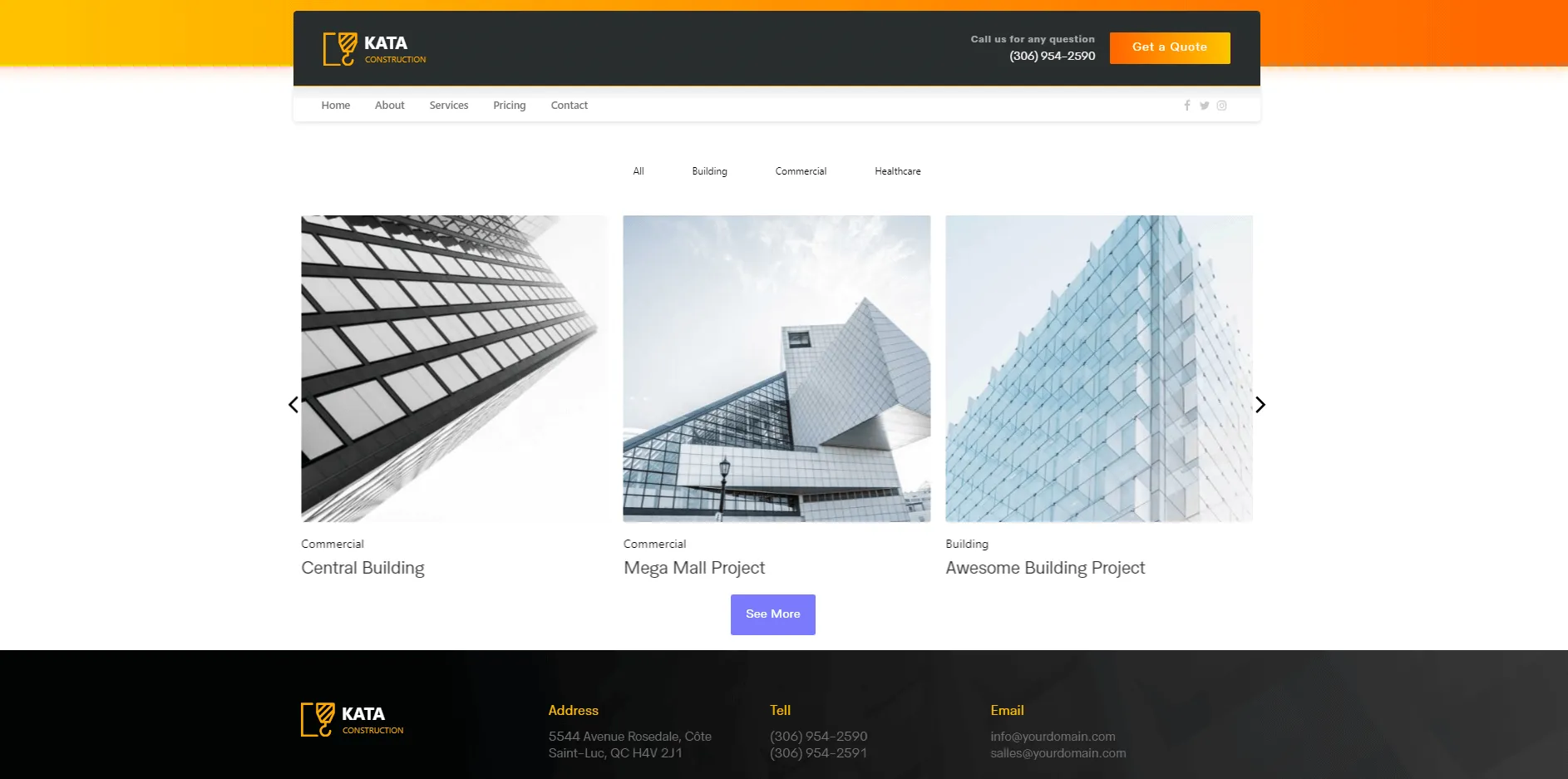
With these steps, your portfolio is now ready to showcase your work in a visually engaging format on your Kata-powered website.