

Icon Manager
Icon Manager is another exclusive feature available in the Kata theme. It allows you to add unlimited icons to the theme. This article will lay down how exactly you can do that:
Our main goal with Kata is to have everything you need in one place, ready to go. So with that in mind, navigate to the editing page for the demo to use Icon Manager.
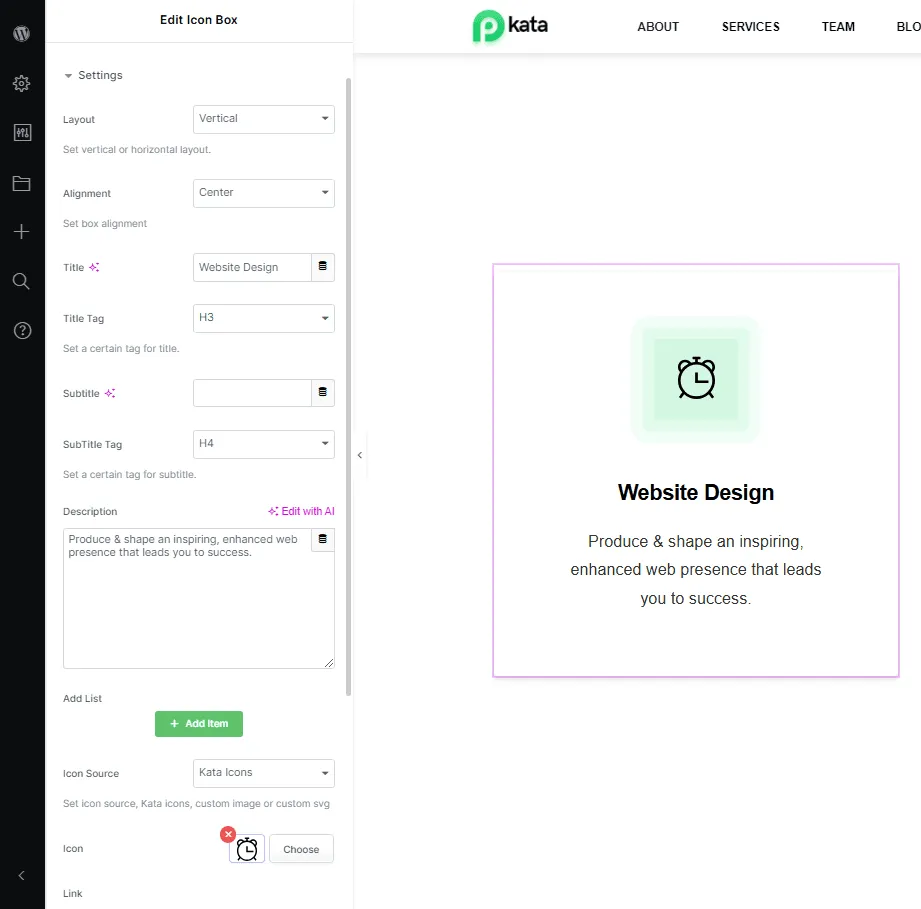
So let’s assume you want to change the icon displayed on this page and use your custom icon. Follow these simple steps:
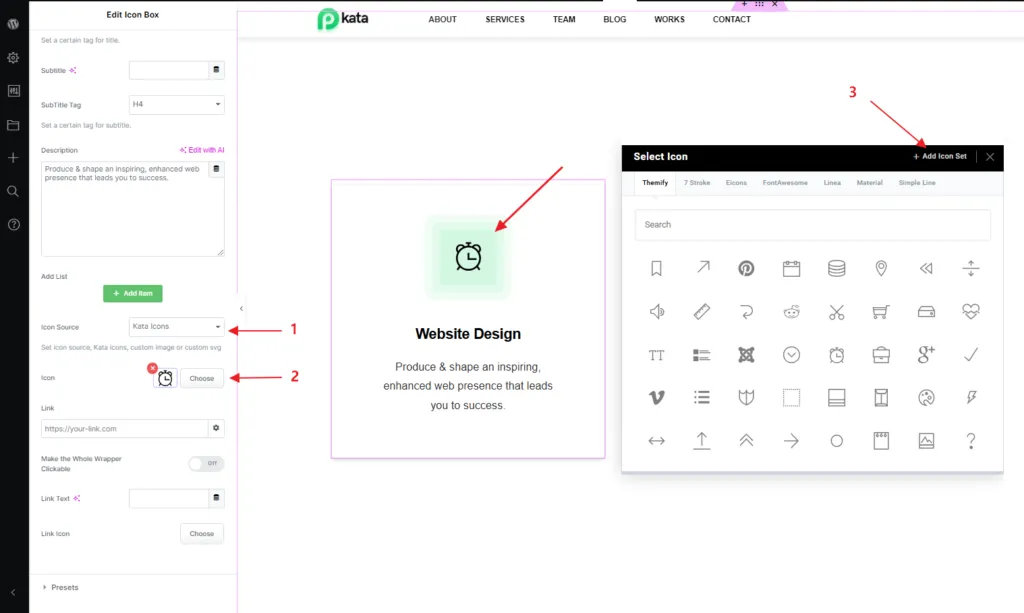
1- First we set the Icon Source on Kata Icons.
2- Next click on Choose.
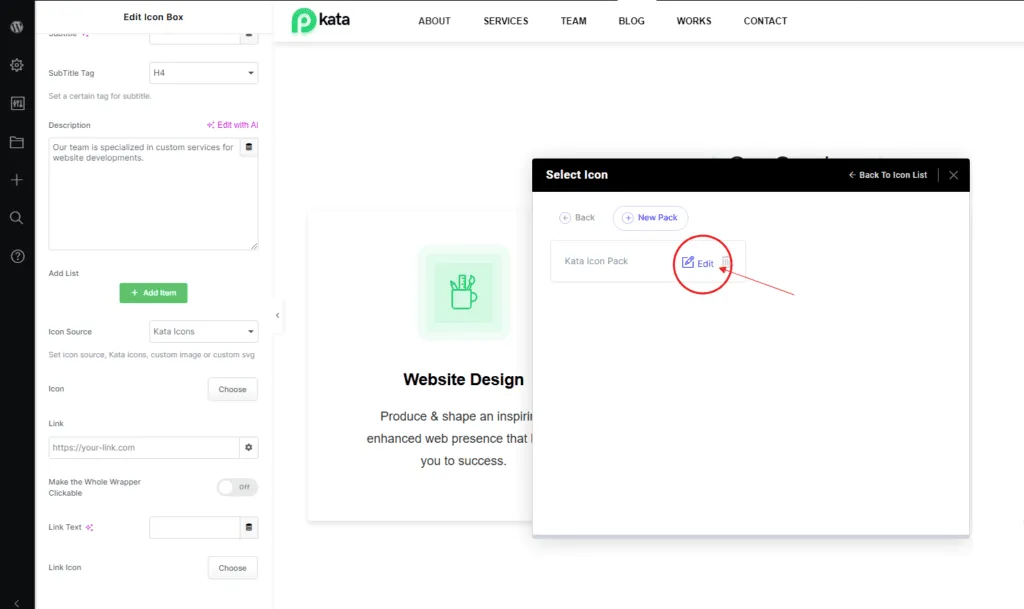
3- Click Add Icon Set on the newly opened window.
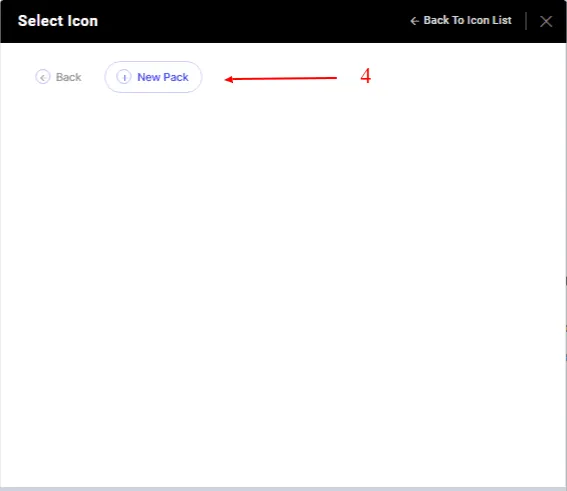
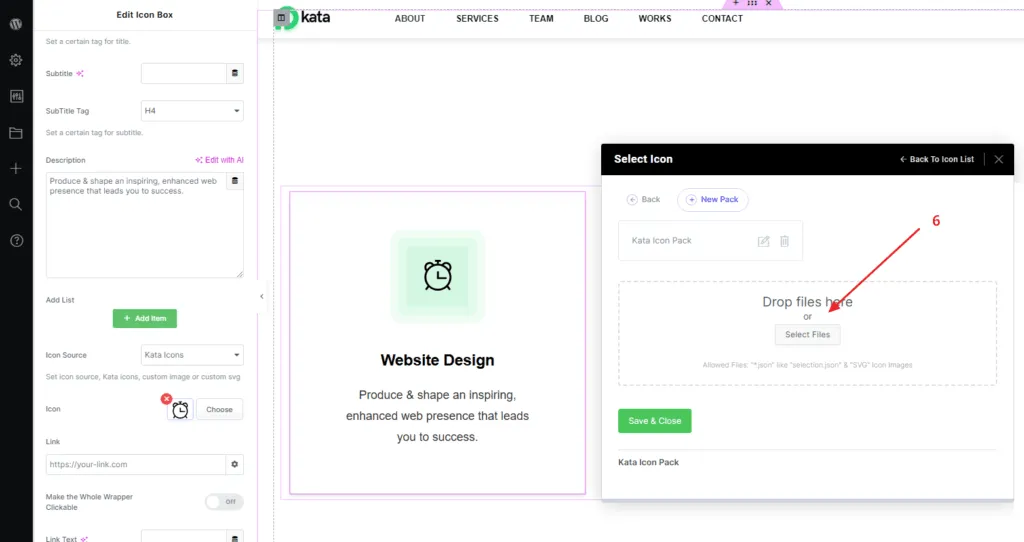
4- Click on New Pack.
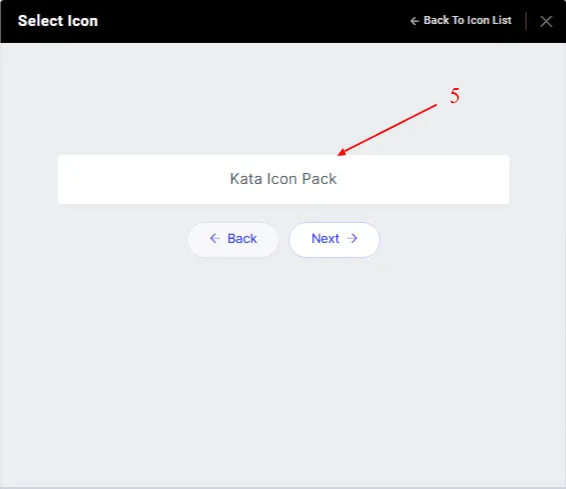
5- Select a name for your new icon pack and click “Next.”
6- Choose the icons you want by clicking the “Select Files” button or by dragging and dropping them.
You can upload one or more icons to include in your pack for future use.
Download SVG icons
Section titled “Download SVG icons”To download SVG icons you need to do the following:
1- First, log into your account on icomoon.io and open the IcoMoon App.
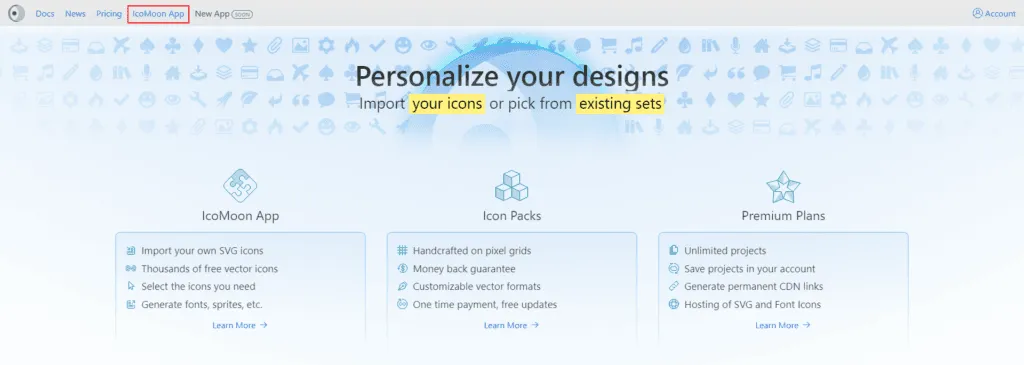
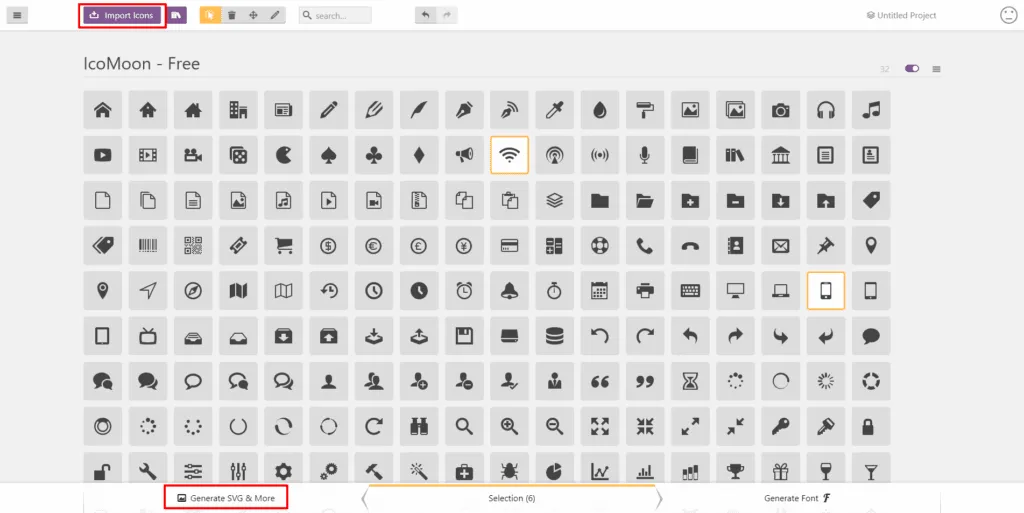
- Select or upload the icons you want to download.
- Click Generate SVG & More at the bottom of the page.
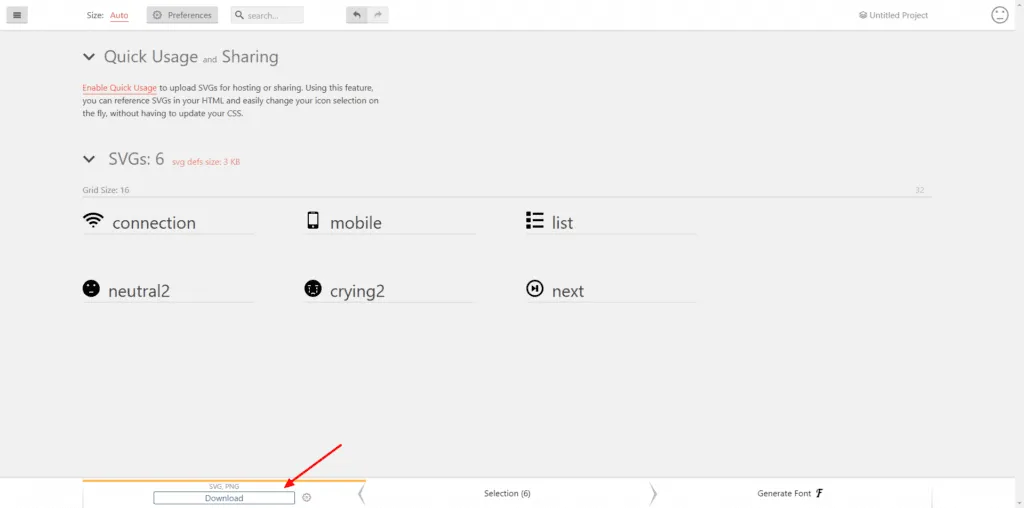
4- In the new screen, click Download to save your icons as SVG files in a zipped folder. Your SVG icons are now ready for use.
It is also possible to select, edit, and download icons individually. To do this you need to do the following
1- In the IcoMoon App, Click the Edit button (pencil icon).
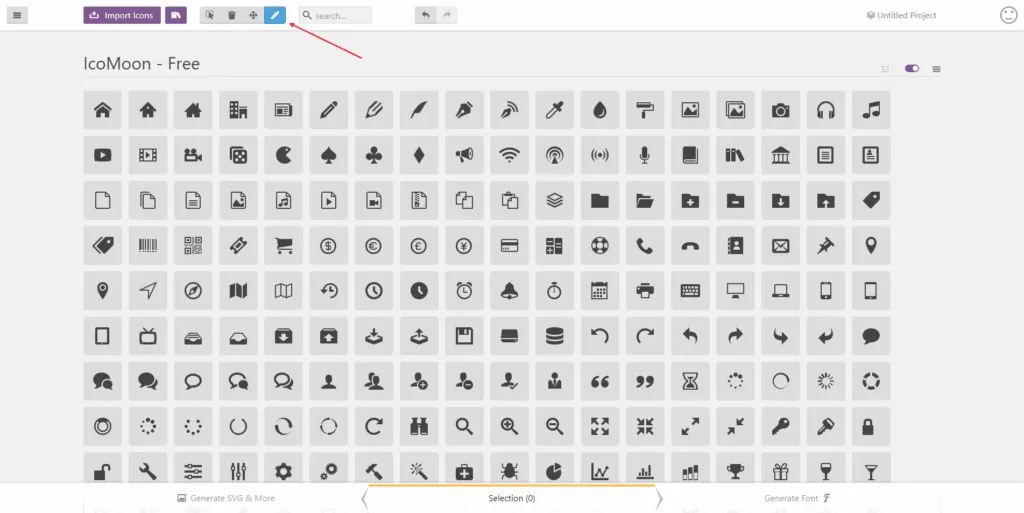
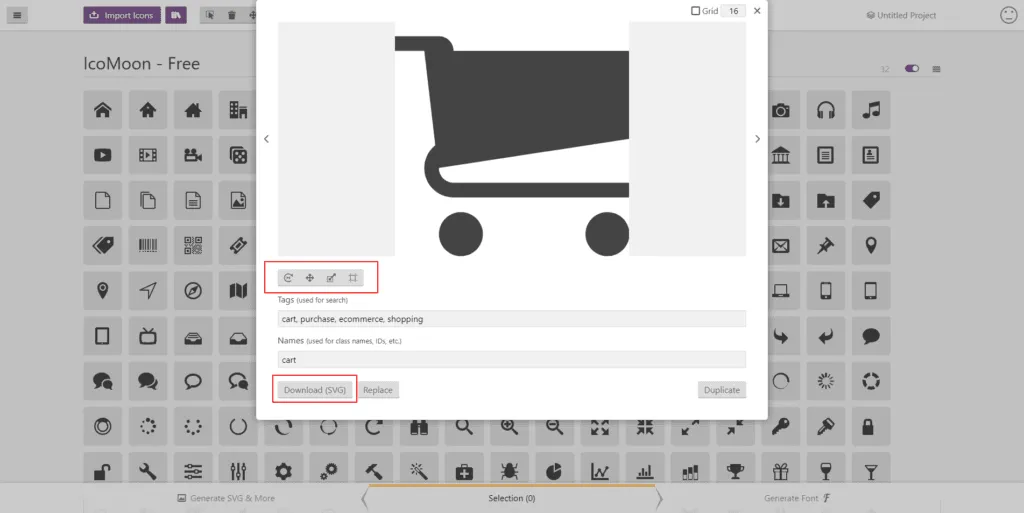
2- select the icon you want to edit by clicking it to open the icon editor.
3- Make any adjustments, such as resizing, mirroring, or rotating the icon.
4- To download the edited icon individually, click Download SVG in the editor.
This lets you customize and download icons one at a time.
We have uploaded several SVG icons here to illustrate our point.
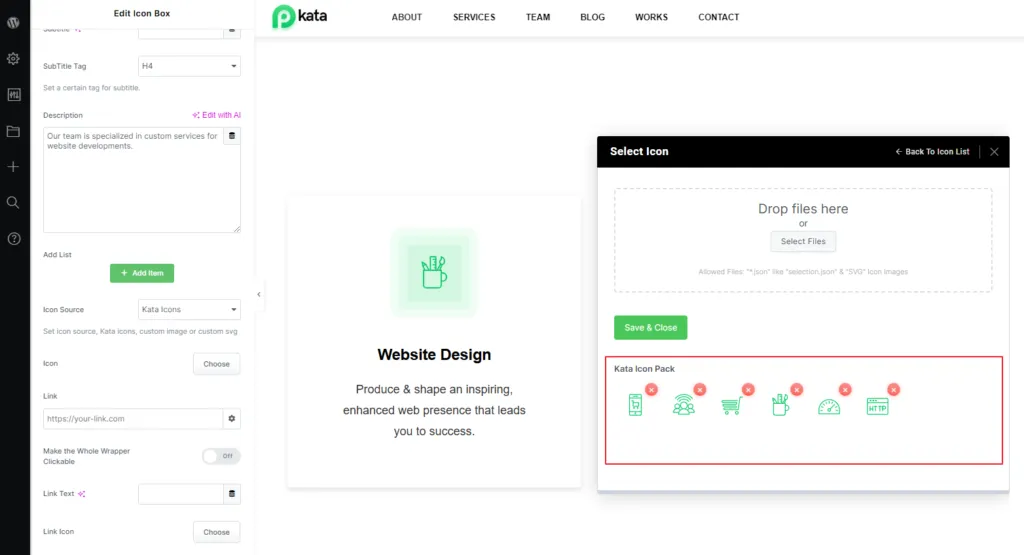
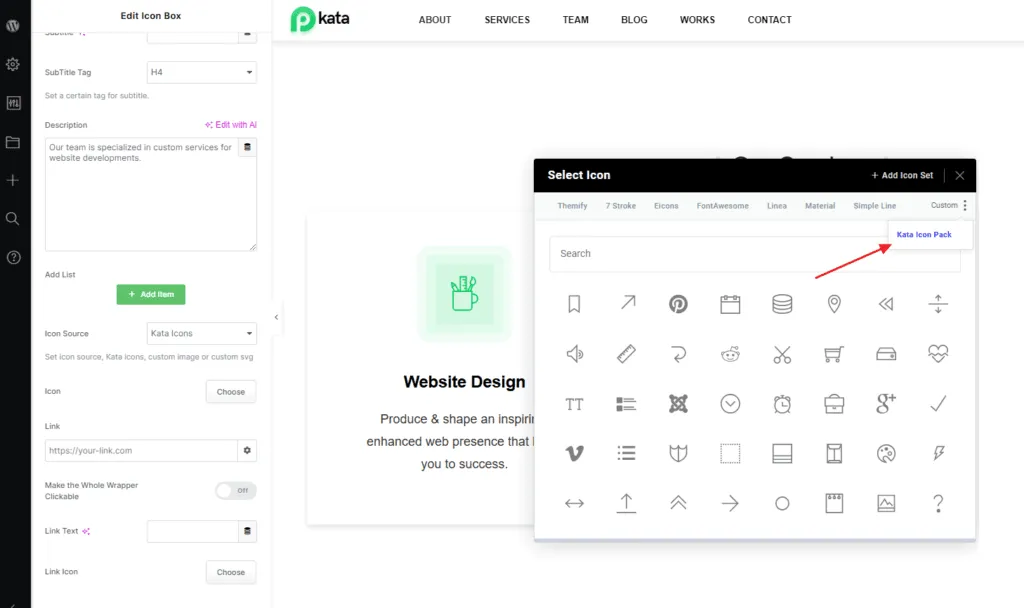
You can place your uploaded icons on the page by simply clicking on the icon.
As you can see, our newly added icon set has been added to the main icon pack.
This window allows you to either edit or add an icon pack.
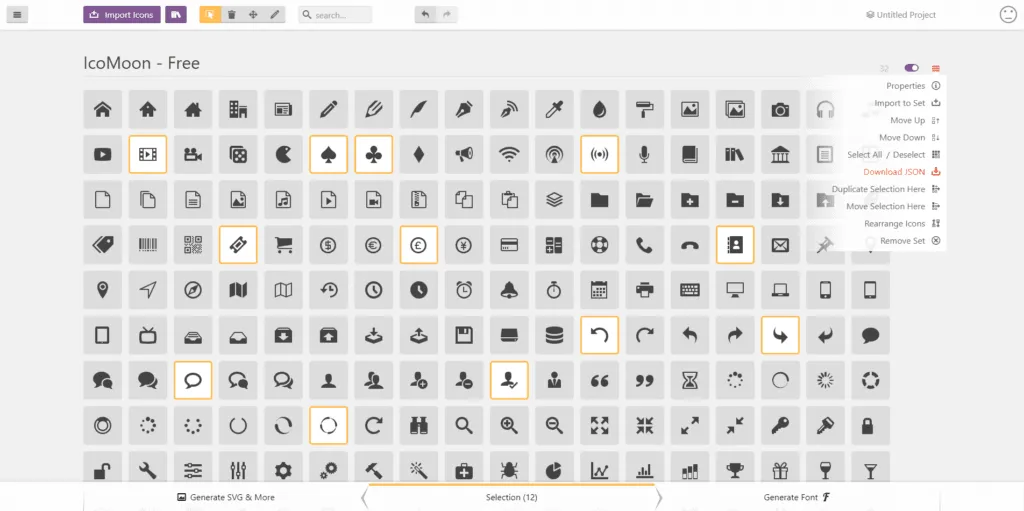
You can also download an icon pack from icomoon.io, rename its JSON file to selection.json, and upload it here to load all its icons. Here’s how to do it:
1- Click on the IcoMoon App in the top menu.
2- Select your desired icons, then click on Download JSON from the icon in the upper right corner.
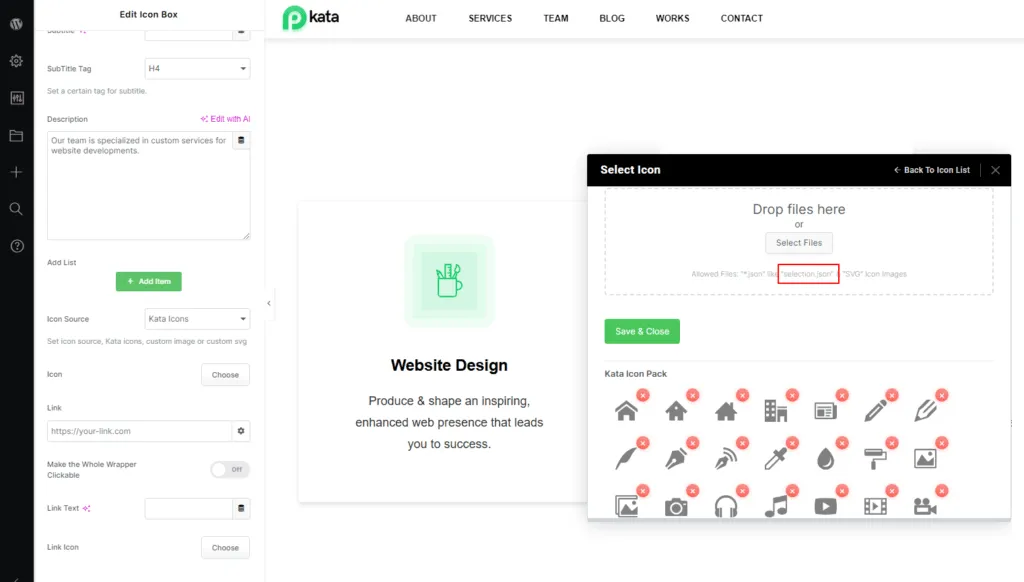
This is the quickest way to access new icons in the Icon Manager.