

Testimonial Option
Testimonial
Section titled “Testimonial”In the Kata theme, the Testimonial feature allows you to showcase positive feedback from customers, users, or colleagues in an appealing and professional layout. This section is useful for building trust with visitors and enhancing your site’s credibility. You can display testimonials as text or include the reviewer’s photo and name. The Testimonial feature is commonly used on homepages or service pages, providing visitors with insights into real experiences, which encourages better engagement with the site.
There are two ways to use the Testimonial feature.
First Method:
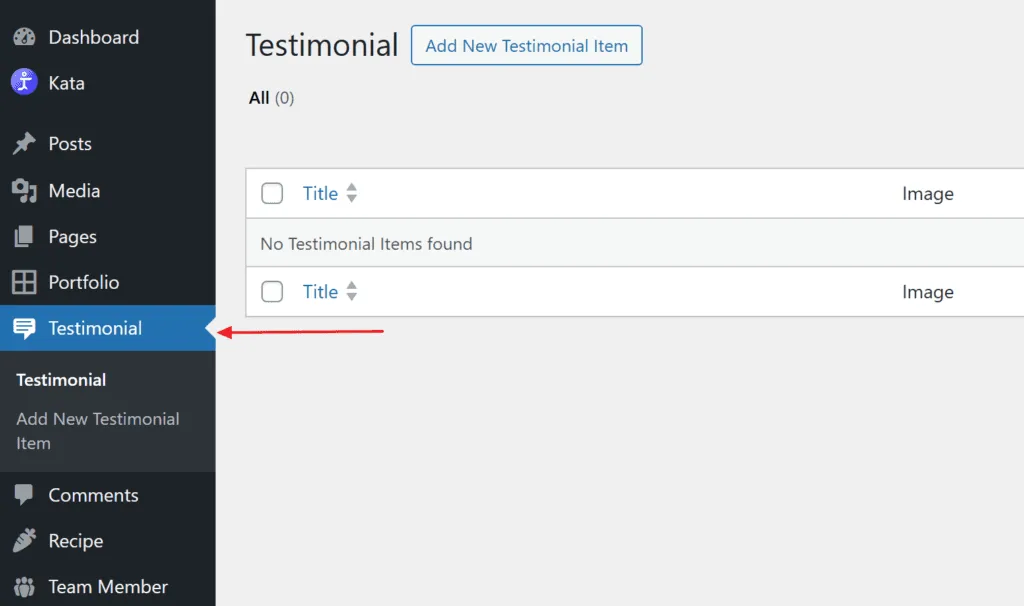
Section titled “First Method:”Select the Testimonial feature from the left side WordPress menu. Here you can view previous testimonials or add new ones.
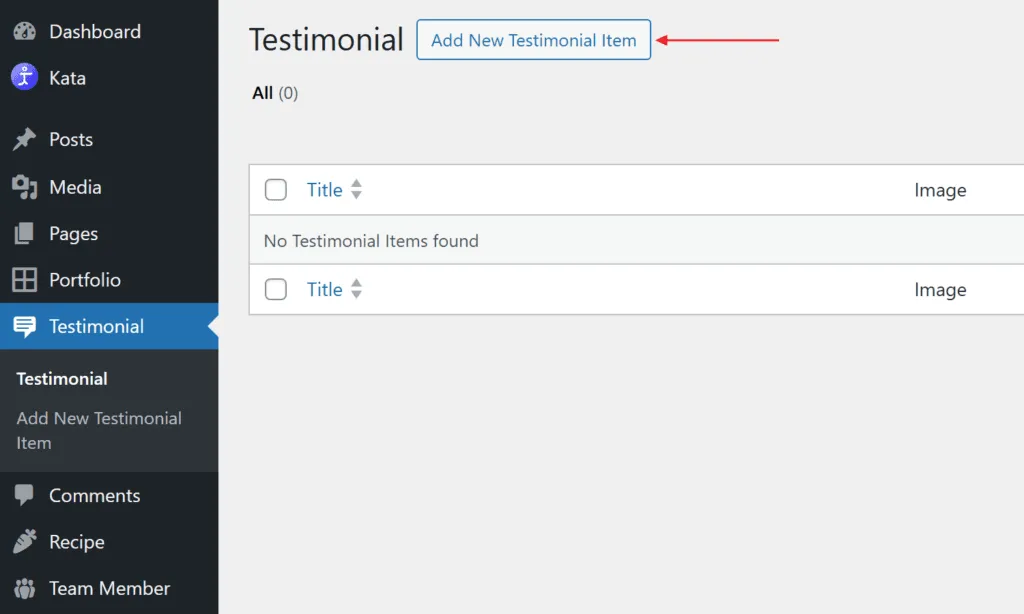
Click on Add Testimonial Item to add a new testimonial.
This page acts similar to a blog post page but in it, you can add all the relevant information for a testimonial.
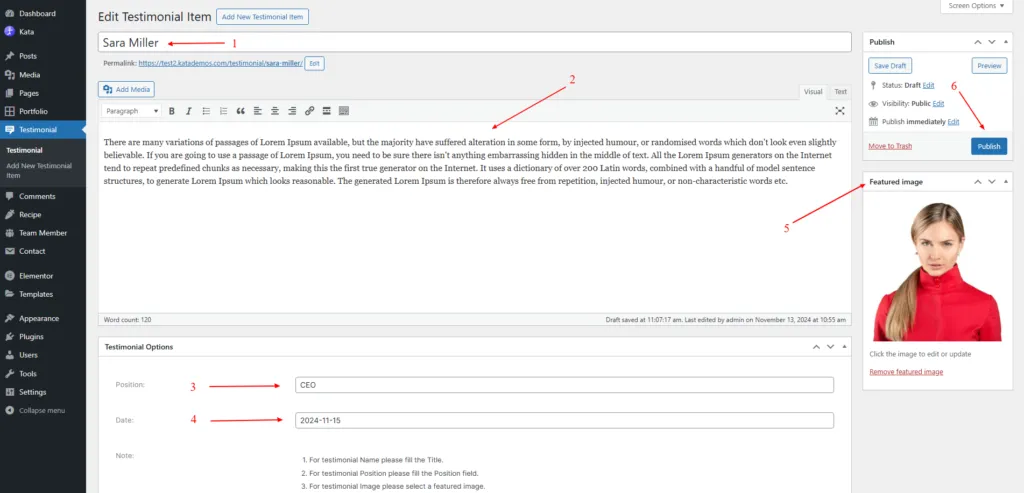
1- Enter their name
2- A testimonial description is added here
3- The position of the person giving the testimonial
4- The date of the testimonial was received
5- Picture or logo of the entity giving the testimonial
6- Click on Publish to save all this information
After we’ve added all the necessary testimonials for our project, we move on to the editing page to add them.
Search for the Testimonial widget from the search area.
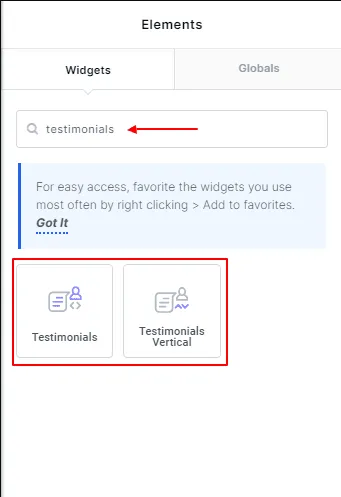
Note: To use the Testimonial widget you’ll need to make sure that the Post Type option Read from Testimonial Post Type is turned on.
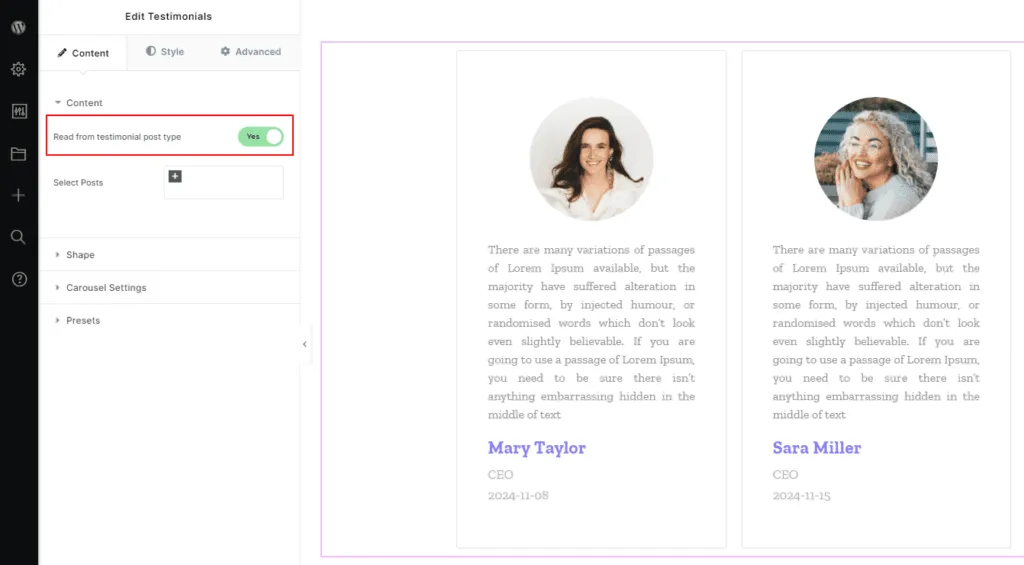
From the Testimonial Carousel Settings tab, you can change certain settings for your testimonials.
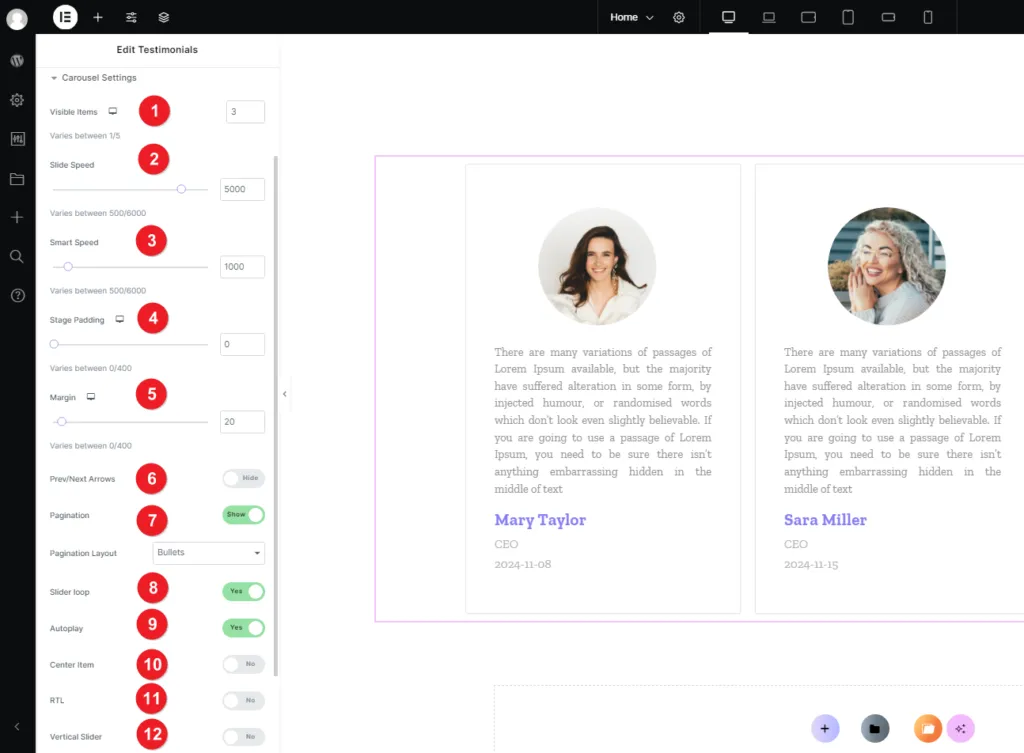
1- Number of items in each row
2- Slide speed
3- Set smart speed
4- Set stage padding
5- Set margin
6- Display arrows
7- Pagination display
8- Slider loop
9- Autoplay
10- Center items
11- Support RTL
12- Vertical Slider
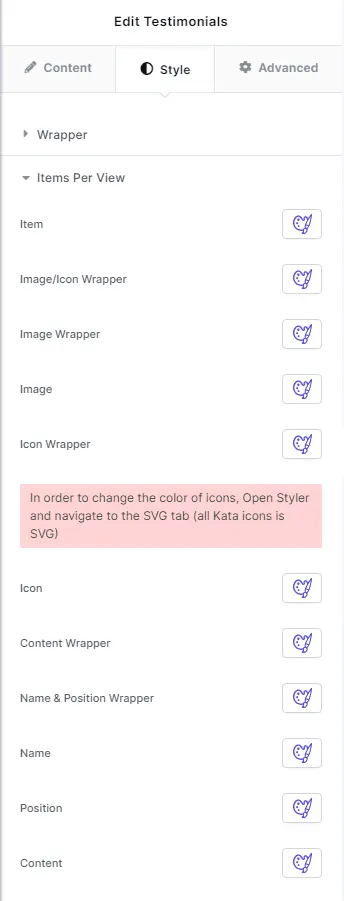
From the Style tab, you can modify certain elements in the Testimonial such as Name, Date, Position, etc.
Second Method:
Section titled “Second Method:”This is a more direct way of adding a Testimonial directly from the backend.
Note: To use the Testimonial widget on the editing page you’ll need to make sure that the Post Type option Read from Testimonial Post Type is turned off.
You can add as many testimonials as you want by clicking the “Add Item” button.
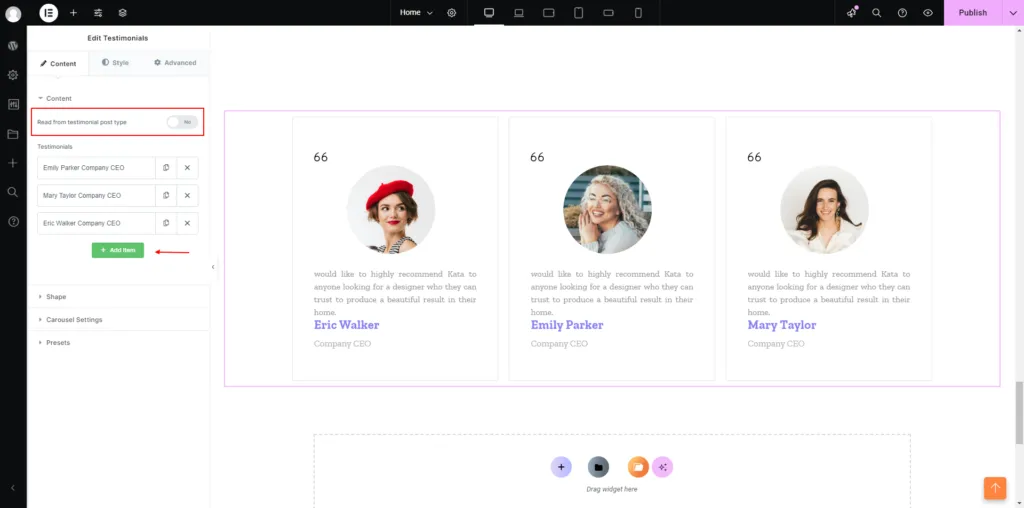
By clicking on each testimonial, you can adjust specific settings for them.
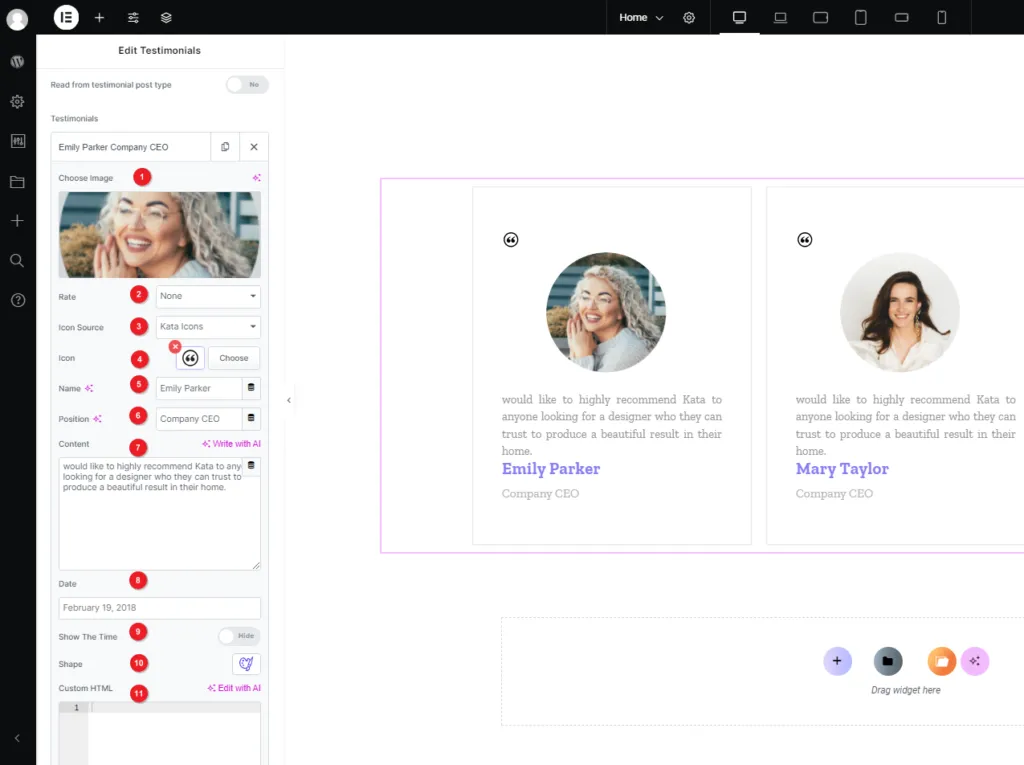
1- Choose your desired image
2- Choose rate
3- Choose the icon type
4- Choose an icon
5- Set name
6- Set role
7- Set description
8- Date of the testimony
9- Display time
10- Display shapes
11- Add custom HTML
And once again, we can edit some data regarding the team members from the Style tab similar to the first method.