


You can add Google Analytics 4 (GA4) to a Kata website without an extra plugin. You create a GA4 property, copy its Google tag, and paste the tag into Kata’s Custom Codes option. The old Universal Analytics “Tracking ID” (UA-XXXX) no longer collects data, so use a GA4 Measurement ID that starts with G-.
Step 1: Create a GA4 property and web data stream
- Go to Google Analytics and sign in with your Google account.
- Open Admin and click Create > Property. If you don’t have an account yet, Google asks you to create one first.
- Enter a property name, your reporting time zone and currency, then answer the business questions.
- When asked to choose a platform, select Web, enter your website URL and a stream name, and click Create stream.
Step 2: Copy your Google tag
- In the web stream details, click View tag instructions and choose Install manually.
- Copy the whole snippet. It starts with
<!-- Google tag (gtag.js) -->and contains your Measurement ID (G-XXXXXXXXXX).
Step 3: Paste the tag into Kata
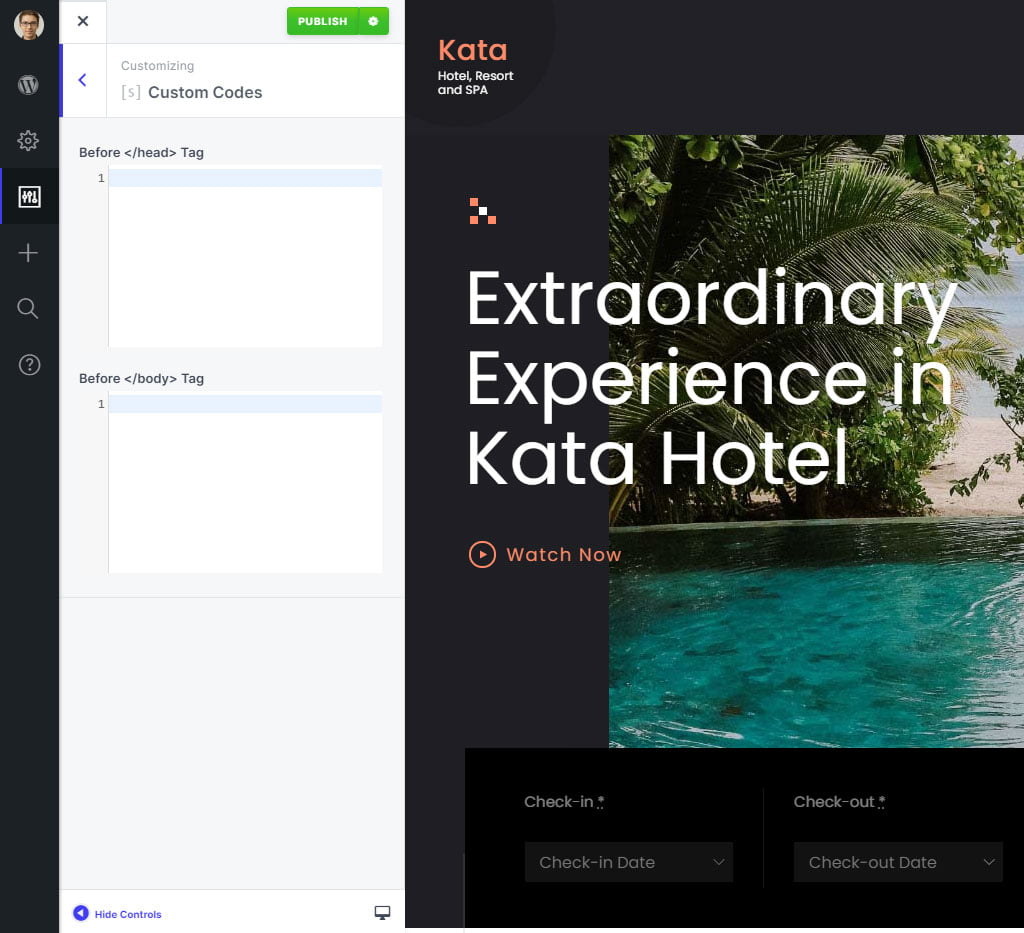
- In your WordPress dashboard, go to Kata > Options (Customizer).
- Open Custom Codes and paste the snippet into the Before </head> tag field.
- Click Publish.
Step 4: Check that data is coming in
Open your website in a new tab, then go to Reports > Realtime in Google Analytics. Your visit should appear within a minute or two. If it doesn’t, clear your site and CDN cache and check that the tag is not blocked by an ad blocker.
Tip: add the tag in one place only. If a plugin such as Site Kit already adds Google Analytics, don’t paste the snippet in Kata as well, or every visit will be counted twice. If your site needs visitor consent before tracking, set this up together with Kata’s GDPR option or your consent tool.