



You can customize every WooCommerce pages using Elementor page builder
ShopPress Builder offers this option and it allows your users to simply filter products by Category, Brand, Color, Rating, Tag, Size and Price, and find what they are looking for in a matter of seconds.
Off-Canvas panel widget is a fly-out content panel for showcasing contents like WooCommerce Filter, Wishlist, Cart etc. This panel can be in various formats like, Drop-Down, Popup and Slide-in.
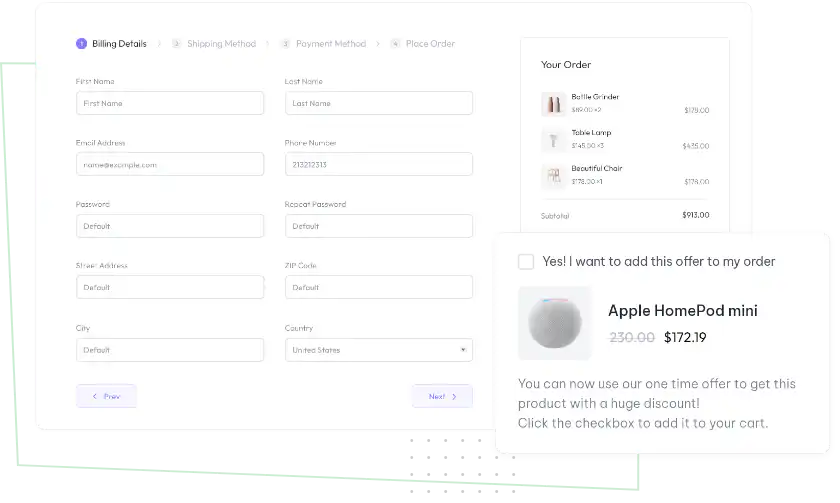
Displays a customizable popup containing a last-minute offer in the checkout stage in order to persuade buyer and increase the overall sale.

This convenient feature offers us the opportunity to curate alluring complementary offers that are seamlessly integrated with the customers' current purchases and presented in an irresistible fashion. Its implementation serves to enhance the overall shopping experience, while also potentially increasing sales revenue.
By providing these last-minute offers, we can increase the chances of our customers buying more items, resulting in a more profitable website. Therefore, it's crucial to take advantage of the benefits offered by the Order Bump module to enhance our sales and improve our business results.
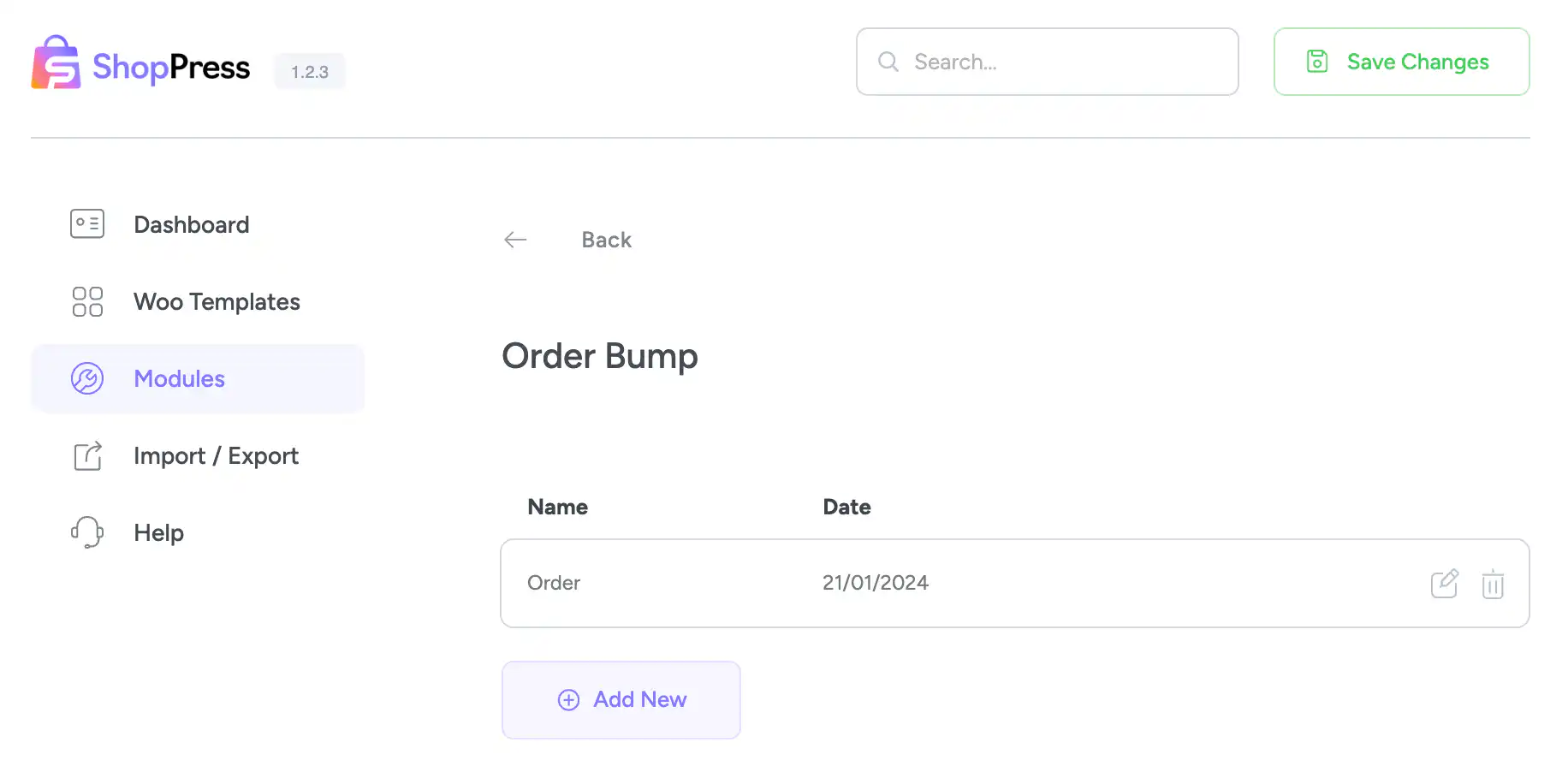
ShopPress Order Bump shows a last-minute offer on the WooCommerce checkout page, so customers can add a complementary product with one click before they pay. You choose the product, its title, description, quantity and discount, where the offer appears, and rules for which customers see it, such as user role or cart total. Order Bump is a ShopPress Pro feature.
| Setting | What it does |
|---|---|
| Enable and Position | Turn the offer on and choose where it appears on the checkout page |
| Offer label | A label that highlights the offer |
| Product, title and description | Pick the product and override its title and description for the offer |
| Product quantity | How many units the offer adds |
| Discount base price, type and amount | Discount from the regular or sale price, by the type and amount you choose |
| Rules | Show the offer only to specific customer roles, cart totals and more |
Full guide: read the documentation →
No. Order Bump is part of ShopPress Pro.
Yes. You can create order bumps for multiple products and set conditions for each.
Yes. Use the rules to target cart totals, customer roles and more.
Yes. Choose a discount type and amount, based on the regular or sale price.
Last updated: November 2026

ShopPress fully compatible with most of the popular WooCommerce themes and plugins, is all you need to run a shop. For more information please refer to ShopPress knowledge-base.

Subscribe to our newsletter and receive our news and promotions
You can unsubscribe at any time