


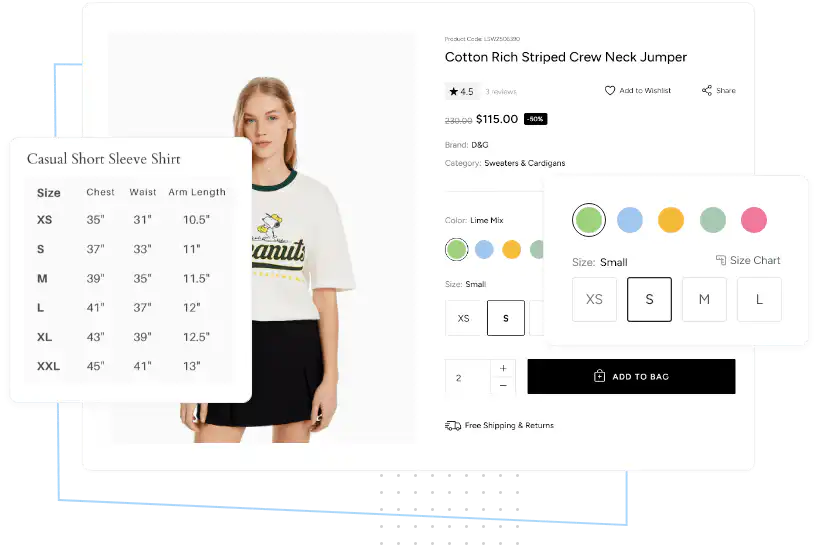

You can customize every WooCommerce pages using Elementor page builder
ShopPress Builder offers this option and it allows your users to simply filter products by Category, Brand, Color, Rating, Tag, Size and Price, and find what they are looking for in a matter of seconds.
Off-Canvas panel widget is a fly-out content panel for showcasing contents like WooCommerce Filter, Wishlist, Cart etc. This panel can be in various formats like, Drop-Down, Popup and Slide-in.
WooCommerce Size Chart is a valuable e-commerce feature, helping customers find their perfect fit. It simplifies online shopping by displaying size recommendations for products, reducing returns and enhancing customer satisfaction.

Are your customers unsure about which size to choose when shopping online? Do you want to reduce returns and boost customer satisfaction? Look no further than the ShopPress Size Chart module - your ultimate solution for hassle-free sizing guidance!
Creating a product size chart has never been easier. With our platform, you can customize your very own size chart according to your product's specific requirements. Once you're done, you can easily save it as an image and assign it to a specific product or category. This feature allows your customers to make informed decisions when selecting the appropriate size for their purchase.
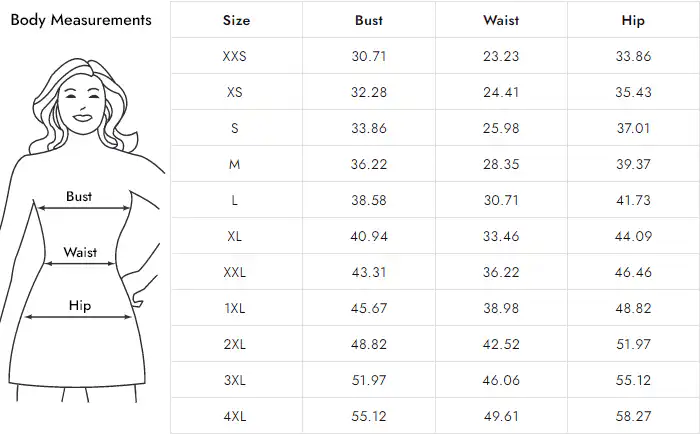
ShopPress Size Chart adds size guides to your WooCommerce products, so shoppers can check measurements before they buy. You create a chart, upload its image, and apply it to all products, selected categories or selected products. Shoppers open it from a size chart button (as a popup) or a product tab. Size Chart is included in both ShopPress Free and ShopPress Pro.
| Option | What it does | Free | Pro |
|---|---|---|---|
| Apply to all products | Use one chart across the store | ✓ | ✓ |
| Categories and products | Assign charts to selected categories or products | ✓ | ✓ |
| Popup or product tab | Show the chart in a popup or in the product information tabs | ✓ | ✓ |
| Button position | Choose where the size chart button appears | ✓ | ✓ |
| Elementor styling | Customize the size chart button in Elementor | ✓ | ✓ |
Full guide: read the documentation →
Yes. Size Chart is included in ShopPress Free and ShopPress Pro.
Yes. Create several charts and assign each to categories or products.
In a popup opened by a size chart button, or in the product information tabs. You choose the button position.
Any product that needs measurements, such as clothing, shoes and t-shirts.
Last updated: November 2026

ShopPress fully compatible with most of the popular WooCommerce themes and plugins, is all you need to run a shop. For more information please refer to ShopPress knowledge-base.

Subscribe to our newsletter and receive our news and promotions
You can unsubscribe at any time